1
Many beginners encounter difficulties when using the Jlink downloader, often facing various issues that can be quite confusing. This document aims to illustrate some common problems and their solutions, providing reference for those just starting to use the Longqiu Jlink downloader, helping to reduce unnecessary efforts in their learning process. If there are any shortcomings, errors, or omissions in this document, we welcome feedback and contributions from everyone, and we encourage sharing this document as well. A rose given to others leaves a fragrance in the hand!
1
Common Issues and Solutions
The examples provided by Longqiu have been tested and generally do not show compilation errors. Therefore, if you encounter errors like in Problem 1 during compilation, it is likely due to using an outdated version of IAR. Most of our new examples require IAR version 8.2 or later, so please update your IAR version if you encounter the following error messages.
Those needing IAR 8.22 can visit IAR’s official download site or contact the store customer service for assistance.
01
Problem 1
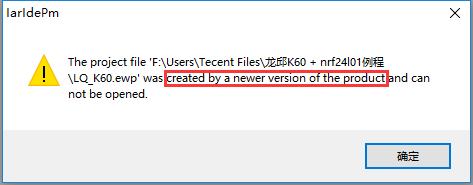

Solution:
Update the IAR version to the one mentioned in the program comments.
02
Problem 2
If you encounter the following situation during download, this is the most frequently asked question. First, check if the downloader and the microcontroller are connected stably and if the interfaces correspond correctly, and ensure that there is no short circuit at the microcontroller’s positive and negative terminals, and that the power indicator is lit normally.
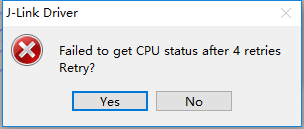
Solution:
(1) Ensure that the download cable from the downloader to the microcontroller is connected stably and that the interface definitions correspond correctly. If using Longqiu’s JLINK downloader and core board, simply connect the core board’s printed protrusion to the downloader’s 10PIN cable. If using another brand’s downloader or core board, ensure the interfaces correspond, commonly using JTAG and SWD download modes. The left image shows the JTAG download interface for Longqiu’s core board for your reference.
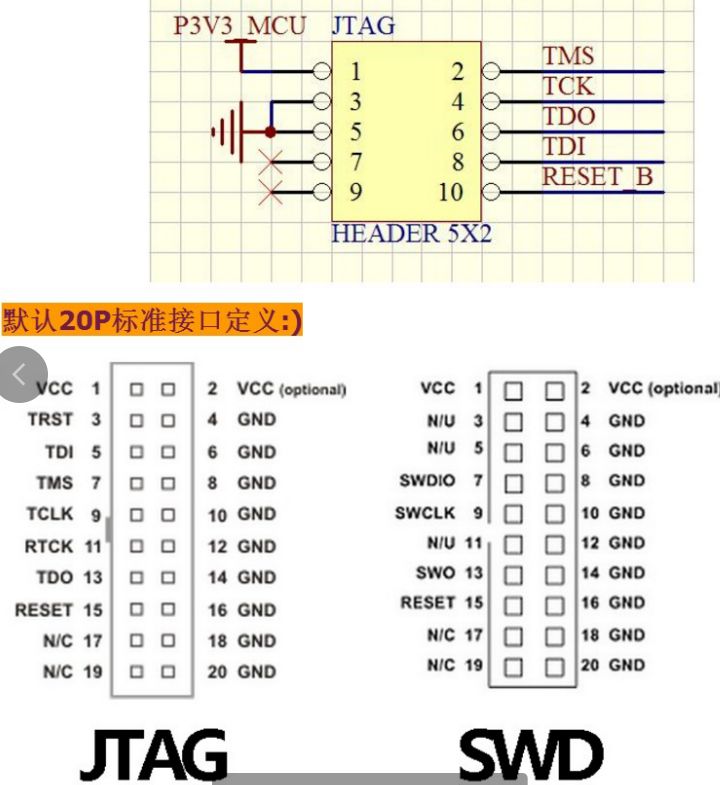
(2) If the error from the above image still appears after confirming the download interface, it is possible that the microcontroller is locked. You can attempt to unlock the microcontroller. Here are two commonly used unlocking methods:
① The first method is relatively simple. Open J-link Commander (included with the JLINK driver, you can search for J-link Commander on your computer to use it), and in the J-link Commander command window, enterunlock kinetis and then hold down the reset button on the core board while pressing the enter key on the keyboard (the downloader’s RST pin needs to be connected; if using SWD mode, please connect the RST as well). If the window showsunlock OK, it indicates that unlocking was successful, and you can try downloading the program again.
② If it still cannot be unlocked, you can try the next method:
Use J-Flash software for the erase operation.
1
Introduction to J-FLASH (Erase)
Link:https://mp.weixin.qq.com/s/
nukZ0sQNVavOn0zTZXKt_w
(3) If all unlocking methods have been tried and you still cannot download, and the error message from Problem 1 appears, please checkthe core board, downloader, download cable, USB cable, computer USB port, and examples, using a single variable method to replace one at a time and try downloading again to locate the specific problem.
03
Problem 3
When encountering the following error during program download, it is generally due to an incorrect flashloader file path. Of course, if you use the new version of the example that has already modified the configuration, this issue will not occur. To avoid trouble, please download the new version of the example directly. If you are using an old version of the example and do not want to change, there are two solutions.

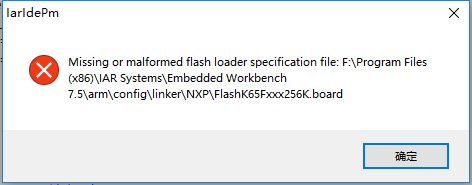
Solution 1:
(1) Open project settings:
Right-click on the project name – clickoption to open the settings box as shown in the image

(2) ClickDebuger then go toDownload section.
(3) Set the correct file path to
【$TOOLKIT_DIR$
configlashloader\NXPlashK65Fxxx256K.board 】
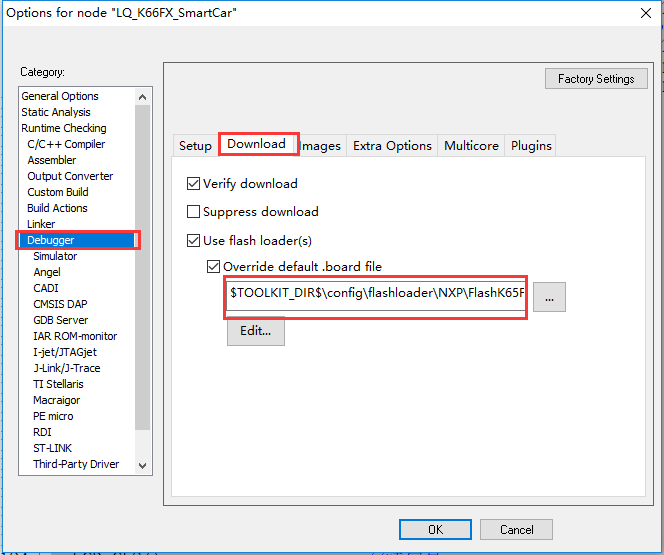
(4) Then ensure that yourIAR tool’sflashloader file path contains the file FlashK65Fxxx256K.board
If it is not present, you can copy the file from our provided project at
src\nProject_Setting\nLinker_Files to theIAR tool’sflashloader directory. The image shows the path of theIAR tool’sflashloader directory.
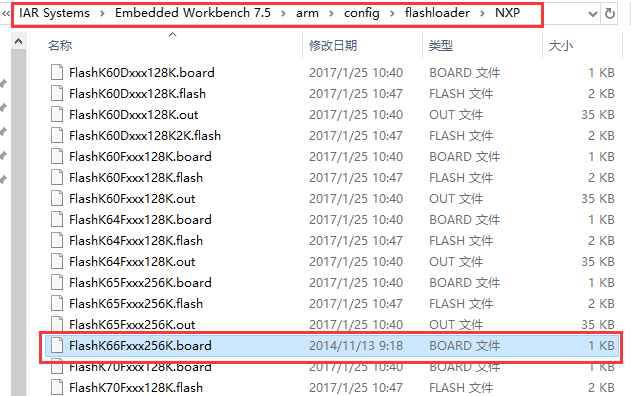
After setting these, you should be able to download normally. The option shown in the screenshots has already set the path correctly.
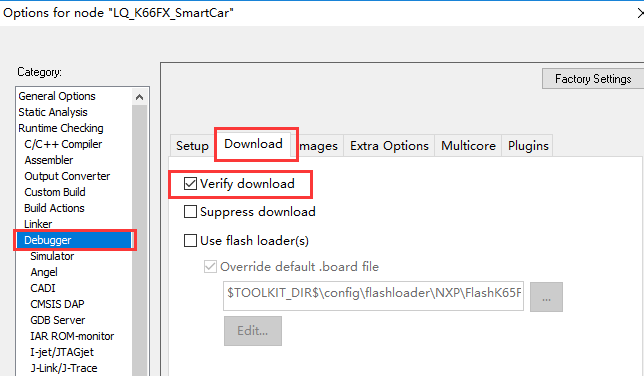
Solution 2:
This method is quite straightforward. Follow the same steps as in Method 1 to reach theoption settings and set it as shown in the image to enable download debugging.
04
Problem 4
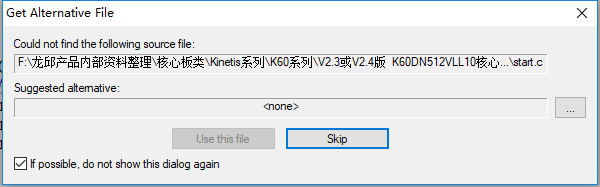
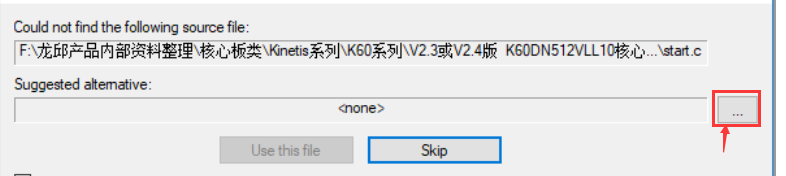
When downloading, if you encounter the following prompt:
Solution:
You can directly clickskip or click the three dots on the right to select the corresponding file from the specified path.
05
Problem 5
Some users report that after downloading the program, everything runs normally at full speed, but once the downloader is unplugged or the power is cycled, the program is lost or reverts to the previous version. This situation is likely because the program was downloaded to RAM, which loses its content on power loss; it should be downloaded to flash memory instead.
Solution:
Similarly, go to the option settings, click on the Linker section, and set the linker file to the flash file as shown in the image:
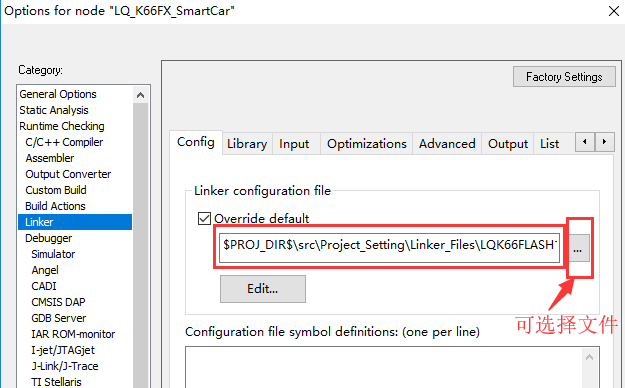
If this is set to LQK66RAM256K.icf, you will need to select the file yourself by clicking the three dots on the right and choosing the corresponding LQK66FLASH1M.icf file, as shown in the image:
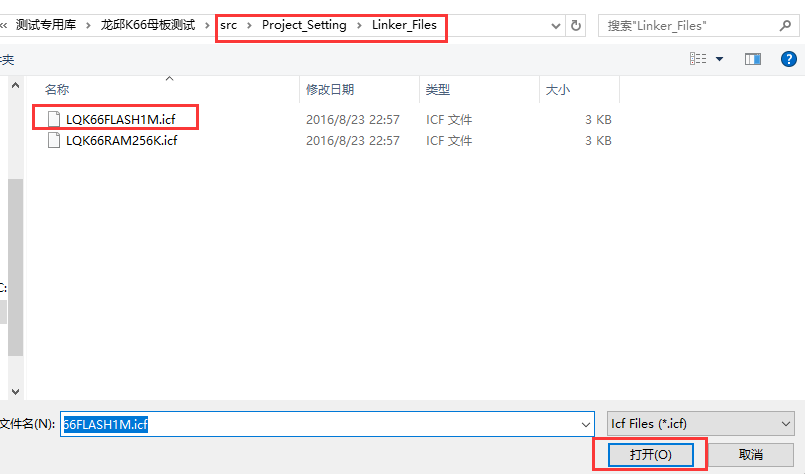
After opening, click [OK] to proceed.
Once the correct icf file is selected, you should be able to download and run normally without losing the program on power loss.
Of course, if you use the new version of the example that has already modified the configuration file, this issue will not occur, so to avoid trouble, please download the new version of the example directly.
06
Problem 6
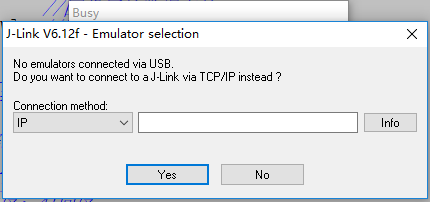
When encountering this problem, it is generally due to the downloader not being plugged in or the driver not being installed, or you are not using JLINK.
Solution:
(1) Check if the downloader’s USB port is connected stably, if the USB cable is intact and undamaged, and ensure that the project settings select the JLINK download method.
(2) Verify if the driver is installed correctly by checking the device manager on your computer to see if it recognizes the driver. If recognized, it should look like this:

(3) Check if the USB cable is functioning properly.
(4) If all the above conditions are confirmed, try replacing the downloader to see if it resolves the downloading issue.
(5) If the download indicator light is off, it could also indicate that the firmware is missing. If using Jlink V8, refer to the Jlink V8 firmware update instructions V1.2 (provided in the Longqiu JLINK materials) to perform a firmware update, and then try downloading again. If using Jlink V9, it will need to be returned for repair.
07
Problem 7
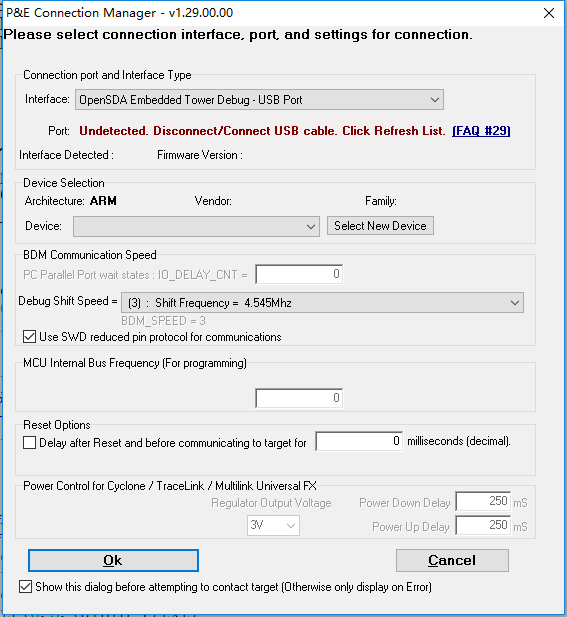
When encountering this prompt while using JLINK for downloading, it is highly likely due to an incorrect download method being selected.
Solution:
Check the project settings in option-Debugger and select the download method Driver as J-Link/J-Trace, as shown in the image:
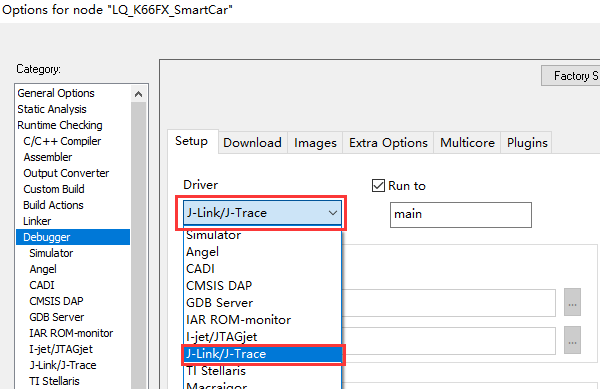
After setting, you should be able to download normally with JLINK. If using Longqiu’s ARMJTAG, the Driver should be set to PE micro for downloading.
This concludes the summary of common download issues. If there are any shortcomings or omissions, please feel free to point them out and contribute. We also welcome everyone to share this document.