[A Must-Read for Obstetricians] Screen Not Accurate? Data Not Displaying? Don’t Let Operational Delays Affect Monitoring Efficiency!
As a “reliable partner” for obstetric medical staff, the accuracy of the Edan F15 fetal monitor is directly related to maternal and infant safety. But have you ever encountered issues such as slow response during operation, significant deviation between icon positioning and fingertip, or even difficulty in quickly retrieving critical monitoring data? This is likely a signal that the touch screen needs calibration!
Today’s article is extremely practical—we will guide you step-by-step to complete the calibration of the Edan F15 touch screen in just 3 minutes, restoring the device to a smooth state where it responds accurately to your touch, ensuring reliable fetal heart monitoring every time. Follow the steps to learn how to maintain precise operation!
The Edan F15 fetal monitor is equipped with a 15.6-inch high-definition fully bonded touch screen. The screen supports operation with gloves or wet hands, suitable for the frequent handwashing scenarios in obstetric clinics, and its slim design facilitates cleaning and disinfection, reducing the risk of cross-infection. It features a user-friendly UI interface, simple operation, easy modification of basic settings, and most functions can be completed in two steps, with one-click switching of patient data. The high-definition resolution clearly presents six synchronized monitoring data points and various waveforms, supports multiple interface modes, and allows for clear data viewing from a distance, meeting the monitoring and operational needs in different obstetric scenarios.
Touch Screen Calibration:
When the device does not respond correctly to each touch on the touch screen, please follow these steps to calibrate the touch screen:
1. Open the system settings menu.
2. Select touch screen calibration.
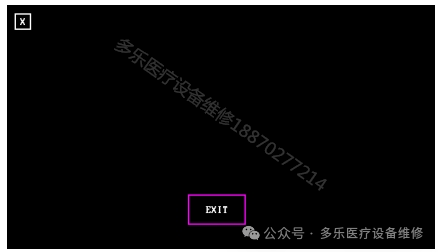
3. Sequentially touch the cross marks on the screen. Once calibration is complete, this menu will close.
Note:
If the touch function fails and you cannot enter the calibration interface, please use a USB keyboard. Connect the USB keyboard to the USB port of the monitor and use the up/left/right keys and the ENTER key to enter the calibration interface. If the touch function still cannot be completed or calibration cannot be performed, please refer to “Touch Screen Malfunction” for service support.
The above is a guide to calibrating the touch screen of the Edan F15 fetal monitor. If you would like the “EDAN-F15_series-Maintenance Manual.pdf”, please like, recommend, and leave a message with 888, and customer service will contact you proactively.

Related Articles:
Philips VS2+ Monitor Software Upgrade
How to Calibrate the Touch Screen of the Edan F9 Monitor
Pre-Check Preparations for the Philips FM20 Fetal Monitor
Comprehensive Medical Equipment Service Expert – Xinyu Duole Biotechnology Co., Ltd.