Many people encounter situations where the touch screen becomes unusable due to faults while using it. This is mainly because the touch screen is a relatively precise device, and its open usage nature leads to high usage frequency and varying user skill levels, resulting in frequent faults. Below are some common faults and maintenance methods for touch screens:
When a fault occurs with the touch screen, first check whether the control card is powered normally, whether the Windows driver is correctly installed, and whether the touchscreen calibration under Windows has been completed. Check if the parameters in ‘TouchscreenControl’ are correct, and also verify that the serial port is functioning properly and the serial cable is connected correctly.
Here are some examples to illustrate the diagnosis and handling methods for touch screen faults.
1. Touch Screen Not Accurate
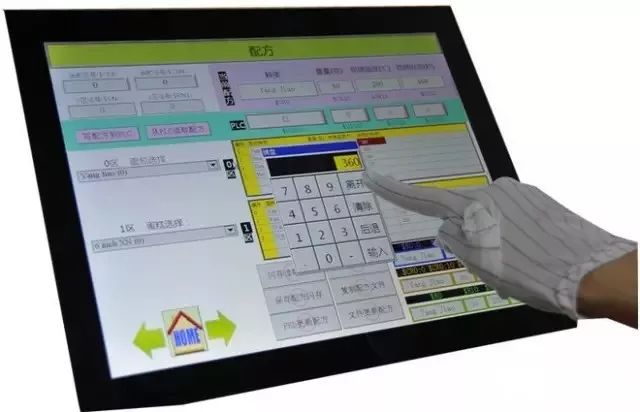
Fault Phenomenon: A surface acoustic wave touch screen cannot perform the corresponding operation when touching the display screen with a finger.
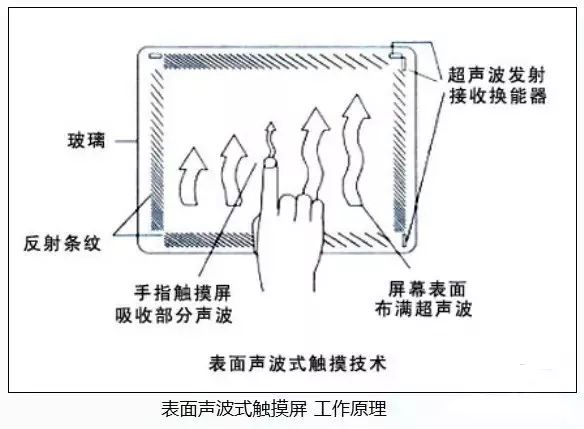
Fault Analysis and Handling: This phenomenon may occur if the reflective stripes around the screen of the acoustic touch screen are covered with dust after a period of use. A soft dry cloth can be used to wipe it clean, then power off, restart the computer, and recalibrate. It may also be that the reflective stripes of the acoustic screen are slightly damaged, which cannot be completely repaired.
If it is a capacitive touch screen, the screen calibration program can be run under the following conditions: (Start — Programs — MicrotouchTouchware)
1) After the driver software is installed for the first time.
2) Each time the display resolution or display mode is changed.
3) Each time the display area is changed.
4) Each time the controller frequency is adjusted.
5) Each time the cursor does not correspond to the touch point.
After calibration, the data is stored in the controller’s register, so there is no need to recalibrate the screen every time the system starts.
2. Touch Screen Unresponsive
Fault Phenomenon: A touch screen does not work and does not respond when touching any part.
Fault Analysis and Handling:
First, check whether the wiring interfaces are loose, then check if there are conflicts with the serial port and interrupt number. If there are conflicts, adjust the resources to avoid them. Also check if there are cracks on the surface of the touch screen; if there are, replace it in a timely manner. Check if there is dirt on the touch screen surface, and if so, clean it with a soft cloth. Observe if the indicator light on the control box is functioning normally; when normal, the indicator light is green and blinking.

If everything above is normal, you can check the touch screen using a replacement method: first replace the control box, then the touch screen, and finally the host.
If it is a surface acoustic wave touch screen, you can perform the following repairs:
1. It is possible that one of the connections from the touch screen to the host key port (taking 5V working voltage from the key port) is not connected. Please check the wiring.
2. It may be that the serial port number selected during the installation of the touch screen driver does not correspond to the actual serial port number the touch screen is connected to. Please uninstall the driver and reinstall it.
3. It is possible that the host is a domestic original machine, and the installed operating system is an OEM version, which has been adjusted by the manufacturer, causing non-standard serial communication that is incompatible with the touch screen driver. If feasible, please format the hard disk, install the system, and then drive the touch screen.
4. The touch screen driver version may be too low; please install the latest driver.
5. Check if there are devices in the host that conflict with the serial port resources and adjust the hardware devices. For example, some network cards default to IRQ 3 after installation, which conflicts with IRQ of COM2. In this case, change the IRQ of the network card to an unused IRQ.
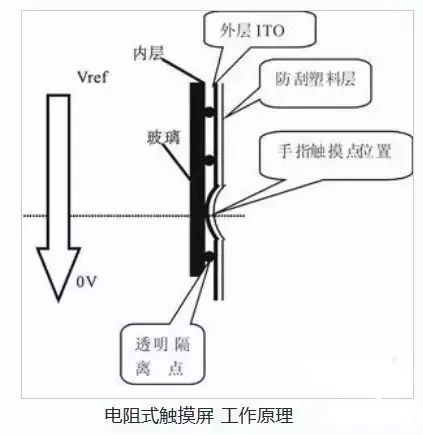
If it is a resistive touch screen, you can perform the following repairs:
1. Check if the wiring of the touch screen is correct. If it is an external control card, then the control box part is directly connected to the cable of the touch screen. Take the power part through a keyboard conversion head (you must first pull out the small rubber head next to the RS232 port connection head to insert the power line). Connect one end to the host’s key port and the other end to the computer keyboard. Insert one small end of the obtained 5V power into the connection of the 232 port and insert the RS232 connection head extended from the control box into the 9-pin hole of the host. If your host can use a 25-pin hole, please purchase a 9-25 adapter for conversion. If your host’s key port is an original small key port, please purchase a pair of adapters to convert from large keyboard to small keyboard.
2. If it is a built-in card type, check if the jumper is set correctly according to the control card’s jumper instructions. Due to the different configurations of users’ machines and the different peripherals used, MicroTouch provides jumper instructions for the control card to avoid conflicts between the touch screen and user peripherals. Control card address jumper setting instructions:
COM port settings
CommPortI/OA1A2A3A4A5A6
COM13F8-3FFONOFFONOFFONOFF
COM22F8-2FFOFFONONOFFONOFF
COM33E8-3EFONOFFOFFONONOFF
COM42E8-2EFOFFONOFFONONOFF
COM52E0-3E8OFFONOFFONOFFON
COM62F0-2F8OFFONONOFFOFFON
COM73E0-3E8ONOFFOFFONOFFON
COM83F0-3F8ONOFFONOFFOFF
The combination of COM port and interrupt jumper should be set as follows. Special cases are exceptions.
COM1->IRQ4|COM2->IRQ3|COM3->IRQ4|COM4->IRQ3
3. Long Touch Screen Response Time
Fault Phenomenon: A touch screen takes a long time to respond when touched with a finger.
Fault Analysis and Handling:
This may be due to droplets of water on the touch screen that need to be wiped off with a dry soft cloth. It may also be that the host is of too low a specification, such as having a low clock frequency; in this case, it is best to replace the host.
4. Touch Screen Partially Unresponsive
Fault Phenomenon: A touch screen does not respond in certain areas when touched with a finger.
Fault Analysis and Handling:
This may be due to the reflective stripes of the touch screen being partially covered; you can wipe it clean with a dry soft cloth. It may also be that the reflective stripes of the touch screen have been scratched off by a hard object, which cannot be repaired.
5. Touch Screen Normal but Computer Unresponsive
Fault Phenomenon: A touch screen works perfectly in tests, but the computer cannot be operated when connected to the host.
Fault Analysis and Handling:
This may occur if the touch screen control card receives an operation signal before the host starts loading the touch screen driver. Just power off and restart the computer. It may also be that the touch screen driver version is too low; you need to install the latest driver.
6. Touch Screen Unresponsive on First Start After Driver Installation
Fault Phenomenon: A touch screen does not respond on the first start after installing the driver.
Fault Analysis and Handling:
First, confirm whether the touch screen wiring is connected correctly. If not, power off and connect all wires correctly. Then check if there are devices in the host that conflict with the serial port resources; check and adjust the hardware devices. For example, some network cards default to IRQ 3 after installation, which conflicts with IRQ of COM2. In this case, change the IRQ of the network card to an unused IRQ.
7. Touch Screen Stops Responding After a Period of Use
Fault Phenomenon: A touch screen works normally for a period after startup and then stops responding.
Fault Analysis and Handling:
1. Check if the “Power Management Settings” in Windows 9x has been set to turn off the hard disk. The method is to right-click on the desktop, select the “Properties” command, then select the “Screen Saver” tab from the dialog box, click the “Settings” button, and set the parameters to “Always On” for the power scheme while setting the others to “Never”.
2. In some cases, due to poor grounding, a large amount of static electricity may accumulate on the control box shell, affecting the working electric field inside the control box, leading to gradual failure of touch. In this case, ground the control box shell with a wire and restart.
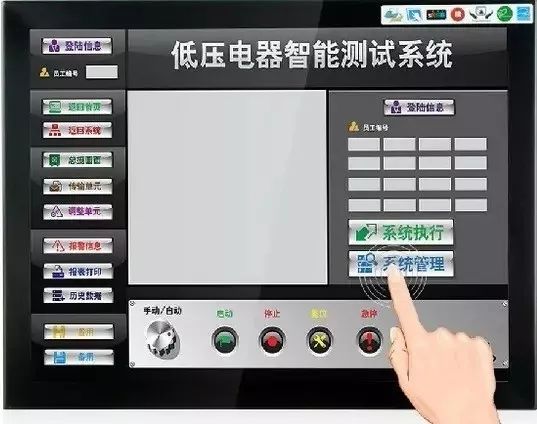
3. Many touch screen all-in-one machines use the method of taking power from the all-in-one machine’s power supply rather than from the host, so you should also check if the 5V output of the all-in-one machine’s power supply is correct. Sometimes excessive instantaneous current can cause the fuse to blow, and in this case, the fuse needs to be replaced.
8. Touch Screen Click Accuracy Decreases
Fault Phenomenon: A touch screen has decreased click accuracy, and the cursor is difficult to position.
Fault Analysis and Handling:
1. Run the touch screen calibration program. (Start — Settings — Control Panel — Acoustic Screen — Capberate button).
2. If it is a newly purchased touch screen, try deleting the driver, then power off the host for 5 seconds, power it back on, and reinstall the driver.
3. If the above methods do not work, it may be that the reflective stripes of the acoustic screen were slightly damaged during transportation and cannot be completely repaired. You can calibrate by offsetting the calibration target in the opposite direction (relative to the mouse offset).
4. If the acoustic screen becomes inaccurate after a period of use, it may be due to dust covering the reflective stripes or transducers around the screen. If you are using our company’s KA-type cabinet, you can open the top cover and clean the surface with a dry soft cloth dipped in industrial alcohol or glass cleaning solution, then restart the system. Be careful not to damage the transducers in the upper left, upper right, and lower right corners. Power off, restart the computer, and recalibrate.
5. If there are droplets of water or other soft substances stuck to the surface of the touch screen, remove them as they cause the surface acoustic screen to misjudge the touch.
Touch Screen Cannot Be Calibrated Fault Analysis and Handling:
1. If you are using a Lenovo host, it may have pre-installed MOUSEWARE software that conflicts with the touch screen driver. Please delete this software and restart to run the calibration program.
2. It is possible that the touch screen control card received an operation signal before the host started loading the touch screen driver. Please power off, restart the computer, and recalibrate.
3. The touch screen driver installation may be abnormal; please delete the driver and reinstall it (remove it from the control panel’s add or remove programs).
4. It is possible that the reflective stripes of the acoustic screen have been covered with a large amount of dust after a period of use, preventing calibration. If you are using our company’s KA-type cabinet, you can open the top cover and wipe the dust with a dry soft cloth, being careful not to damage the transducers. Start the computer and calibrate.
9. Mouse Stays at a Point on Touch Screen
Fault Analysis and Handling:
This situation occurs because the touch area of the resistive screen (the surface of the resistive screen is divided into touch and non-touch areas; clicking on the non-touch area does not respond) is pressed by the monitor shell or cabinet shell, equivalent to being constantly touched at one point. If the cabinet shell presses the touch area, you can increase the distance between the cabinet and the display screen. If the monitor shell presses the touch area, you can try loosening the screws of the monitor shell slightly.
10. Touch Screen Operation Unstable
Fault Phenomenon: A touch screen operates very unstably, sometimes clicking normally and sometimes not responding.
Fault Analysis and Handling:
For this phenomenon, focus on checking whether the wiring interfaces are loose and whether there are conflicts with the serial port and interrupt number.
This article is sourced from the internet, please delete if infringed.