 Search on WeChat
 Technical Training
Introduction:
This article will detail the steps for the online simulation connection between 200SMART and the touch screen via 485 communication. The software used in this article is SKTOOL 7.0.
01Hardware Connection
1. Connection Cable
The connection cable can be purchased from a seller on Taobao, specifically the Aimo Xun USB-PPI cable, as shown in Figure 1. Connect the computer and PLC using the USB-PPI cable, which will generate a COM port on the computer, eliminating the need for driver installation. Right-click on the computer—Manage—Device Manager, as shown in Figure 2, to modify the COM number if needed. If the COM port does not appear in Device Manager or is marked with a yellow exclamation mark, you need to download and install the driver.
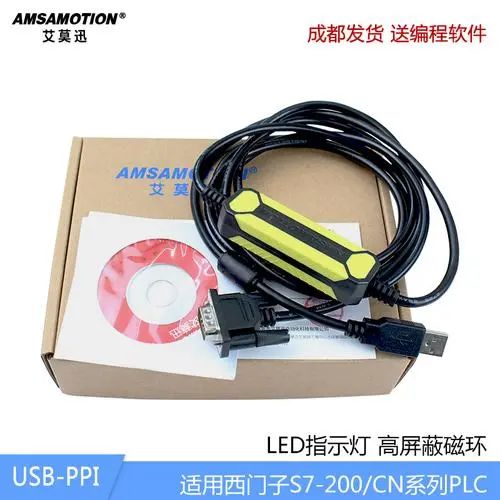
Figure 1
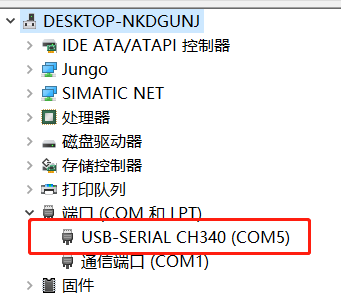
Figure 2
2. Driver Download
Ways to obtain the driver:
-
Request a driver package from the seller
-
Download the driver from the Aimo Xun official website, http://www.amsamotion.com/show_520.html, download the CH340 driver installation package.
3. Driver Installation
Connect the computer and PLC using the USB-PPI cable, open the downloaded driver package, double-click the installation program shown in Figure 3, click install, as shown in Figure 4, and wait for the installation to complete.
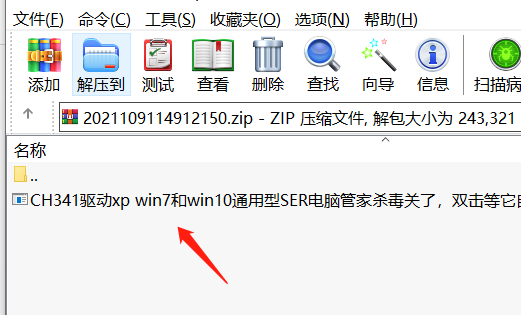
Figure 3
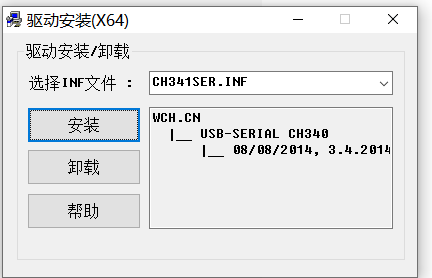
Figure 4
02SKTOOL Software Settings
1. Create New Project
① Open the SKTOOL software, in the menu bar—New, enter the new project interface, and input a name in the project name field, as shown in Figure 5. Proceed to the communication connection window, select SIEMENS and Simatic S7-200 (PPI) in the device service, as shown in Figure 6, then proceed to the next step, default the new screen, and click finish.
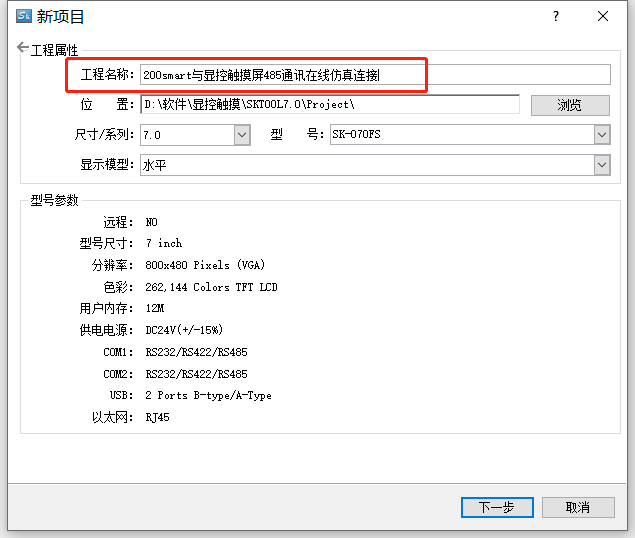
Figure 5
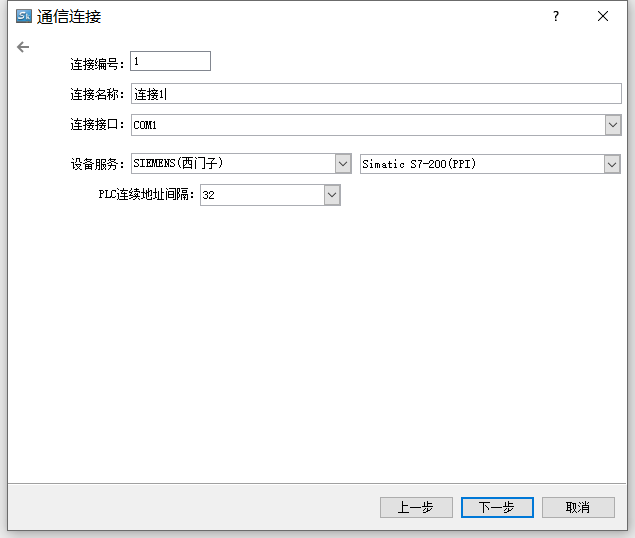
Figure 6
2. Communication Parameter Settings
Double-click connection 1 in the connection section of the project manager to enter the communication port properties interface, keeping the default settings as shown in Figure 7.
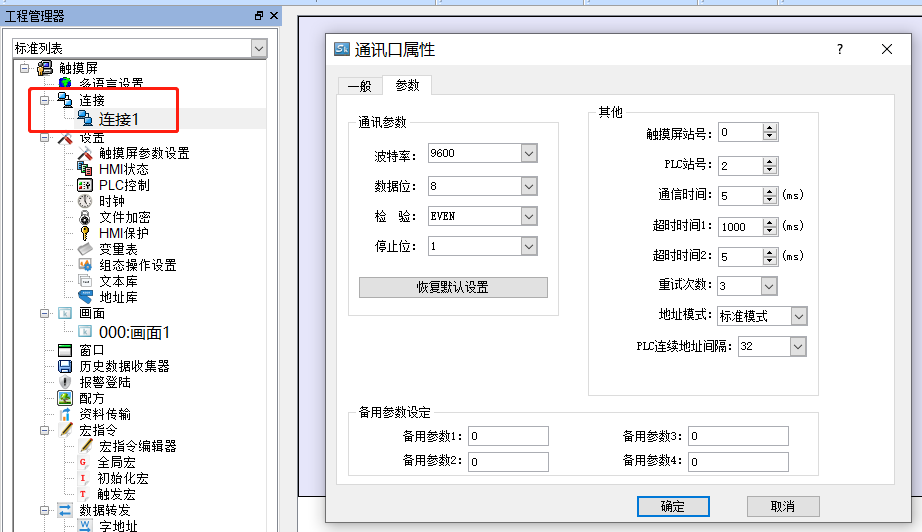
Figure 7
3. Software Configuration
Create a bit switch as shown in Figure 8, and a bit indicator as shown in Figure 9.
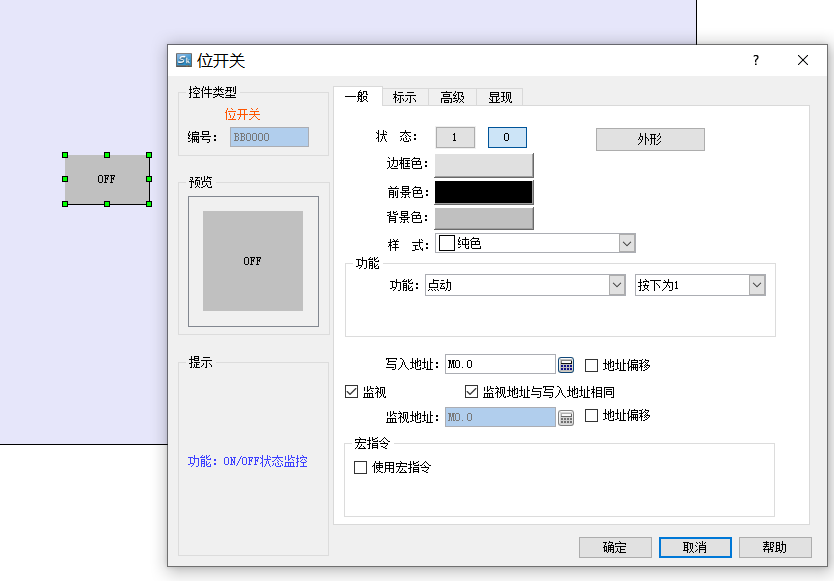
Figure 8
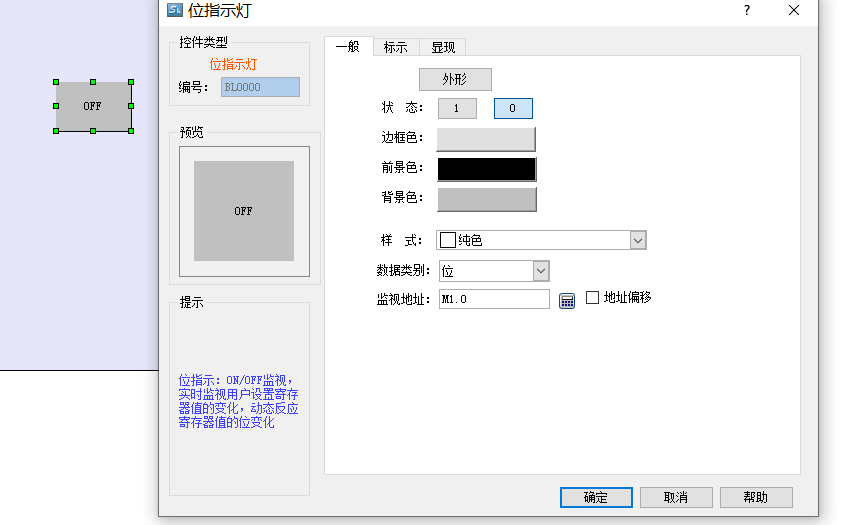
Figure 9
03200SMART Software Program Programming
Open the STEP 7-MicroWIN SMART software to write a jog program, as shown in Figure 10. The system block parameters in Figure 11 remain default and do not require modification. Download the program to the PLC and switch to RUN mode.
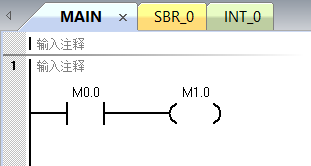
Figure 10
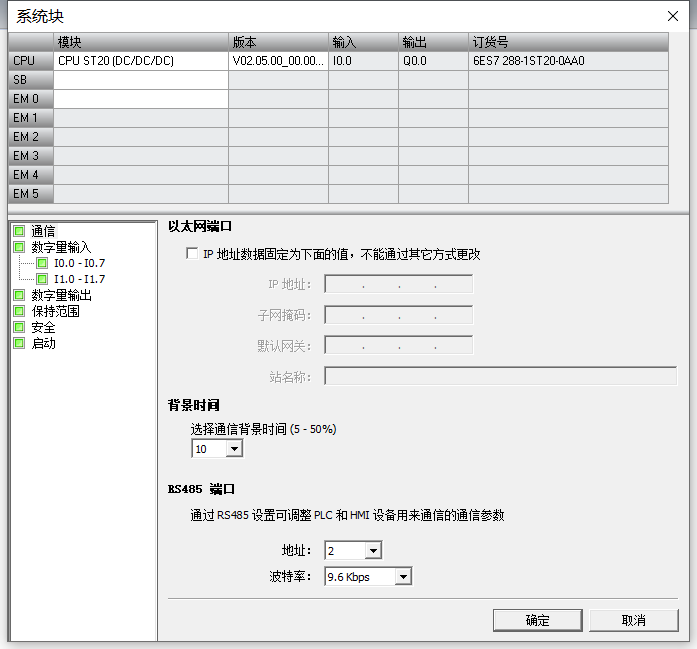
Figure 11
04Online Debugging
Click the online simulation icon in the SKTOOL software, as shown in Figure 12, and modify the serial port to the COM port generated in Figure 2 (COM5). Click run to enter online simulation, as shown in Figure 13, click button M0.0, and the corresponding M1.0 indicator light will change.
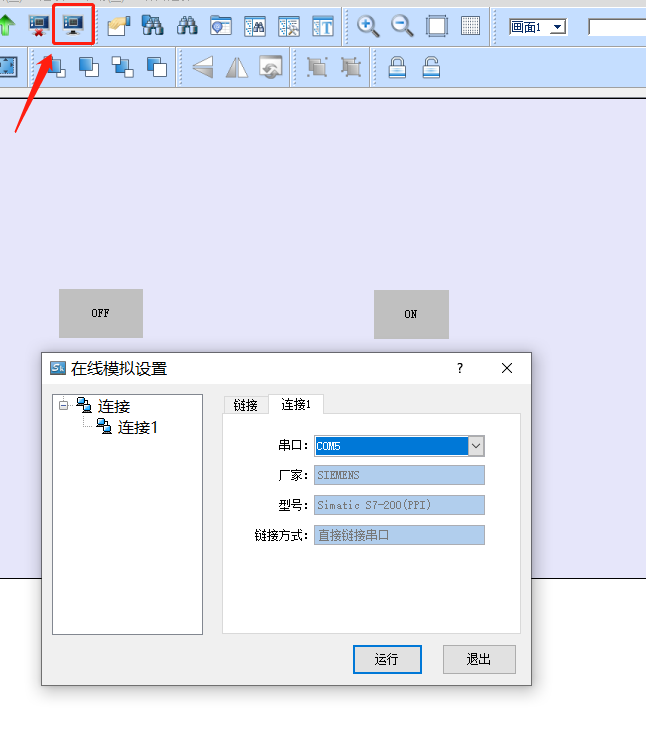
Figure 12
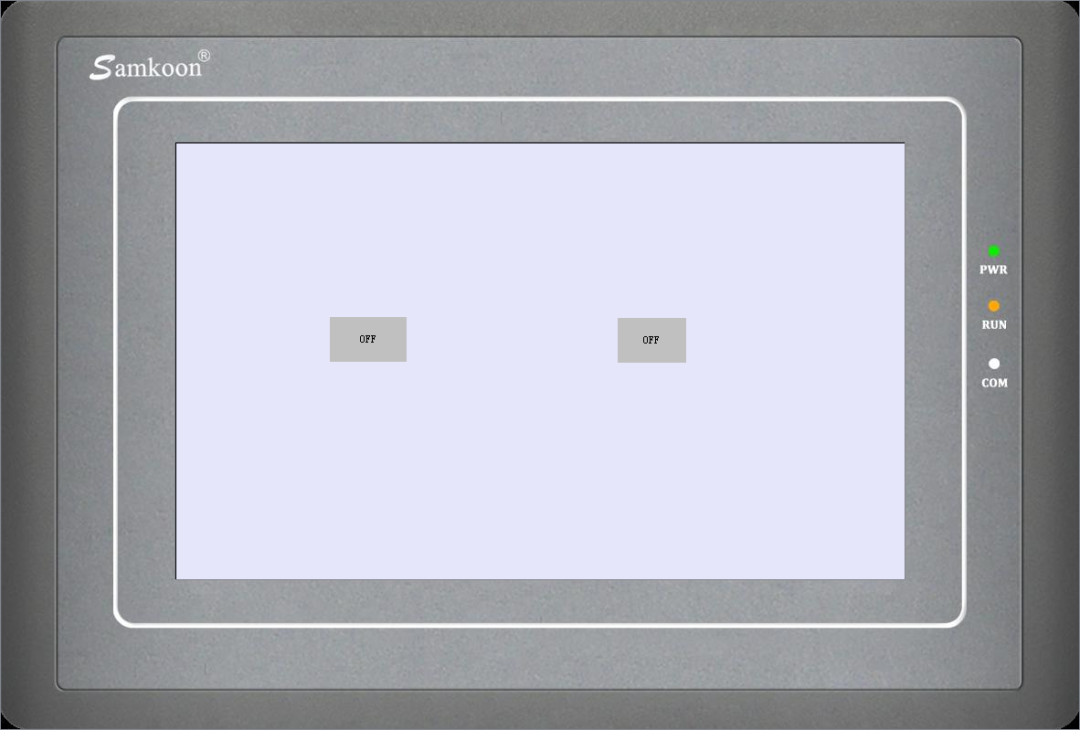
Figure 13
Conclusion:
The above content covers all the steps for the online simulation connection between 200SMART and the touch screen via 485 communication. If there are any errors in the article content, please contact us.
Source: Technical Training Network, Author: Zou Zhirui, reproduction without permission is prohibited!


Scan toReceive Classic PLC Cases and Source Programs
HISTORY/Previous Recommendations
3 Essential Tools for Electricians, Easily Accessible via WeChat!
Which of the five major electrical drawing software (CAD, Eplan, CADe_simu…) do you choose?
The latest electrical version of CAD drawing software, including a detailed installation tutorial!
The latest electrical drawing software EPLAN, with a detailed installation tutorial!
Common issues for beginners using S7-200 SMART programming software (with download link).
Comprehensive electrical calculation EXCEL spreadsheets, automatically generated! No need to ask for electrical calculations!
Basic skills in PLC programming: Ladder diagrams and control circuits (with 1164 practical cases of Mitsubishi PLC).
Still can’t understand electrical diagrams? Basics of electrical diagram reading, simulation software available for quick hands-on practice!
12 free electrical video courses, 10GB of software/e-books, and 30 days of free live electrical classes are available!
Don’t forget to like + check it out! 
 Tap “Read the Original” to learn PLC/Electrician courses for free.