 Search on WeChat
 Technical Training
OPC UA Client and Server is a software tool used for implementing data communication in industrial automation systems. By using the OPC UA communication protocol, real-time data exchange and logging can be achieved between different protocols.
OPC UA (OPC Unified Architecture) is an open, cross-platform communication protocol that provides a standardized way to connect and communicate between different devices, systems, and protocols.
1.Essential Tools
1. EBpro V6.09.01.357 Configuration Software
2. OPC UaExpert Debugging Software
2. HMI Configuration Instructions
Server Function: The Weicon Touch Screen OPC UA server can act as a data source, providing data for client access. It can connect to various devices and sensors, collecting real-time data and transmitting it to the client.
Step 1: (Click “lloT/Energy Management” in the upper left menu to enter the OPC UA server settings window)
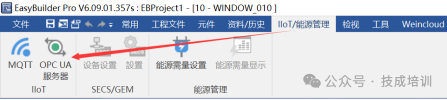

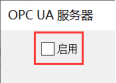
Step 2: (Check “Enable” and configure the parameters as shown in the image below)
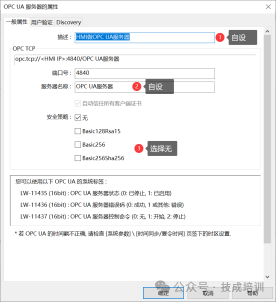
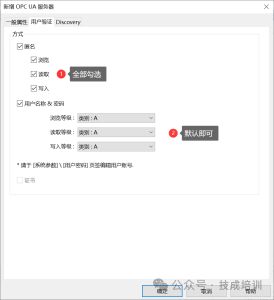
Step 3: (Add a tag address, serving as the communication address)
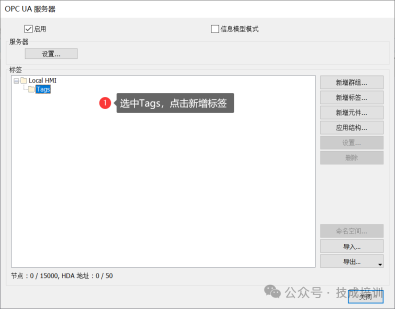
Step 4: (Add a button address and a value address, as shown in the image below)
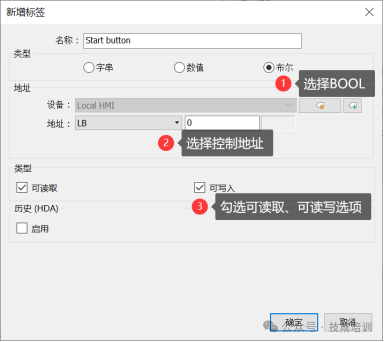
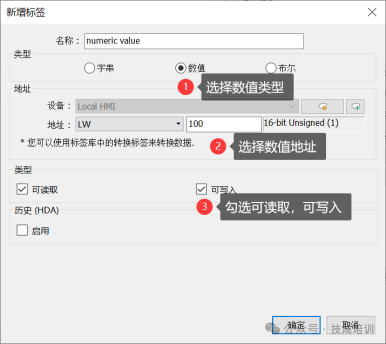
Step 5: (Link the corresponding absolute addresses through the state button and value display component)


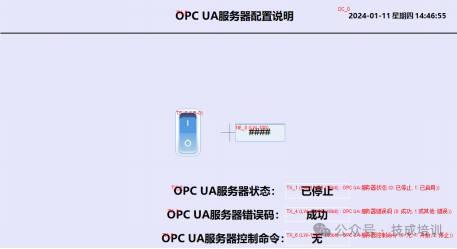
3. Debugging Software Configuration Instructions
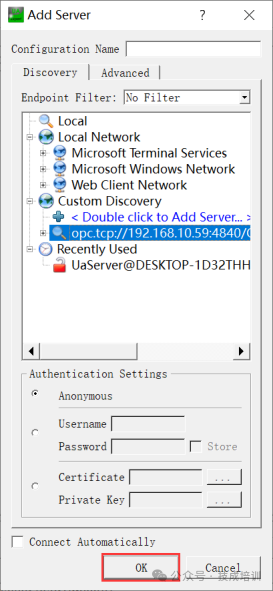
Step 1: (Click the plus sign to add the HMI connection IP address)
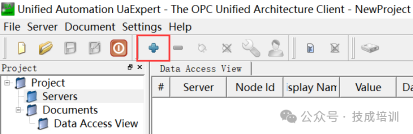
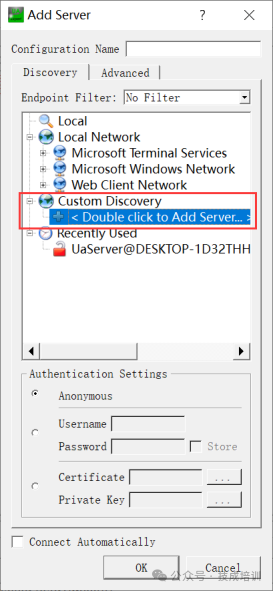
Double-click the plus sign to open the dialog box for adding the IP address
The blue part shown in the image <HMI IP> should be modified to 192.168.10.59, which is the computer’s IP
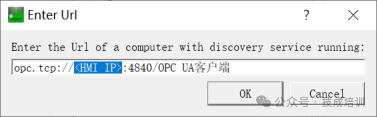
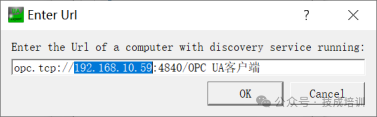
Click OK
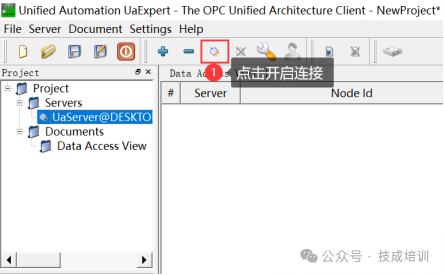
Step 2: (Click the icon shown in the image below to start the connection operation, and ensure that the HMI software is running online simulation, otherwise it won’t be found)
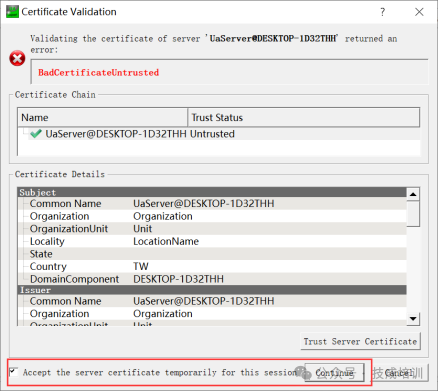
Check the box and then click continue
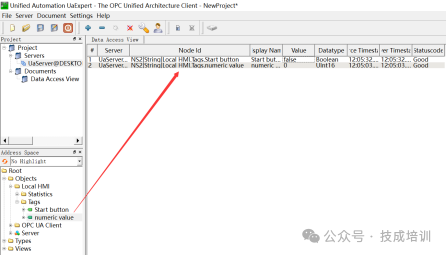
Drag the found tag address to the right side
4. Demonstration Effect
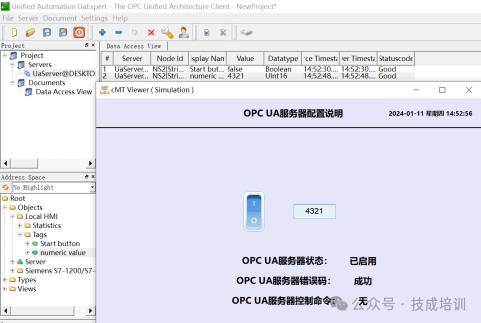
Enter the value 4321 in the OPC UaExpert debugging software Value, and at this point, the HMI interface will display 4321.
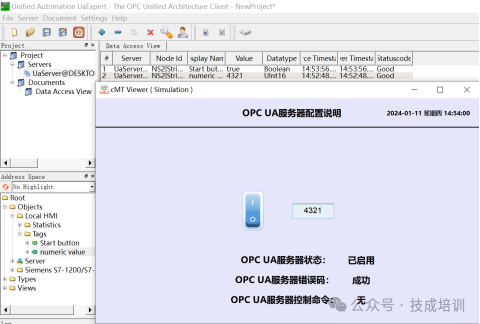
In the OPC UaExpert debugging software Value, check the box, and at this point, the corresponding button on the HMI interface will be 1.
Article Source: Technical Training Network Original, Author: Xu Chenshuang; Unauthorized reproduction is prohibited, violators will be prosecuted!
HISTORY/Previous Recommendations
Complete question bank for junior electricians in 2022 (including answers)
3 essential tools for electricians, just one click on WeChat to use!
[Collection] The “path” of a ten-year veteran electrician, the secret to earning over ten thousand a month!
Five major electrical drawing software (CAD, Eplan, CADe_simu…), which one do you pick?
Latest electrical version CAD drawing software, with super detailed installation tutorial!
Latest electrical drawing software EPLAN, with super detailed installation tutorial!
Common issues for beginners using S7-200 SMART programming software (includes download link)
Comprehensive electrical calculation EXCEL sheets, automatically generated! No need to ask for electrical calculations!
Bluetooth headsets, introductory books for electricians/PLC freely given away? Come and get your electrical gifts!
Basic skills in PLC programming: ladder diagrams and control circuits (includes 1164 practical cases of Mitsubishi PLC)
Still can’t understand electrical diagrams? Basic electrical reading skills, simulation software available for fast practical application!
12 free electrician video courses, 10GB of software/e-book materials, and 30 days of free electrician live classes are available!
Don’t forget to like and watch!
 Click “Read the Original” to learn PLC/electrician courses for free.