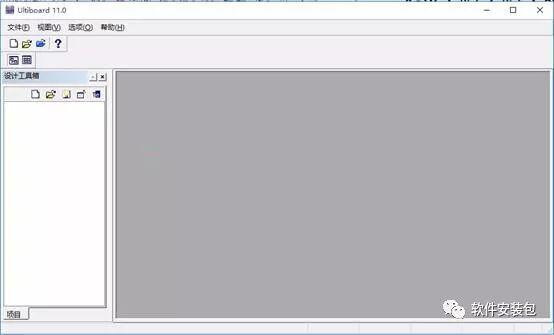
Download Link for Multisim 11.0:
Link: https://pan.baidu.com/s/1JkErAGXYhiFb3dMp9h9ErA
Password: 7sm7
If you encounter any issues during installation, please consult QQ: 236346343
Software Introduction:
Multisim is a Windows-based simulation tool suitable for the design of board-level analog/digital circuits. It includes graphical input for circuit schematics and hardware description language input methods, and it has rich simulation analysis capabilities.
Installation Method:
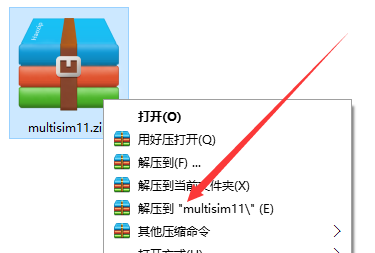
1. Select the downloaded software zip file, right-click and choose to extract to “multisim11(E)”.
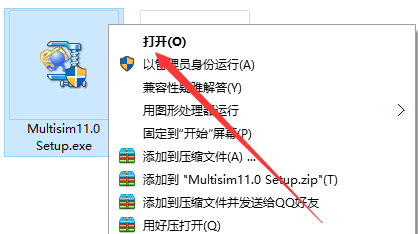
2. In the extracted folder, find Multisim11.0Setup.exe, right-click and choose to open.
3. Click OK.
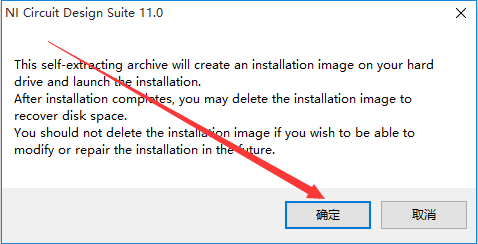
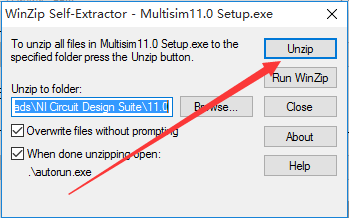
4. Click Unzip to extract.
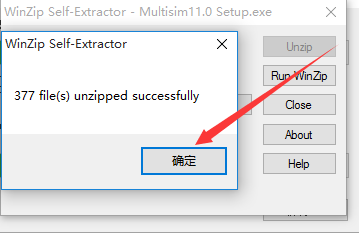
5. Click OK.
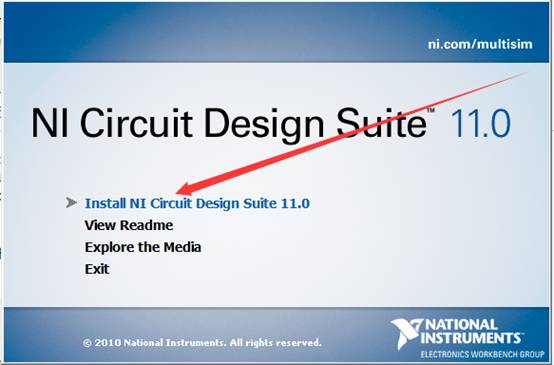
6. Click Install NI Circuit Design Suite 11.0.
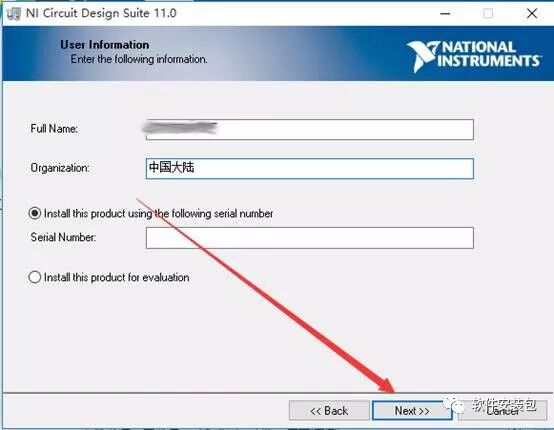
7. Enter any name, then click Next.
8. Click No.
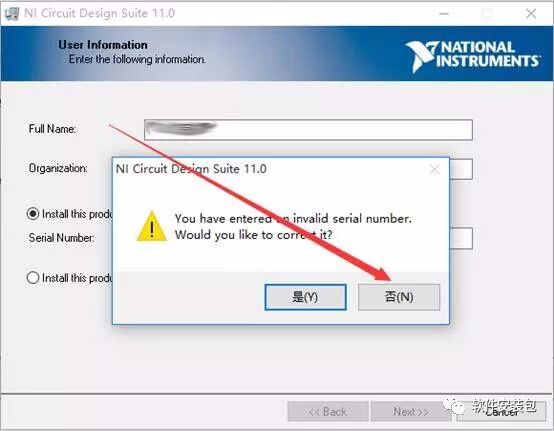
9. Click Browse to change the installation path. It is recommended to install it on a disk other than C. You can create a folder named multisim11.0 on D or another drive. Then click Next.
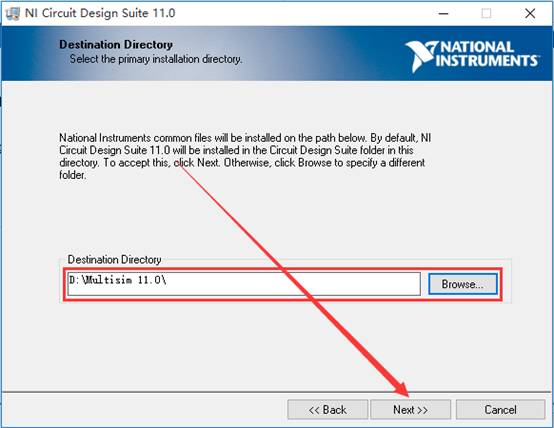
10. Click Next.
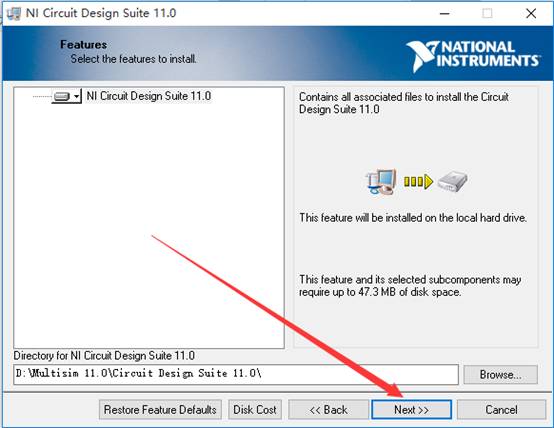
11. Click Next.
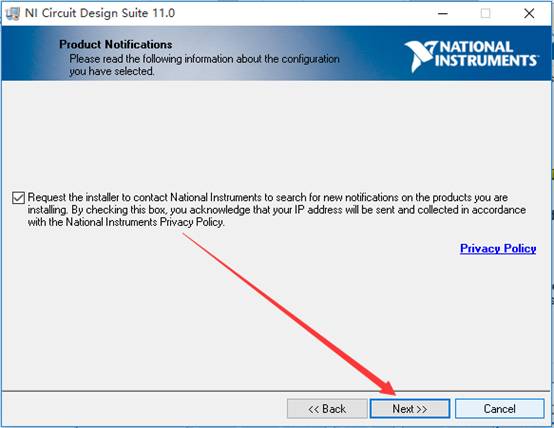
12. The software installation is in progress (approximately 3 minutes).
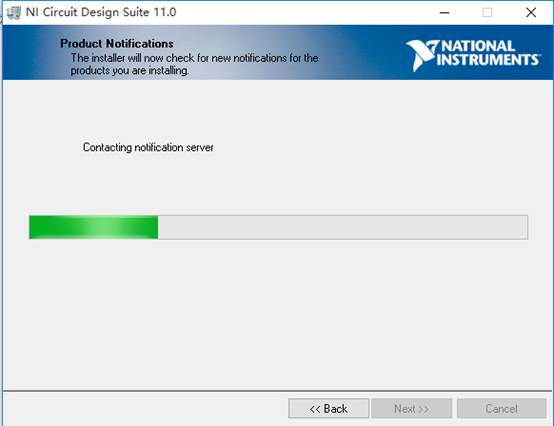
13. Click Next.
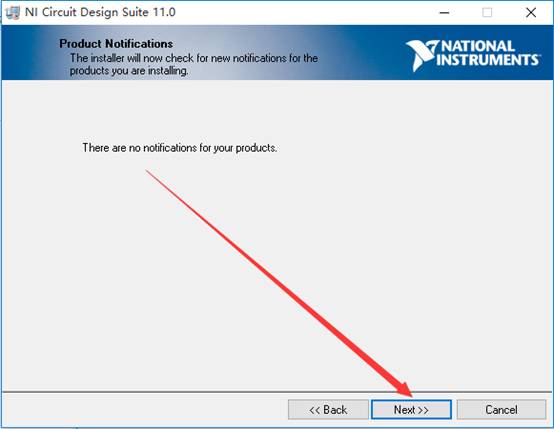
14. Select the option I accept the above License Agreement, then click Next.
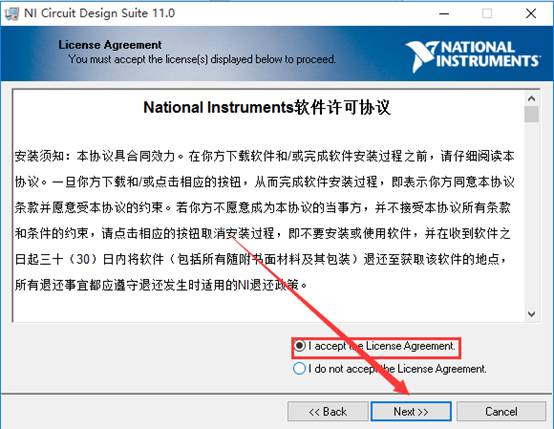
15. Select the option I accept the above License Agreement, then click Next.
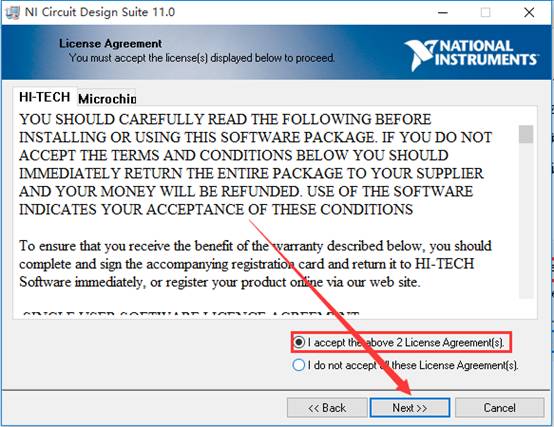
16. Click Next.
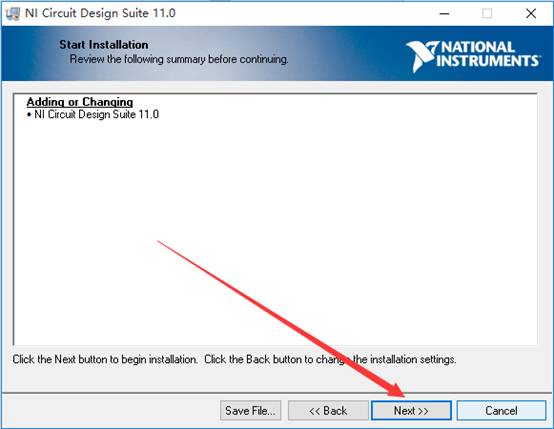
17. The software installation is in progress (approximately 10 minutes).
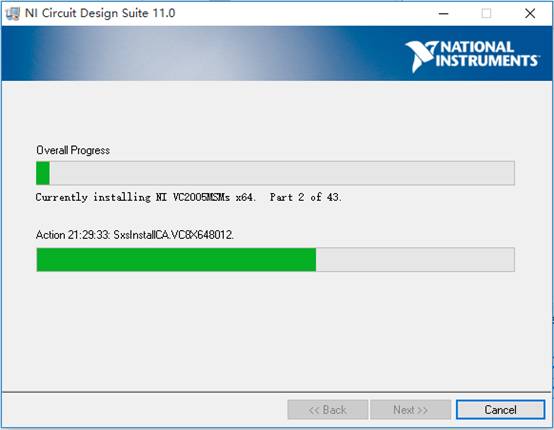
18. Click Next.
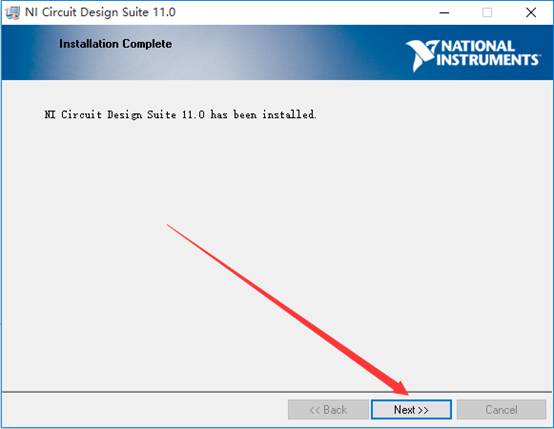
19. Click Restart Later.
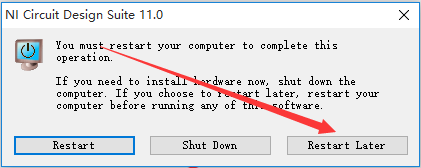
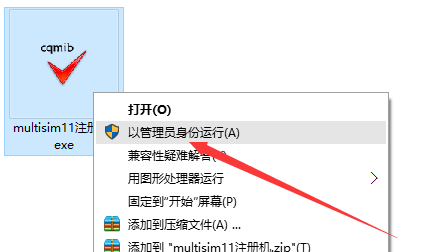
20. Return to the installation package folder, find multisim11 registration machine.exe in the Multisim13.0 folder, right-click and choose to run as administrator.
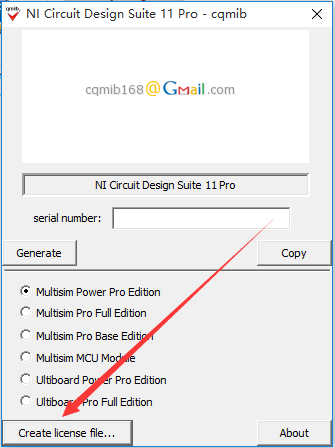
21. Click Create license file…
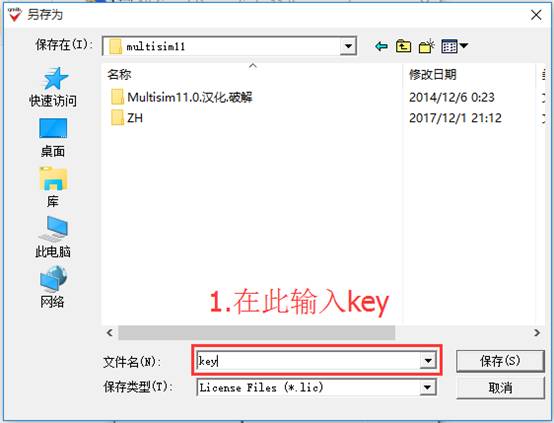
22. In the pop-up window, open the multisim11 folder (refer to the path in step 9), enter key in the file name field, and click save.
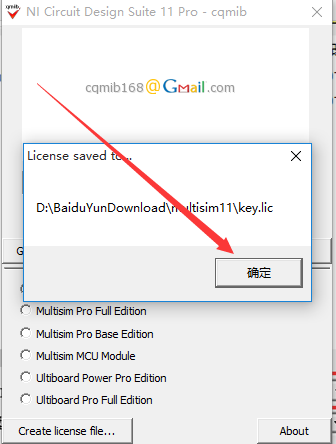
23. Click OK.
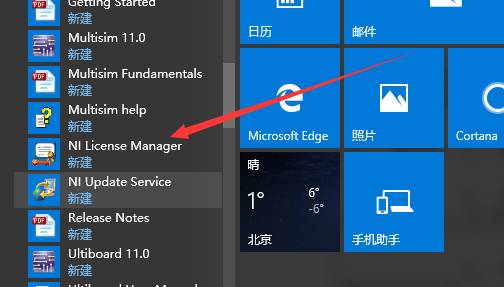
24. Click the Start menu, click All Programs. Find and open NI License Manager.
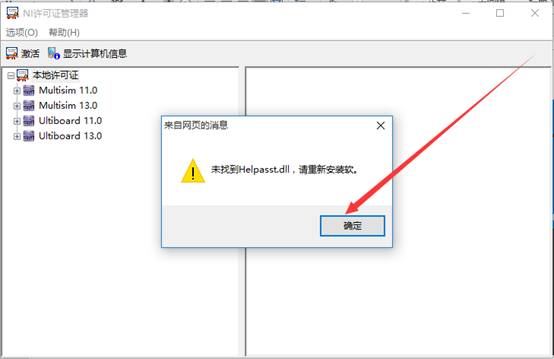
25. Click OK.
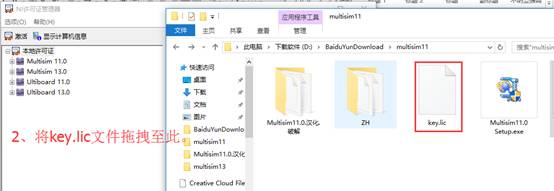
26. Drag the key.lic file from the Multisim11 folder into the NI License Manager.
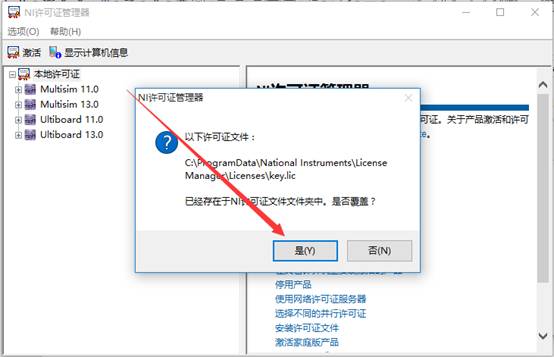
27. Click Yes.
28. Click OK to close this software.
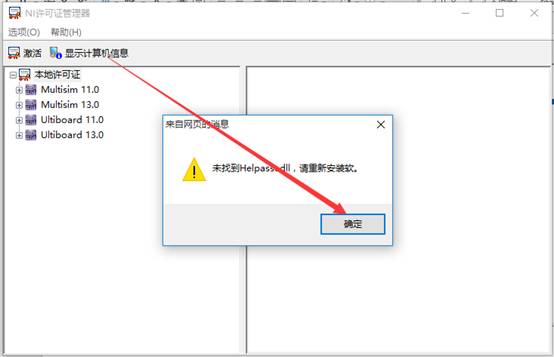
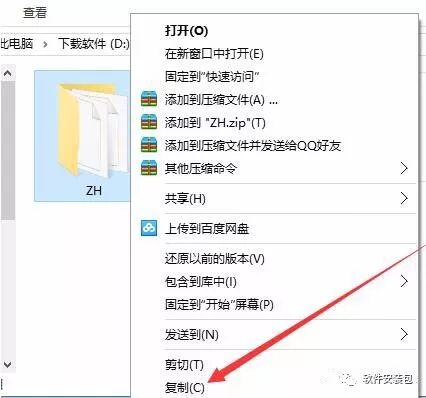
29. Select the ZH folder in the Multisim11 folder, right-click and copy.
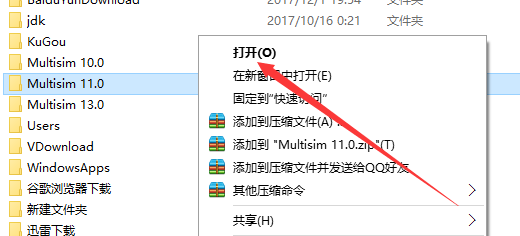
30. Find the Multisim11.0 folder in the software installation path (refer to the path in step 9), right-click and choose to open.
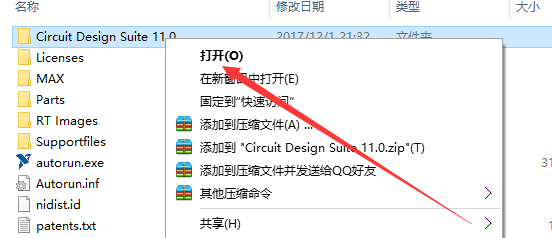
31. Find the Circuit Design Suite 11.0 folder, right-click and choose to open.
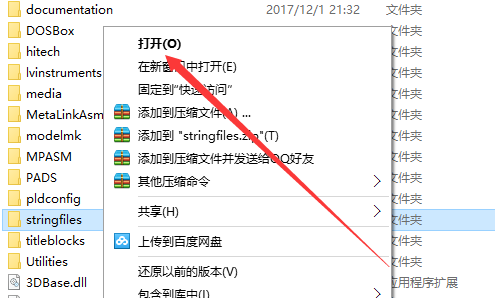
32. Find the stringfile folder, right-click and choose to open.
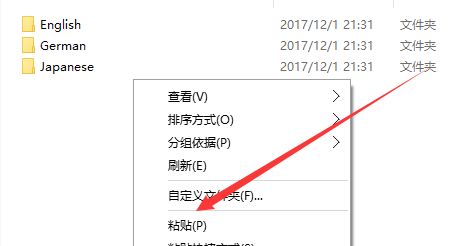
33. Right-click in the empty space and click paste.
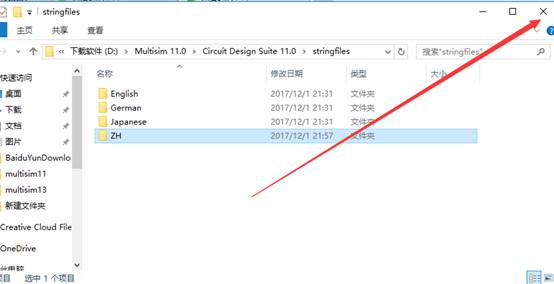
34. Close this window.
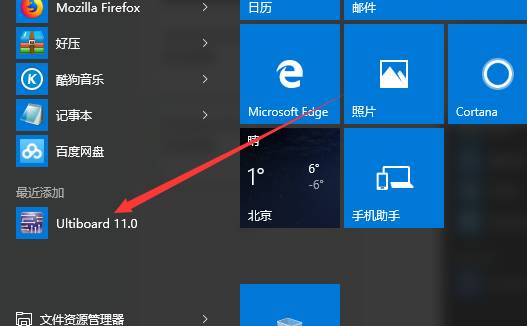
35. Click the Start menu, find and open Ultiboard 11.0.
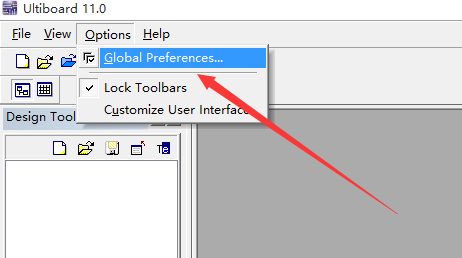
36. Find Options, click, then click Global Preferences.
37. Click Language, select ZH, then click OK.
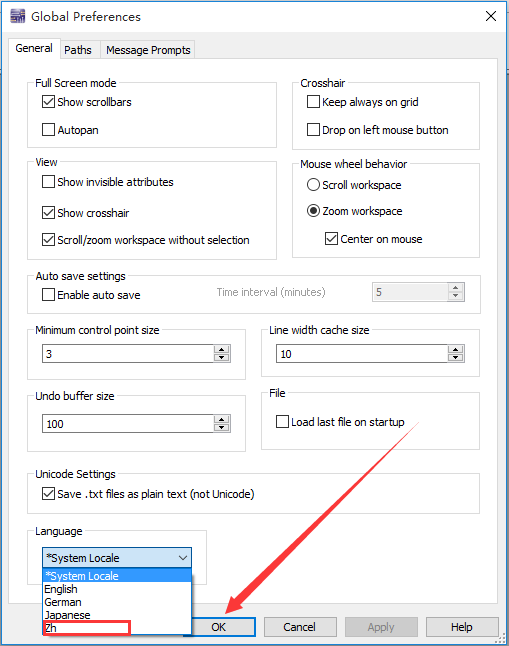
38. Click OK.

39. Click the Start menu, find and open Ultiboard 11.0.
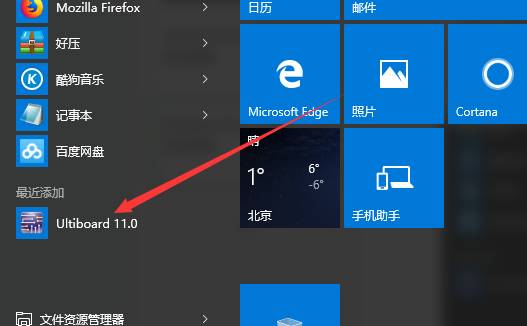
40. Installation is complete.