Multisim 12.0 Download Link and Installation Guide

Download Links① Baidu Cloud:Link: https://pan.baidu.com/s/1eOgEase6W5y5ys1Dc3M0rQ?pwd=2024Extraction Code: 2024Download Link② Quark Cloud (Tested to be faster than Baidu Cloud without a membership):Link: https://pan.quark.cn/s/188500436288
Software Compatibility: Windows 7, Windows 8, Windows 10, Windows 11. Software Language: Simplified Chinese
|
Software Introduction:
Multisim is a powerful electronic circuit simulation software developed by National Instruments. It is primarily used for the design, simulation, and analysis of circuits, widely applied in the field of electronic engineering. Multisim provides an intuitive graphical interface that makes circuit design simple and straightforward. Users can assemble circuits in the circuit diagram through simple drag-and-drop operations and connect components with wires. The software comes with a rich component library, including various electronic components such as resistors, capacitors, inductors, and transistors, allowing users to set component parameters and input signals to observe circuit output responses and analyze changes in current, voltage, and power parameters, thereby validating the correctness and performance of circuit designs. In addition to simulation capabilities, Multisim also provides circuit layout and drawing features, enabling users to convert designed circuits into actual circuit board layouts, including component placement and wiring. This allows users to better understand the physical structure of circuits and make further optimizations and improvements. Additionally, Multisim supports integration with other tools, such as PCB design software and digital signal processing tools, thus accelerating the speed and efficiency of the entire electronic design process.
Multisim offers different versions for users, such as the educational version and the development version, to meet various user needs. The educational version is mainly used for circuit teaching in simulation, digital, and power electronics courses and laboratories, while the development version provides engineers with SPICE simulation, analysis, and PCB design tools, helping them iterate quickly throughout the design process and improve prototype performance. Moreover, Multisim offers a wealth of simulation analysis tools, such as oscilloscopes and spectrum analyzers, as well as automatic wiring and layout tools, further enhancing its functionality and usability.
Multisim 12.0 Installation Steps:
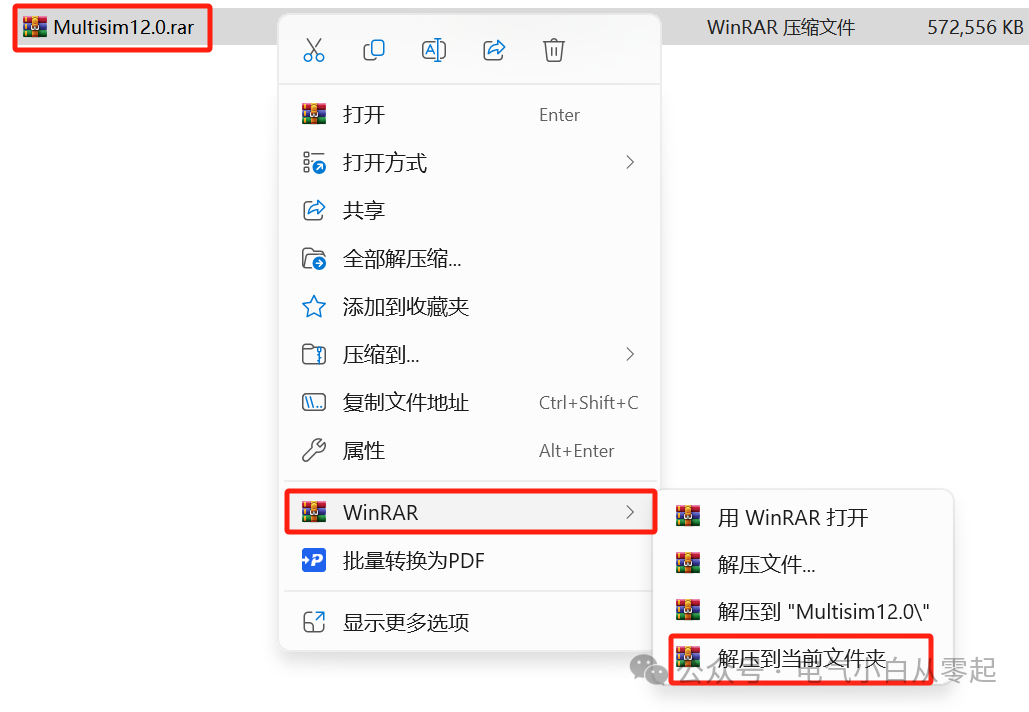
1.Unzip the installation package;
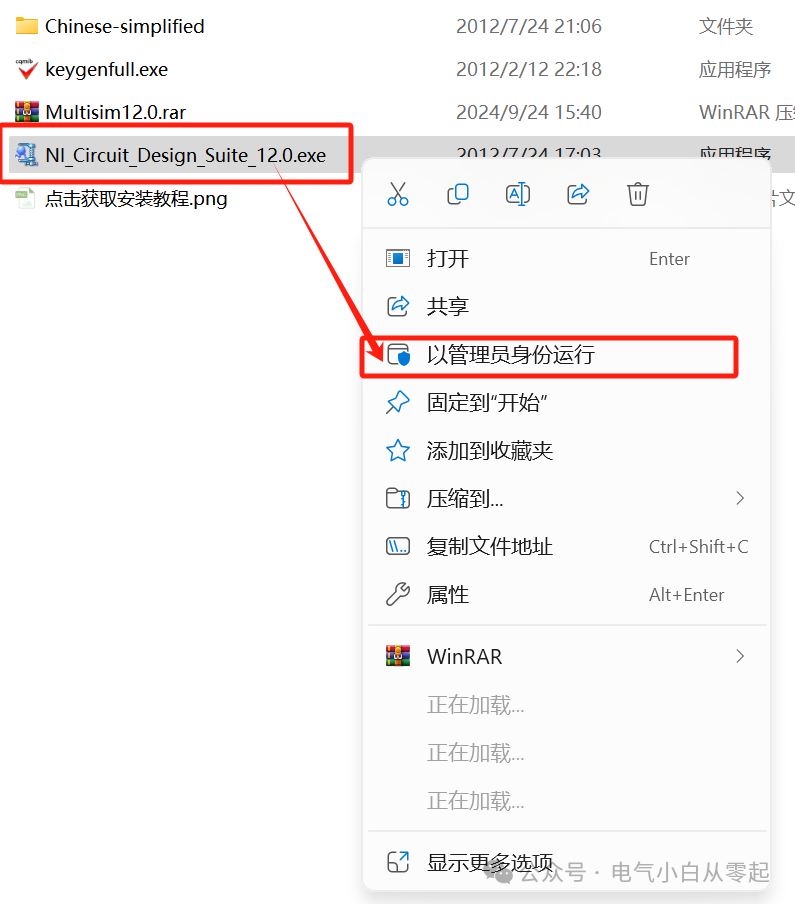
2.Right-click to select “NI_Circuit_Design_Suite_12.0”, and click “Run as administrator”;
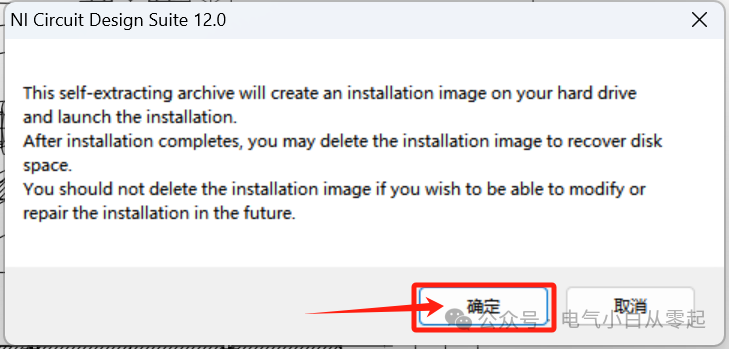
3.Click “OK”;
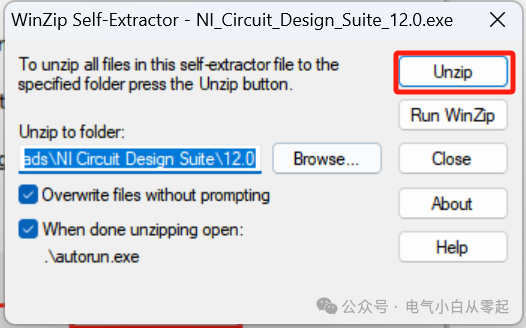
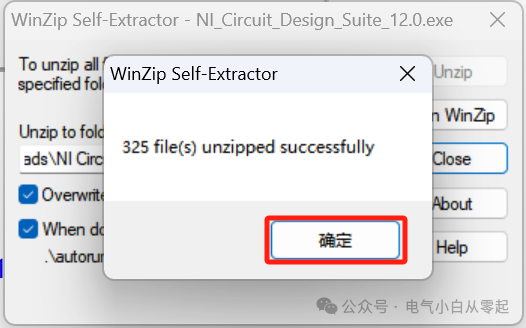
4.Click “Unzip”;
5.Click “OK”;
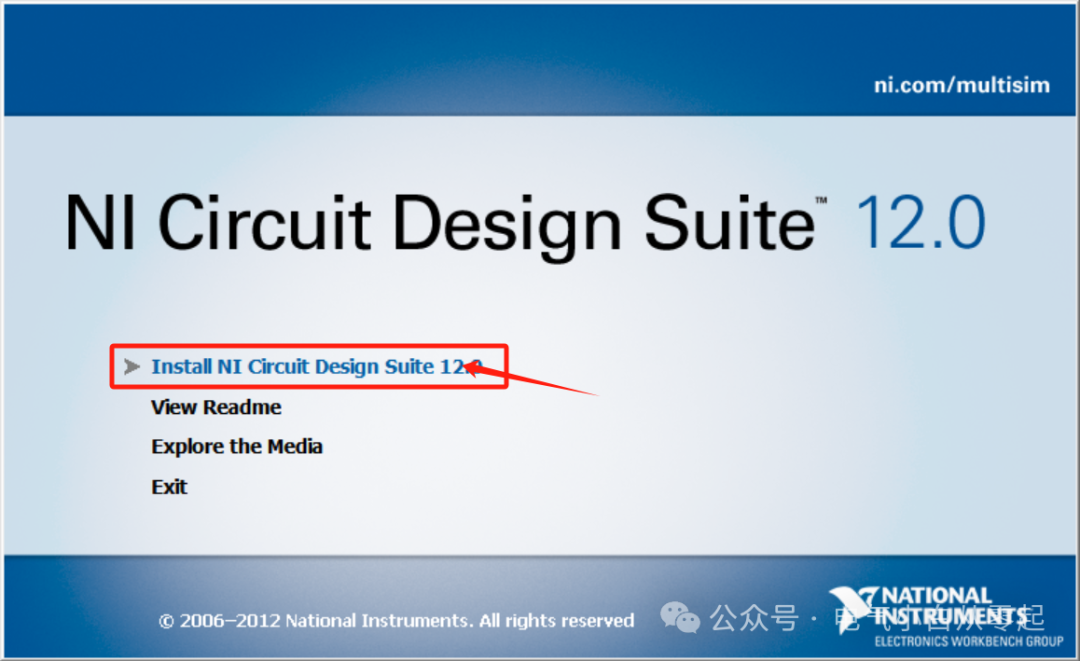
6.Click “Install NI Circuit Design Suite 12.0”;
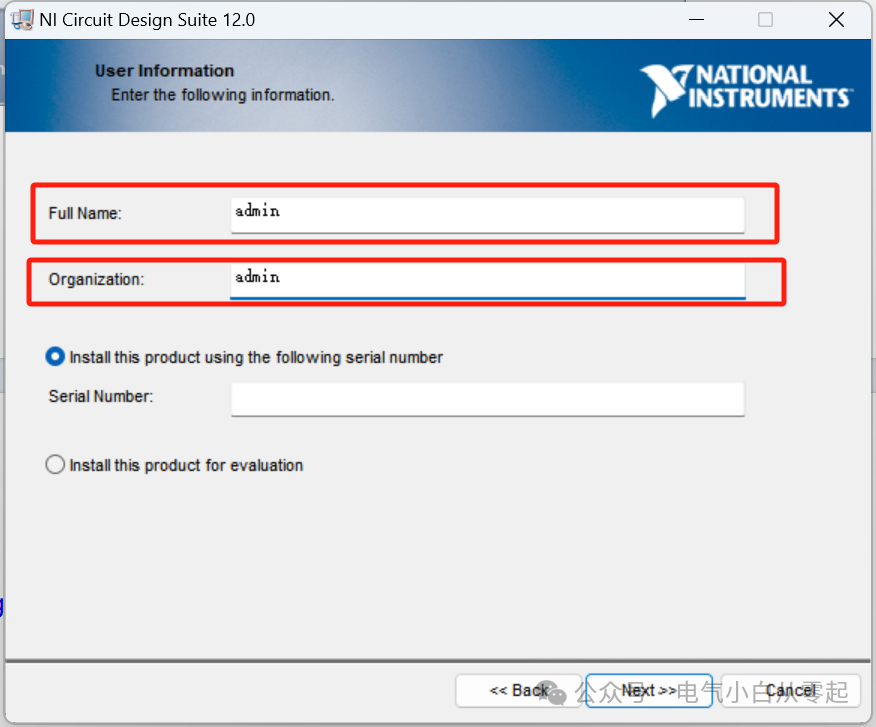
7.Enter “FullName” and “Organization” (these can be filled with anything, at least one character must be entered), do not perform other operations after entering;
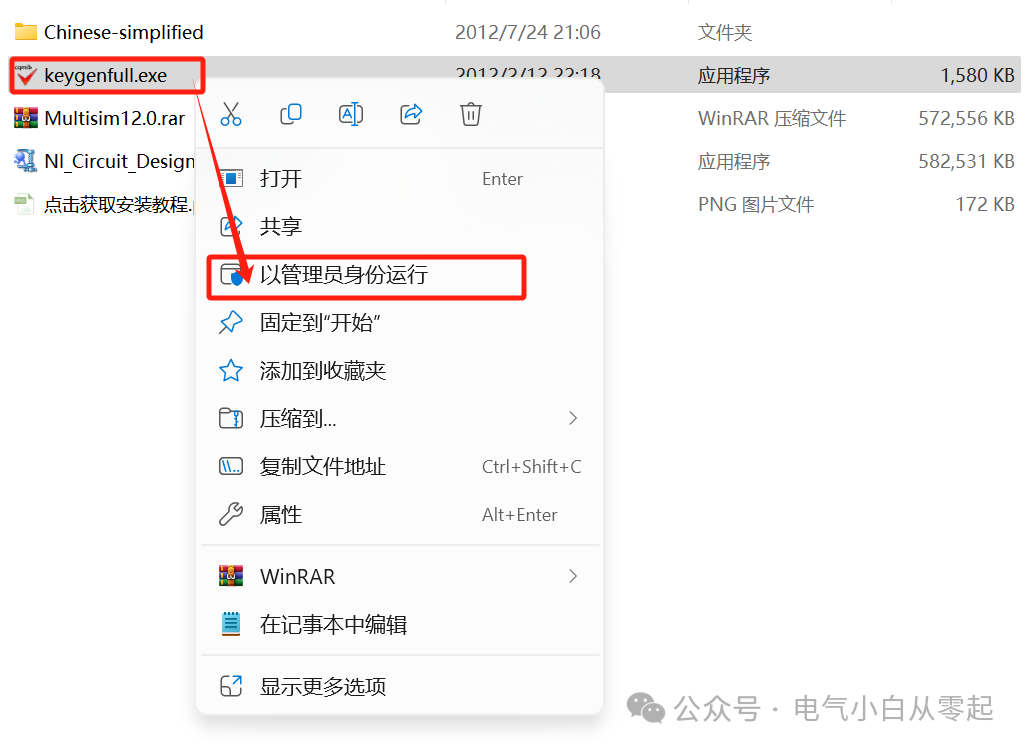
8.Go back to the installation folder, right-click to select “keygenfull”, then click “Run as administrator”;
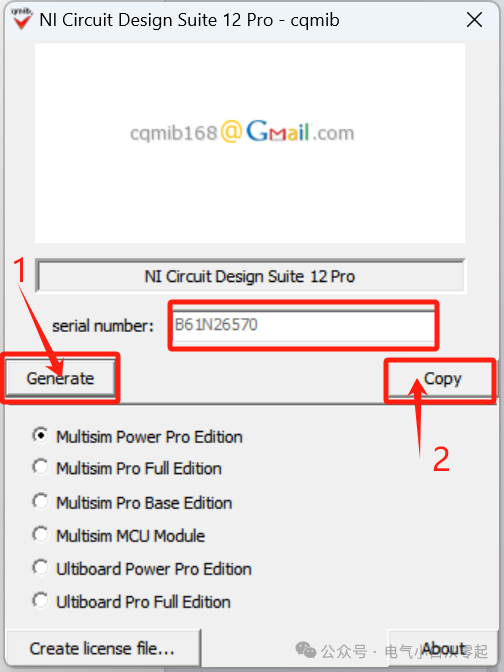
9.Generate activation code: ① Click “Generate” to create a “serial number”, then click “copy” ( do not close this interface after completion);
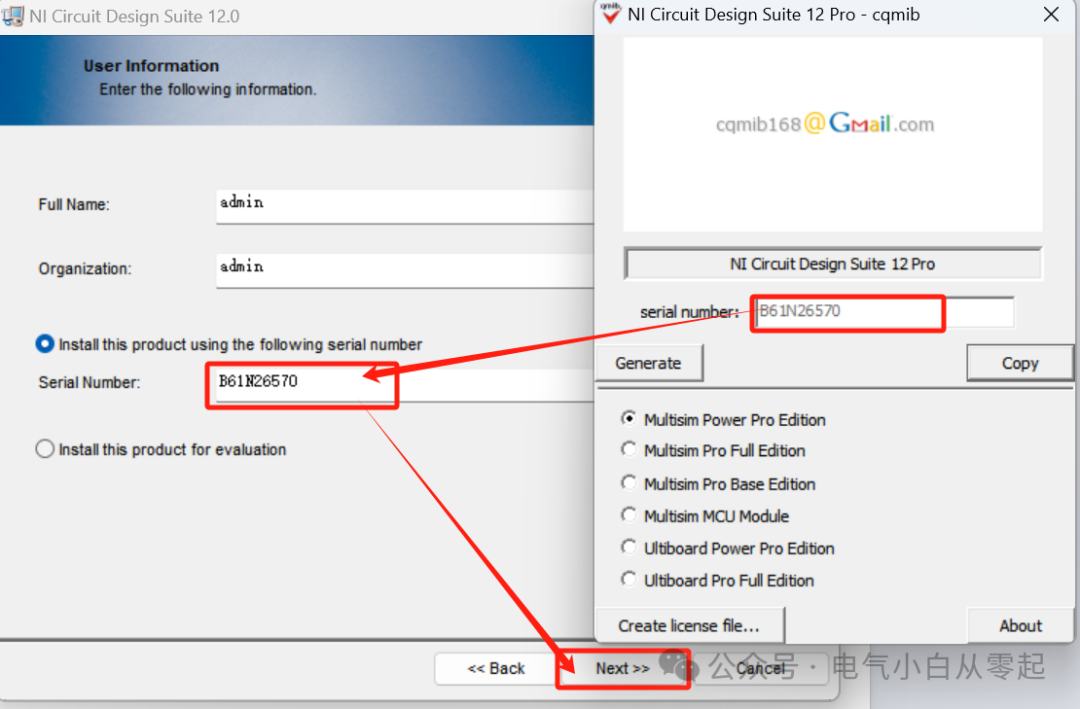
10.Go back to the “NI Circuit Design Suite 12.0” interface, paste the “serial number” into the “Serial Number” field by pressing “Ctrl” + “V”, then click “Next”;
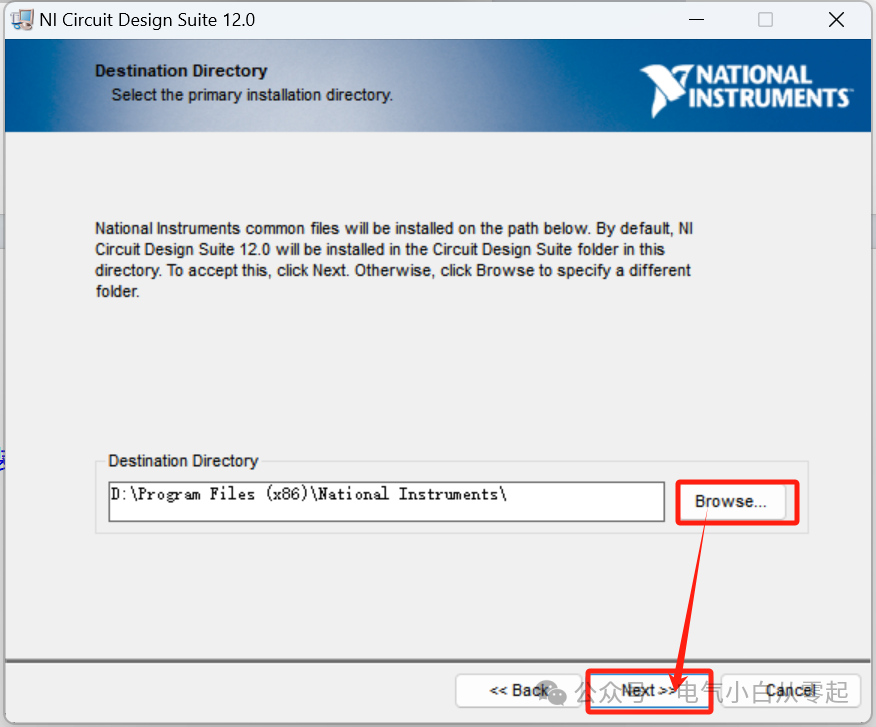
11.Click “Browse…” to modify the installation location (it is recommended to install on a disk other than C, and the installation path cannot contain Chinese characters), then click “Next”;
12.Click “Next”;
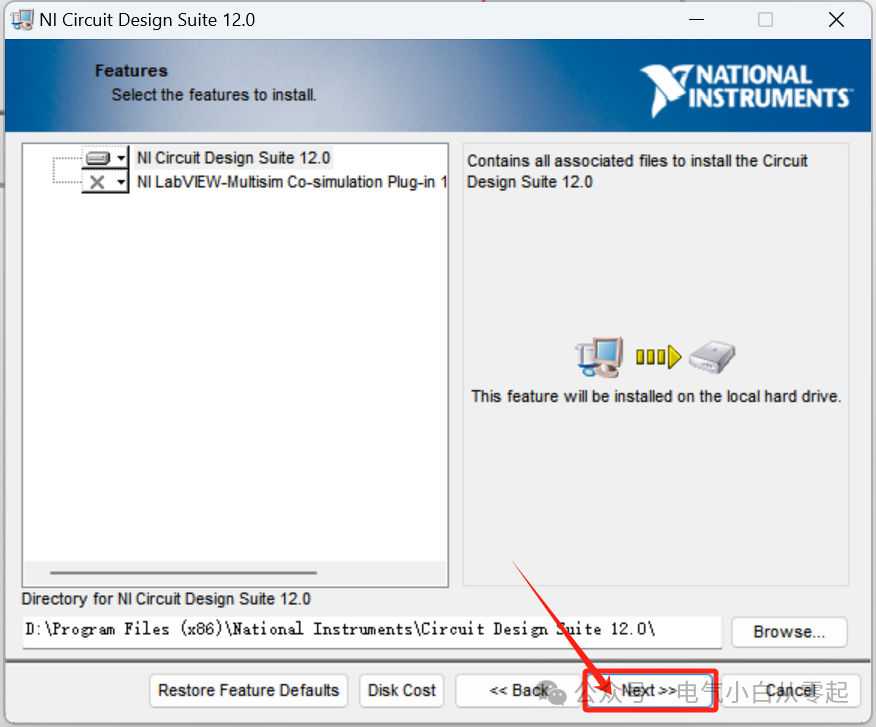
13.Click “Next”;
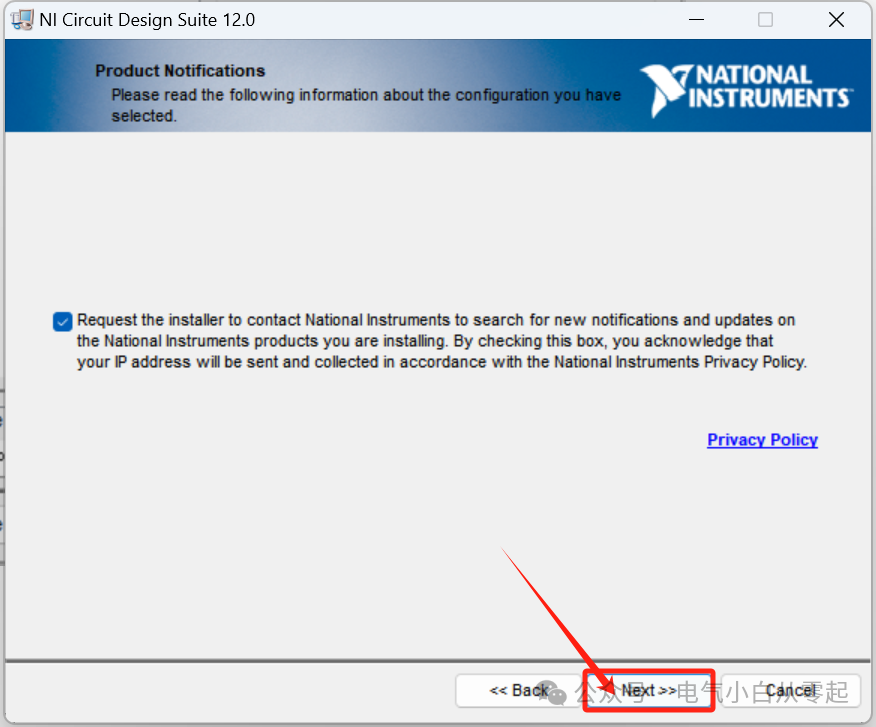
14.Preparing…..;
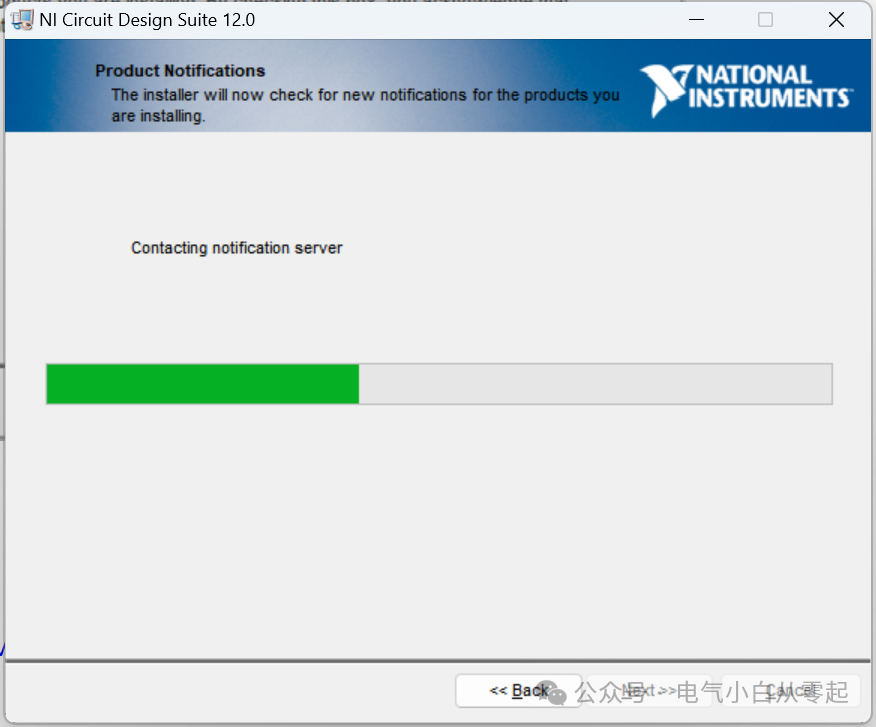
15.Click “Next”;
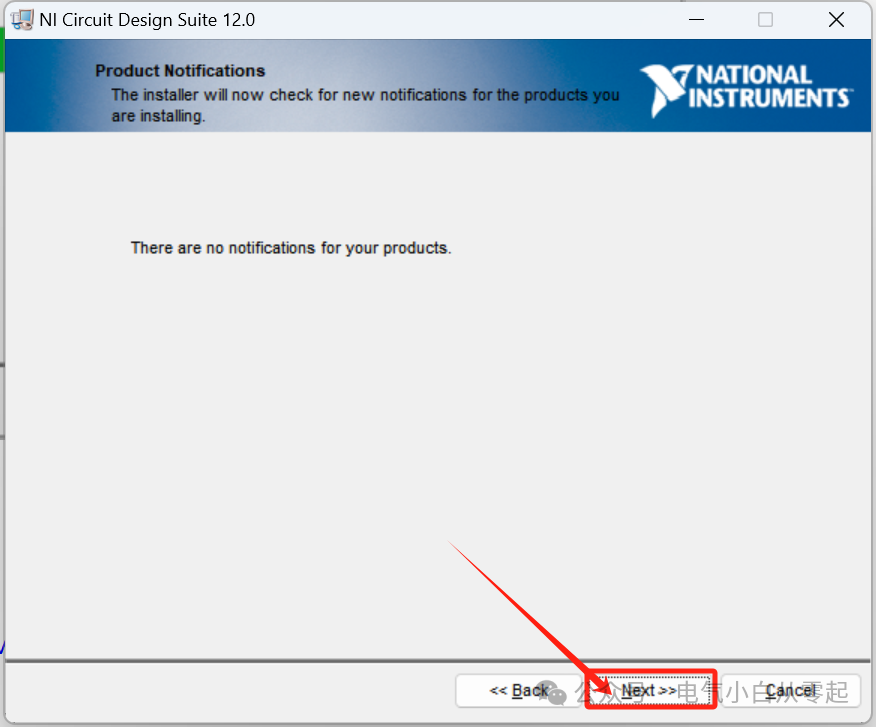
16.Select “I accept the above 3 License Agreement(s).” and then click “Next”;
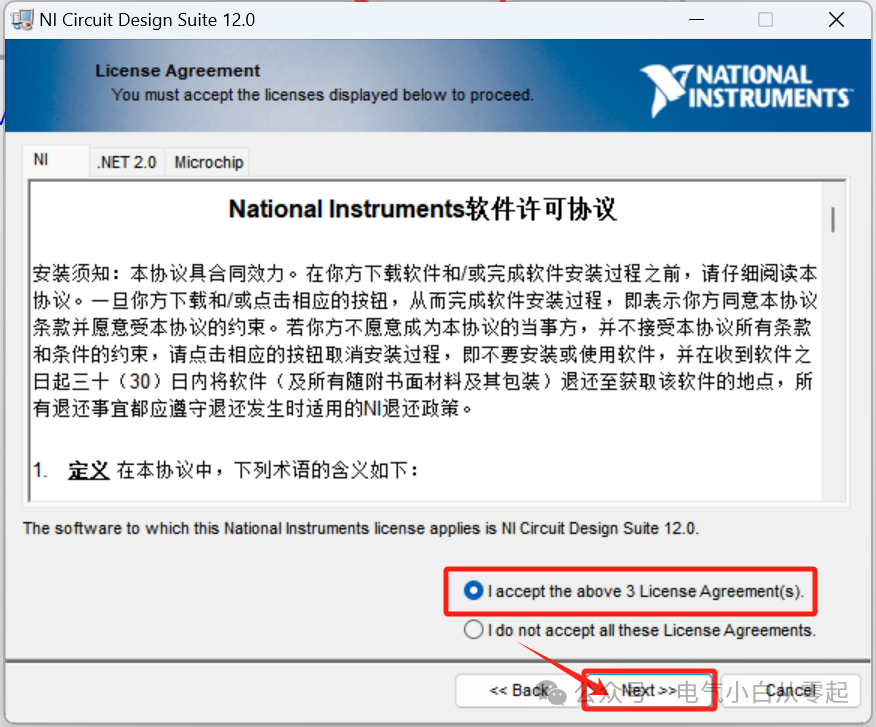
17.Click “Next”;
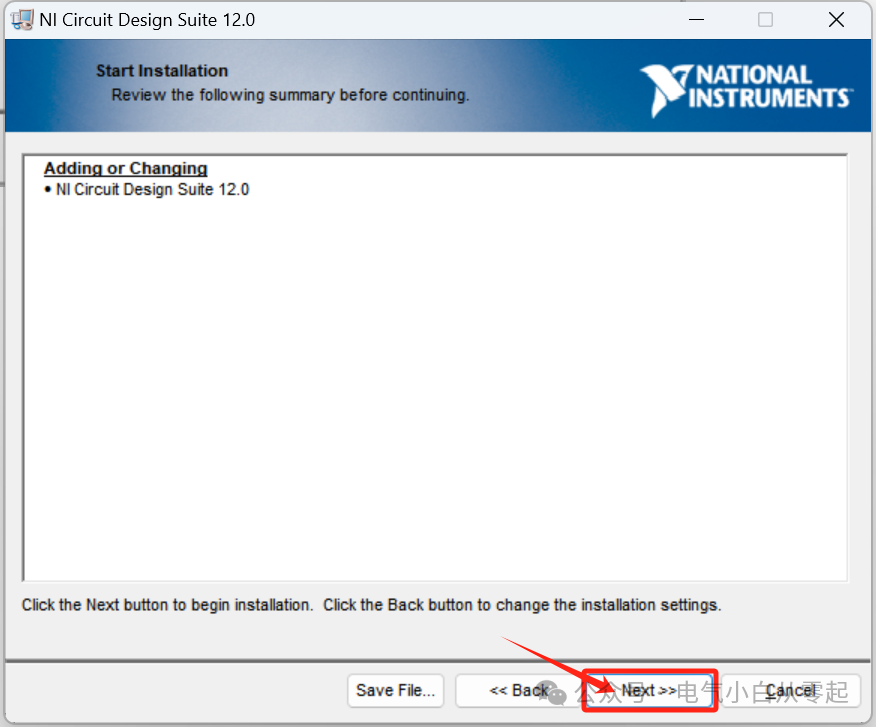
18.Installing……;
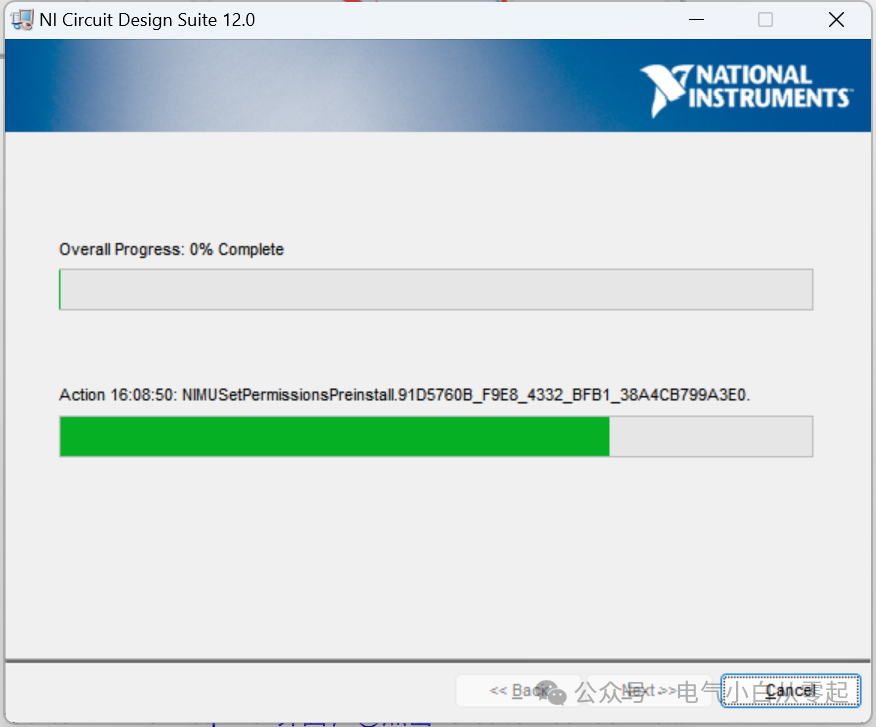
19.Click “Next”;
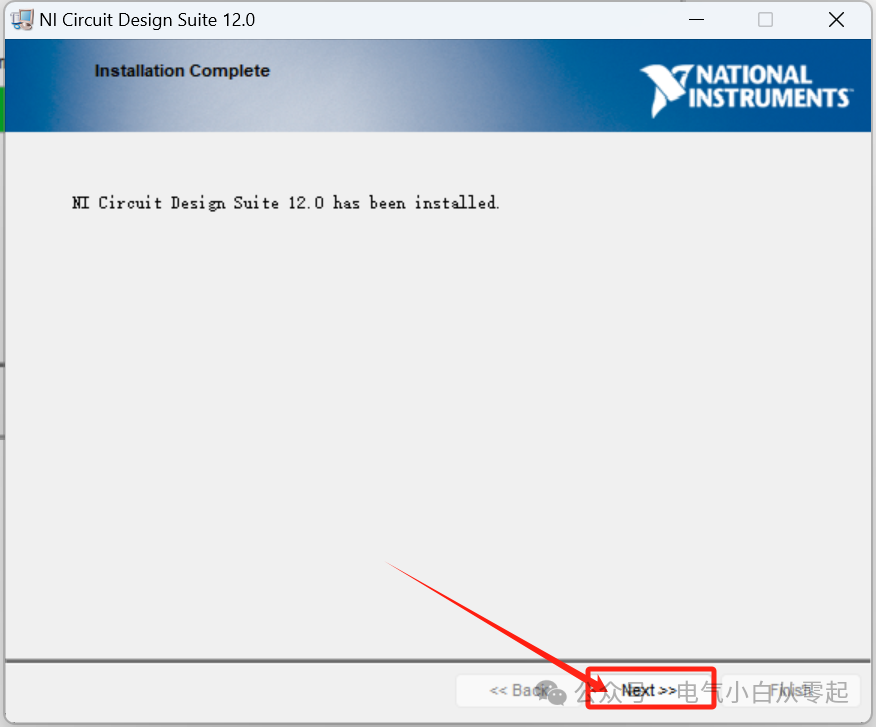
20.Click “No”;
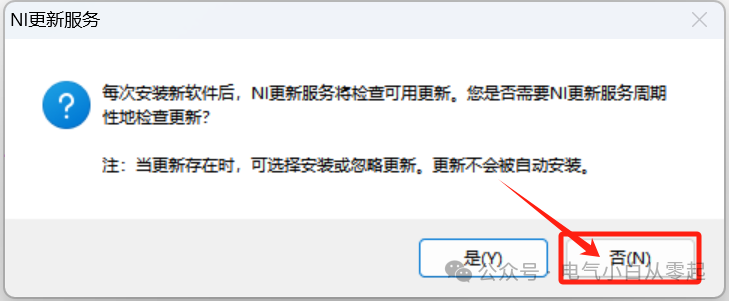
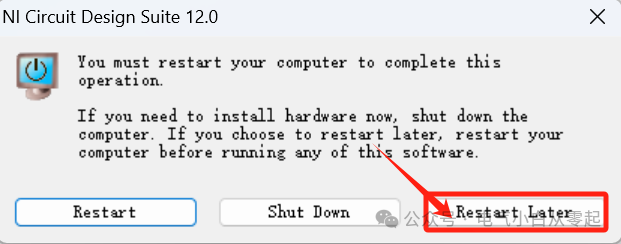
21.Click “Restart Later”;
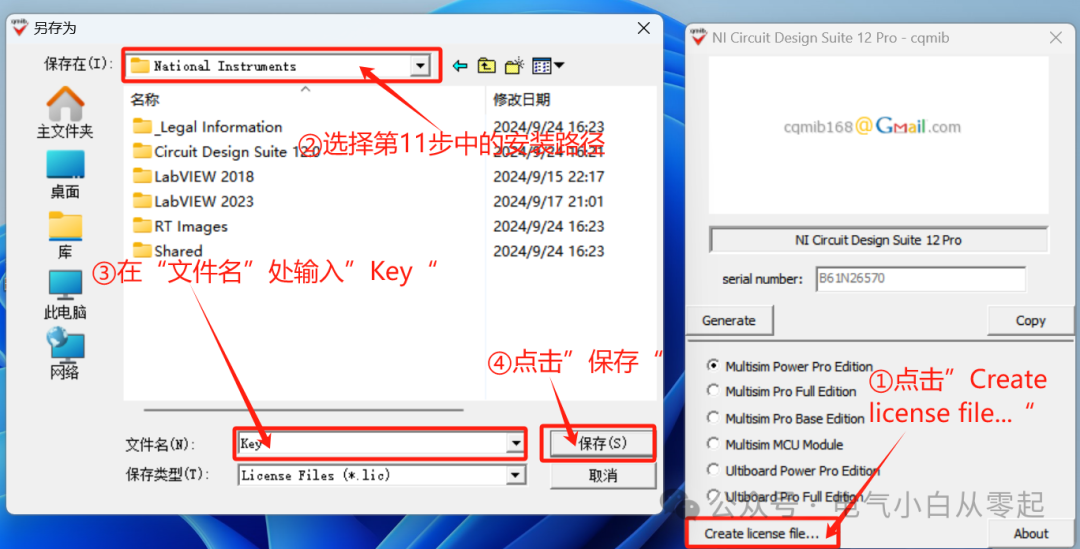
22.Return to the “NI Circuit Design Suite 12 Pro – cqmib” interface, ① click “Create license file…”, ② select the installation path from step 11, ③ enter “Key” in the “File name” field, ④ click “Save”;
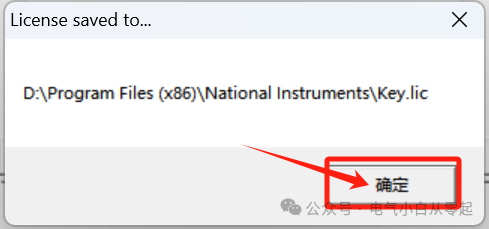
23.Click “OK”;
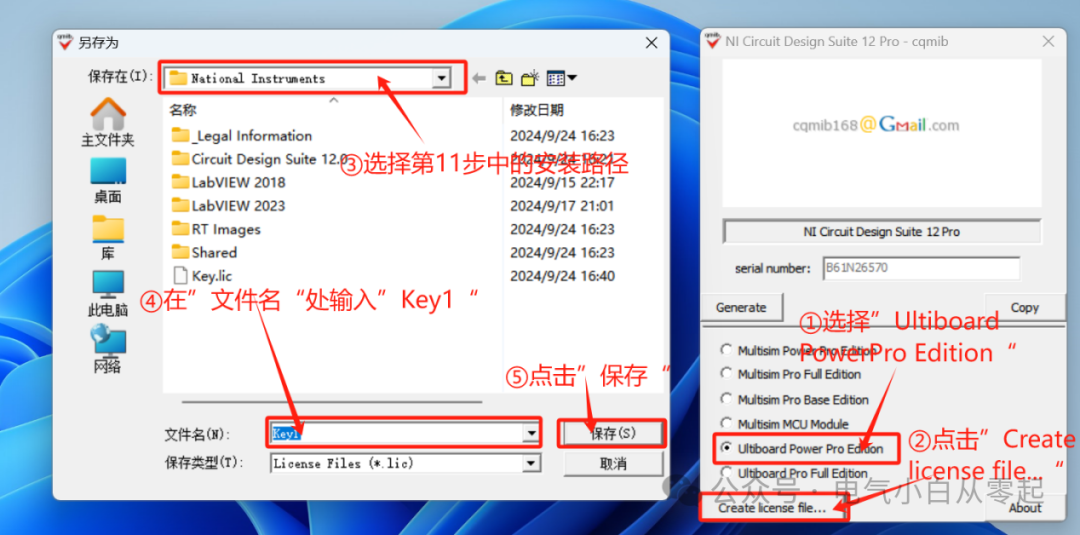
24.① Select “Ultiboard PowerPro Edition”, ② click “Create license file…”, ③ select the installation path from step 11, ④ enter “Key1” in the “File name” field, ⑤ click “Save”;
25.Click “OK”;
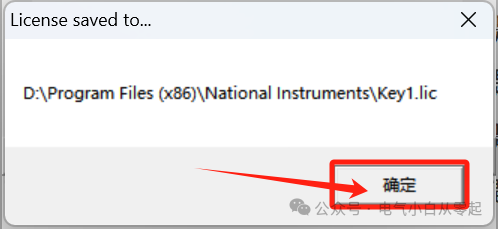
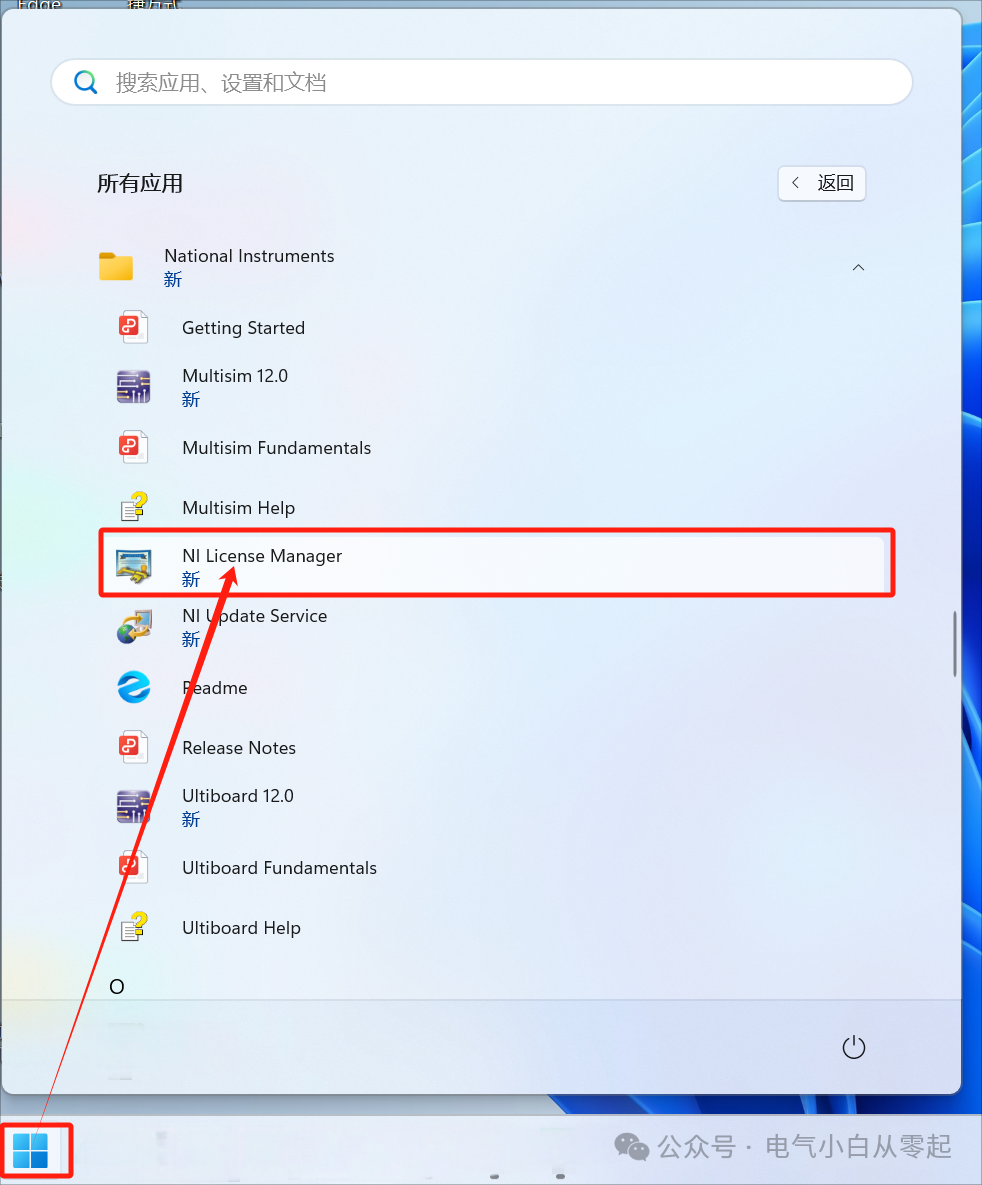
26.Click the “Windows icon” at the bottom right of the desktop, then select all items, find “NI License Manager” and double-click to open;
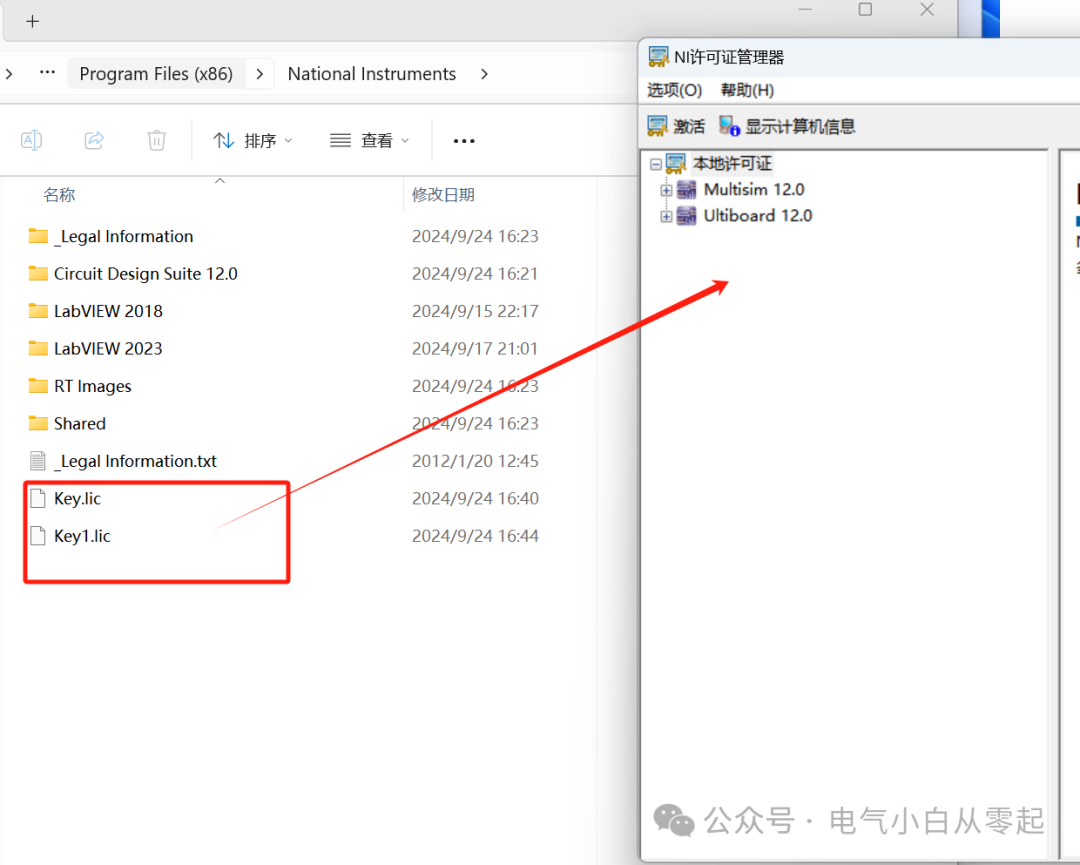
27.Drag the “Key” and “Key1” from the installation path to the “NI License Manager” interface;
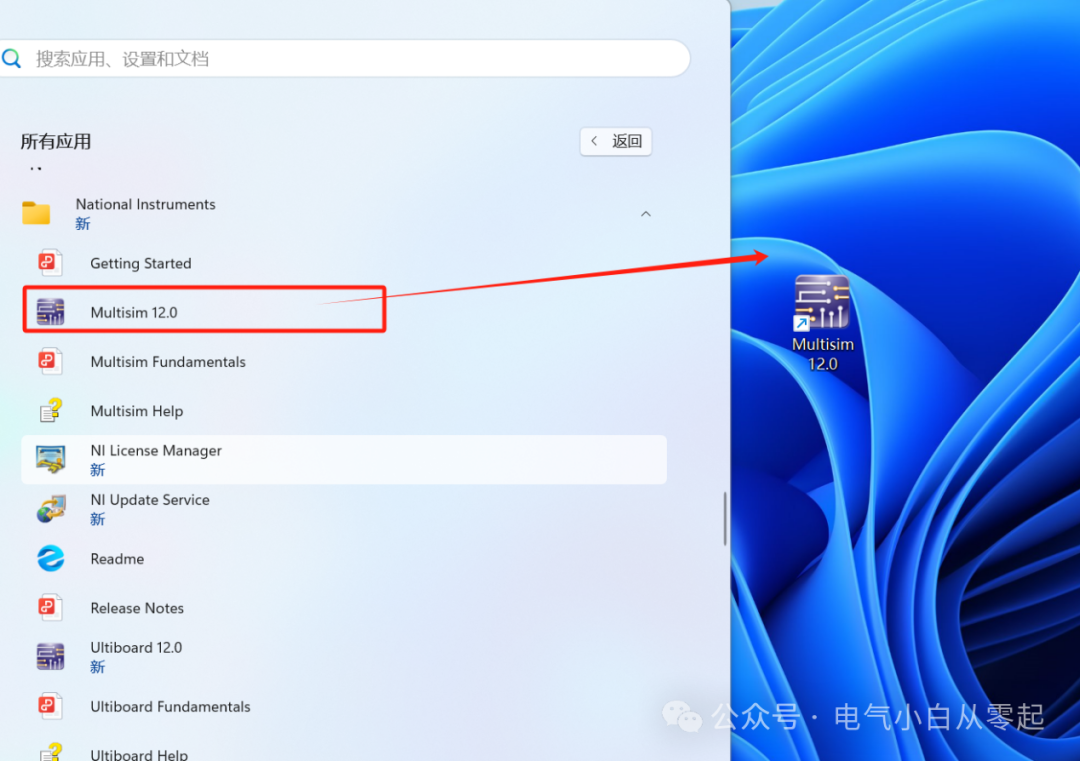
28.Click the “Windows icon” at the bottom right of the desktop, then select all items, find “Multisim 12.0” and drag it to the “desktop”;
29.Right-click on the “Multisim 12.0” icon on the desktop, then click “Open file location”;
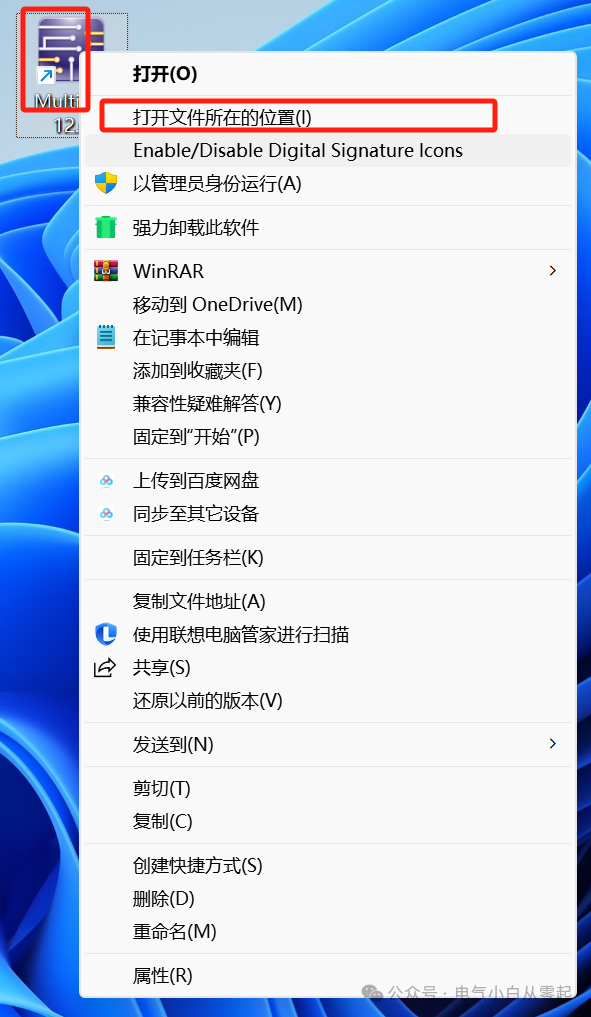
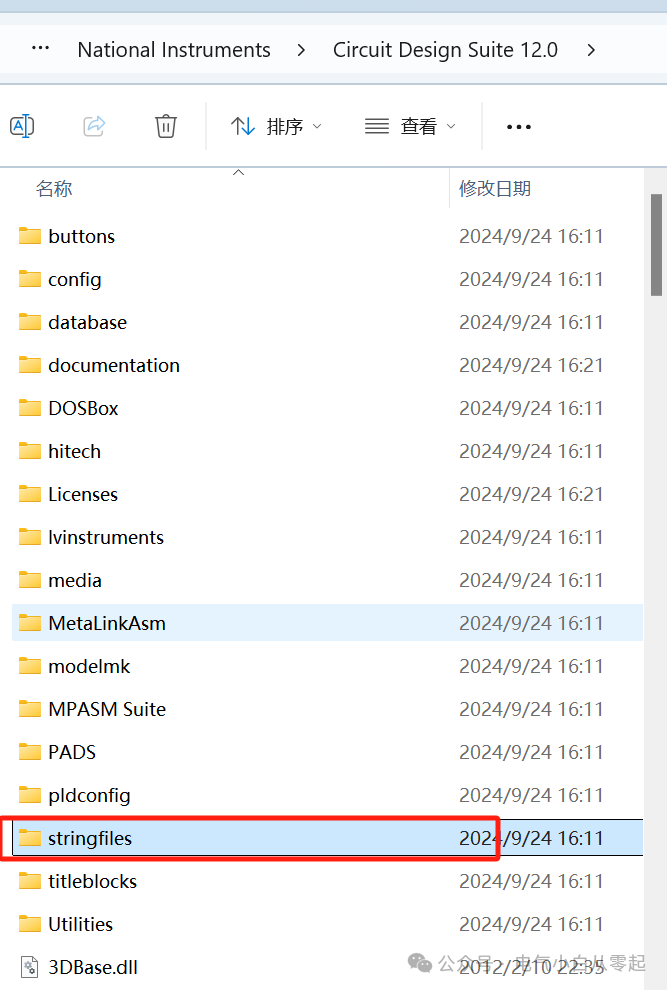
30.Double-click to open the “stringfiles” folder;
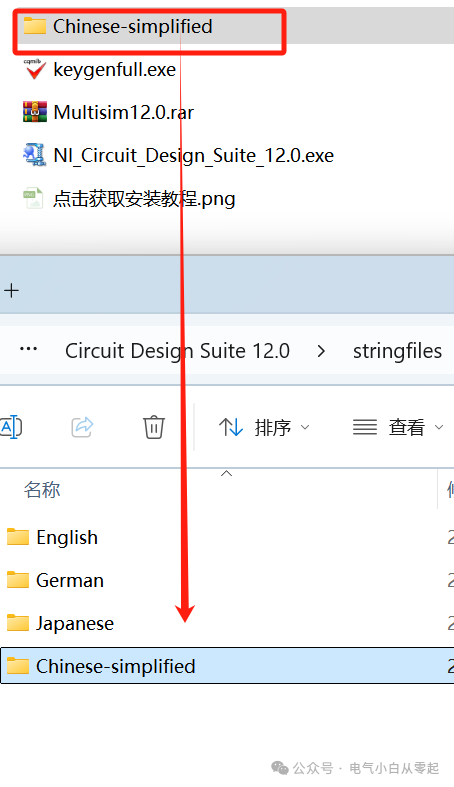
31.Open the installation package folder, find “Chinese-simplified” and copy this folder to the “stringfiles” folder;
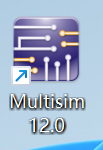
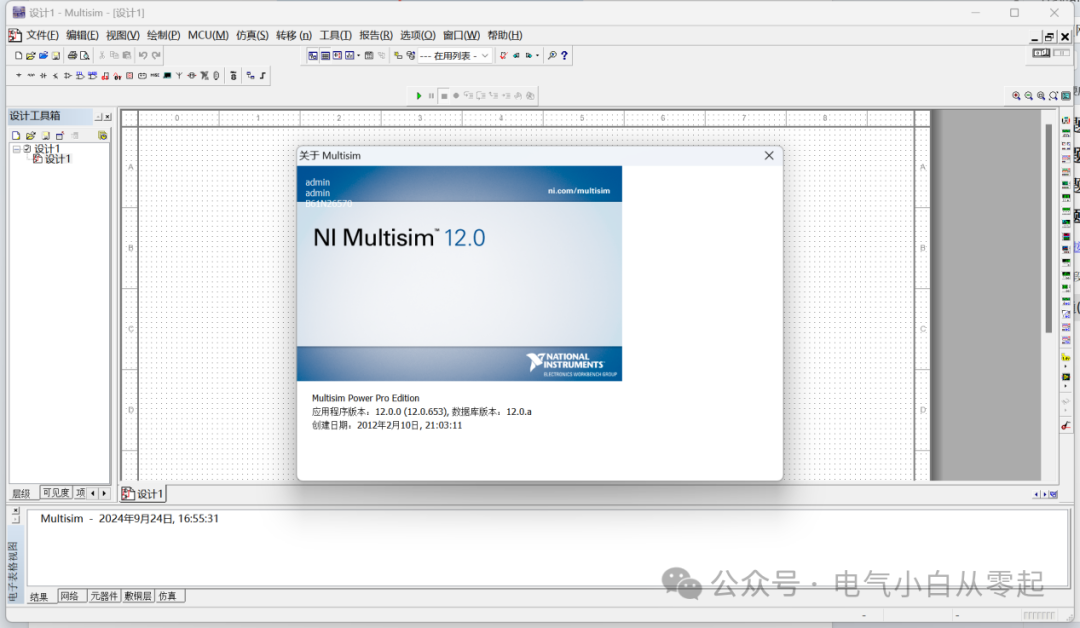
32.Find the “Multisim 12.0” icon on the desktop and double-click to open;
33.Installation complete.
Note: The download is for experience and testing purposes only, not for commercial and legitimate use.
Long press to scan the QR code below to add the public account and get more industrial control information.