Software Introduction:
Multisim is a simulation tool developed by National Instruments (NI) for the Windows platform, suitable for the design of analog/digital circuit boards at the board level. It includes graphical input for circuit schematics and circuit hardware description language input methods, with rich simulation and analysis capabilities. (This tutorial is for learning and communication purposes only.)
Installation Prerequisites:
1. You must disconnect your computer from the network during the entire installation process; otherwise, the installation will fail;
2. Before extracting and installing, turn off antivirus software such as 360 and Tencent Guardian to avoid mistakenly killing the cracking tool, which could lead to a failure in the cracking process;
3. The Multisim 13.0 provided here is suitable for WIN7/8/10 systems; XP users should install a lower version;
Multisim 13.0 64-bit Installation Steps:
1. Use the “Baidu Cloud Client” to download the Multisim 13.0 software installation package (including cracking files) to your computer’s disk, extract it, then find NI_Circuit_Design_Suite_13_0.exe, right-click and select [Open]
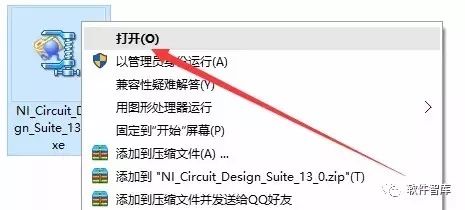
2. Click [OK]
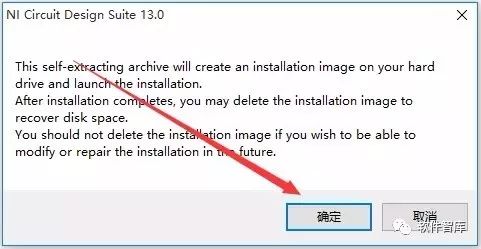
3. Click [Unzip]
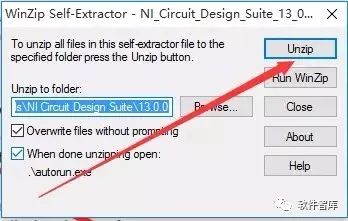
4. Click [OK]
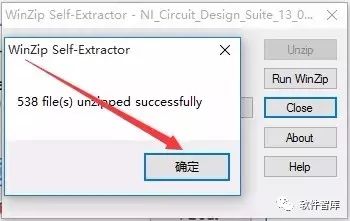
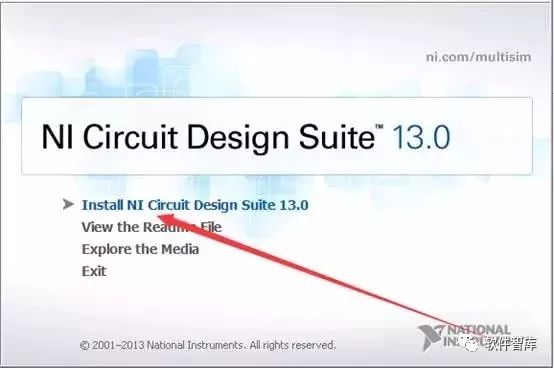
5. Click [Install NI Circuit Design Suite 13.0]
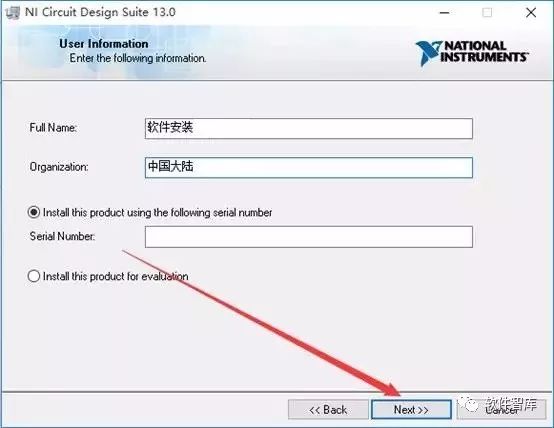
6. Input Full Name and Organization freely, then click [Next]
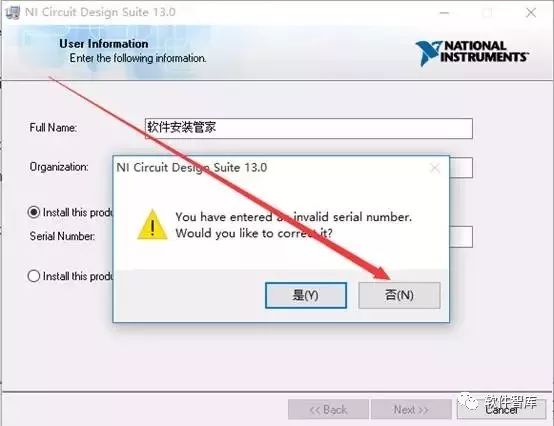
7. Click [No]
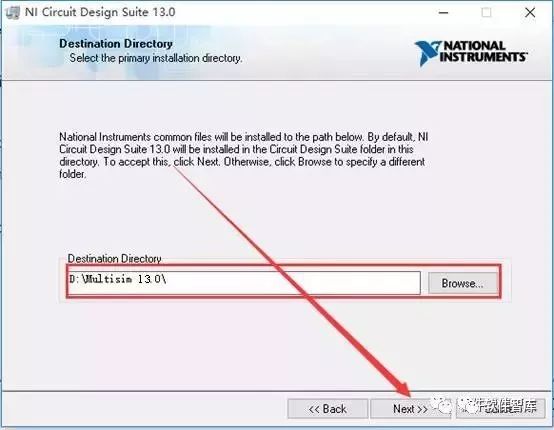
8. Choose the software installation path, it defaults to C drive; clicking [Browse] allows you to change the installation path, but note: the folder name in the installation path cannot contain Chinese characters! Here, the software is installed in the D drive under the Multisim13.0 folder, then click [Next]
9. Click [Next]
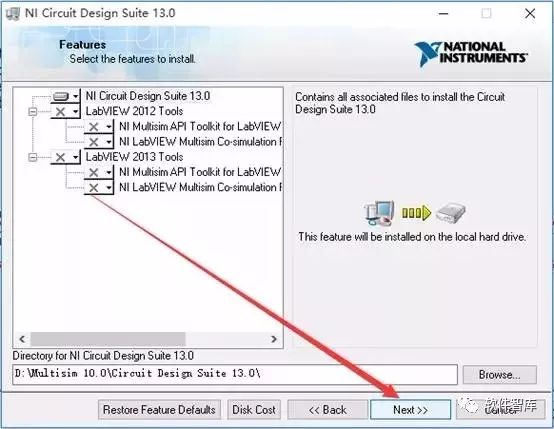
10. Click [Next]
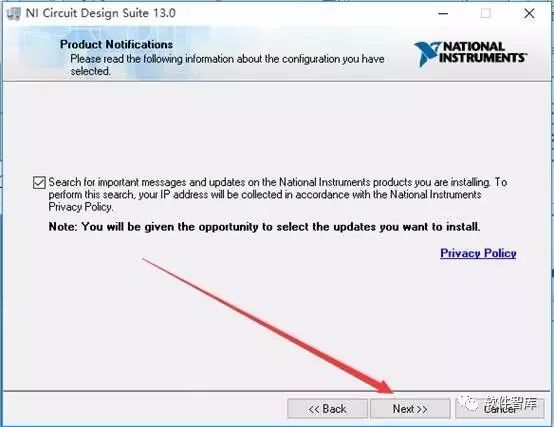
11. Installation is in progress, it will take about 3 minutes
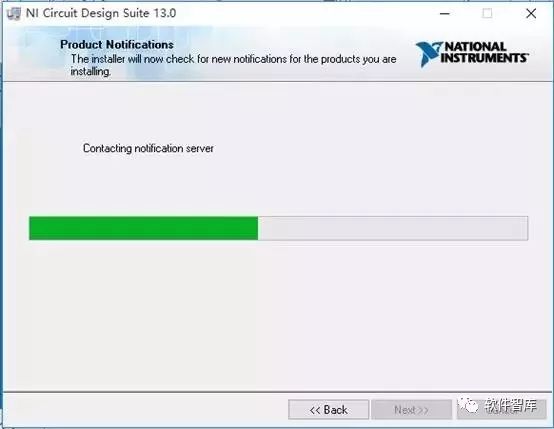
12. Click [Next]
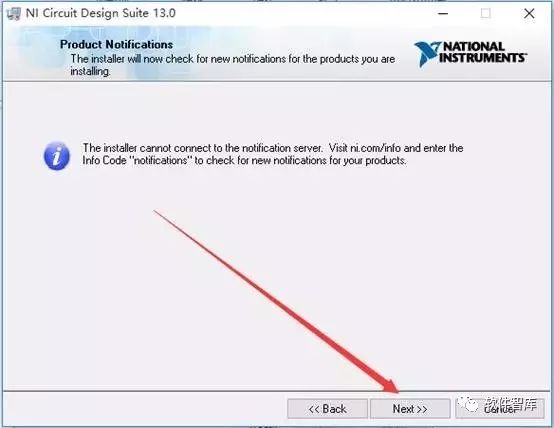
13. Check “I accept…” option, then click [Next]
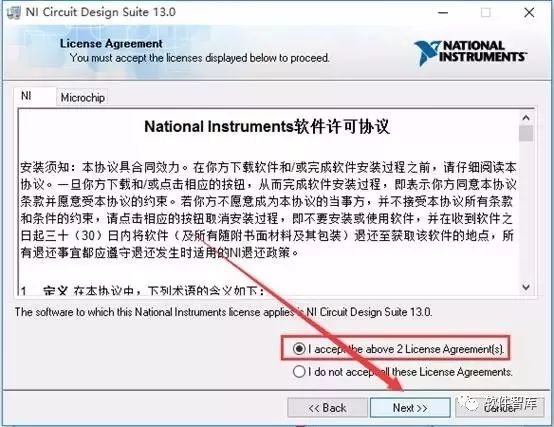
14. Click [Next]
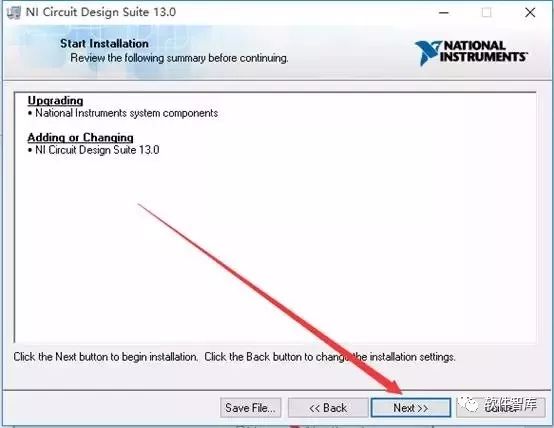
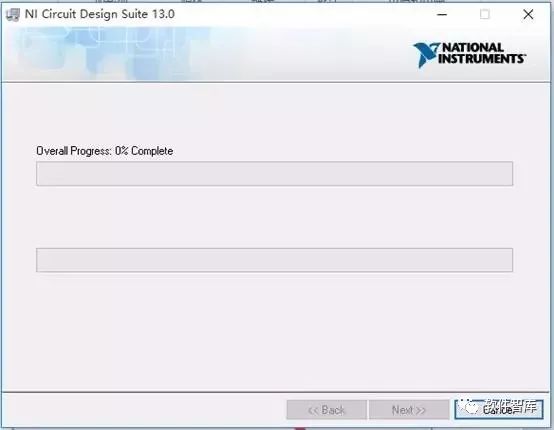
15. Installation is in progress, it will take about 10 minutes
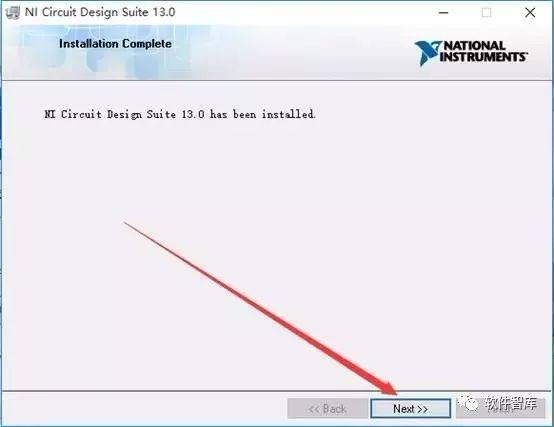
16. Click [Next]
17. Click [No]

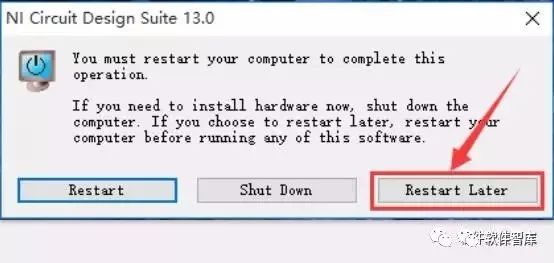
18. Click [Restart Later]
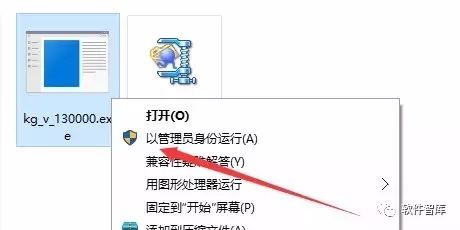
19. Go back to the installation folder, find kg_v_130000.exe in the Multisim13.0 folder, right-click and select to run as [Administrator]
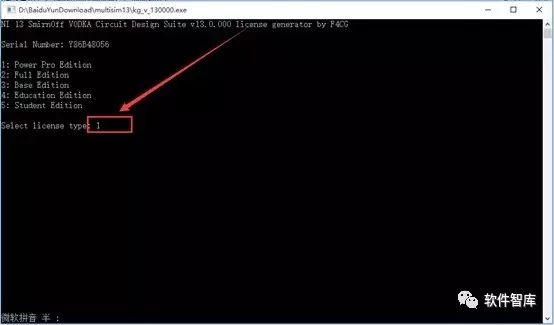
20. After the interface pops up, input 1, then press Enter
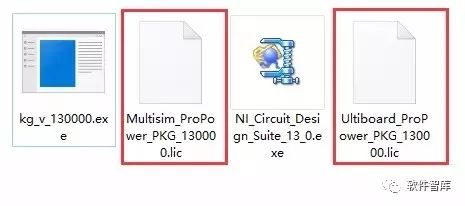
21. The following two files will appear in the Multisim13.0 folder
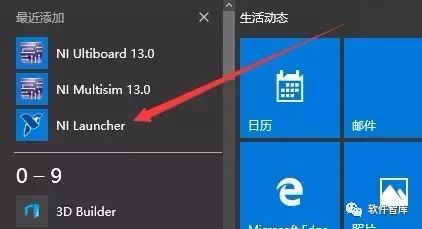
22. Click on the Start menu, click [All Programs], then find NI Launcher and click to open
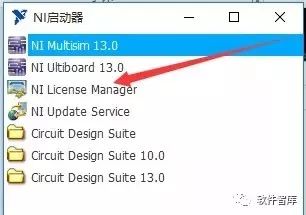
23. In the popped-up interface, click [NI License Manager]
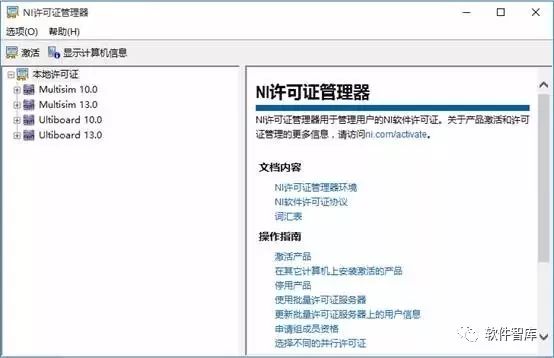
24. The following interface will pop up
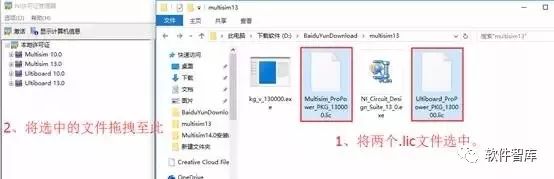
25. Drag the two .lic files generated in step 21 into the NI License Manager
26. Click [Yes]
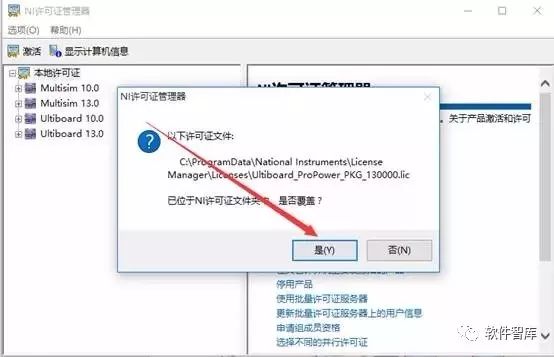
27. Click [Yes]
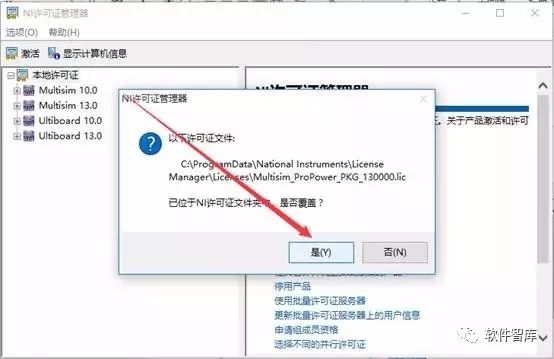
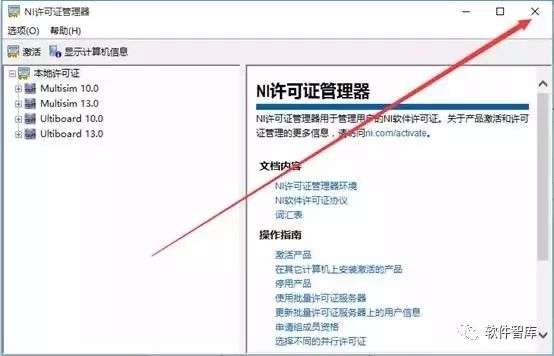
28. Close this interface
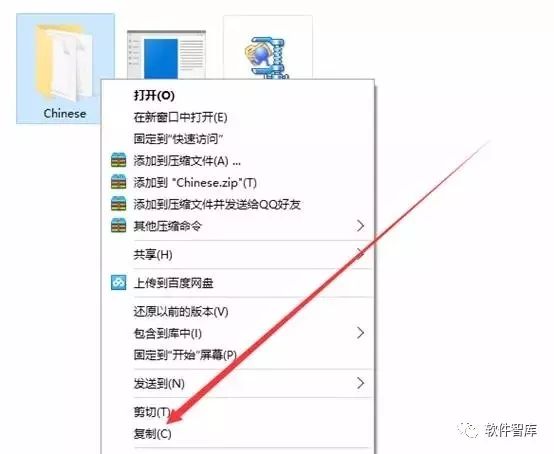
29. In the extracted folder, find the Chinese folder, right-click and select [Copy]
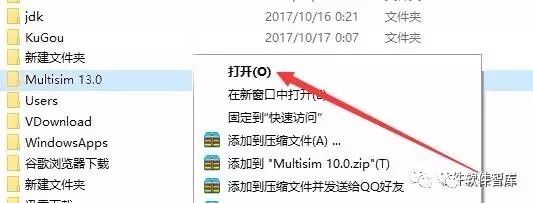
30. In My Computer (see step 8), find the Multisim13.0 folder, right-click and select [Open]
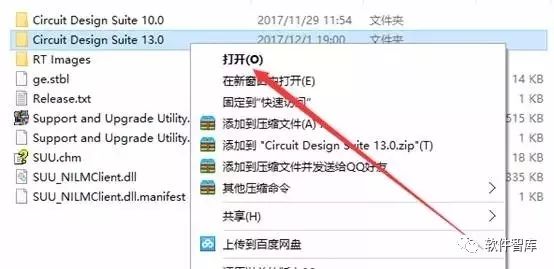
31. Find the Circuit Design Suite 13.0 folder, right-click and select [Open]
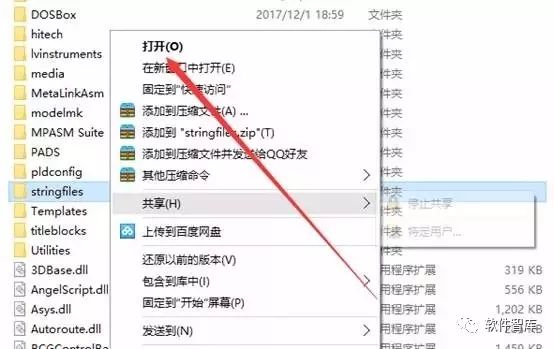
32. Find the stringfile folder, right-click and select [Open]
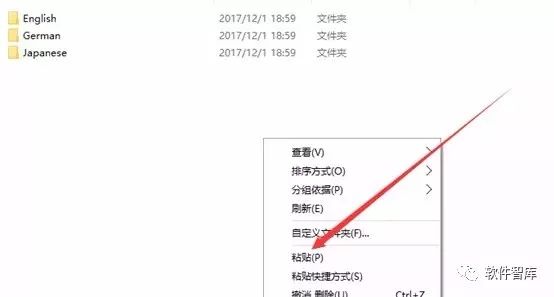
33. Right-click in the empty space and select [Paste]
34. Close this interface
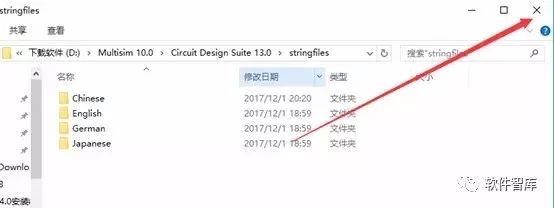
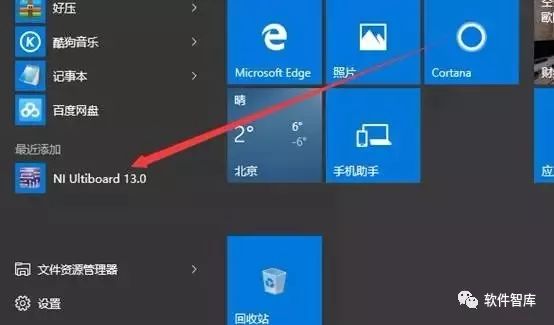
35. Click on the Start menu, find NI Ultiboard 13.0 and click to open
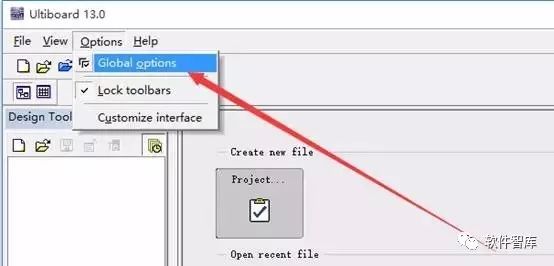
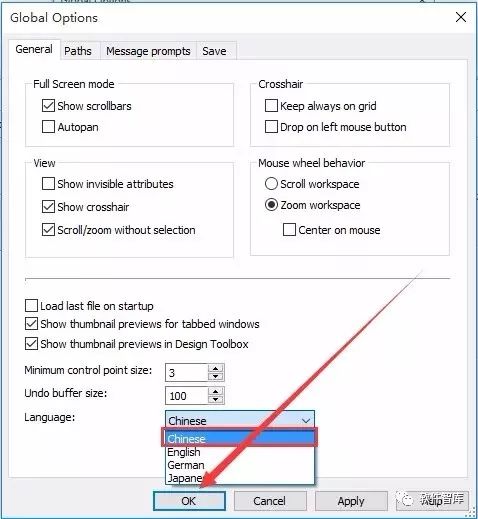
36. Click [Options] in the menu bar, then click [Global options]
37. Click [English]
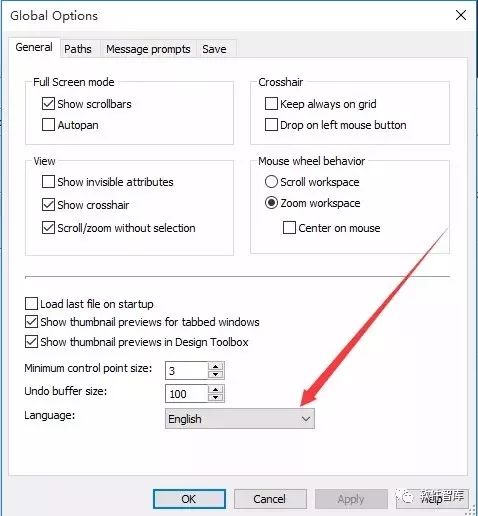
38. Select Chinese and click [Ok]
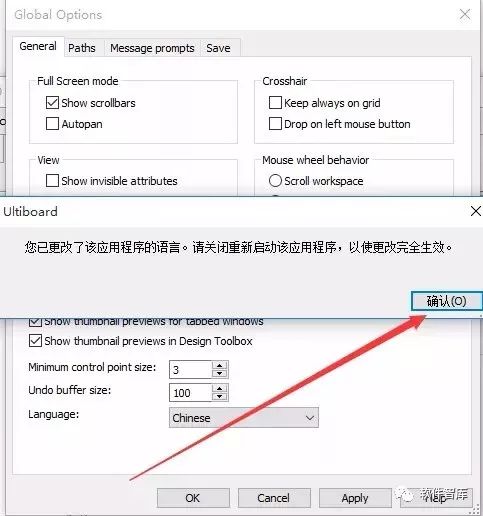
39. Click [Confirm] and close the software
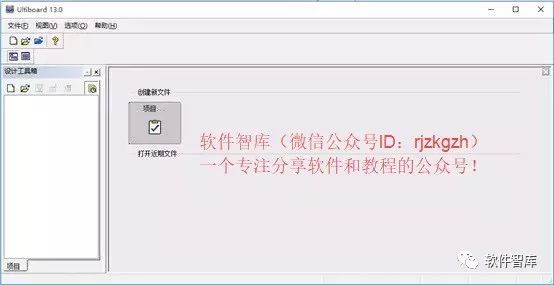
40. Click on the Start menu, find NI Ultiboard 13.0 and click to open
41. Installation is complete, reopen Multisim 13.0, the interface is as follows:
END
If you find it useful, feel free to share it with your friends!

Software Library
Installation · Learning · Technology · Innovation

·↑Long press this QR code to follow↑·
WeChat ID: rjzkgzh