SoftwareIntroduction
|
Proteus is an electronic design automation (EDA) software that integrates circuit simulation, PCB design, and microcontroller debugging, widely used in embedded system development, electronic education, and industrial design. Below is its related introduction: Features・ Mixed-mode circuit simulation: Supports co-simulation of analog/digital circuits, integrates virtual instruments (such as logic analyzers and voltage probes), and allows real-time verification of circuit performance.・ Embedded system development: Built-in models for microcontrollers such as 8051, ARM, and PIC, supports firmware debugging (e.g., Keil, MPLAB co-debugging), enabling hardware-software synchronous verification.・ 3D PCB visualization: Provides automatic layout and routing from schematic to PCB, and generates 3D models for intuitive inspection of mechanical compatibility and component layout rationality. Application Scenarios・ Embedded product design: Used for smart home and IoT device development, quickly verifying hardware logic for sensor interfaces and communication modules.・ Electronic education and competitions: Universities use simulation cases (such as motor drives and digital clocks) to assist theoretical teaching, allowing students to complete experimental projects without hardware.・ Industrial control board development: Accelerates hardware prototype testing for industrial control PLCs and HMI interfaces, reducing the number of physical samples. |
|
| Software Name:Proteus 9.0 | |
|
Software Language:Simplified Chinese |
Software Size:736.7M |
|
System Requirements: Windows 7 or higher, 32/64-bit operating system |
|
| Hardware Requirements: CPU @ 2.5+ GHz, RAM @ 8G or higher | |
| Download Channels①Thunder Cloud Disk丨Download Link:
https://pan.xunlei.com/s/VOYV5d0wbn5-vgij0PSiafldA1?pwd=jq9i# |
|
|
Download Channels②Baidu Cloud Disk丨Download Link: https://pan.baidu.com/s/1rrvhkEzSr80Am6BHfSmrGA?pwd=8888 |
|
|
Download Channels③Quark Cloud Disk丨Download Link: https://pan.quark.cn/s/45d94a81b660 |
|
| Download Help: ▷ Click to see how to “download software”? Common Questions: ▷ Click to view the “Help Center”! More Resources: ▷ Click to view the latest “Software Directory”! |
InstallationSteps
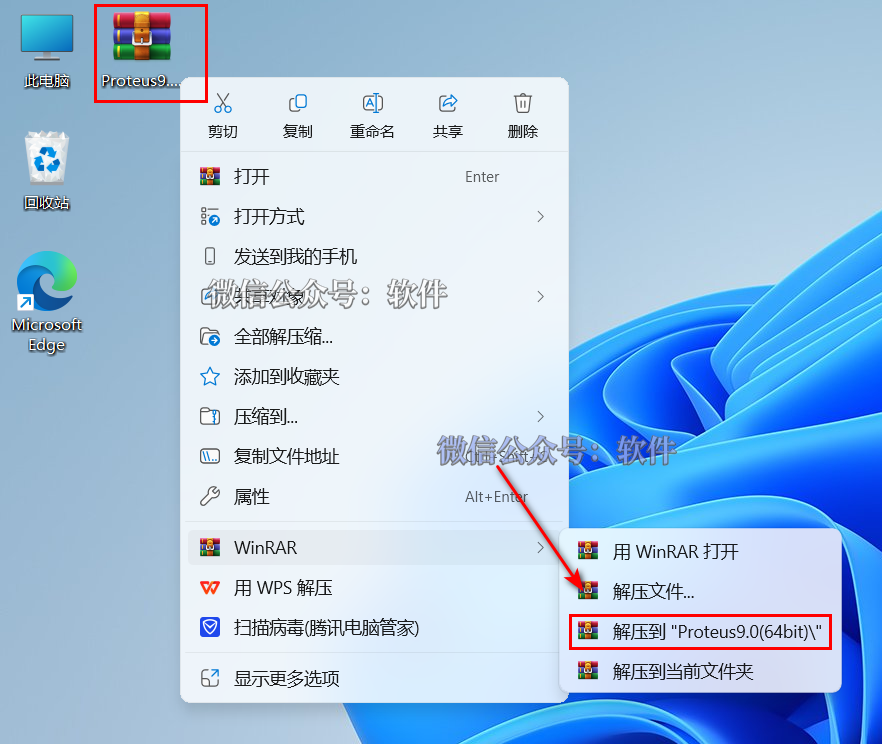
1. Right-click the 【Proteus9.0(64bit)】 compressed package and select 【Extract to Proteus9.0(64bit)】.
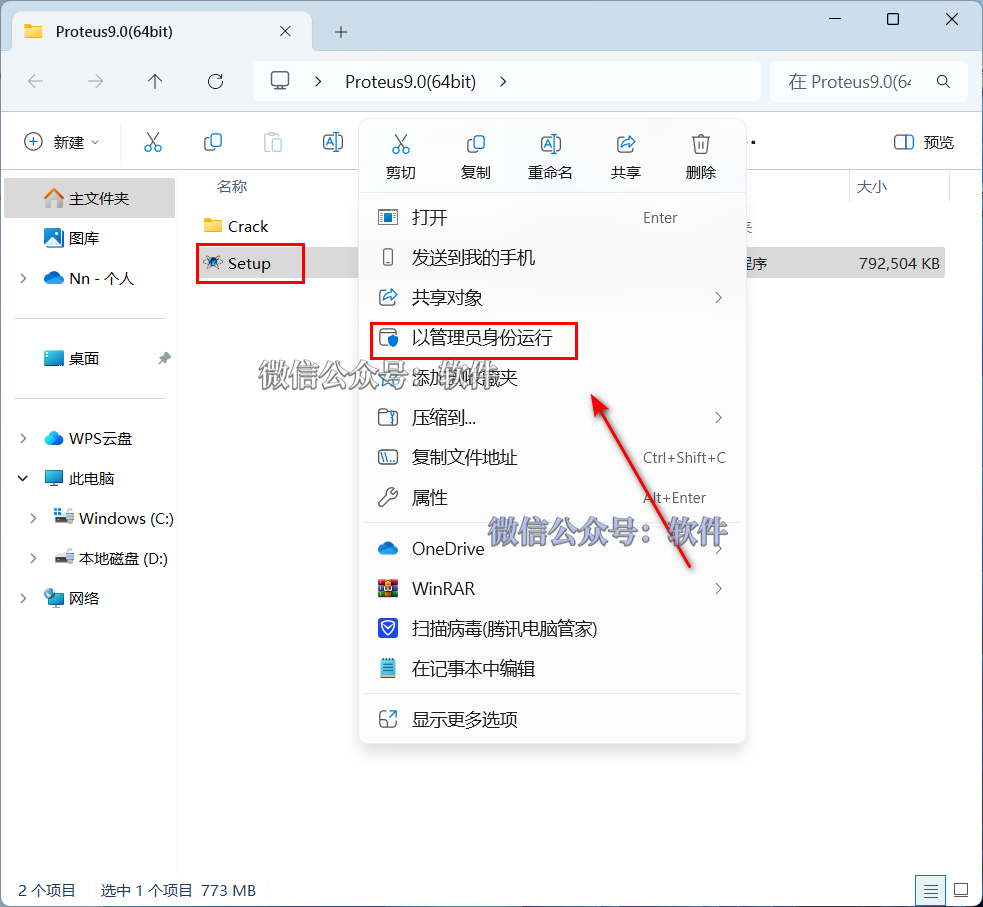
2. Double-click to open the extracted folder, right-click 【Setup】 and select 【Run as administrator】.
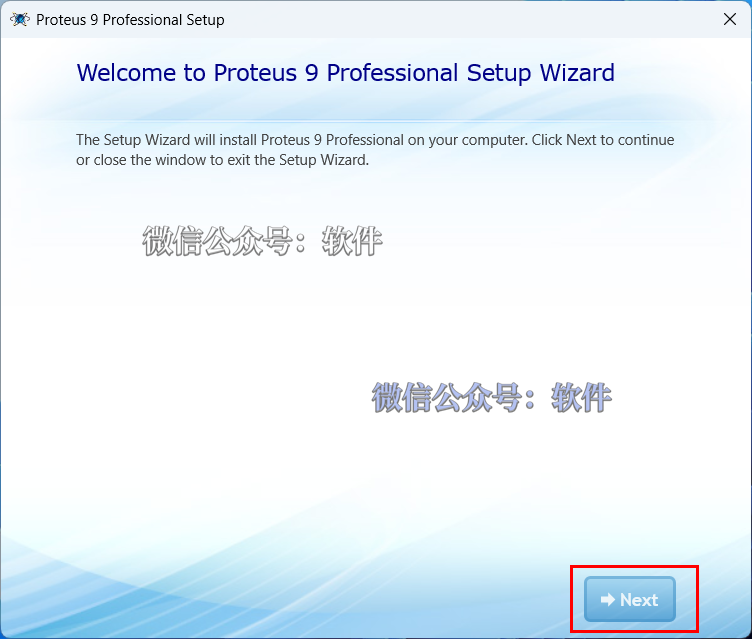
3. Click 【Next】.
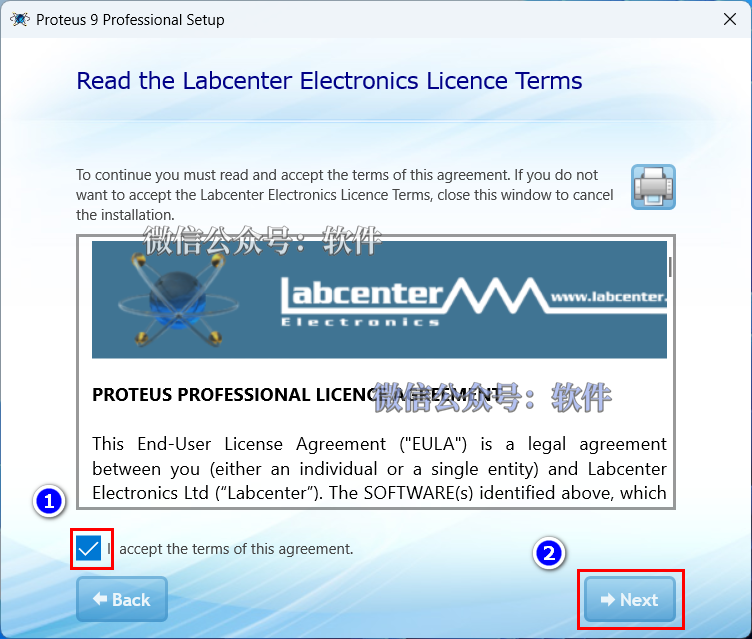
4. Check 【I accept…】 and click 【Next】.
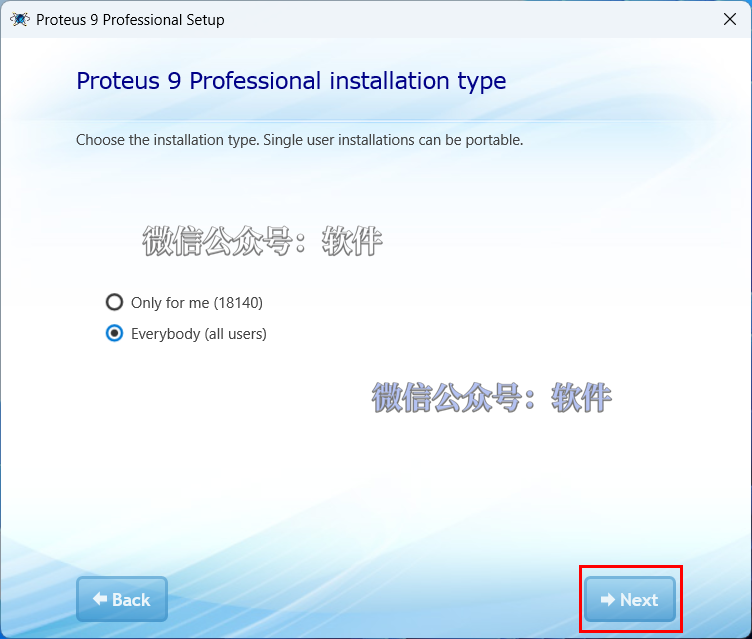
5. Click 【Next】.
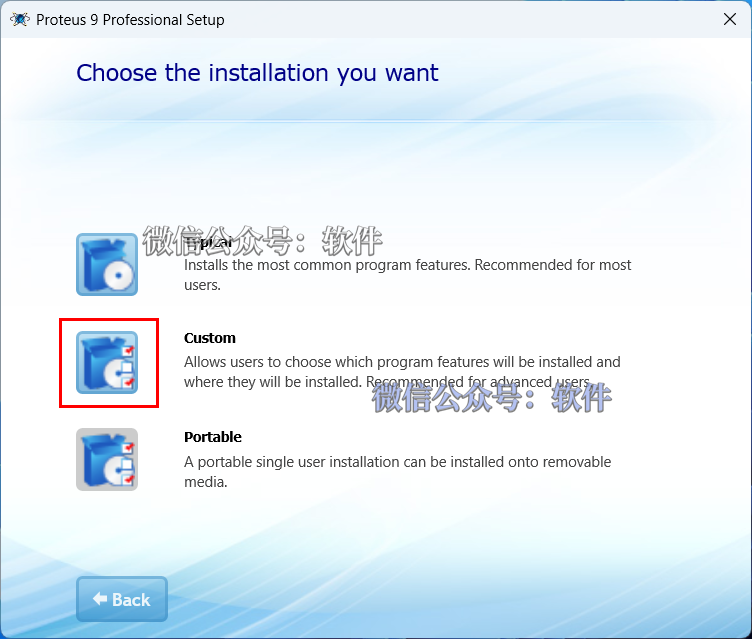
6. Select 【Custom】.
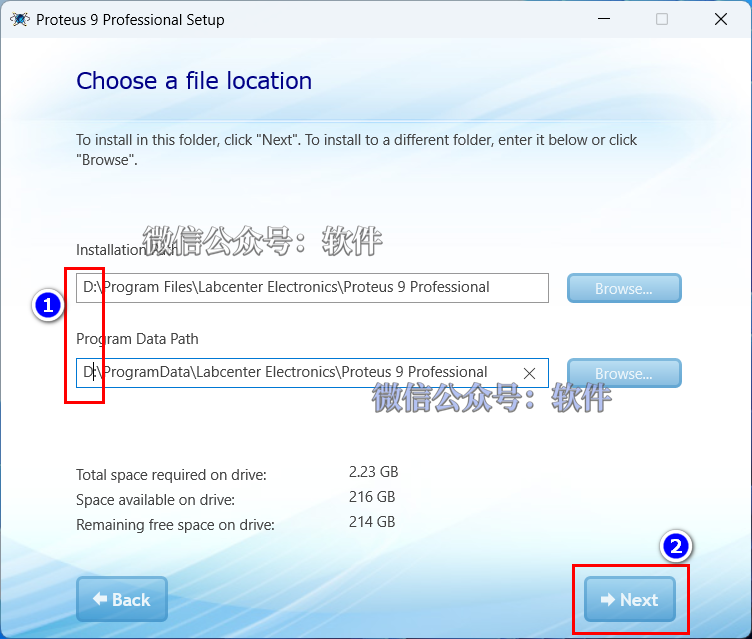
7. Modify the first character of the path address from “C” to change the software installation location (for example, changing C to D will install the software to drive D), click 【Next】.
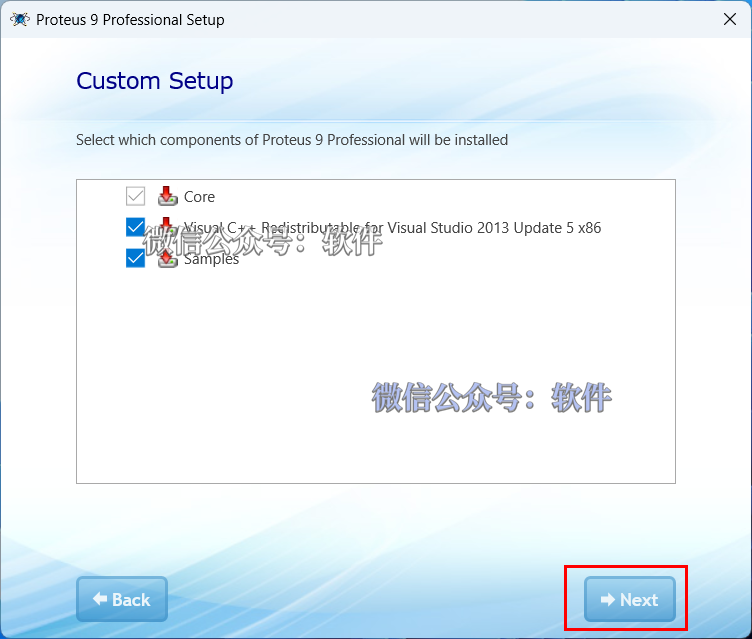
8. Click 【Next】.
9. Click 【Install】.
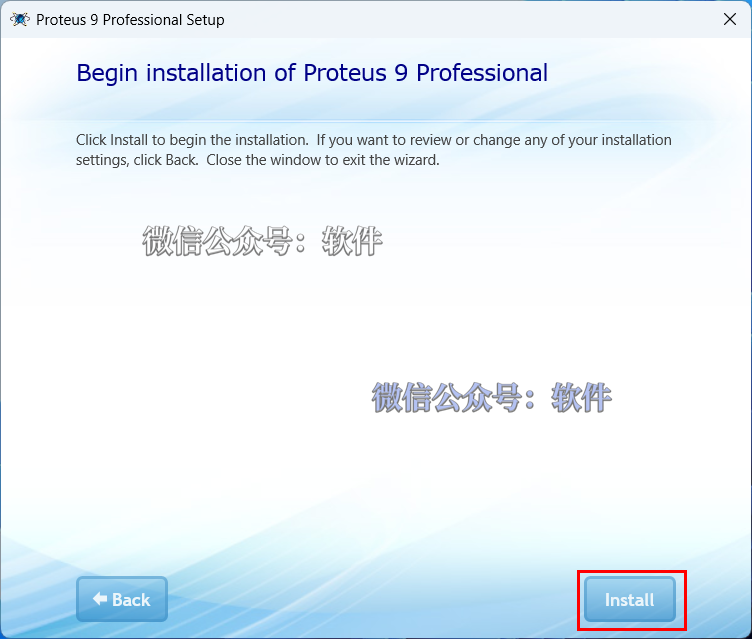
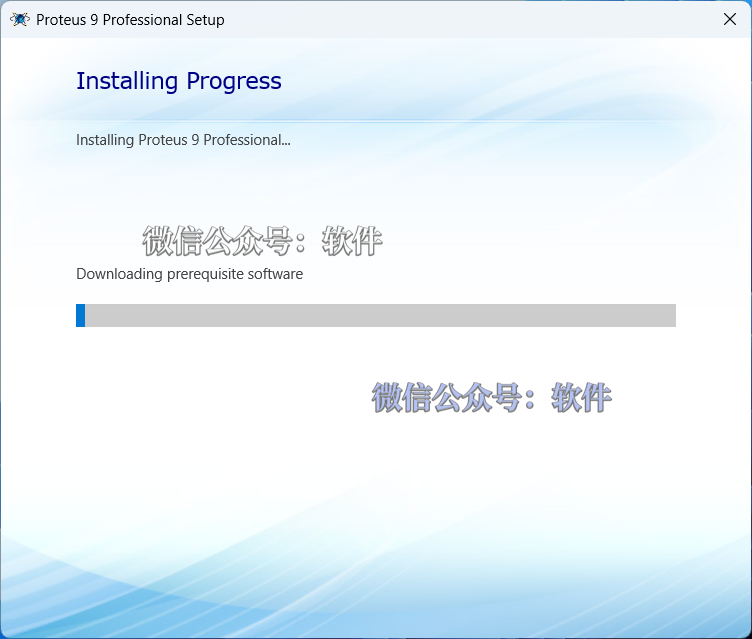
10. Installing……
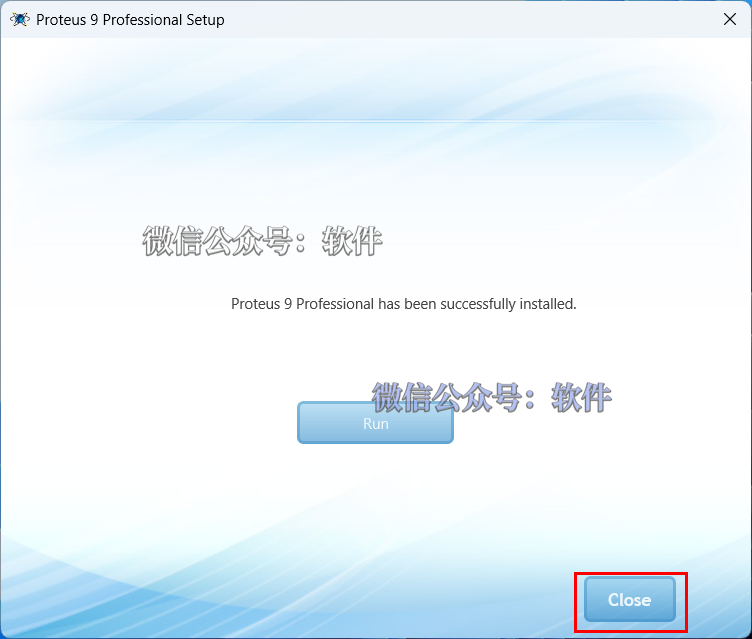
11. Click 【Close】.
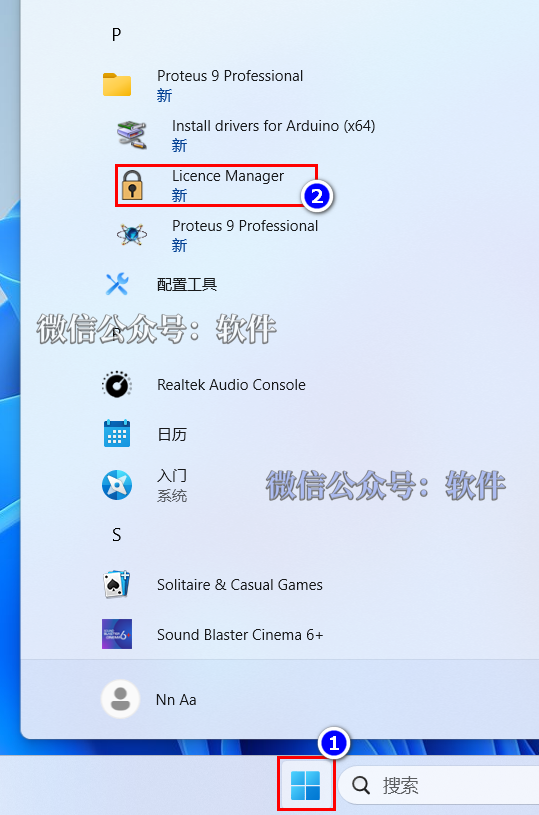
12. Click the 【Start icon】 in the desktop taskbar > Click 【All Apps】 > Double-click to expand the 【Proteus 9 Professional】 folder, and click 【Licence Manager】.
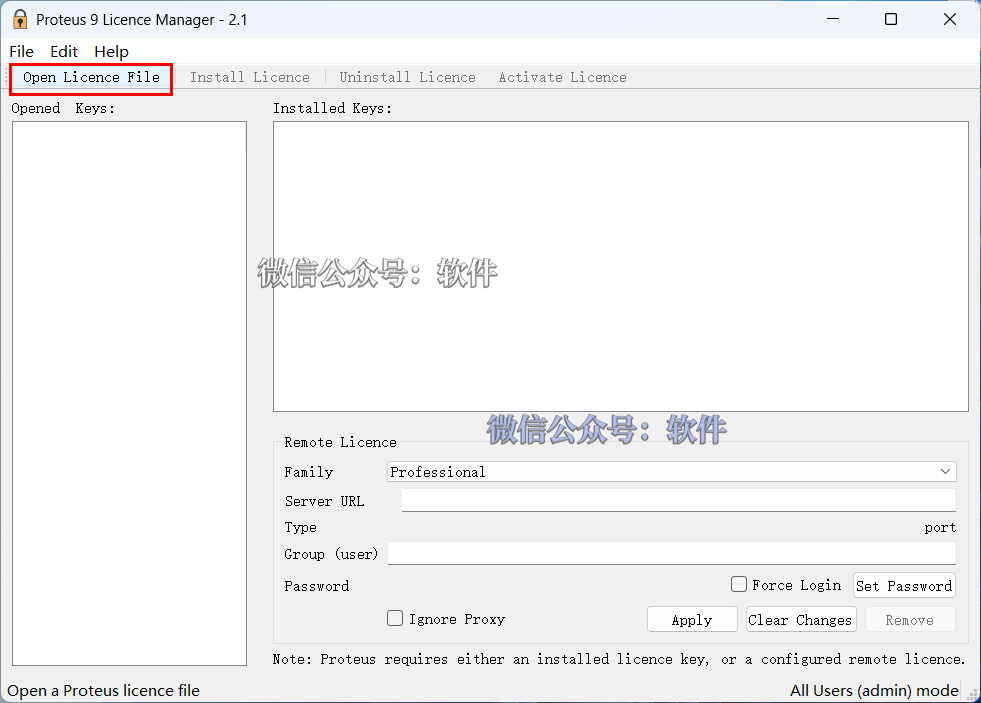
13. Click 【Open Licence File】.
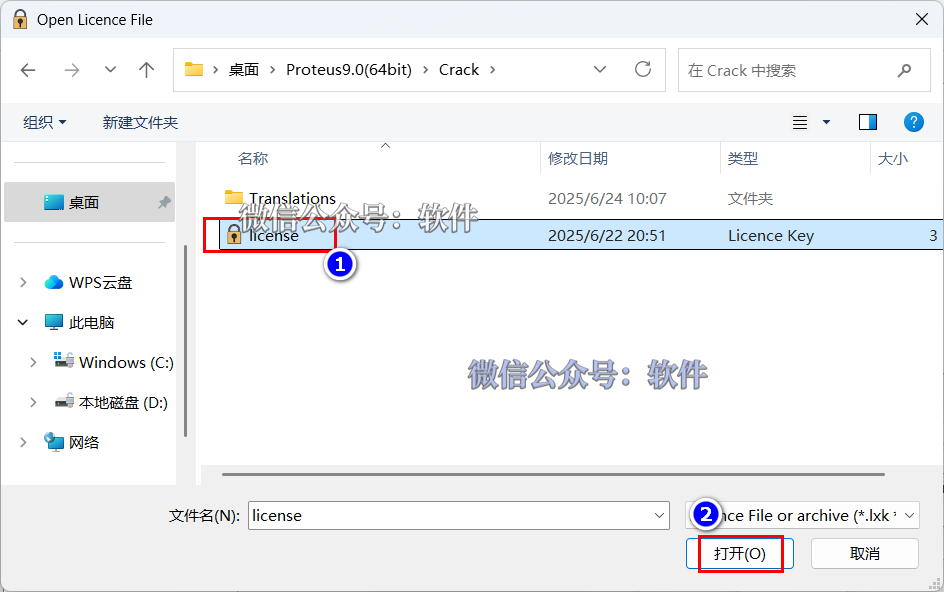
14. Open the 【Crack】 folder from the extracted installation package and select the 【Licence】 file, then click 【Open】.
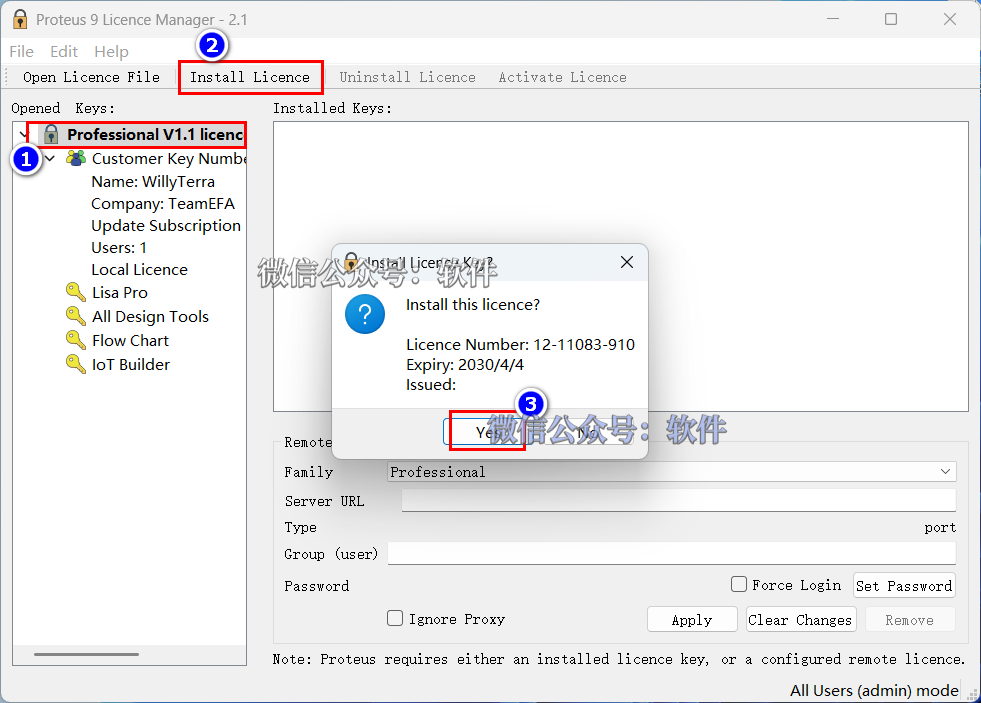
15. Select 【Professional V1.1…】, click 【Install…】, and click 【Yes】.
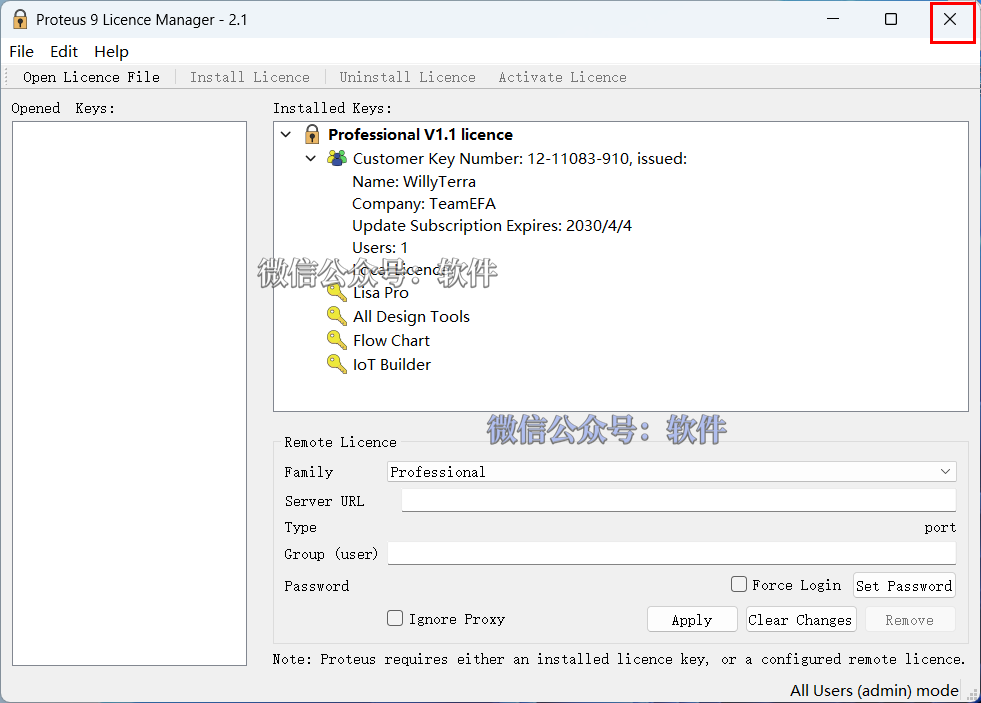
16. Click the 【X】 in the upper right corner to close.
17. Open the 【Proteus9.0(64bit)】 folder from the extracted installation package, double-click to open the 【Crack】 folder. Right-click 【version.dll】 and select 【Copy】.
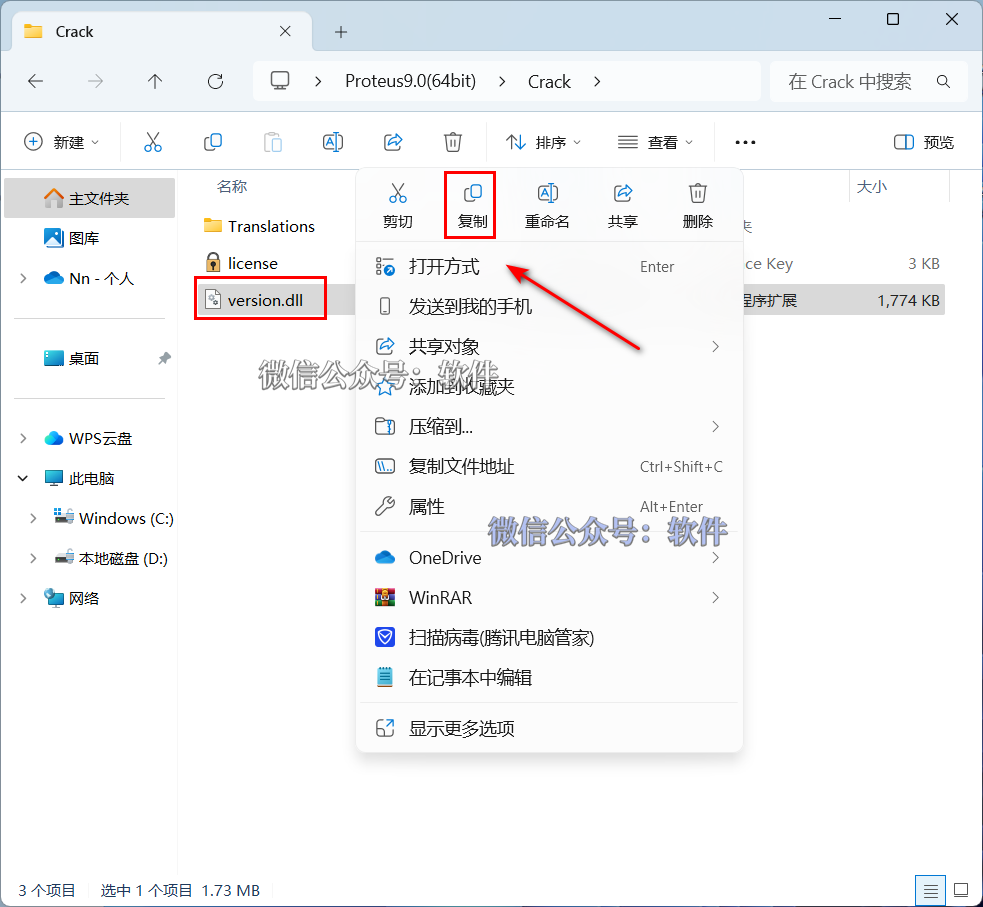
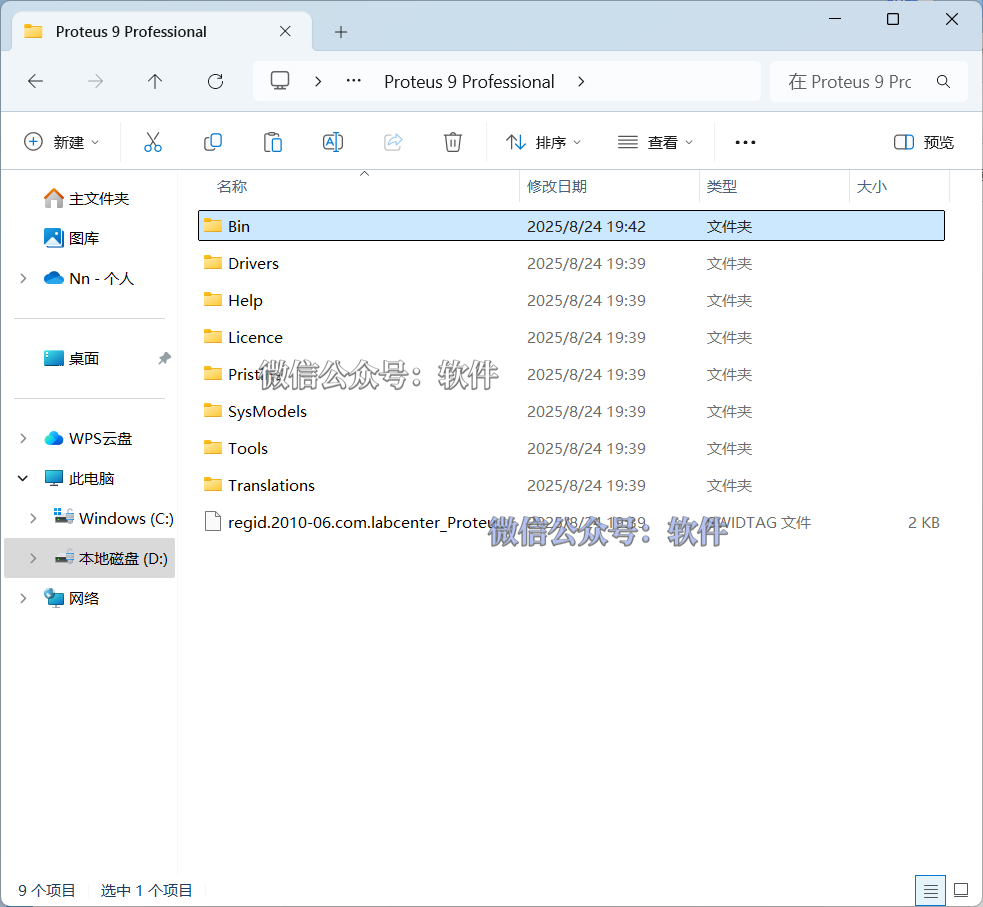
19. Open the software installation path from step 7 【D:\Program Files\Labcenter Electronics\Proteus 9 Professional\Bin】, right-click in the blank area and select 【Paste】.
20. Click on the path address bar 【Proteus 9 Professional】.

21. Do not close this page.
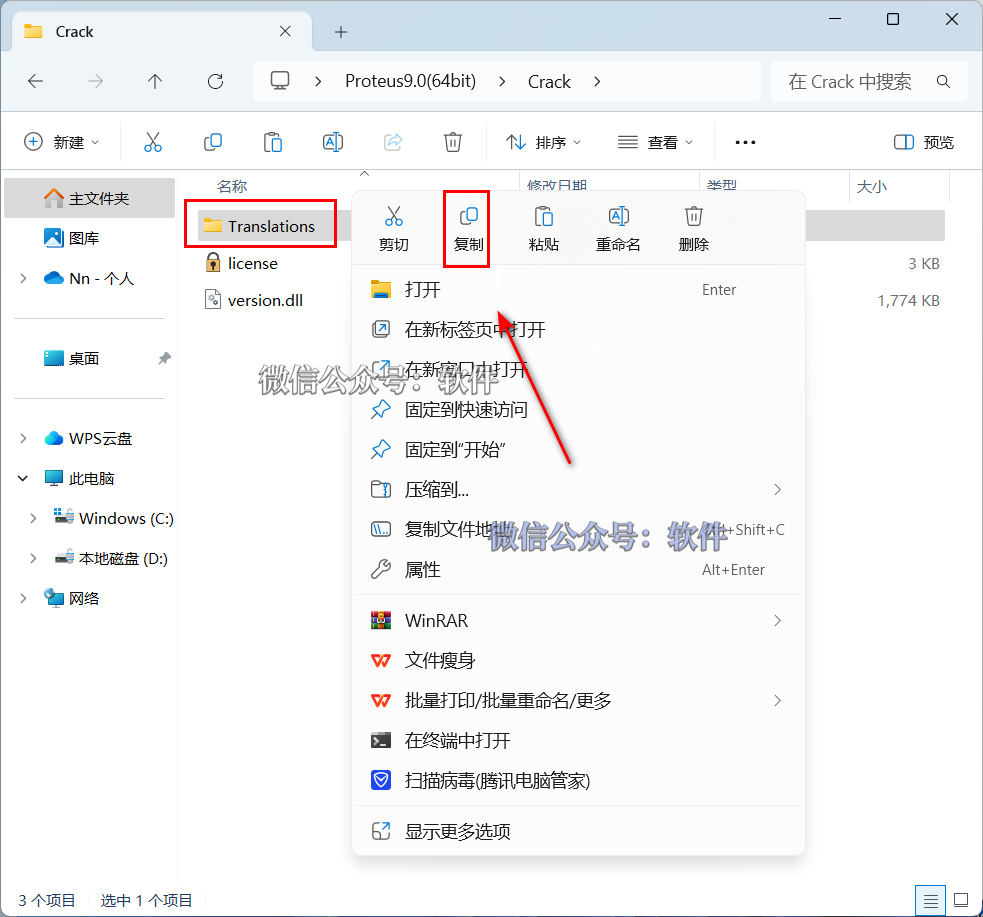
22. Continue in the opened 【Crack】 folder, right-click the 【Translations】 folder and select 【Copy】.
23. In the opened page from step 21, right-click in the blank area and select 【Paste】.
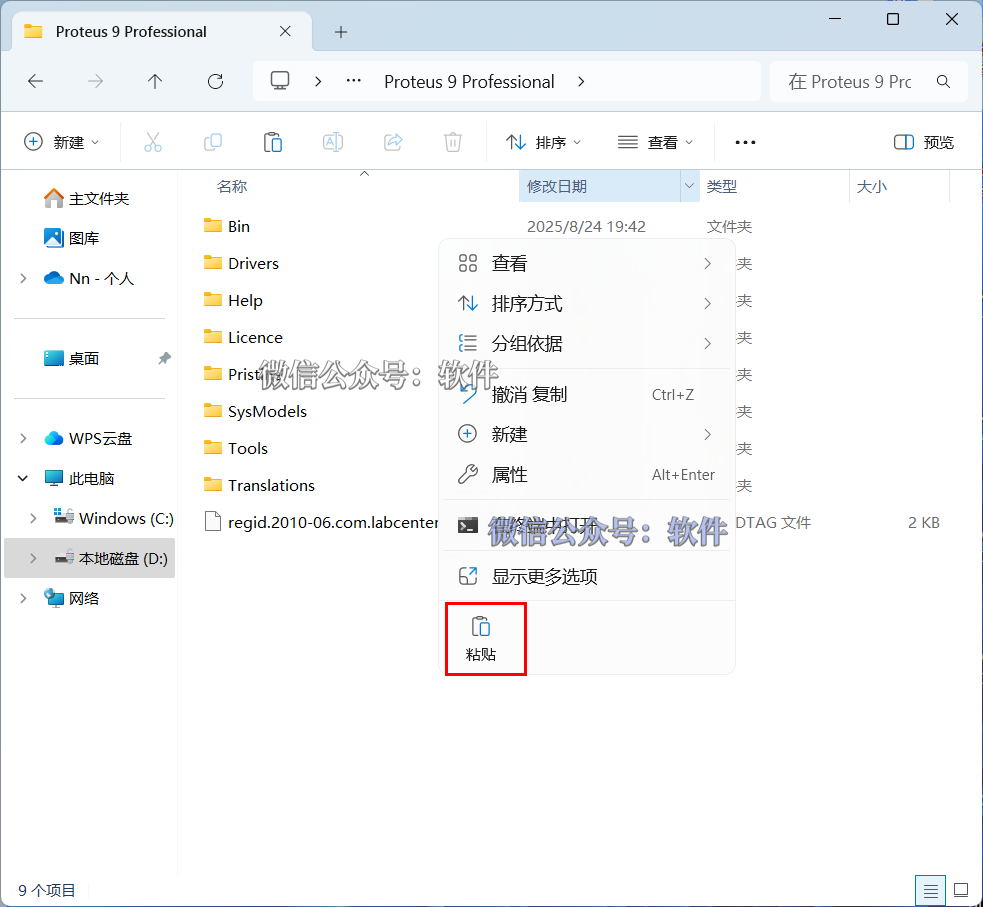
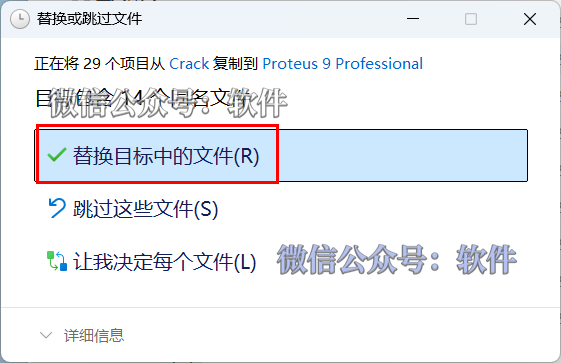
24. Click 【Replace files in the target】.
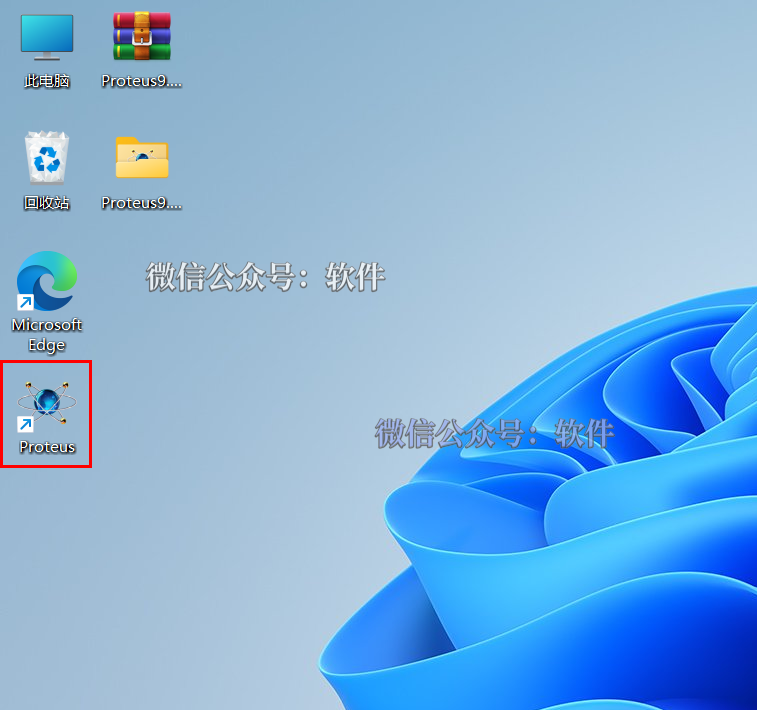
25. Double-click the 【Proteus】 icon on the desktop to open the software.
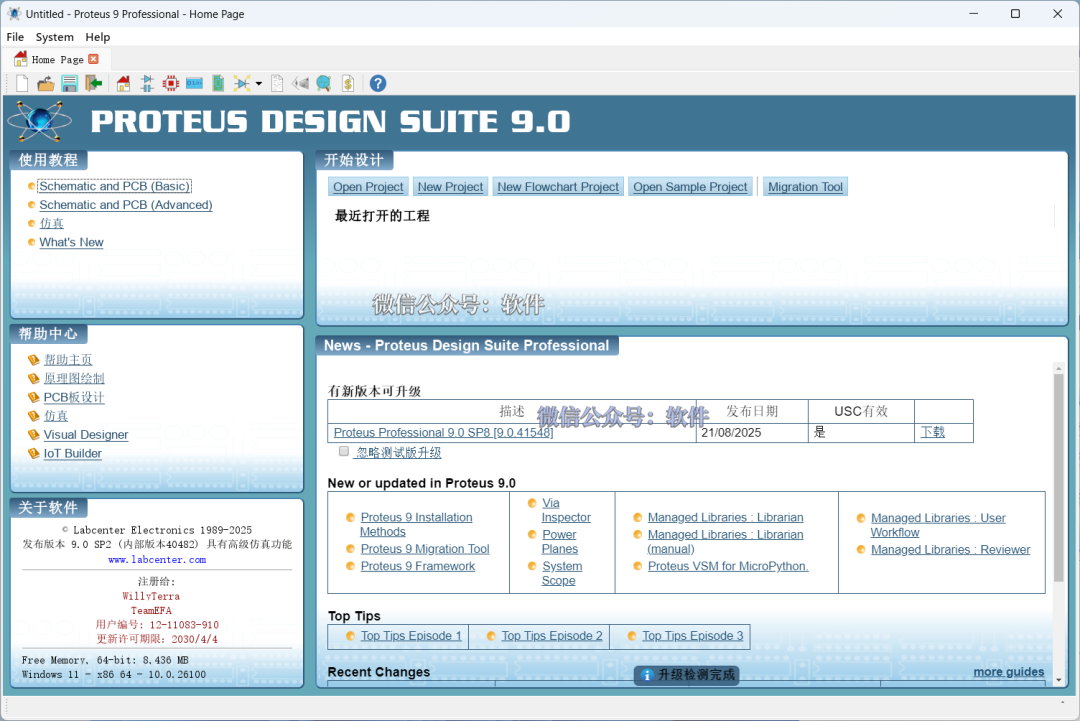
26. Installation successful!

Click below “Read the original text” to view the latest 【Software Directory】