
【Software Name】: Multisim 11.0
【Installation Environment】: Windows
【Download Link】: Click “Read the original text” at the bottom
【Download Link】: https://www.hezibuluo.com/10026.html
Software Introduction

The NI Multisim software combines intuitive capture with powerful simulation, allowing for quick, easy, and efficient design and verification of circuits. With NI Multisim, you can instantly create circuit diagrams with a complete component library and mimic circuit behavior using the industry-standard SPICE simulator. With professional advanced SPICE analysis and virtual instruments, you can quickly validate circuit designs early in the design process, shortening modeling cycles. Integration with NI LabVIEW and SignalExpress software enhances the design process with powerful technologies, enabling comparison of implemented modeling measurements with simulation data.
Installation Steps
1. Select the downloaded software package, right-click and choose to extract to “multisim11(E)”.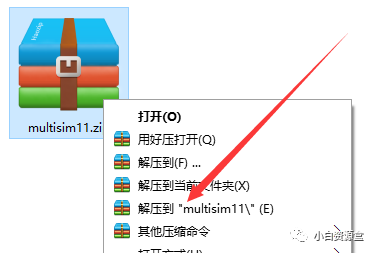 2. In the extracted folder, find Multisim11.0Setup.exe, right-click and select open.
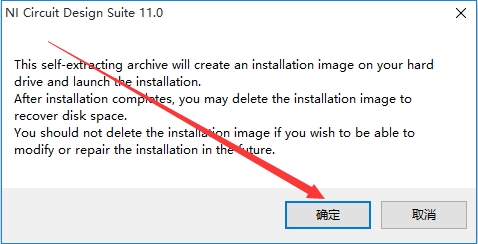
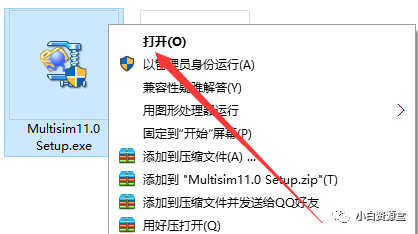 3. Click OK.
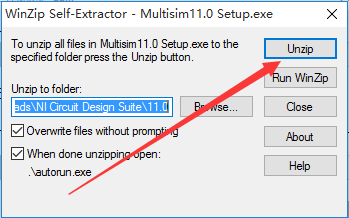
 4. Click Unzip.
 5. Click OK.
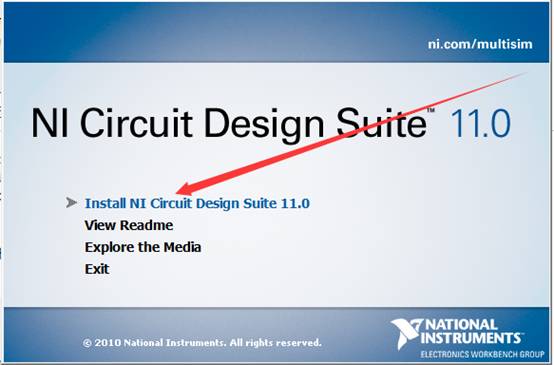
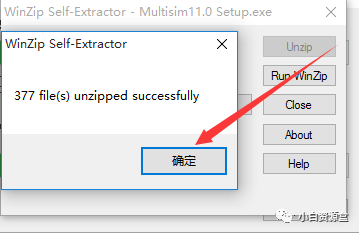 6. Click Install NI Circuit Design Suite 11.0.
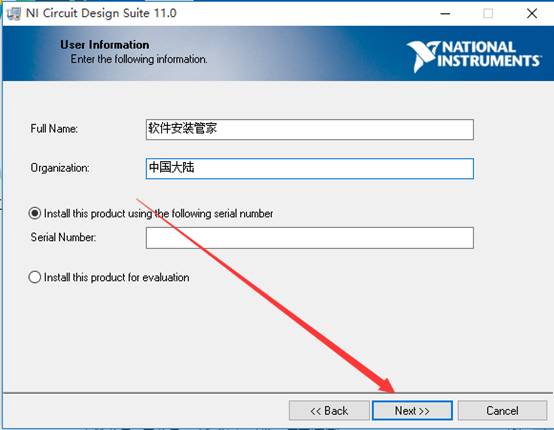
 7. Enter a name of your choice, then click Next.
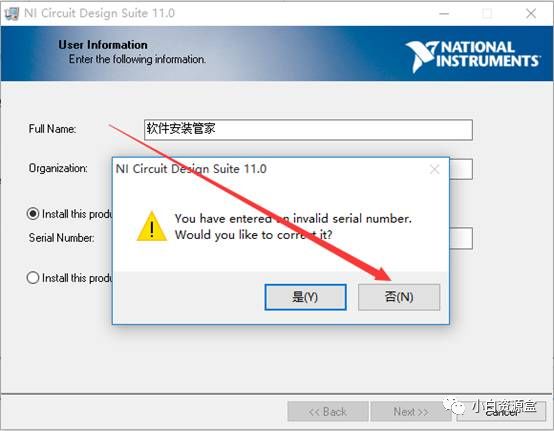
 8. Click No.
 9. Click Browse to change the installation path, it is recommended to install it to a disk other than C, you can create a multisim11.0 folder in D or another disk.Then click Next.
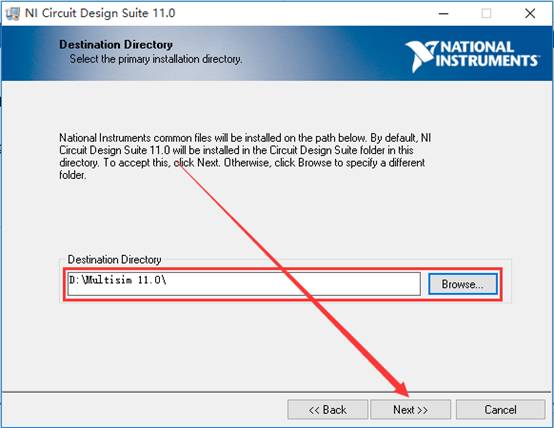 10. Click Next.
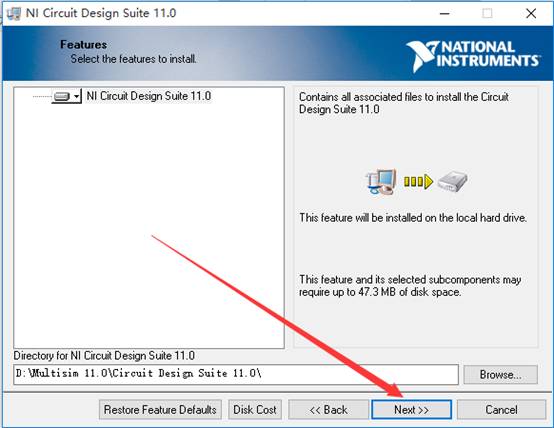 11. Click Next.
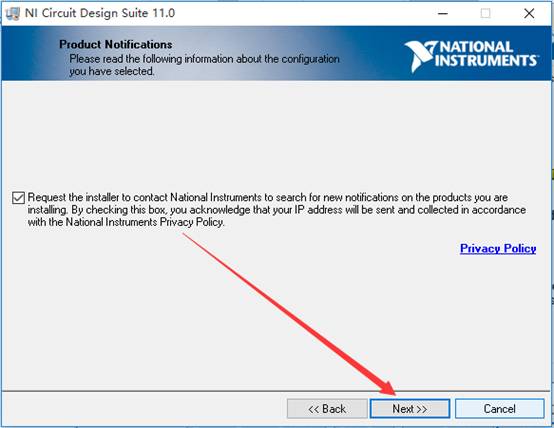 12. Software installation in progress (takes about 3 minutes).
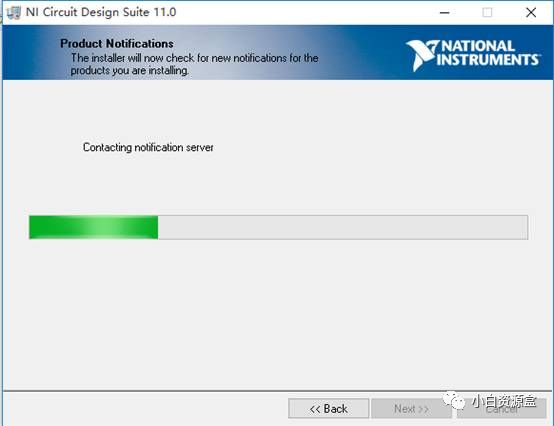 13. Click Next.
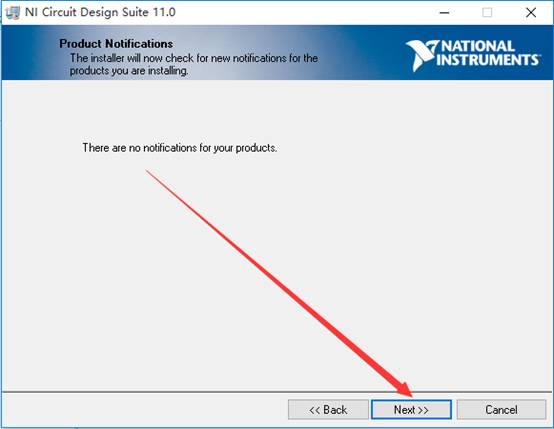 14. Select I accept the above 2 License Agreement option, then click Next.
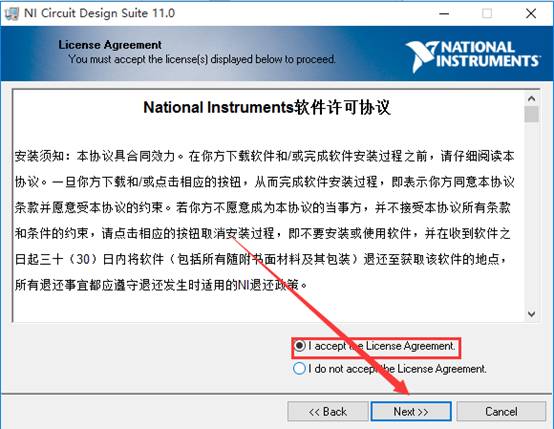 15. Select I accept the above 2 License Agreement option, then click Next.
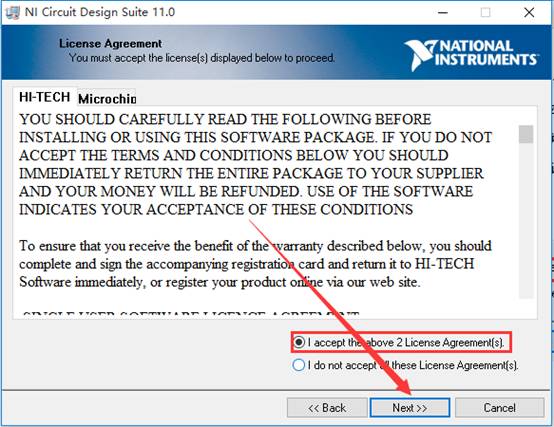 16. Click Next.
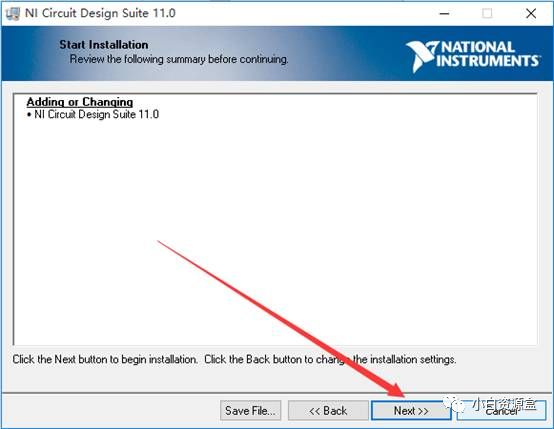 17. Software installation in progress (takes about 10 minutes).
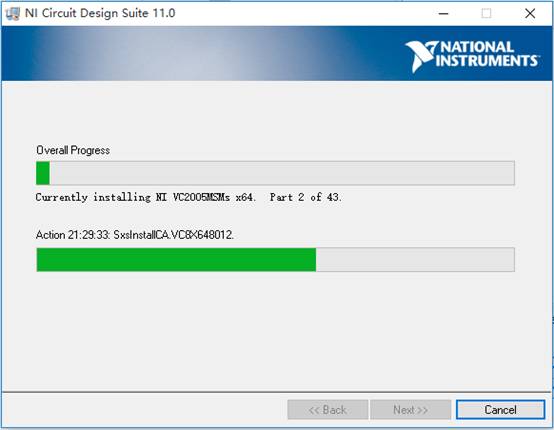 18. Click Next.
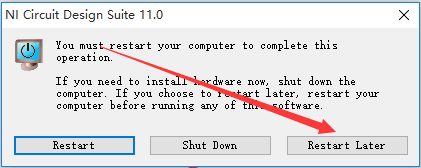
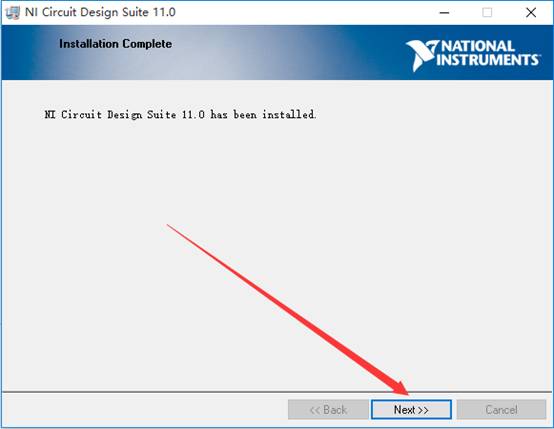 19. Click Restart Later.
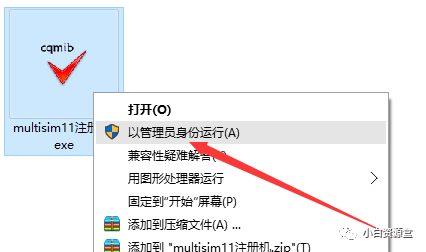
 20. Go back to the installation package folder, find multisim11 registration machine.exe in the Multisim13.0 folder, right-click and select Run as administrator.
 21. Click Create license file… .
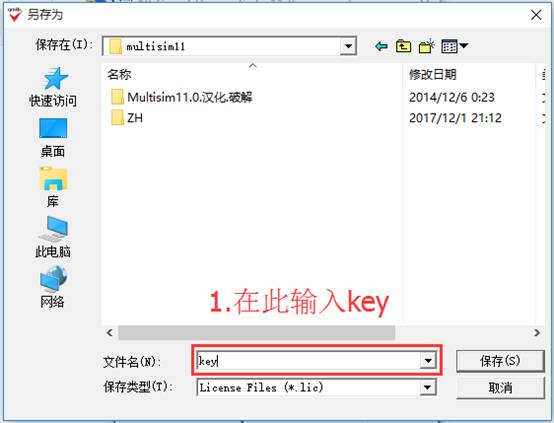
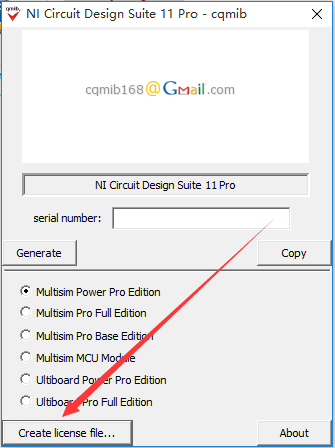 22. In the popped-up interface, open the multisim11 folder (refer to the path in step nine), enter the key in the filename field, and click Save.
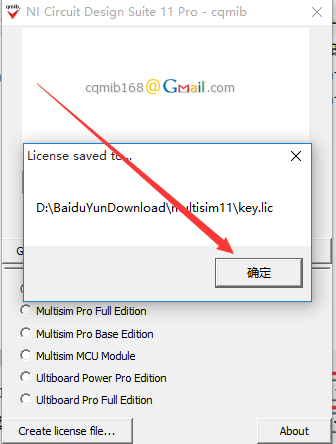
 23. Click OK.
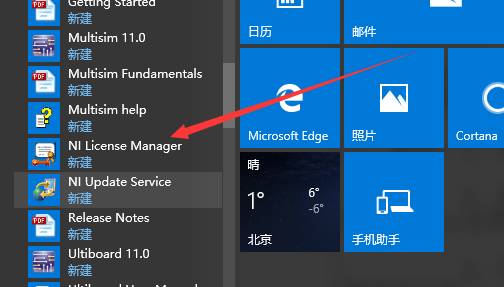
 24. Click the Start menu, click All Programs. Find and open NI License Manager.
 25. Click OK.
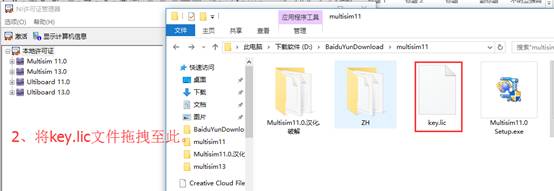
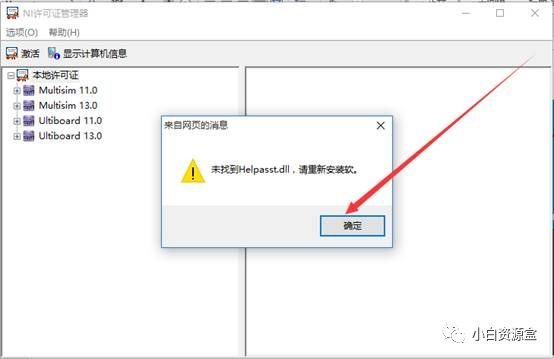 26. Drag the key.lic file from the Multisim11 folder into the NI License Manager.
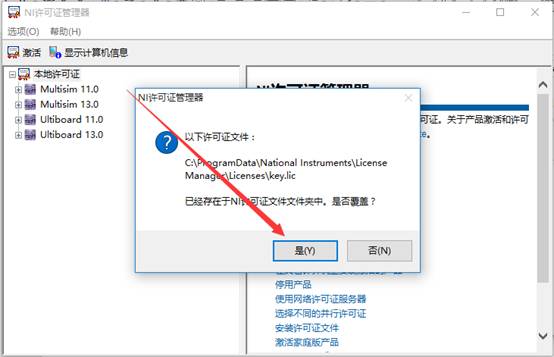
 27. Click Yes.
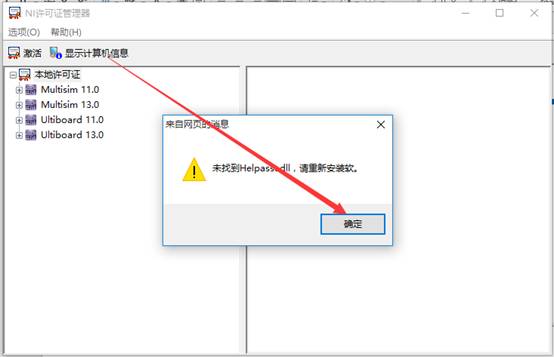
 28. Click OK to close this software.
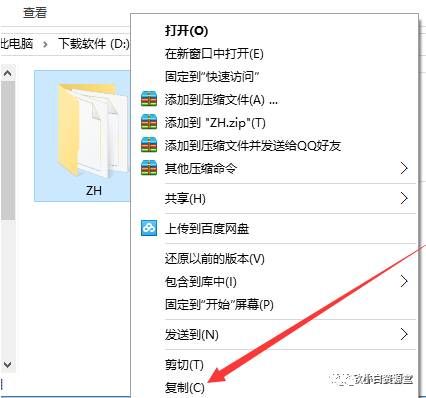
 29. Select the ZH folder in the Multisim11 folder, right-click and copy.
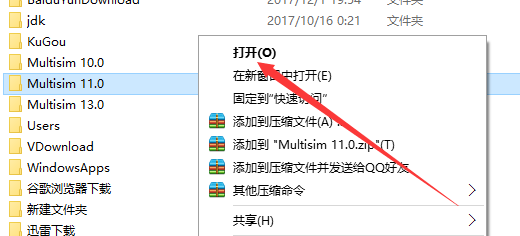
 30. Find the Multisim11.0 folder in the software installation path (refer to the path in step nine), right-click and select open.
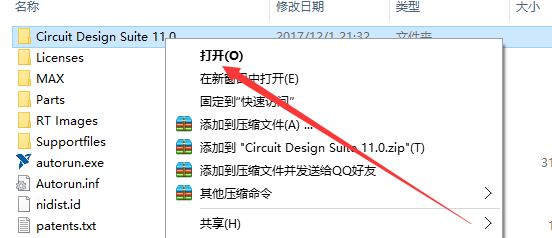
 31. Find the Circuit Design Suite 11.0 folder, right-click and select open.
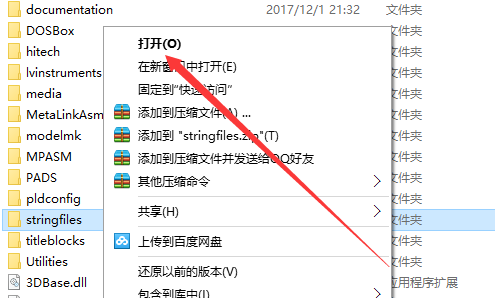
 32. Find the stringfile folder, right-click and select open.
 33. Right-click in the blank space, click paste.
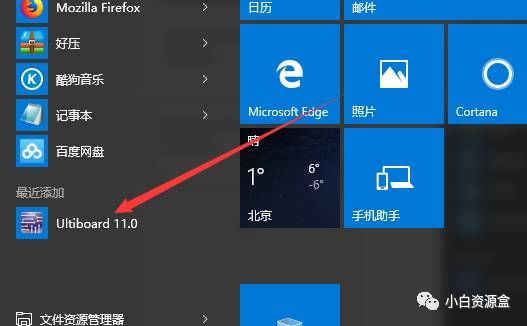
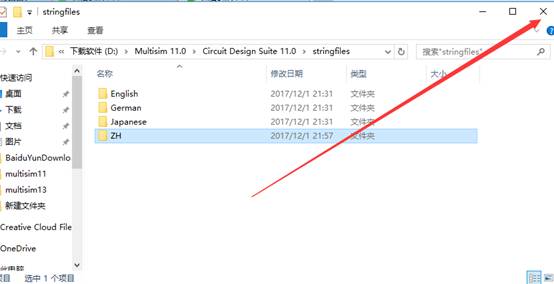 34. Close this interface.35. Click the Start menu, find Ultiboard 11.0 and open it.
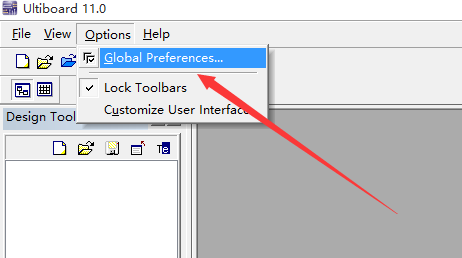
 36. Find Options, click, then click Global Preferences.
 37. Click Language, select ZH, then click OK.
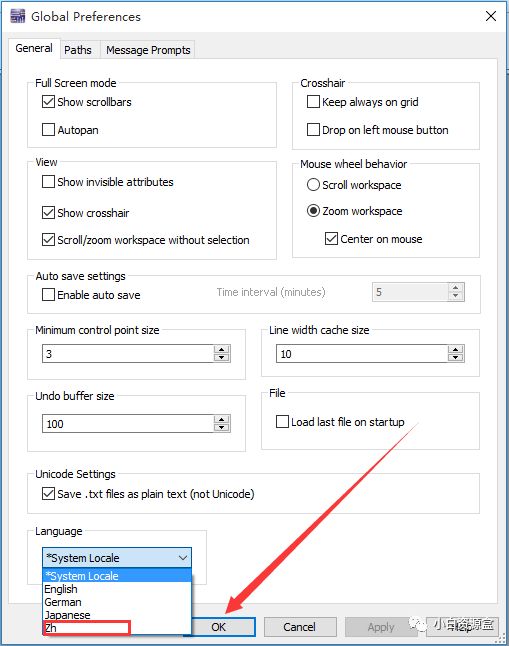 38. Click OK.
 39. Click the Start menu, find Ultiboard 11.0 and open it.40. Installation complete.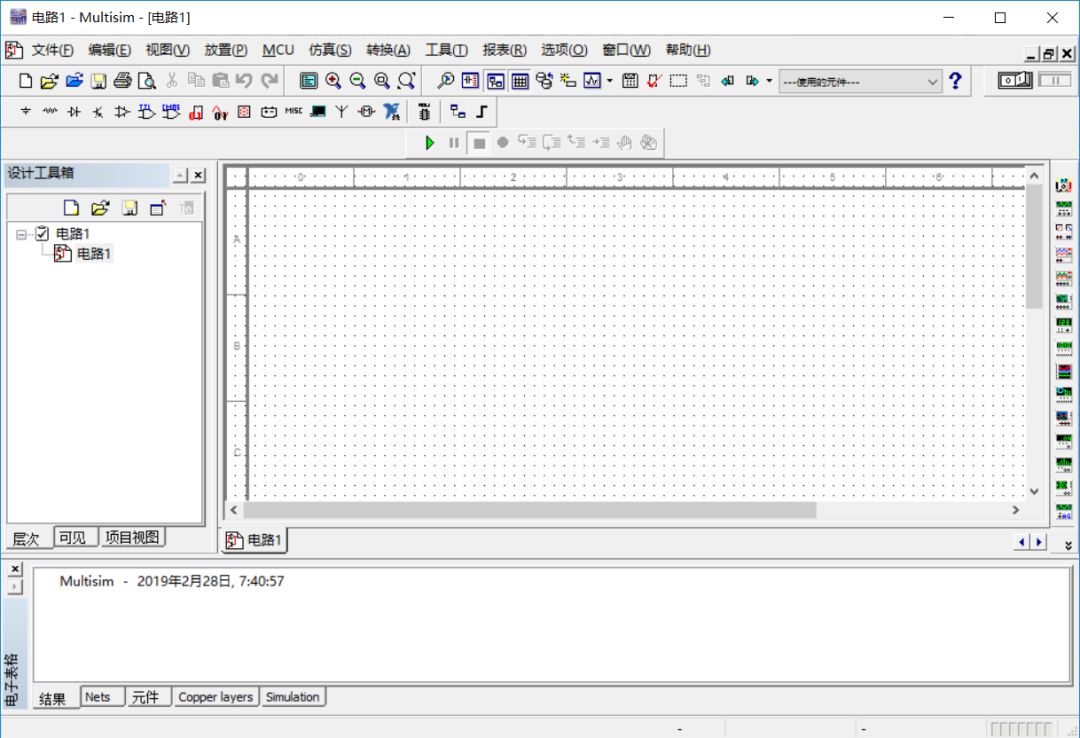

↙Click “Read the original text” below to obtain the software