In a previous article about QR code settings, a colleague expressed concerns about the accuracy of PLC time. When there is a PC in the system, the NTP time synchronization feature can be used. Below, we will introduce the settings for NTP.
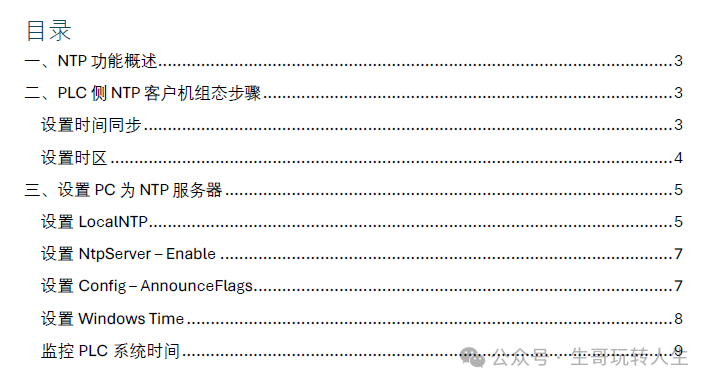
This article has been saved in PDF format, and the link is provided in the comments section for those who need it.
Those interested can test and verify it themselves.
1.NTP Function Overview
What is NTP?
The Network Time Protocol (NTP) is widely used to synchronize the clocks of computer systems with Internet time servers.
In NTP mode, the CPU periodically sends time queries (in client mode) to the NTP server on the subnet (LAN) . Based on the server’s response, it calculates the most reliable and accurate time and synchronizes the workstation’s clock.
The advantage of this mode is that it allows time synchronization across subnets.
In NTP mode, the server typically transmits UTC (Coordinated Universal Time) to the client.
Generally, the CPU or CP acts as the NTP client, while the NTP server can be a computer or a GPS device with NTP server functionality. This article will use the CPU as an example to introduce the configuration method for the NTP client.
2.PLC NTP Client Configuration Steps
Setting Time Synchronization
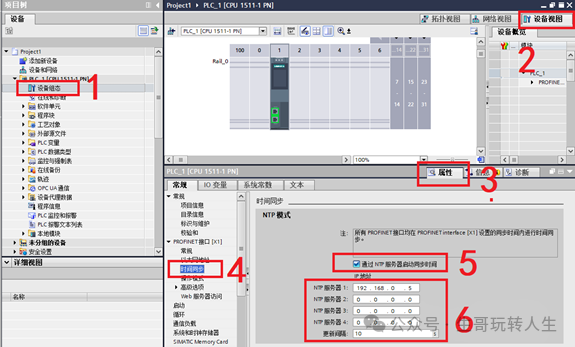
1: Open the project tree[Device Configuration]
2: Click on[Device View]
3: Click on[Properties]
4: Click on[Time Synchronization]
5: Check[Start time synchronization via NTP server]
6: Set the NTP server’s IP address and update interval
Setting Time Zone
In China, the time zone is usually set to UTC+08:00
Note: Please ensure that the time zone on the PC side matches the PLC’s time zone.
Some countries may adopt Daylight Saving Time. If Daylight Saving Time is needed, after correctly setting the time zone, check “Enable Daylight Saving Time,” the PLC will automatically calculate the PLC local time based on the time zone of the NTP server clock.
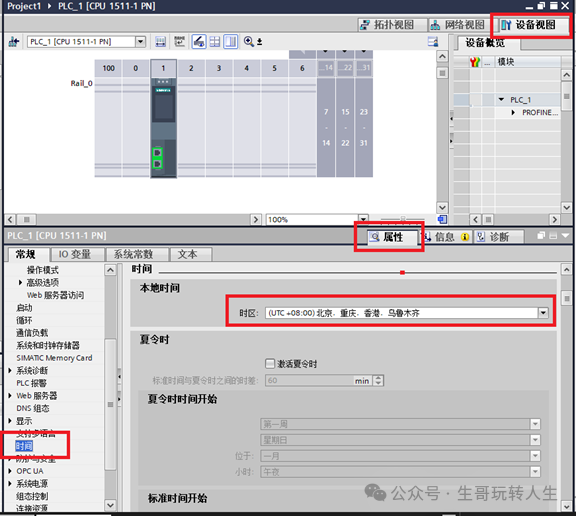
After configuration is complete, download the project.
3. Setting the PC asNTP Server
SettingLocalNTP
Start à run à regedit
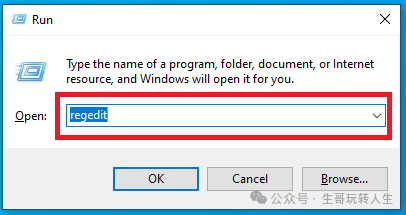
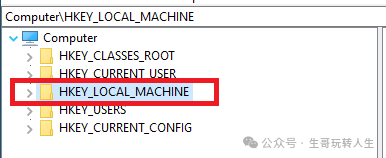
HKEY_LOCAL_MACHINE\SYSTEM\CurrentControlSet\Services\W32Time\Parameters SetLocalNTP value to 1
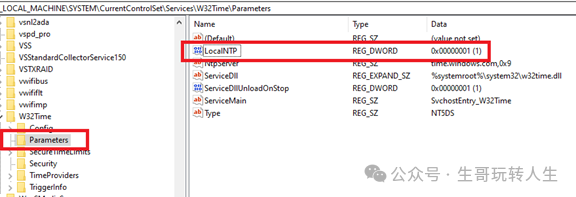
Note: If theLocalNTP option does not exist, it needs to be manually created as a DWORD variable.
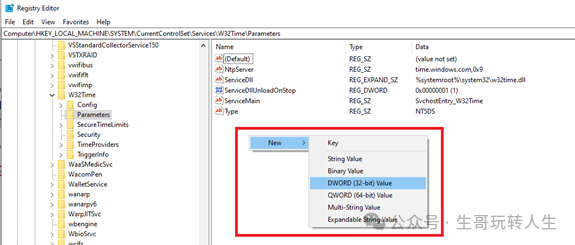
LocalNTP setting value 0 means disabled, 1 means enabled.
After setting, restart the computer for the changes to take effect.
Stop Windows Time
Start > Control Panel > System and Security > Windows Tools > Services
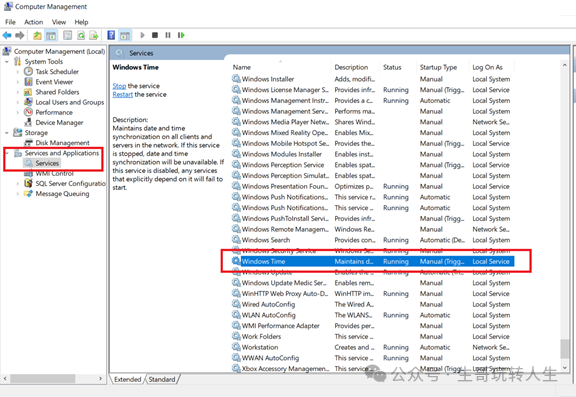
After stopping, it should look like the image below.

SettingNtpServer – Enable
Start à run à regedit (refer to previous steps)
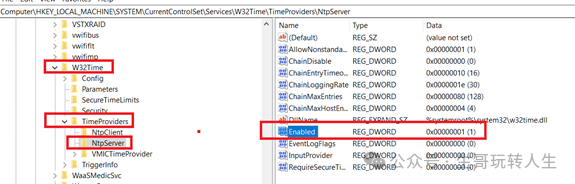
HKEY_LOCAL_MACHINE\SYSTEM\CurrentControlSet\services\W32Time\TimeProviders\NtpServer
Set Enable value to 1, as shown in the image below.
SettingConfig – AnnounceFlags
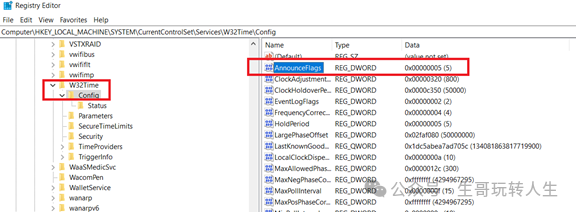
HKEY_LOCAL_MACHINE\SYSTEM\CurrentControlSet\services\W32Time\Config
Set AnnounceFlags value to 5, as shown in the image below.
SettingWindows Time
Set the startup type to Automatic, and start the service.
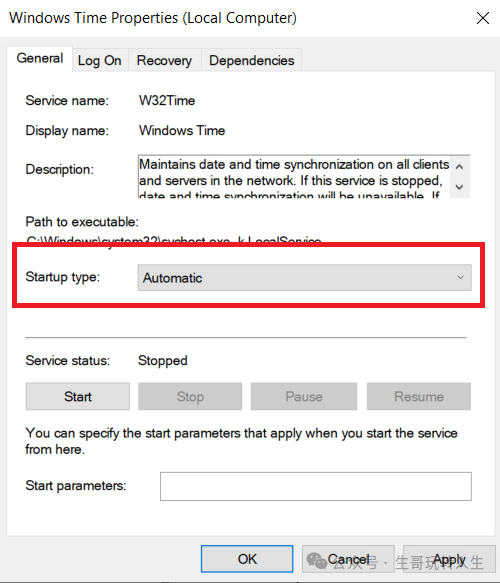
After starting, it should look like the image below.

Configuration complete.
MonitoringPLC System Time
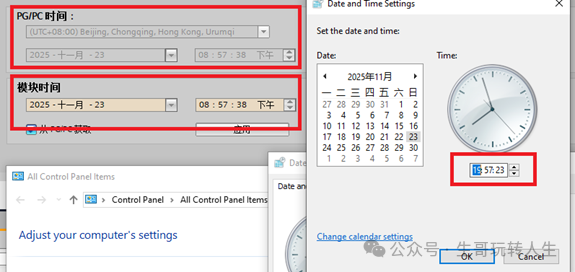
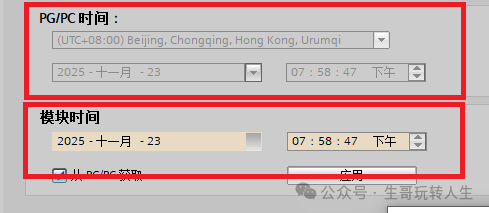
After manually adjusting the computer time, the PLC system time refreshes as shown in the image below.
 Thank you for your attention and likes. I have organized some PLC and upper computer learning materials, and the link is provided in the comments section for those who need it.
 Mastering Industrial Control: A Treasure Chest for Beginners – Full of Useful InformationMastering Industrial Control: Why Run Around to Press the Interface When Siemens HMI Can Be Remote?Mastering Industrial Control: Siemens PLC Read and Write Operations on SQL (SQL4Automation Continued)Mastering Industrial Control: Siemens PLC Direct Read and Write Operations on SQL Database