“The PLC hasn’t arrived yet, but the manager wants the program online?” Don’t panic! Last night, I used the built-in simulator of TIA Portal V19 to run an 800-step 3D warehouse program overnight, with 0 errors and 0 crashes. Today, I am sharing this “no physical debugging secret”; just follow these steps, and you can set up a complete production line on your laptop. (Conclusion first: No real machine is needed, no dongle required, just a Windows 10 laptop!)
1. First, let’s clarify the concepts: What “simulators” does TIA Portal V19 provide?
| Name | Abbreviation | Capabilities | Target Audience |
|---|---|---|---|
| S7-PLCSIM Classic | Classic | Pure CPU simulation, runs ladder logic | Beginners, students |
| S7-PLCSIM Advanced | Advanced | Soft PLC + virtual network card, can run TCP/Modbus | Engineers, upper-level machine debugging |
| SIMATIC ODK | ODK | High-level language collaborative simulation | Algorithm developers |
Today, we will focus on the “two-step combination”:
-
Beginners can get started with Classic in 30 minutes;
-
Advanced users can use Advanced for ModbusTCP and OPC UA debugging. All steps below have been tested and can be directly followed.
2. Installation takes just 3 steps; don’t be intimidated by the 20 GB size.
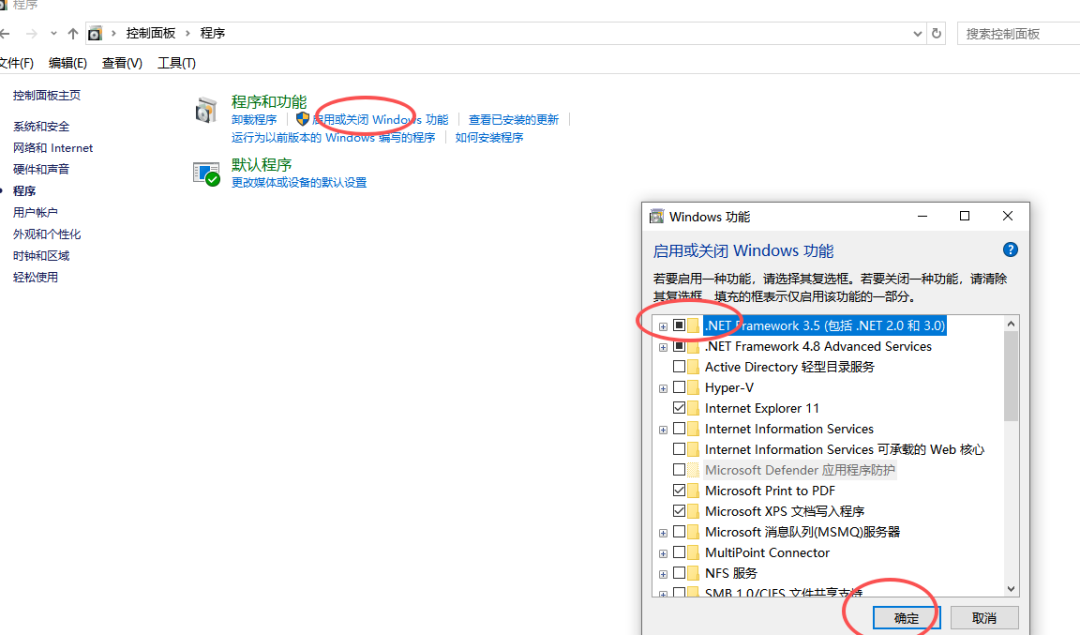
1️⃣ Pre-install .NET 3.5 + 4.8 (Control Panel → Turn Windows features on or off) 2️⃣ Installation order: TIA Portal V19 → PLCSIM V19 → PLCSIM Advanced V6.0 (optional)
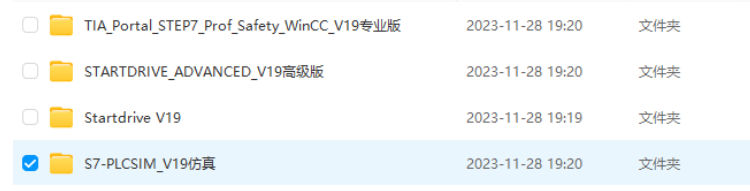
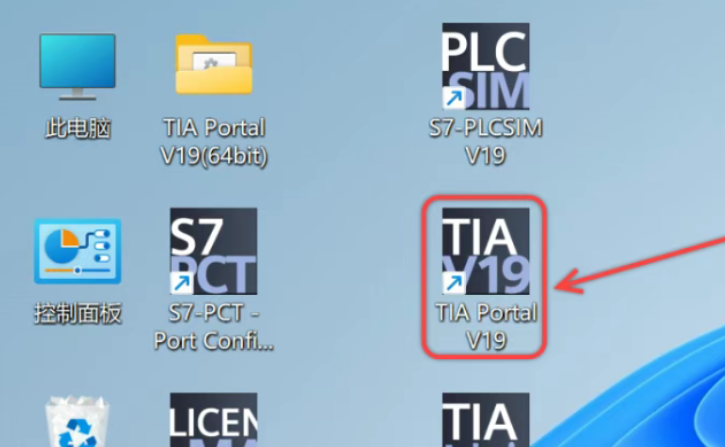
3️⃣ Authorization: Use sim_ekb_installer, check “TIA Portal V19” and “PLCSIM Advanced” long key with one click.
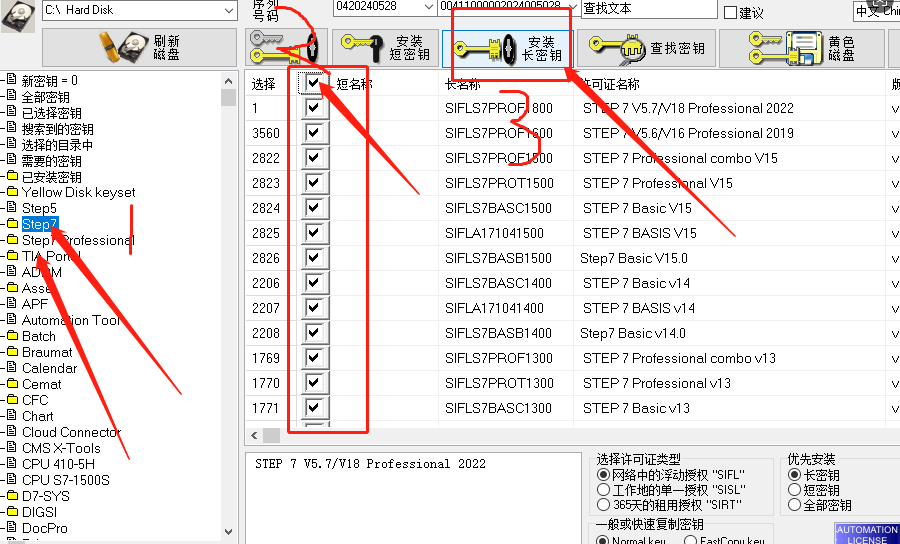
⚠️ Avoid pitfalls: Do not use Chinese characters in the path, disable antivirus software first, otherwise, 99% will result in errors.
3. Run your first “virtual PLC” in 30 minutes—Classic version
-
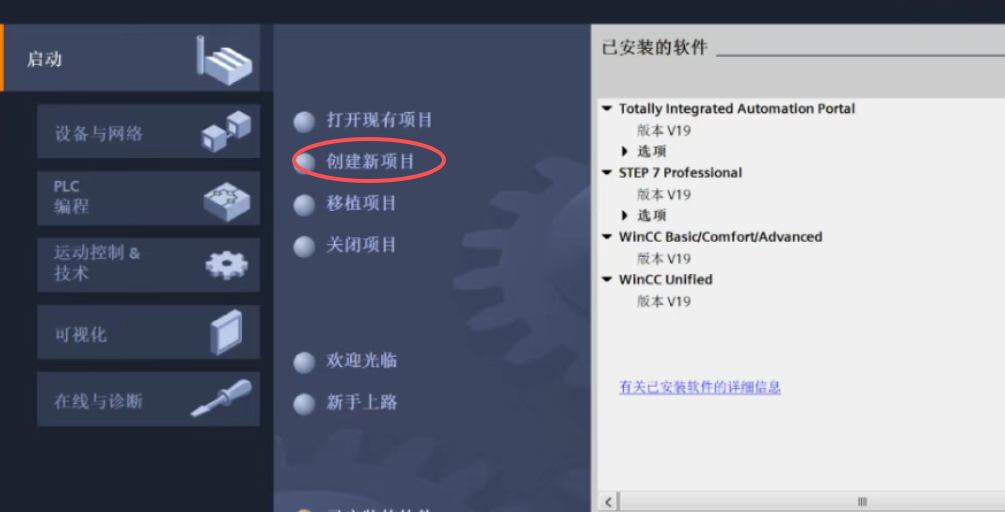
Open TIA Portal V19 → Create a new project → Add device CPU 1214C DC/DC/DC
-
Write the simplest ladder logic: Network 1: I0.0 ON → Q0.0 coil energized
-
Menu bar “Online” → “Simulation” → “Start Simulation” The first time will pop up S7-PLCSIM Classic, click “New PLC” → Select the same model → OK
-
Download the program (PG/PC interface automatically points to PLCSIM)
-
Open SIM table, force I0.0 to 1, Q0.0 lights up immediately!
At this point, you have 100% simulated the input and output of real hardware.
4. Advanced: Use Advanced to play with ModbusTCP—0 cost debugging of upper-level machines
Scenario requirement: The PLC in the computer needs to read and write data from SCADA/web/mobile APP.
1️⃣ Create a virtual network card After installing PLCSIM Advanced, a new “Siemens PLCSIM Virtual Ethernet Adapter” will appear, assign it a fixed IP: 192.168.1.100/24
2️⃣ Start Advanced Open PLCSIM Advanced V6.0 → Create a new instance
-
Select TCP/IP Single Adapter
-
PLC type: S7-1500
-
IP: 192.168.1.50
-
Name as desired → Start
3️⃣ Configure CPU in TIA Portal
-
Device view → Select 1500 CPU → Properties → General → Protection → Full Access
-
General → Connection Mechanism → Allow PUT/GET
-
PROFINET Interface → IP Address: 192.168.1.50
-
Download to device (PG/PC interface select “PLCSIM Virtual Ethernet”)
4️⃣ ModbusTCP server instructions
-
Create a new DB, define MB_HOLD_REG area MW0-MW99
-
In OB1, call the official library MB_SERVER, CONNECT points to TCON_IP_V4
-
Compile → Download → Start CPU5️⃣ Verification Open Modbus Poll, connect to 192.168.1.50:502 Read and write 40001-40050, the PLC monitoring table synchronizes in real-time, perfect!
5. Five common pitfalls on-site, let me help you avoid them in advance
| Symptoms | Causes | Solutions |
|---|---|---|
| Error “No valid license found” during download | PLCSIM Advanced key not checked | Rerun sim_ekb_installer |
| Modbus Poll cannot connect | IP not in the same subnet | Virtual network card and PLC IP in the same subnet |
| No response when forcing I0.0 | Simulation table not started | First click “Online” → “Start Simulation” |
| Program scan cycle exceeds limit | Infinite loop/many FOR loops | Use OB1 empty loop to test cycle |
| Advanced fails to start | Virtual network card disabled | Enable it in Device Manager |
6. Get creative with simulation: 3 real scenarios
1️⃣ Night shift debugging The customer’s equipment is down, I took the program home, and with my laptop + Advanced, I directly reproduced the fault, fixed it, and sent it out the next morning, zero downtime.
2️⃣ Remote training I provided online training for 10 technicians, each received a virtual PLC image, and I could demonstrate by sharing my screen, saving 80% on training costs.
3️⃣ Algorithm validation I used Advanced + ODK to run C# written AGV path planning, achieving 1000 simulations with 0 collisions, and successfully went live on the first attempt.
If you find this useful, please like and share to help more industrial control professionals avoid detours~ More knowledge will be shared later, remember to follow!
 Previous articles
6 ladder diagrams that explain PLC from beginner to expert!
Only 1 hour? Four classic cases of Mitsubishi FX series PLC from beginner to practical application, learn and use immediately
9 methods for one-click start/stop revealed! PLC interview killer technique, the 9th method even veteran engineers haven’t seen
A must-read for electrical engineers! From beginner to expert, a comprehensive analysis of industrial sensor wiring principles, you won’t be confused after reading
90% of engineers can’t answer all, these 10 “small eyes” are quietly determining the life and death of your production line
Revealing electrical components, understand commonly used electrical component symbols and real objects in one image!
In 3 minutes, learn to use temperature sensors to control frequency converters!
All symbols on the frequency converter panel decoded, don’t press the wrong button again! Understand it in seconds
18 high-definition pictures that electricians must know, with this image in hand, you can walk through the site!
Do you know the 10 commonly used frequency converters? This article explains it all
Stepper vs. Servo, stop wasting money!
Yellow, green, red wires + thermal relay + button, set up start/stop in 3 minutes!
5 common wiring principles for automated assembly = Electrician salary increase secret
PLC projects can be up and running in 3 days with these 8 frameworks!
9 tricks for one-click start/stop of PLC, from “only knowing self-locking” to “expert skills”, just this article is needed!
The difference between an electrician’s monthly salary of 5000 and 15000 is just 94 PLC instructions
[Collectible] One image explains the terminals of frequency converters! 90% of electrical personnel have stepped on these pits, today I will clarify it all for you
The “heartbeat” of PLC only takes three steps, yet 90% of engineers are blocked at the door
One image to understand “multi-location control”—the boss at the front desk, the electrician at the back, can start/stop the motor with one click!