How to Fix Phone Storage Space Issues?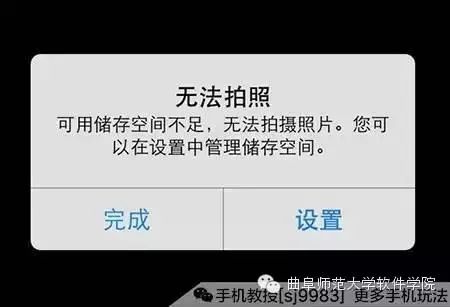 With smartphones becoming more powerful, there are various apps for food, life, entertainment, and work, and everyone wants to install them all. However, the problem that arises is that the built-in storage of the phone is often insufficient, frequently prompting low storage space warnings. What should we do? Many phones now support memory expansion features, and a small SD card can easily solve storage space issues. In addition to the common photos and files, some applications can also be installed and run from the memory expansion card. Today, we will discuss how to save or transfer data and applications to the memory expansion card. There are several methods, but which one is the most convenient? Set Default Storage Location By default, most phones install apps to the internal storage. You can change the settings to store photos, apps, etc., on the SD memory card. This method can generally be found on phones that support memory expansion.
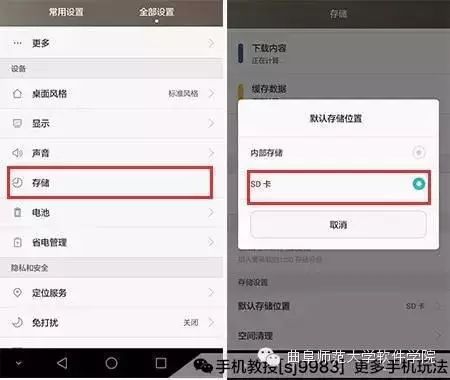
>>>> Steps: Open the phone – [Settings] – [Device] – [Storage] – [Default Storage Location] – [SD Card]. Set to Move to SD Card Individually If you don’t want to install all photos and applications to the SD card, you can set them one by one.
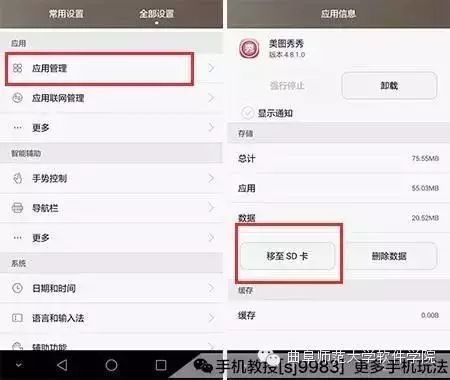
>>>> Steps: Open the phone – [Settings] – [Apps] – [App Management] – Click on a specific application – [Move to SD Card].  The two methods mentioned above are essential for phones that support memory expansion. However, both methods have some drawbacks. While photos and files can be saved anywhere, some applications may experience slow read/write speeds or other issues when running from the SD card. To protect system stability, many systems now restrict the installation of certain programs on the SD card. Therefore, the first method may result in some applications failing to install, necessitating a reset of the default storage location back to internal memory. The second method of moving them one by one can also be a bit tedious. If you want to see at a glance which applications can be installed on the SD card and transfer them with one click, you can use the following two methods. Built-in App Transfer In addition to the two basic methods above, many phones now come with a built-in app transfer feature, which can automatically manage applications, making it easy to see and transfer them to the SD card or phone with one click.
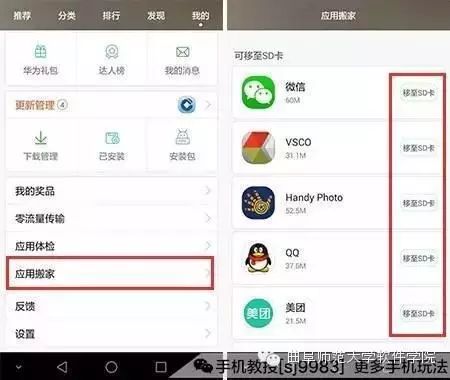
>>>> Steps: Open the phone – [App Market] – [My] – [App Transfer]. This way, you can see which can be moved to the SD card and which cannot, categorized in a list. Using Third-party Software If the built-in app market does not have the “App Transfer” feature, you can also download application management software from the Android Market, such as Android Optimizer, Tencent Mobile Manager, or 360 Mobile Assistant, to quickly and conveniently move applications to the SD card.
>>>> Steps (Using “Android Optimizer” as an example): Step 1: In the phone’s app market, search for the keyword and download the “360 Mobile Assistant” application to the phone. Step 2: Open [Android Optimizer] – [App Management] – [App Transfer] – Select programs that can be moved to the SD card – [One-click Transfer to SD Card].