Upgrade Content and Preparation
To users of the Imaging Edge Mobile application:
– After the firmware upgrade, the camera can no longer connect to Imaging Edge Mobile. Please install and use the Creators’ App after the firmware upgrade.
– Before pairing the camera with the Creators’ App, please ensure that Imaging Edge Mobile is the latest version (Ver. 7.7.2 or higher).
If Imaging Edge Mobile is not the latest version, please update to the latest version before pairing the camera with the Creators’ App.
– If you are using an iPhone/iPad, please restart your iPhone/iPad after updating the camera firmware, and then pair the camera with the Creators’ App.
– For instructions on installing and connecting the Creators’ App, please click to refer to related instructions.
* If you are using a wireless Bluetooth shooting grip/remote control (GP-VPT2BT, RMT-P1BT), please delete and re-pair it from the camera menu “Bluetooth” options.
Upgrade Content
Important! Please ensure that there is only one file named “BODYDATA.DAT” on the storage card. If the storage card has been used for a previous upgrade, please format the storage card in the camera before importing the new firmware file.
* Fixed an issue where the camera may not connect to the network.
* Improved the stability of camera control.
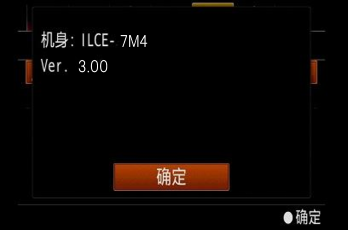
Confirm that the camera firmware version is Ver. 1.11 or above.
* If the firmware version is below Ver. 1.05, you cannot directly upgrade to Ver. 3.01. You must first perform the firmware upgrade for Ver. 1.05.
Preparation of the Storage Card
– Prepare the storage card. Any storage card compatible with this device is acceptable; please refer to the help guide for details.
– Please format the storage card in the camera.
* Formatting will erase all information on the card, please save any files on the card in advance.
Other Preparations
* If there is a vertical shooting grip, please remove it.
* Please use a fully charged battery (NP-FZ100).
Note: The firmware upgrade operation can only be performed when the battery level is 3 bars or above; it is recommended to use a fully charged battery.
* If there is a power outage during the upgrade process, the camera will not work. Please ensure the battery is properly installed and the battery cover is securely closed.
* If the camera temperature is too high, an upgrade may not be possible. Please wait until the camera temperature decreases before performing the firmware upgrade.
Procedure for Upgrading Firmware via the Camera Body
Download Upgrade File
1. Please read the “Online Download Agreement” at the end of this document.
2. Check the box “Please read and accept the online download agreement to obtain the download file”, then click the “Download” button to save the file [BODYDATA.DAT] on your computer.
File size: 850,432,408 bytes
3. Insert the storage card or connect it to the computer via a card reader, and save the [BODYDATA.DAT] file in the root directory of the storage card (first level directory).
* Saving in other directories will not allow for the upgrade.
* Please do not change the file name.
4. The storage card should be inserted into SLOT1.
* If the storage card is inserted into SLOT2, the upgrade will not proceed.
Firmware Upgrade
1. Turn on the camera.
2. Press the [Menu] button -> [Settings] -> [Setting Options] -> [Version], then click [Software Update].
3. The camera screen will display the firmware version numbers before and after the update, along with upgrade precautions. After reading, click [Execute] to start the upgrade.
* Do not remove the battery or storage card during the upgrade process.
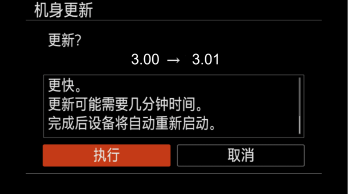
4. The upgrade will take approximately 6 minutes. During the upgrade, the screen will not display anything, and the access indicator light will flash.
5. The flashing of the access indicator light will change according to the upgrade progress, in the order of: 1 flash repeatedly -> 3 flashes repeatedly -> 5 flashes repeatedly.
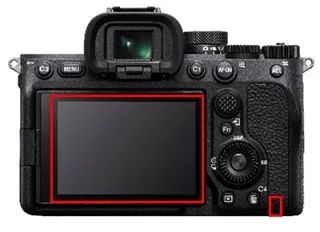
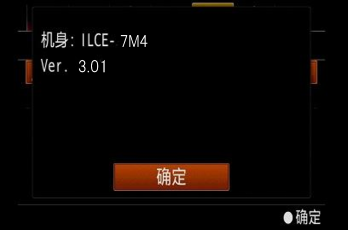
6. The camera will automatically restart and display the following prompt, indicating the upgrade is complete. Please keep the camera power on until the upgrade is completed.
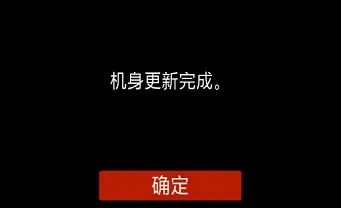
7. Check the firmware version
Please follow the steps below to check that the firmware version has been upgraded to Ver. 3.01.
Press the [Menu] button -> [Settings] -> [Setting Options] -> [Version]
Situations Where the Upgrade Did Not Proceed Smoothly and How to Handle Them
* If you see the prompt [Incorrect Version of Update File], please confirm whether the upgrade file is correct.
* If the access indicator light shows [slow flash 5 times followed by fast flash 6 times], it may indicate that the camera is version Ver. 1.01 or below, or that the upgrade file on the storage card has not been correctly copied.
* Handling Method:
– Remove the camera battery. Re-download the firmware and save it on the formatted storage card.
– Insert the storage card containing the firmware into SLOT1, install the camera battery, turn on the power, and try the firmware upgrade again.
☝
Drone Photography Equipment
“Daiwen Digital” Official WeChat Account: dwsm88
Physical Store Address:
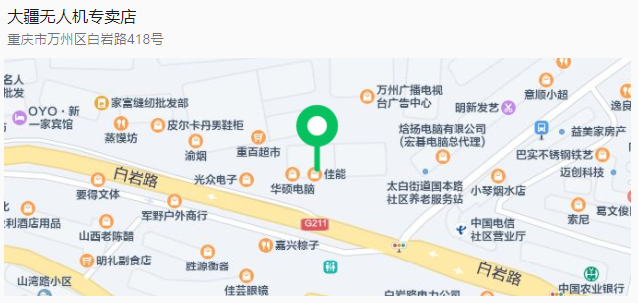
Daiwen Digital Canon Specialty Store – 418 Baiyan Road (next to Taixing Computer City)
Club Address:
418 Baiyan Road – Basement Floor (Edison Comprehensive Experience Store)
Contact Number:
18723717788
15978951568
85782121