You can connect your personal devices to eduroam and get free Wi-Fi access to eduroam hotspots around the world.
To connect to eduroam you just need your University username and password and then follow these quick steps:
-
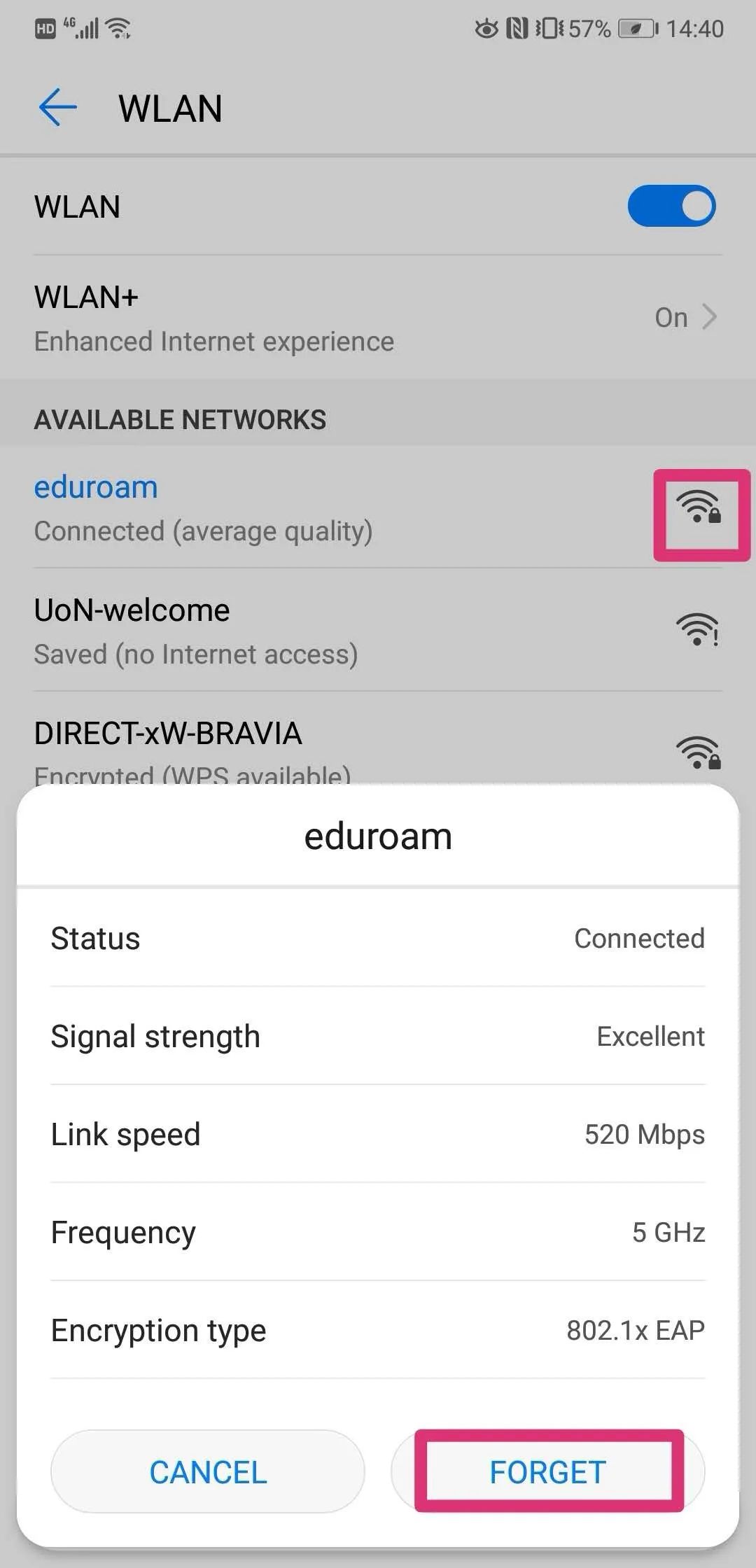
If you have previously studied or worked at another university, please delete any old eduroam settings from your device.
-
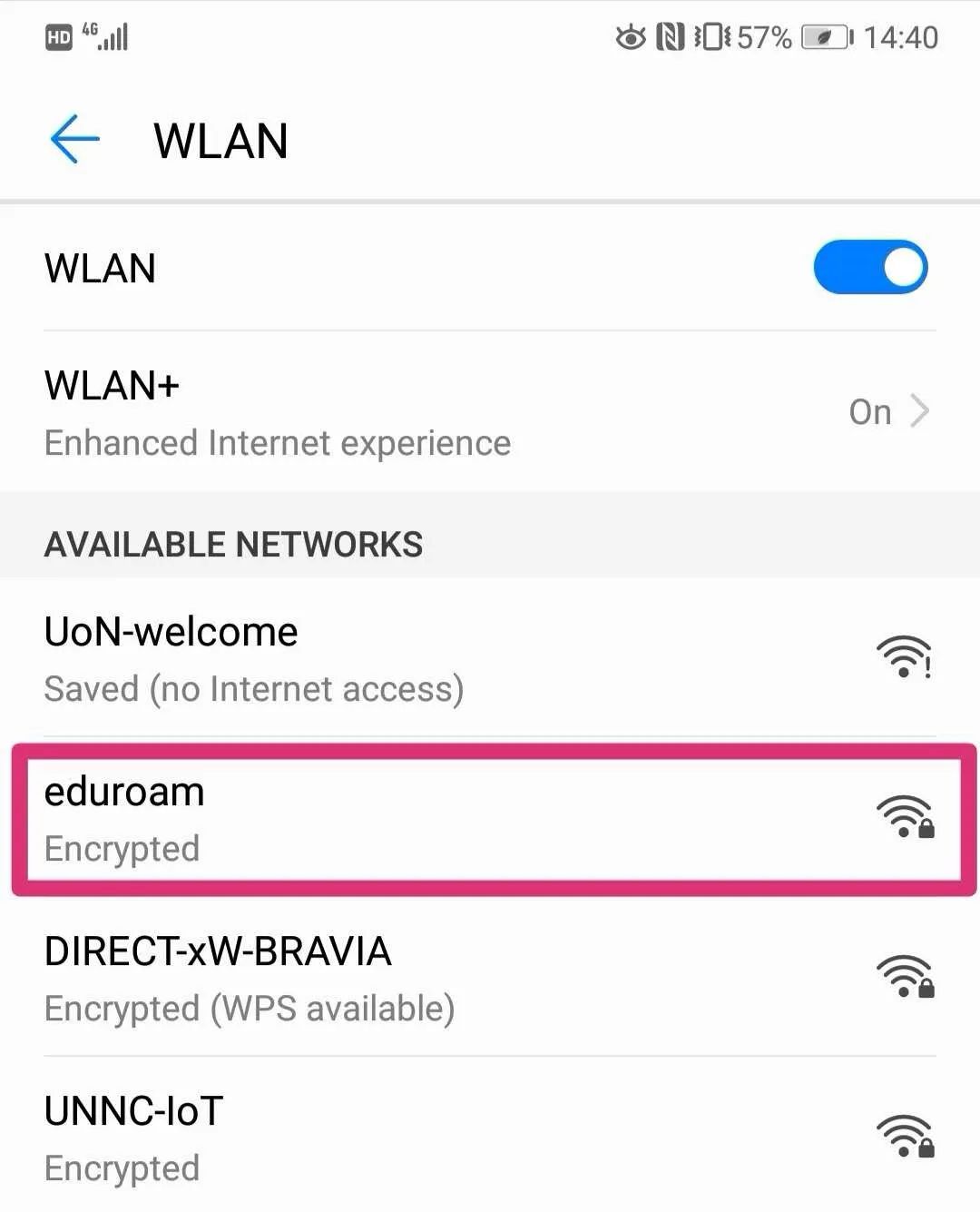
Go to Wi-Fi settings on your phone
-
Select the Wi-Fi network ‘eduroam’
-
When prompted, enter your University username followed by @nottingham.edu.cn.
For example:[email protected]
-
Enter your University password
-
Accept certificate if prompted
How to connect eduroam on iOS?
1.
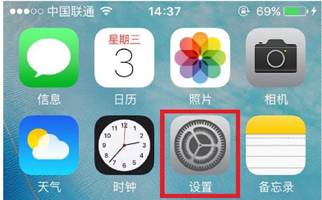
2.
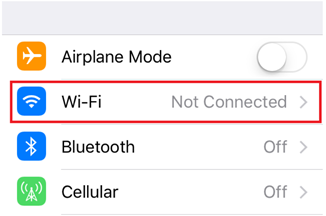
3.
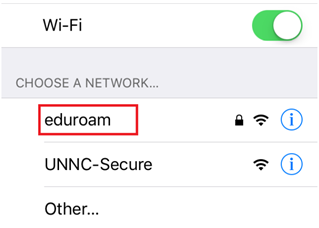
4.
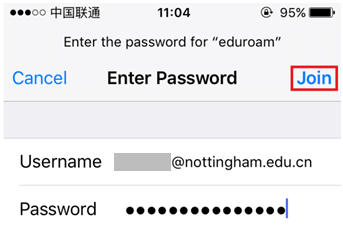
Note: Input “[email protected]”
5.
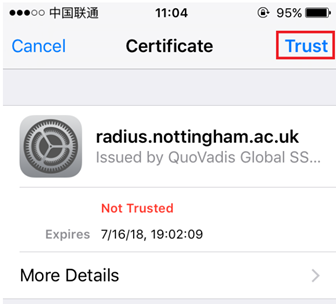
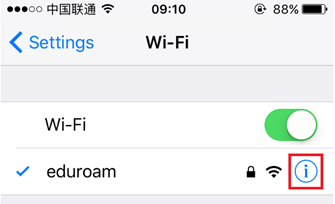
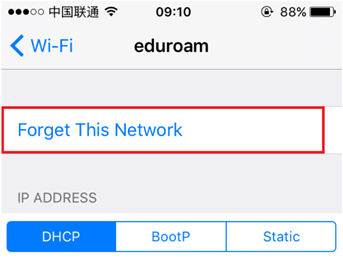
6. If the user resets the UNNC password for other reasons, you need to forget eduroam, join again.
How to connect eduroam on Android?
1. Choose “eduroam”
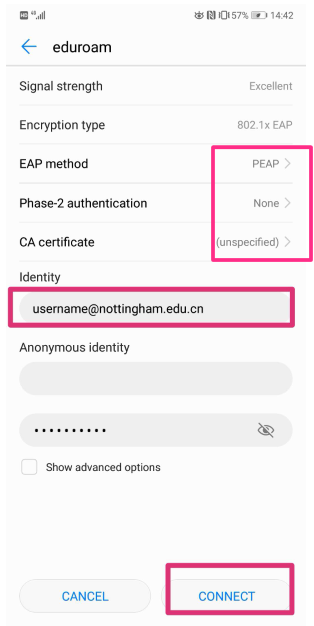
2. Set parameters like below:
-
Check EAP method, Phase-2 authentication and CA certificate before connecting
-
Input identity: [email protected]
-
Anonymous identity: keep blank or input [email protected]
-
Input password
If the user resets the UNNC password for other reasons, you need to forget eduroam, join again.