Basic Concepts of Firewalls
All security topics are inseparable from the involvement of firewalls, especially in <span>OpenWrt</span>. Understanding the concept of firewall zones and the three types of rules is essential for correctly configuring SSH, VPN, port forwarding, and other functions.
What is a Firewall Zone?
In OpenWrt, firewalls do not write rules for individual interfaces but manage interfaces and rules by “zones”.
- • A
<span>zone</span>is a collection of network interfaces, for example: - •
<span>lan</span>→ includes LAN ports and bridged wireless networks - •
<span>wan</span>→ includes WAN ports (IPv4/PPPoE) - •
<span>wan6</span>→ includes the IPv6 interface of WAN - •
<span>wg0</span>→ includes the interface for the WireGuard service, which can also be named differently - • Each zone has its own set of policies and rules that determine which packets are allowed to enter, exit, or be forwarded.
Inbound, Outbound, and Forwarding Rules
The OpenWrt firewall divides the packet flow of each zone into three categories:
| Direction | English Name | Description |
| Inbound | input | Traffic from the outside to the “router itself” in this zone. For example: SSH/HTTPS access to the router from WAN. |
| Outbound | output | Data sent from the “router itself” in this zone. For example: router initiating a dial-up, NTP requests, SSH connections to other servers. |
| Forwarding | forward | Traffic passing through the router, i.e., packets originating from one zone reaching another zone. For example: LAN accessing WAN |
📌 Important: Inbound/Outbound only affects the router itself, while forwarding affects internal devices or cross-network access.
Does Each Zone Have Its Own Three Types of Rules?
Yes, each zone has input/output/forward three types of policies:
- • input: controls which services (SSH, LuCI, VPN Server, etc.) can be accessed by others on the router
- • output: controls the data sent out by the router itself, usually allowing all by default
- • forward: controls the traffic passing through the router (e.g., whether to allow NAT forwarding from LAN to WAN)
📌 All rules are understood from the perspective of the router itself.
It is important to note that rules written in the firewall (such as allowing/denying a certain port) usually only apply to initiated “new connections”. Once a connection is successfully established, subsequent response traffic (return packets) is allowed by default without needing additional rules. For example:
- • We allow LAN → WAN traffic on port 443.
- • An internal computer accesses an external website (HTTPS, port 443).
- • The response packets from the external network (from WAN → LAN, source port 443, destination is the internal computer’s random port) will be automatically allowed even if you haven’t specifically written a “WAN → LAN” rule.
Why is this? Because the Linux firewall (iptables/nftables) has a connection tracking mechanism (conntrack):
- • When a connection is marked as ESTABLISHED or RELATED, the firewall will automatically allow the corresponding return traffic.
- • The rules we write only need to handle the direction of NEW connections.
This is why the rules seem to be only half written, yet communication can be completed bidirectionally. This greatly simplifies configuration, eliminating the need to write both forward and reverse rules.
| zone | input | output | forward | Common Uses |
| lan | ACCEPT | ACCEPT | ACCEPT | Internal device intercommunication + Internet access |
| wan | REJECT | ACCEPT | REJECT | External network cannot directly access the router, only the router can access the external network |
| wan6 | REJECT | ACCEPT | REJECT | IPv6 outbound traffic, preventing external access to the internal network |
| wg0 | ACCEPT | ACCEPT | ACCEPT | VPN clients accessing internal devices |
To summarize, it can be understood as follows:
- • zone = a group of interfaces + a set of policies
- • Each zone has input/output/forward three types of rules
- • input/output → router’s own traffic
- • forward → traffic passing through the router (NAT/routing)
- • When configuring, mainly consider your needs:
- • Whether router services allow external access → set input
- • Whether internal devices can access the Internet/cross-segment → set forward
- • Outbound generally does not need to be managed (default allows)
Now, does this diagram look clear?
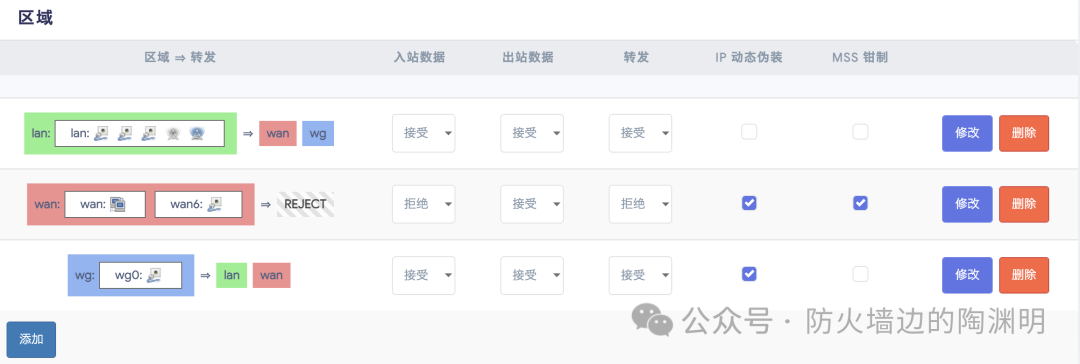
Traffic from interfaces that do not match any <span>zone</span> is processed according to default rules, meaning that zone rules take precedence over default rules.
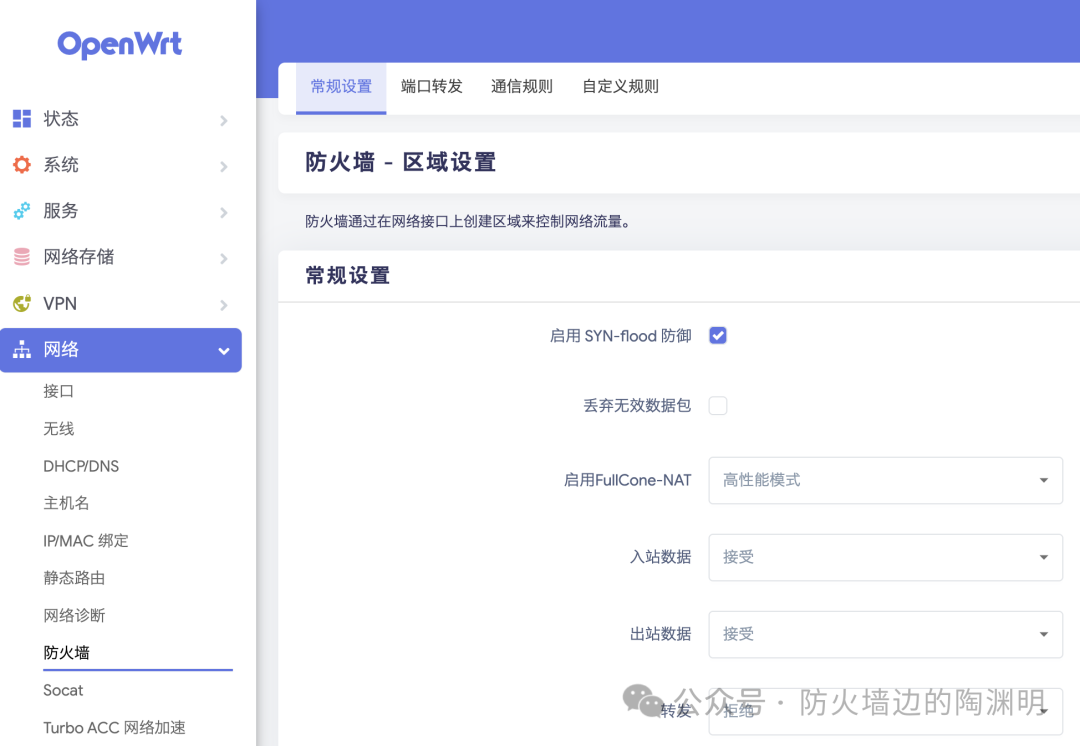
Port Forwarding and Communication Rules
The <span>port forwarding</span> page here mainly targets IPv4, as IPv4 requires NAT (address translation). With only one public IP externally, forwarding is necessary to direct traffic to internal devices, so you will see that the <span>internal IP address</span> section only has an IPv4 list.
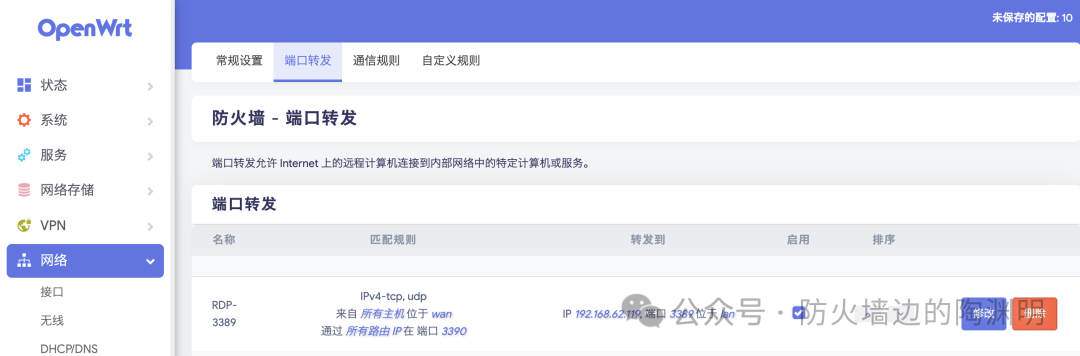
For IPv6, the situation is completely different. Each internal device usually has a globally routable address (GUA), which can be accessed directly from the public network. Therefore, under IPv6, theoretically, port forwarding is not needed. You only need to allow the corresponding port in the firewall communication rules to enable external access to internal devices.
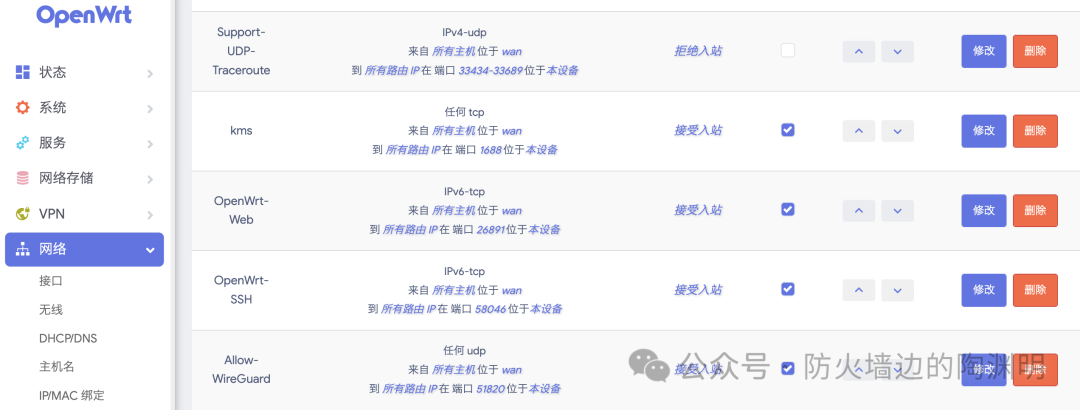
📌 Port forwarding and communication rules defined here take precedence over zone rules. Even if the zone rules explicitly state to reject all connections from the WAN zone, we can still connect normally if we forward or add rules to allow the corresponding port for OpenWrt’s SSH.
Port forwarding/communication rules > zone rules > default rules
Examples of Firewall Configuration
OpenWrt uses netfilter/iptables (or nftables) by default, managed through <span>/etc/config/firewall</span>. All policies are saved in this configuration file, which can be directly modified to adjust firewall policies. After saving the configuration file, you need to restart the service using the command <span>/etc/init.d/firewall restart</span> for the changes to take effect. Below are some common rules and ideas for reference.
1. Basic Policy
config defaults
    option input 'DROP'      # Default drop incoming packets to the router
    option output 'ACCEPT'   # Allow outgoing traffic from the router
    option forward 'DROP'    # Default deny forwarding, allow as needed
With this setting, all traffic must pass through explicit rules to enter the system.
2. Allow Internal Network → External Network
config zone
    option name 'lan'
    list   network 'lan'
    option input 'ACCEPT'
    option output 'ACCEPT'
    option forward 'ACCEPT'

config zone
    option name 'wan'
    list   network 'wan'
    option input 'DROP'
    option output 'ACCEPT'
    option forward 'DROP'
    option masq '1'
    option mtu_fix '1'

config forwarding
    option src 'lan'
option dest 'wan'- • Internal devices can freely access the external network;
- • External access is blocked by default.
3. Allow Only Specific Ports
For example, only allow 80 (Web) and 443 (HTTPS), and be sure to change the default ports:
config rule
    option name 'Allow-HTTP'
    option src 'wan'
    option dest_port '80'
    option proto 'tcp'
    option target 'ACCEPT'

config rule
    option name 'Allow-HTTPS'
    option src 'wan'
    option dest_port '443'
    option proto 'tcp'
    option target 'ACCEPT'
4. Defend Against Brute Force Attacks (SSH)
Only allow internal network access to SSH:
config rule
    option name 'Allow-SSH-LAN'
    option src 'lan'
    option dest_port '22'
    option proto 'tcp'
    option target 'ACCEPT'
If remote SSH is indeed necessary, it is recommended to:
- • Change to a high random port, for example,
<span>58046 </span> - • Use BanIP to limit login attempts
5. IPv6 Protection
In an IPv6 environment, devices may be directly exposed to the public network. It is essential to restrict:
config zone
    option name 'wan6'
    list   network 'wan6'
    option input 'DROP'
    option output 'ACCEPT'
    option forward 'DROP'
    option masq '1'
This can prevent internal hosts from being accessed directly from the outside.
Additional Security Enhancements
- • Install banIP / AdGuardHome, to block malicious IPs and ad domains;
- • Enable logging, regularly check the firewall logs under
<span>/var/log/</span>; - • Use VPN (such as WireGuard/OpenVPN) instead of directly exposing management ports (strongly recommended!);
- • Physical Security: Do not allow easy access to the router by others.
Security hardening is not a one-time operation but a continuous optimization and dynamic maintenance process. In this interconnected world, the internet is like a dark forest, harboring various threats and risks. Following the “law of the jungle”, any exposed port, service, or weak password will become a potential target for attacks. Only by continuously reviewing, minimizing external exposure, and promptly updating and patching vulnerabilities can we maximize system security. The fewer ports exposed, the smaller the attack surface, and the more robust the overall protection.
Since you are using OpenWrt, do not just treat it as a router; consider it a “connected small server” and protect it diligently.
To be continued! In the next issue, we will officially introduce how to enhance our network security by configuring the WireGuard service, so stay tuned~
#OpenWrt #Firewall