🎨 Mastering WSL2 with Deepin: A Linux Experience that Balances Aesthetics and Efficiency on Windows
👨💻 Author: Friendly📅 Date: September 2025📍 Platform: Windows 11 + WSL2 + Deepin
1. Why Choose Deepin?
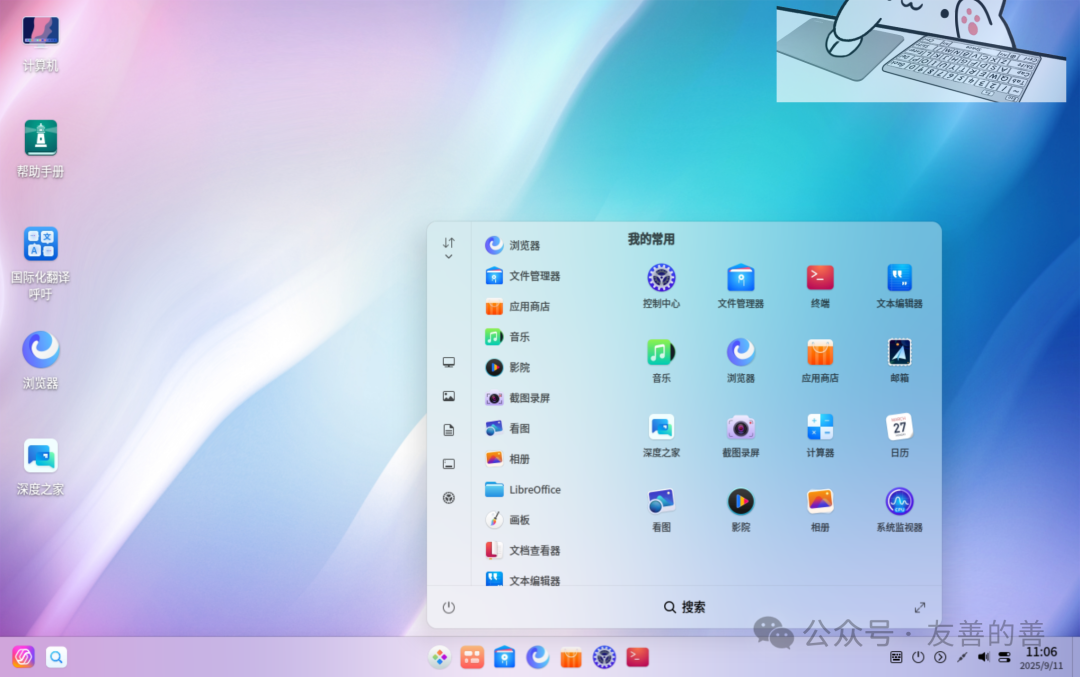
As WSL becomes a powerful development tool for Windows users, choosing the right Linux distribution has also become crucial. Deepin stands out among many distributions due to its aesthetic interface, native Chinese support, and domestic attributes, especially after its listing on the Microsoft Store, which significantly enhances the installation experience.
💡 Reasons for Recommendation:
- • 🇨🇳 Native and smooth Chinese support
- • 🖼️ Beautiful interface with comfortable terminal colors
- • 🔧 Seamless interaction with the Windows file system
2. Brief Analysis of WSL Principles
WSL is essentially a compatibility layer that allows users to run a Linux environment on Windows, eliminating the hassle of dual systems or virtual machines.
| Feature | WSL 1 | WSL 2 |
|---|---|---|
| Kernel Type | Translation emulation | True Linux kernel |
| Docker Support | ❌ | ✅ |
| System Call Compatibility | Partial | Almost all |
| File Interaction | Faster | Slower (optimizable) |
🎯 WSL2 uses Hyper-V virtualization, combined with WSLg (graphical support), allowing full Linux GUI applications to run on Windows.
3. Installing Deepin from the Microsoft Store
📸 Illustration:

🧭 Step 1: Check WSL Installation Status
Run PowerShell as Administrator:
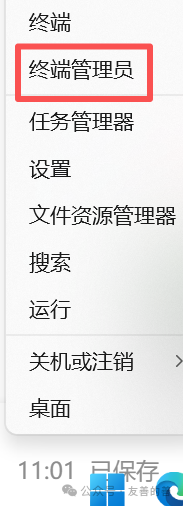
wsl --list --onlineIf WSL is not installed, you can install it with one command:
wsl --install🛒 Step 2: Open the Microsoft Store
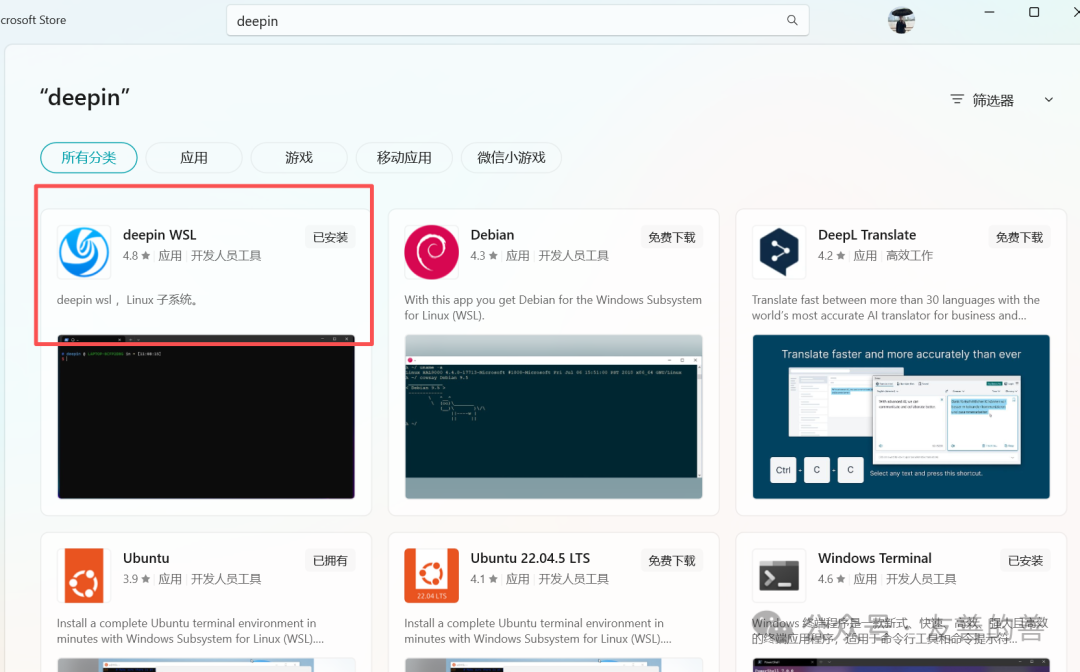
Search for the keyword <span>Deepin WSL</span> and click install. The installation process will automatically set the default environment without additional configuration.
4. Actual Usage Experience
🎨 Terminal Screenshot Example
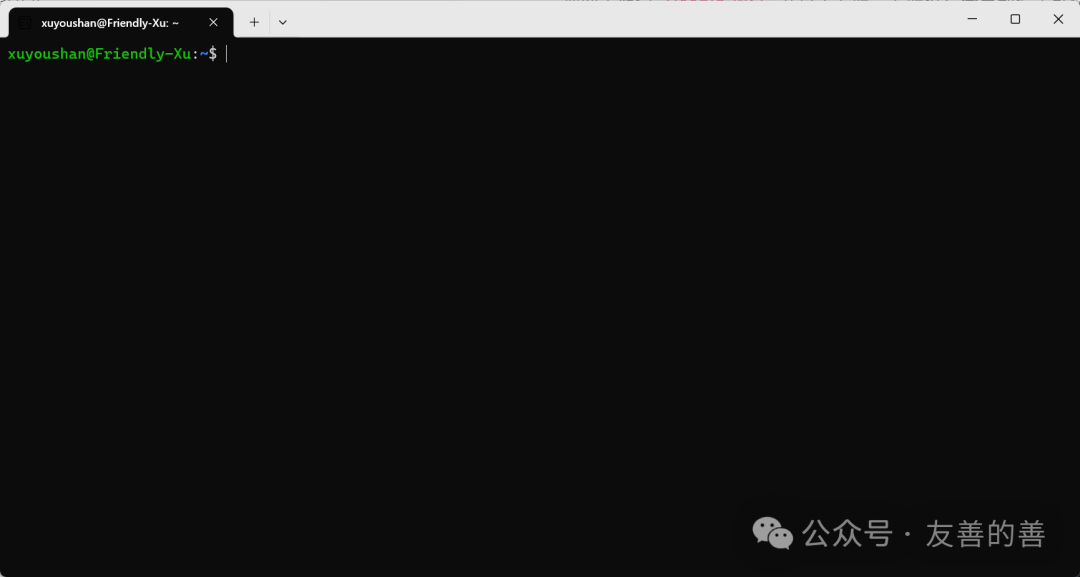
Chinese support is seamless, and the font is clear and beautiful. The default shell environment is bash, which can be customized through <span>.bashrc</span>.
📁 Windows File Interaction Demonstration
bash
cd xuyoushan-clone
ls
Cross-system access to Windows files is smooth for both reading and writing.
💻 Package Management Experience
sudo apt update && sudo apt upgrade
sudo apt install build-essential curl git vim net-tools
Deepin is based on Debian, and uses APT for package management, ensuring strong compatibility.
5. Practical Project: Deploying a Local Recipe Website
⚒️ Install Dependencies and Run
git clone https://github.com/Anduin2017/HowToCook.git
cd HowToCook
npm install
npm run dev
Visit <span>http://localhost:3000</span> to see the results
6. Summary and Recommendations
✅ The combination of WSL + Deepin has clear advantages:
- • Native Linux development experience on Windows
- • Elegant graphical interface support, friendly to Chinese users
- • Simple installation and configuration process (available on the Microsoft Store)
- • Supports common toolchains like Node.js and Docker
📌 Recommended for:
- • Engineers looking to build a Linux development environment on Windows
- • Users who value Chinese experience and interface aesthetics
- • Educators and project demonstrators