1. Problem Phenomenon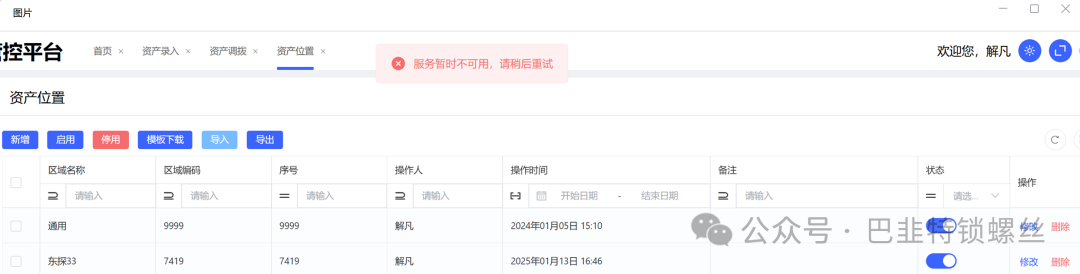
2. Problem Resolution
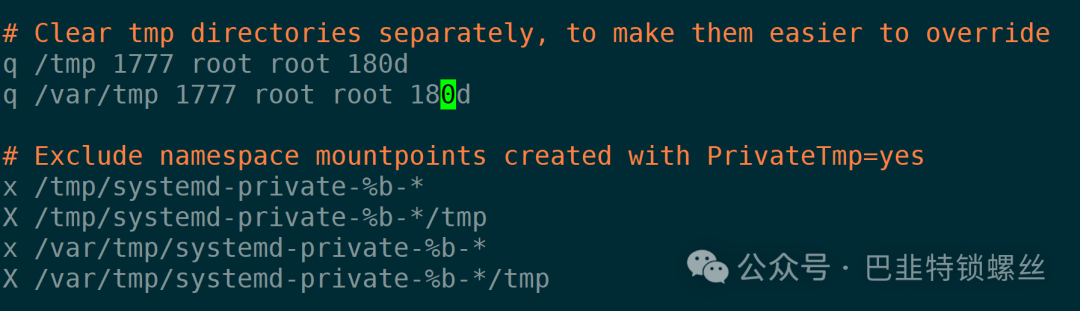
In Linux systems using the systemd program, files in the <span>/tmp</span> directory are automatically cleaned up. By default, the system uses the <span>systemd-tmpfiles-clean</span> service to manage files in the <span>/tmp</span> directory and decides when to delete them based on their access time. The specific cleanup strategy depends on the configuration files <span>/usr/lib/tmpfiles.d/tmp.conf</span> and related settings in the <span>/etc/tmpfiles.d/</span> directory.
In Linux systems using the systemd program, the default configuration is usually as follows:
<span>/tmp</span>files are automatically deleted after 10 days of inactivity.
You can confirm the cleanup rules by checking the content of the <span><span>/usr/lib/tmpfiles.d/tmp.conf</span></span> file, which typically contains similar configurations:
# Clear tmp directories D /tmp 1777 root root 10d D /var/tmp 1777 root root 30d Here, <span>10d</span> indicates that files in the <span>/tmp</span> directory will be deleted after 10 days of inactivity.
If you want to change this behavior, you can customize the cleanup rules by editing the configuration files under <span>/etc/tmpfiles.d/</span>. For example, to change the retention time for <span>/tmp</span> files to 5 days, you can add or modify the following configuration:
D /tmp 1777 root root 5d After that, you can restart <span><span>systemd-tmpfiles-clean</span></span> service or trigger the cleanup manually:
systemctl restart systemd-tmpfiles-clean Or manually clean files in the <span>/tmp</span> directory:
systemd-tmpfiles --clean<span>systemd-tmpfiles-clean</span> service typically runs through scheduled tasks instead of running continuously in the background. You can also check the scheduled tasks related to this service to confirm if periodic cleanup is enabled:
systemctl list-timers | grep systemd-tmpfiles-clean This timer’s task triggers the cleanup process at regular intervals (default is once a day). If you want to change the frequency or rules of the cleanup, you can adjust the related timer configuration.
Example:
[root@node09 tmp]# systemctl list-timers | grep systemd-tmpfiles-cleanWed 2024-09-11 09:15:24 CST 18h left Tue 2024-09-10 09:15:24 CST 5h 9min ago systemd-tmpfiles-clean.timer systemd-tmpfiles-clean.serviceThis output indicates that the <span>systemd-tmpfiles-clean.timer</span> timer is working normally and will trigger the <span>systemd-tmpfiles-clean.service</span> service to clean temporary files at the specified time. The specific explanation is as follows:
- Next execution time:
<span>Wed 2024-09-11 09:15:24 CST</span>, indicating that the next<span>systemd-tmpfiles-clean</span>service will run at 2024-09-11 09:15:24 CST (i.e., in 18 hours). - Last execution time:
<span>Tue 2024-09-10 09:15:24 CST</span>, indicating that the last cleanup task was executed 2024-09-10 09:15:24 CST (5 hours 9 minutes ago). - systemd-tmpfiles-clean.timer: This is a
<span>systemd</span>timer responsible for periodically triggering the<span>systemd-tmpfiles-clean.service</span>service. - systemd-tmpfiles-clean.service: This is the actual service that performs the cleanup operation, which cleans the temporary folders (e.g.,
<span>/tmp</span>), according to the rules in the configuration files.
This means that the system is configured with a scheduled task to regularly clean files in the <span>/tmp</span> directory, and the cleanup operation is running normally.

Copyright Notice: This content comes from CSDN: 巭犇, and follows the CC 4.0 BY-SA copyright agreement. The original link is: https://blog.csdn.net/zyqash/article/details/142098158. If there is any infringement, please contact us for immediate deletion. Special thanks to the original author for their creation. All copyrights of this article belong to the original author and are unrelated to this public account. For commercial reprints, please contact the original author; for non-commercial reprints, please indicate the source.