In the field of industrial automation, the communication connection between touch screens and PLCs is known as the “central nervous system.” Many engineers have been troubled by communication issues between the Kunlun Tongtai touch screen and the Mitsubishi 3UBD board—after adjusting parameters for a long time, the data still remains “static”; the wiring looks fine, yet communication faults persist. Don’t panic! This article provides a wealth of information, guiding you step-by-step from board identification to parameter configuration and troubleshooting, making it easy for beginners to master this communication setup.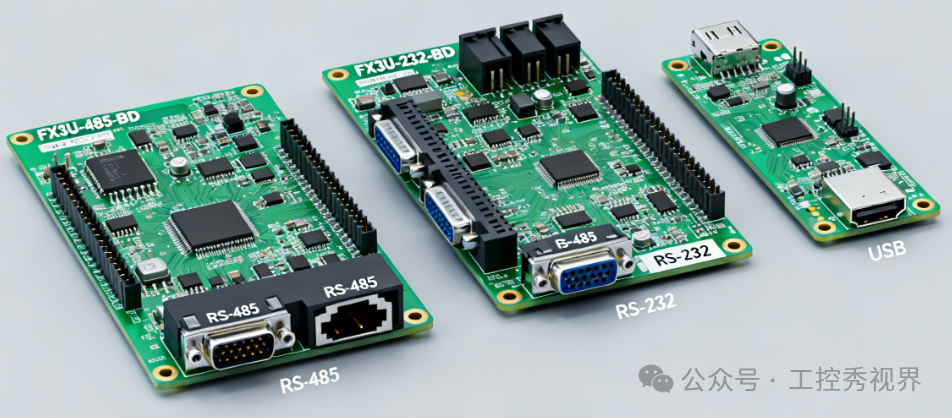
1. First Understand: Which Model of 3UBD Board Are You Using?
The 3UBD board is the core communication expansion module of the Mitsubishi FX3U series PLC. The connection methods and parameter settings vary significantly among different models, so the first step is to accurately identify the model. The common types are mainly three, so check your model:
-
FX3U-485-BD: The most commonly used RS485 communication board, supports half-duplex mode, suitable for multi-device networking scenarios, and has strong anti-interference capability, making it the first choice for industrial sites.
-
FX3U-232-BD: RS232 communication board, uses full-duplex mode, supports only point-to-point connections, with a short transmission distance (usually no more than 15 meters), suitable for close-range debugging.
-
FX3U-USB-BD: USB to serial board, requires no complex parameter configuration, can be connected directly via USB cable, suitable for temporary debugging or devices without serial ports.
 Tip: The board model is usually printed on the front of the module. Confirm it before proceeding to avoid confusion and mistakes.
2. Hardware Connection: Wiring is Fundamental, One Mistake Can Ruin Everything
80% of communication failures are due to wiring issues. The wiring logic differs for different 3UBD boards. Below are the two most commonly used connection schemes; be sure to follow them strictly.
1. Mainstream Scheme: Connecting FX3U-485-BD to the Touch Screen
This scheme is suitable for most industrial scenarios and requires the use of shielded twisted pair cables (to reduce interference). Ensure the devices are powered off before wiring.
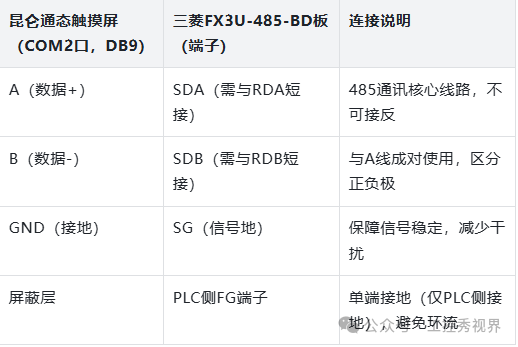
 Warning: The SDA and RDA, SDB and RDB of the FX3U-485-BD board must be shorted in advance (some boards are factory shorted). Otherwise, data transmission will not function properly; reversing the A/B lines is a common mistake. If communication fails, try swapping these two wires.
2. Simple Scheme: FX3U-232-BD/USB-BD Connection
-
FX3U-232-BD: Use standard RS232 cable (3-wire: TXD/RXD/GND), connect the touch screen COM1 port to the PLC board’s D-SUB male connector, no need for terminal shorting.
-
FX3U-USB-BD: No complex wiring required, simply connect the touch screen’s USB port to the PLC board using a USB cable, plug and play, suitable for quick debugging.
3. PLC Side Parameter Configuration: Use GX Works2 to Complete Core Settings
The Mitsubishi PLC must set communication parameters through GX Works2 software, with the core principle being “complete matching with the touch screen parameters.” Taking the most commonly used FX3U-485-BD as an example, the steps are as follows:
1. Basic Parameter Configuration Process
-
Open GX Works2, create a new project, and select the corresponding PLC model (FX3U series). After connecting to the PLC, go to “Parameters → PLC Parameters → PLC System Settings (2).”
-
In the “Channel Settings,” select “CH1” (the 3UBD board uses CH1 channel by default), check “Perform Communication Settings,” and then click “Settings.”
-
Fill in the recommended parameters as follows (keeping them consistent with the touch screen is key), and click “OK” to save.
-
Download the configured parameters to the PLC and restart the PLC to make the parameters effective (must restart, otherwise settings will not take effect).
2. Core Parameter Configuration Table (Must Read)
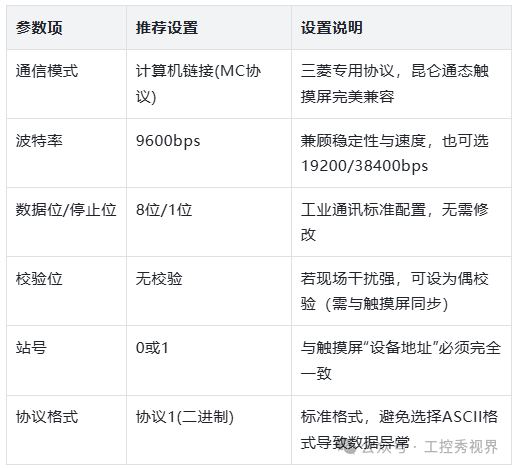
If using the FX3U-USB-BD board, there is no need to set the above parameters; keep the default value (D8120=0) to connect directly.
4. Touch Screen Side Configuration: MCGS Pro Operation Guide
The Kunlun Tongtai touch screen needs to add devices and configure parameters through MCGS Pro software, with the core being “add the parent device first, then add the child device” to ensure smooth communication links.
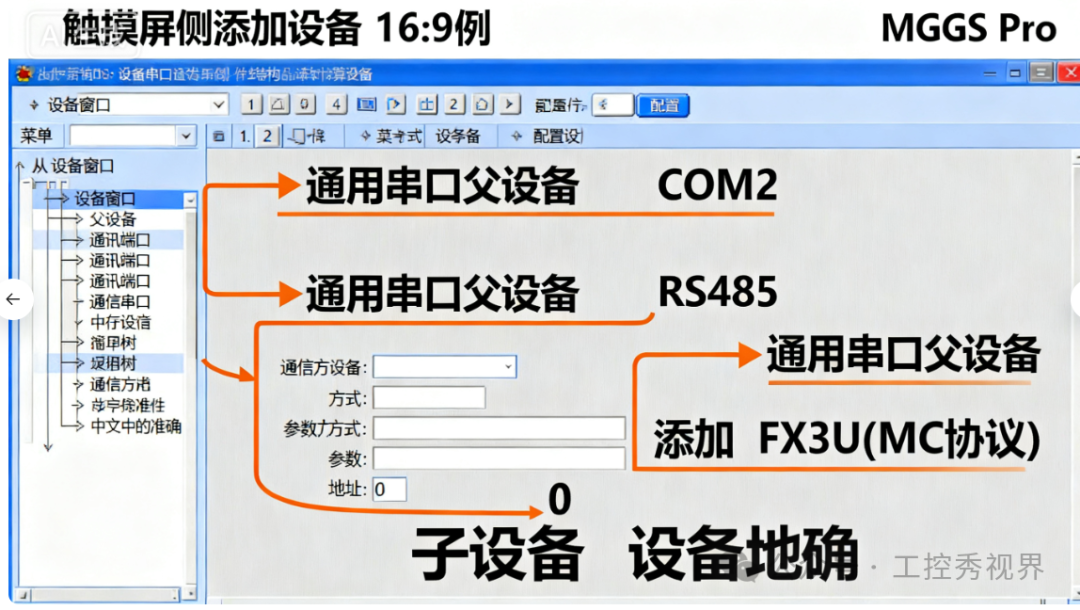
1. Step 1: Add Communication Device
-
Open MCGS Pro, go to the “Device Window,” right-click in a blank area, and select “Add Device.”
-
Search and add “General Serial Parent Device” (responsible for managing serial port resources), and click “OK.”
-
Right-click on “General Serial Parent Device,” select “Add Device” again, choose “Mitsubishi” in the “Manufacturer” field, and select “FX3U (MC Protocol)” in the “Device Type” field to complete the addition.
2. Step 2: Configure Parent Device Parameters (Basic Serial Settings)
Double-click on “General Serial Parent Device” and configure the following parameters, which must match the PLC side completely:
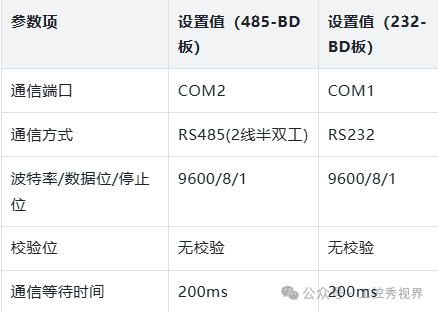
3. Step 3: Configure Child Device Parameters (Device Matching Settings)
Double-click on the “FX3U (MC Protocol)” child device and focus on configuring the following two items:
-
Device Address: Fill in a value consistent with the PLC station number (0 or 1), which is the core of communication matching; if incorrect, it will fail directly.
-
Collection Cycle: Default 1000ms is sufficient; if higher real-time performance is needed, it can be shortened to 500ms (avoid too short to prevent communication congestion).
-
PLC Type: Select “FX2N” (fully compatible with FX3U series).
5. Communication Testing: 3 Steps to Verify Successful Connection
After completing the parameter settings, don’t rush to conclusions. Follow the steps below to test and ensure normal bidirectional data transmission:
-
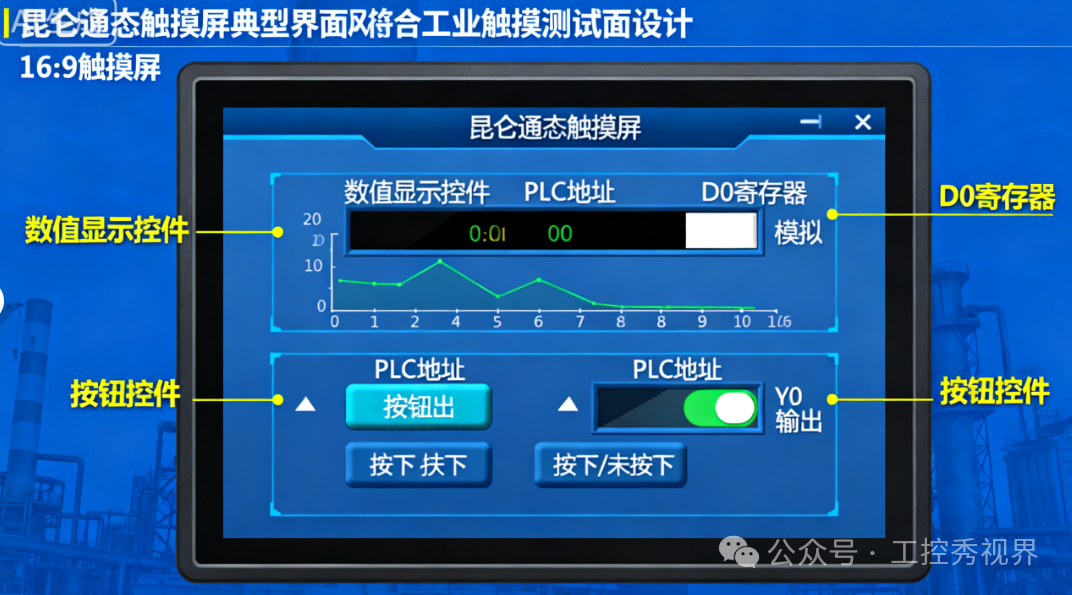
Create a Test Interface: In MCGS Pro, add a numeric display control (linked to the PLC’s D0 register) and a button (linked to the PLC’s Y0 output point).
-
Download the Project: Download the touch screen project to the device, powering on both the PLC and the touch screen.
-
Bidirectional Verification: ① Click the button on the touch screen and observe whether the PLC’s Y0 indicator light turns on and off; ② Modify the D0 register value using GX Works2 and check if the touch screen display updates synchronously. If both are normal, communication is successful!
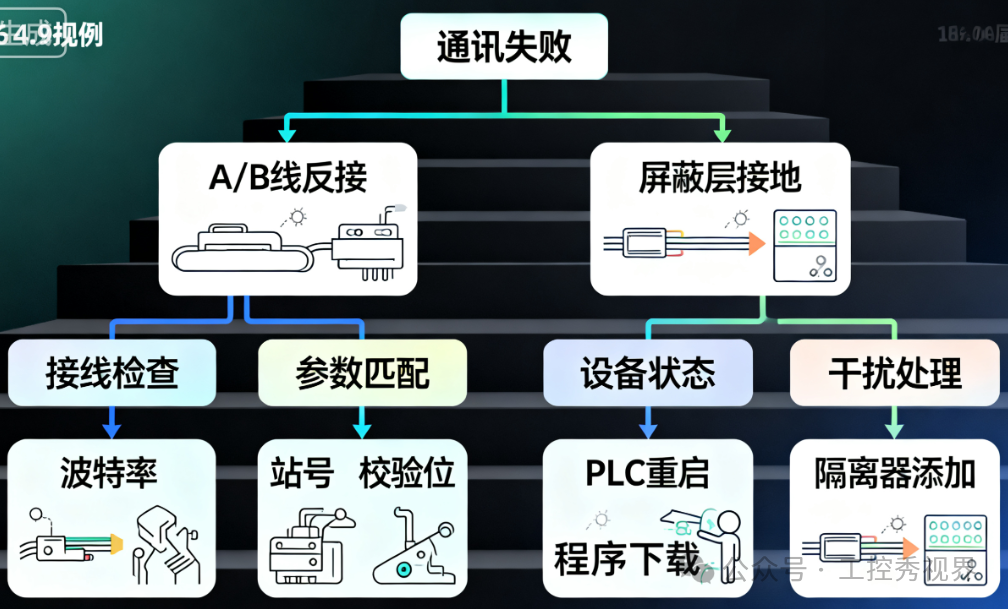
6. Common Fault Troubleshooting: Don’t Panic Over Communication Failures
If the test fails, check against the following common issues one by one; 90% of faults can be resolved:
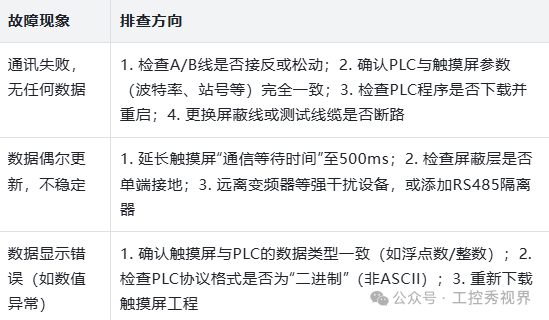
7. Summary: The Three Core Points for Successful Communication
1. Correct Wiring: Ensure the RS485 A/B lines are not reversed, and the shield layer is grounded at one end; 2. Parameter Matching: The baud rate, station number, and parity bits of the PLC and touch screen must be completely consistent; 3. Comprehensive Testing: Verify bidirectional data transmission to avoid one-way communication risks.
By following the above steps, the communication connection between the Kunlun Tongtai touch screen and the Mitsubishi 3UBD board should not encounter issues. If you encounter special situations during practical operation, feel free to leave a message in the comments section, and we can discuss solutions together!
If you find this useful, don’t forget to like and share it with your technical partners!
Previous Recommendations
[Downloadable Resources] Learn Electrical Engineering through Animation: Vivid demonstrations, easy to understand and remember, suitable for beginners.
Practical Toolkit! Siemens PLC200Smart Programming, Simulation, and Screen Configuration Simulation Software (Downloadable).
Introduction to Electrical Circuits: From Tripping to Wiring, this article covers all the common issues you encounter.
Collection-Level! Reactive Power Compensation Capacity Calculation Practical Guide: Includes tangent value table + key points to avoid pitfalls.
A Must-Have for Industrial Professionals: Comprehensive Analysis of S7-1500 Motion Control Instructions (TIA Portal Practical).
Analog Input vs Output: Understand the “Signal Bidirectional Flow” in Industrial Control in One Article.
How Severe is the “Eccentricity” of Three-Phase Electricity? When voltage becomes unbalanced, equipment collectively “lies flat,” and the production line directly halts!
Surprising! The 9 “Hidden Operations” that are Crazy Popular in the PLC Circle, Electrical Engineers Self-Test: Understanding 2 counts as entry-level, understanding all is for experts.
Electrical Beginners Jump In! 126 Pages of PPT to Master = Mastery, from 0 to Pro in 3 Steps, instantly understandable without pitfalls!
The Electrical Circle Exploded! 50 Classic Circuit Diagram Manuals, Understanding Directly Transforms You from “Beginner” to Expert!
Siemens Inverter Fault Troubleshooting Guide: From Alarm Codes to Solutions, this article is sufficient for electrical personnel to keep.
485 Serial Debugging Tool Comprehensive Guide: From Entry-Level to Practical, Solving 90% of Communication Issues.
Testing Checklist: 10 Types of 485 Communication Data Display Software, covering all scenarios from debugging to monitoring.
Overcurrent Three-Stage Protection Value Calculation: From Principles to Practice, a Must-Have Guide for Power Professionals.
Comprehensive Review! A Big Reveal of the Equipment at the Jicheng PLC Training Center, Practical Enthusiasts Rejoice.
How Do PLC Engineers Learn Systematically? Complete Guide to Jicheng Offline Base Courses, Hands-On Practical Training.
Industrial Control Essentials: 1200 FB Parameter Calls.