Click “Industrial Control Learning Community” to follow us!
Many students are learning skills related to communication with Weintek touch screens. Generally, communication with PLCs is straightforward, such as M area addresses, V area addresses, and Q area addresses. However, when it comes to DB block addresses like those in S7-1200, we often don’t know where to start. So how do we establish the connection? Let’s take a simple approach to achieve this.
1. Write the PLC Program
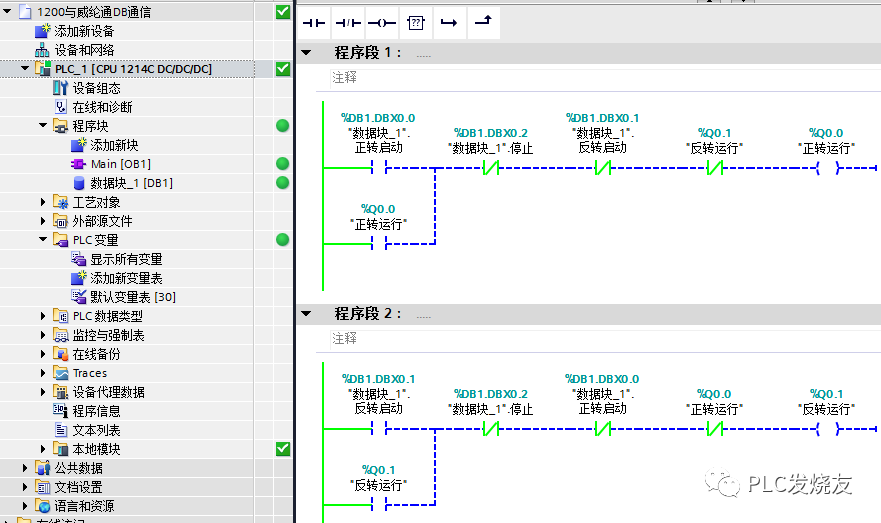
Step 1: (Create a DB block and write the address)
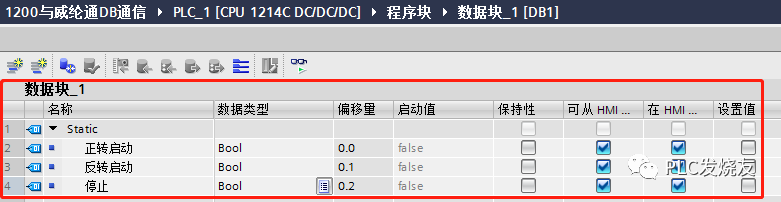
Step 2: (Create a variable table address)
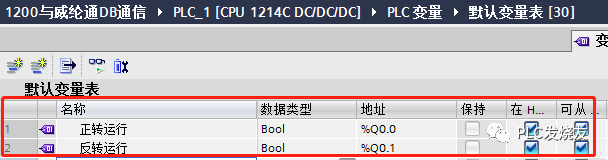
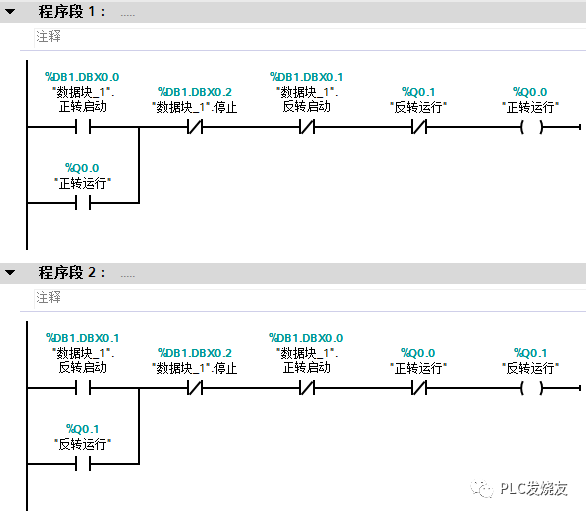
Step 3: (Write the forward and reverse interlock program in OB1 main program)
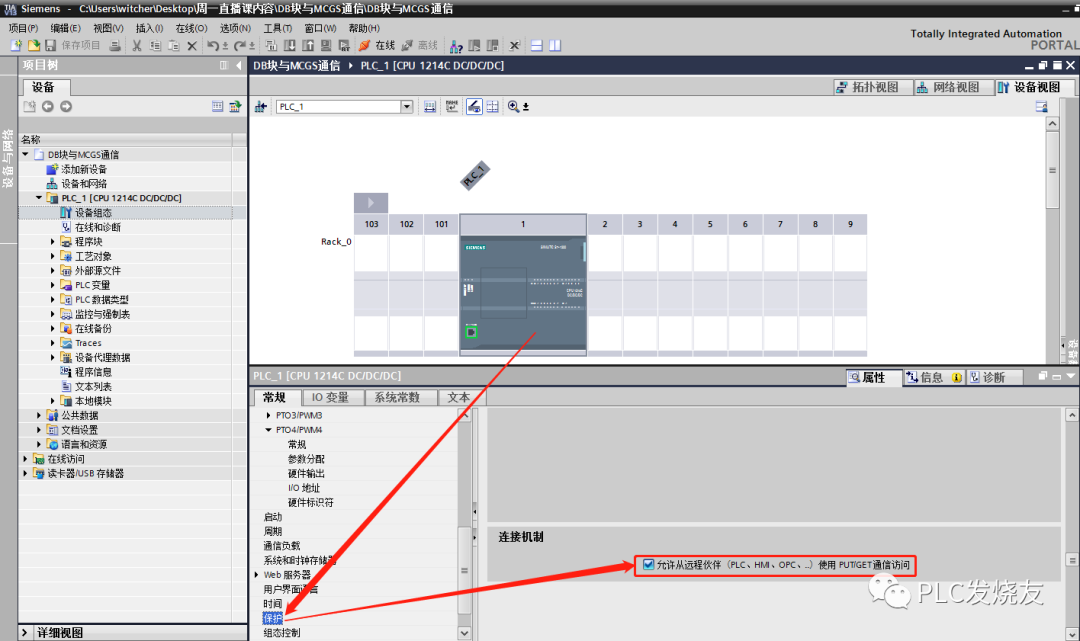
Step 4: (Double-click CPU properties—Protection—Connection mechanism—Check allow communication access using PUTIGET from runtime partners (PLC, HM, OPC, etc.))
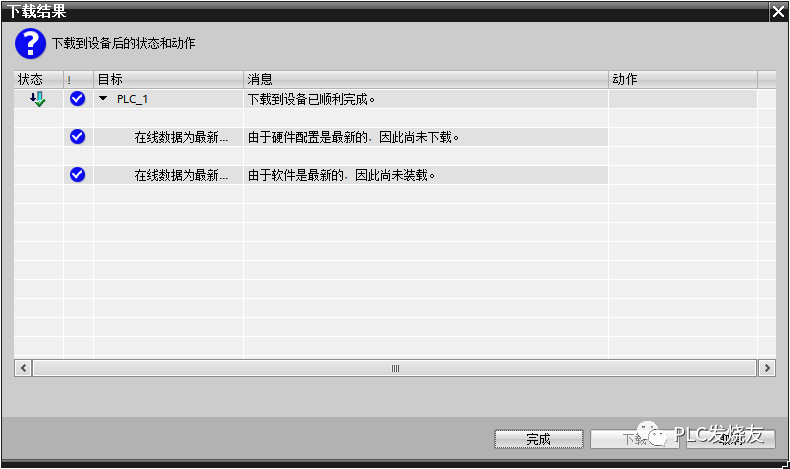
Step 5: (Download the program to the PLC and monitor)
2. Weintek Touch Screen Configuration
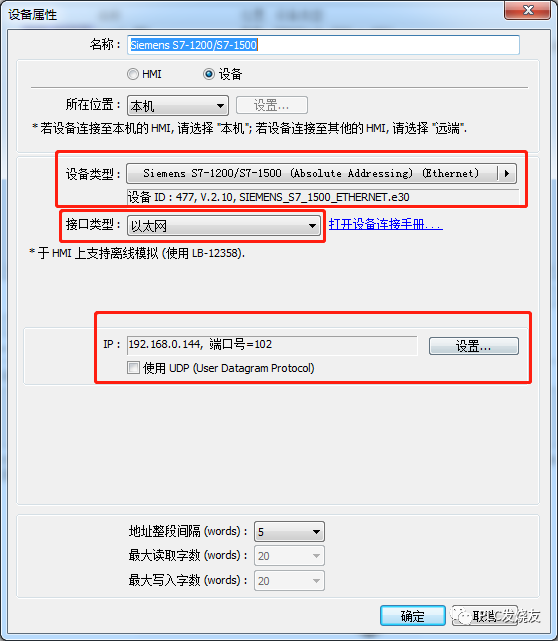
Step 1: (System parameter settings)
Device Type—Siemens S7-1200/S7-1500 (Absolute Addressing) (Ethernet)
Interface Type: Ethernet
IP Address: Enter the S7-1200 PLC IP address (192.168.0.144)
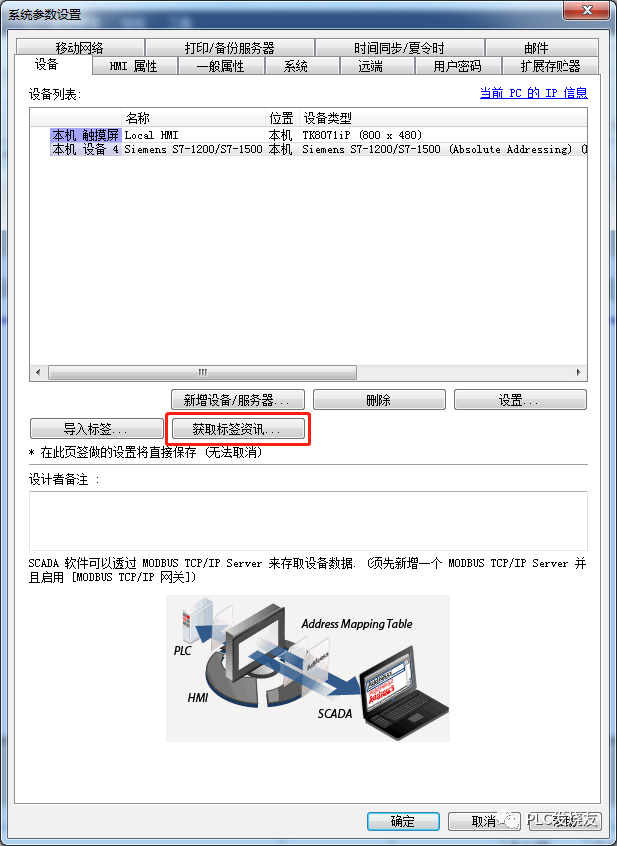
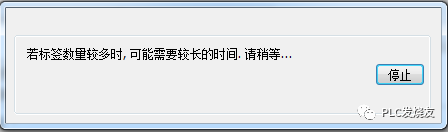
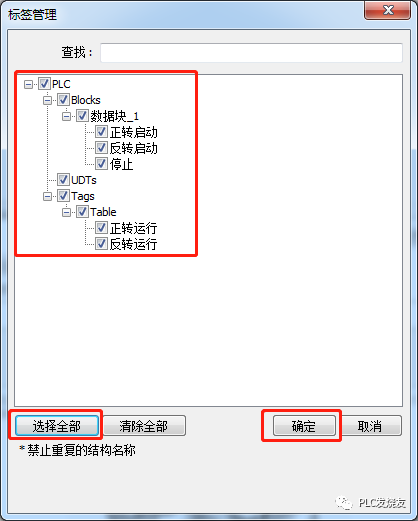
Step 2: (Click to get tag information—Select all and click confirm)
3. Design Weintek Touch Screen Interface
Step 1: (Associate button DB addresses)
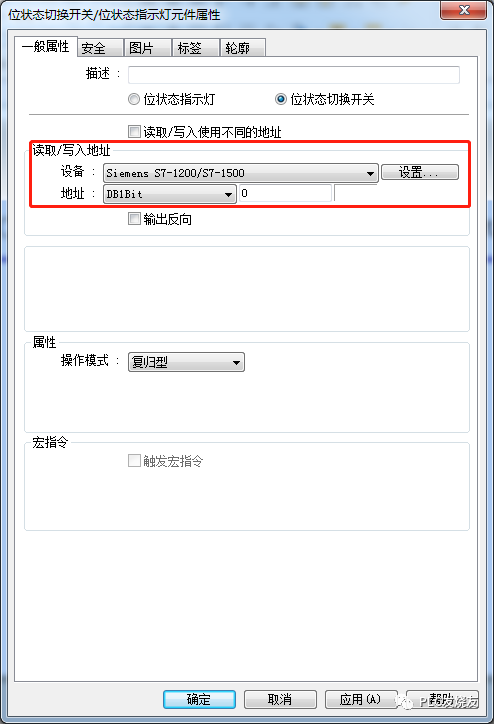
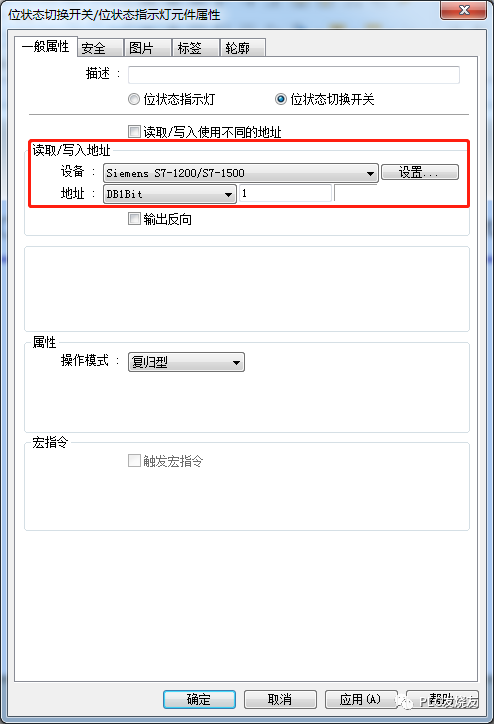
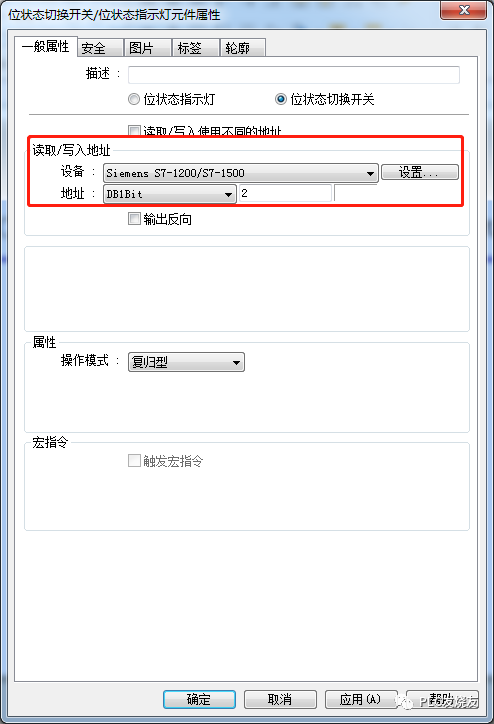
Forward start address S7-1200 PLC: %DB1.DBX0.0 corresponds to Weintek touch screen: DB1Bit0 Reverse start address S7-1200 PLC: %DB1.DBX0.1 corresponds to Weintek touch screen: DB1Bit1
Stop address S7-1200 PLC: %DB1.DBX0.2 corresponds to Weintek touch screen: DB1Bit2
Parameters for forward start button are as follows:
Parameters for reverse start button are as follows:
Parameters for stop button are as follows:
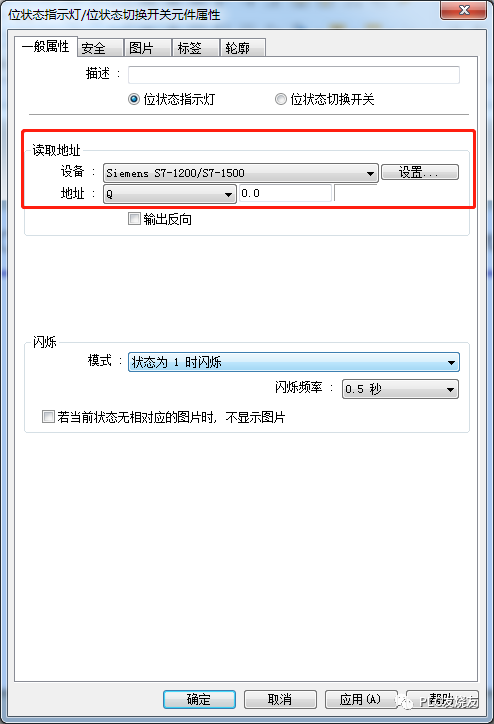
Step 2: (Associate indicator light addresses)
Parameters for forward running indicator light are as follows:
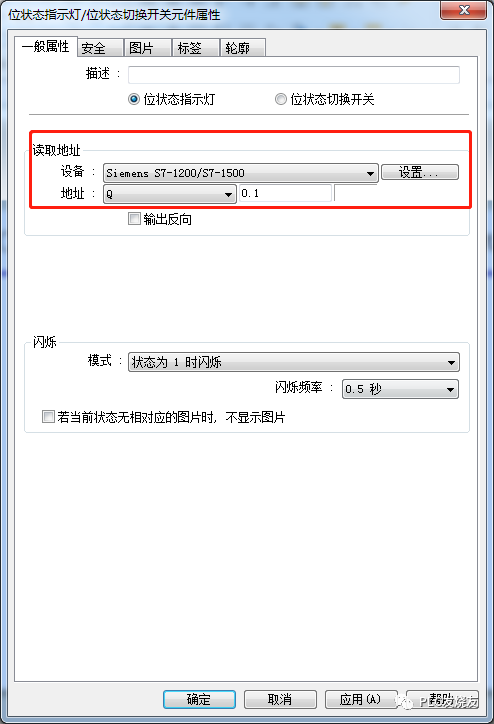
Parameters for reverse running indicator light are as follows:
-
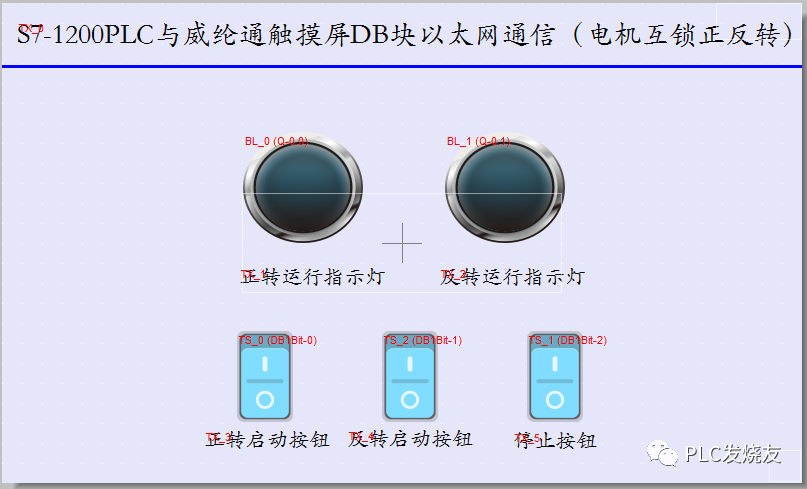
Design the Weintek screen
4. Run Demonstration
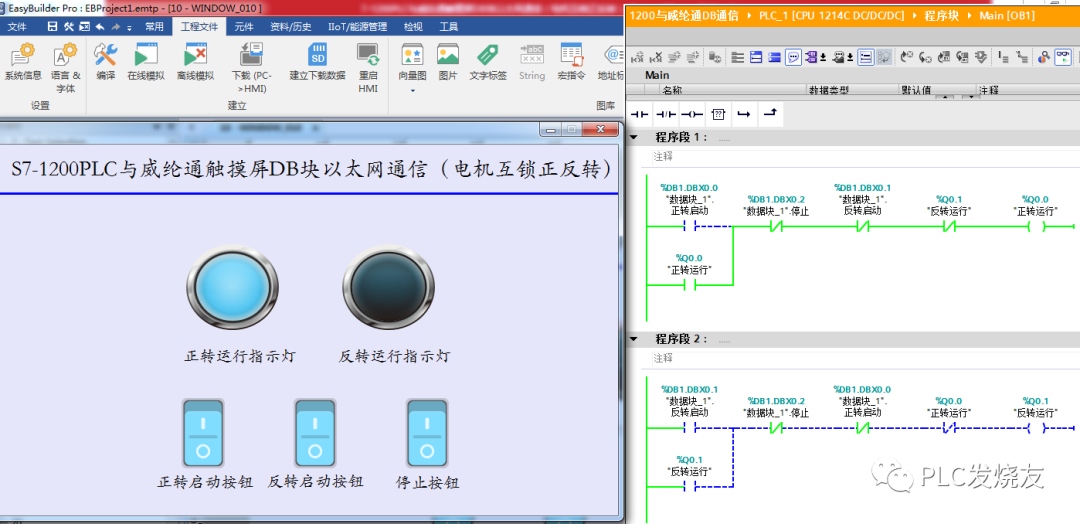
Step 1: (Run forward start)
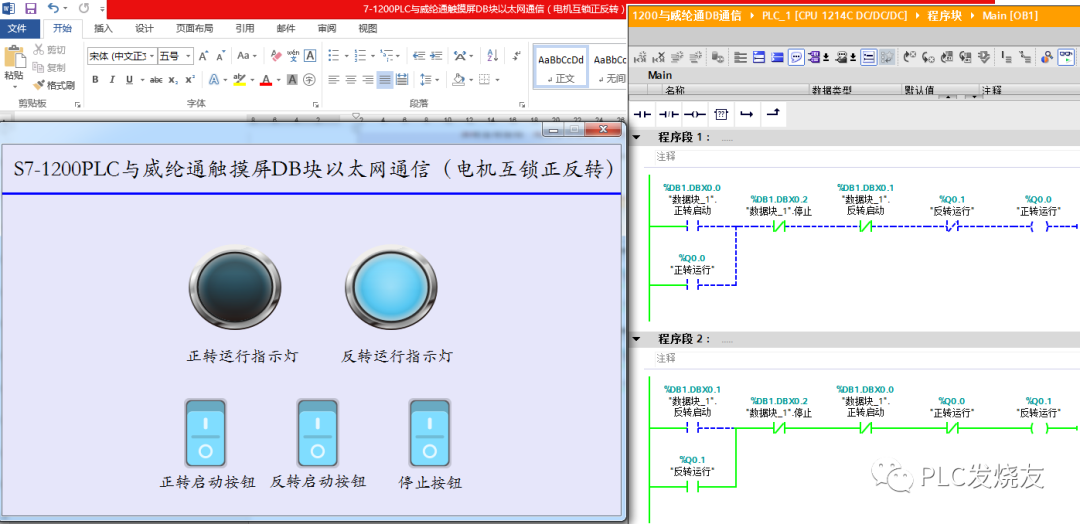
Step 2: (Run reverse start)
Step 3: (Stop running)
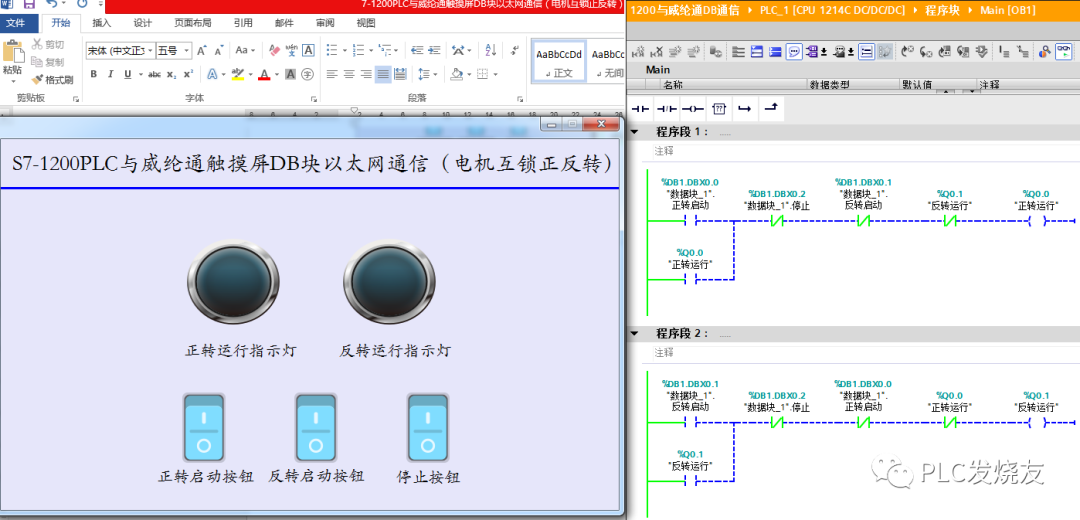
The demonstration and communication were successful. At this point, everything is complete. Some students may encounter issues in the steps mentioned above, so I will list common problems for your reference:
Common Problems and Solutions:
Problem 1: If the online automatic tag acquisition fails or cannot be obtained, how to solve it?
Answer: You can choose to manually import tags. The method is as follows:
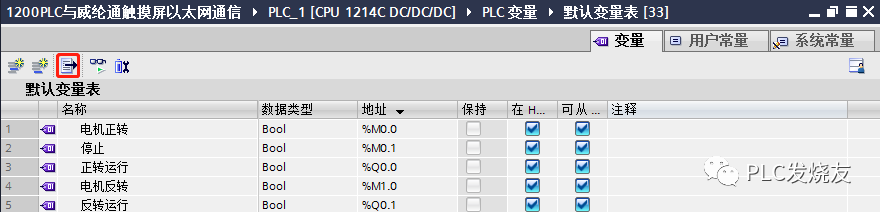
Step 1: (Click the export button in the upper left corner of the variable table to export variables)
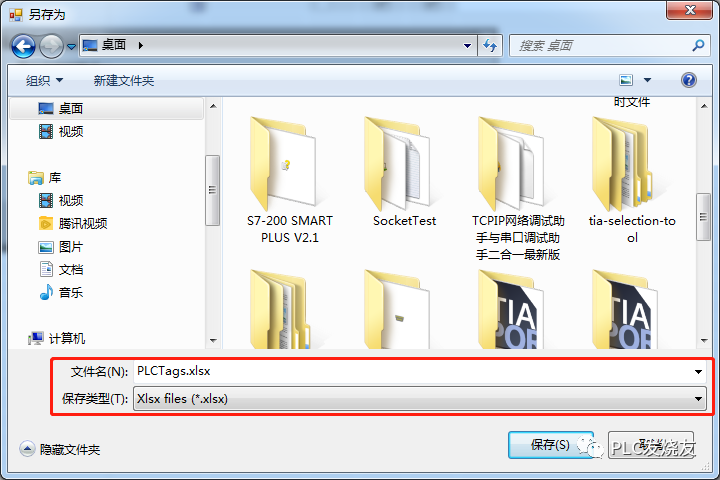
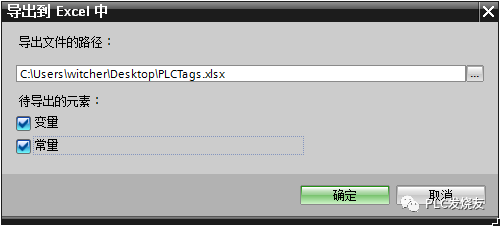
Step 2: (Select the location and name for exporting variables)
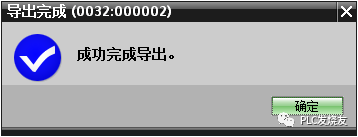
Step 3: (Variable export successful)
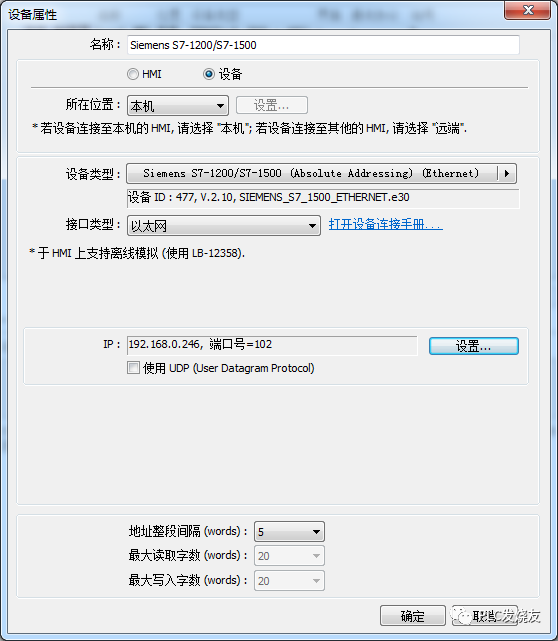
Step 4: (System parameter configuration)
Device Type—Siemens S7-1200/S7-1500 (Absolute Addressing) (Ethernet)
Interface Type: Ethernet
IP Address: Enter the S7-1200 PLC IP address (192.168.0.246)
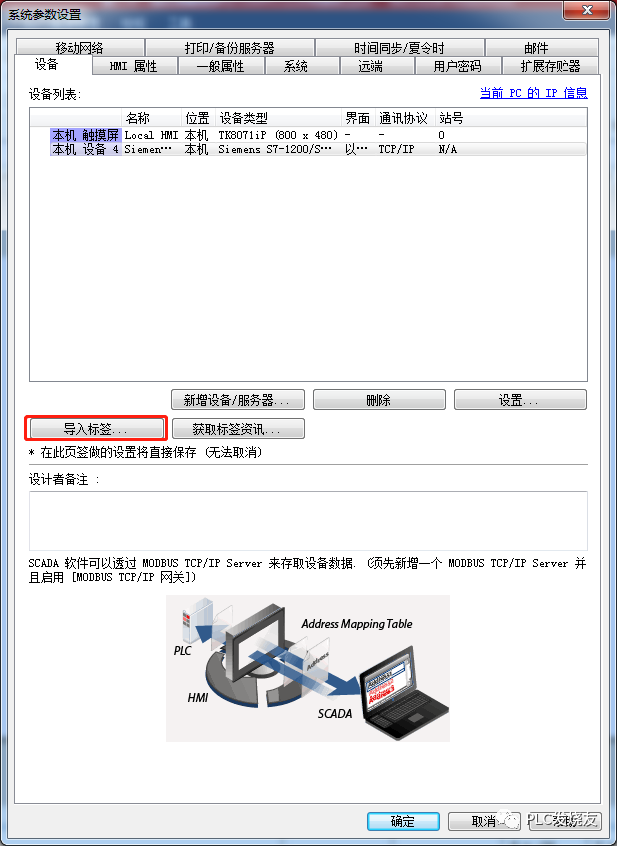
Step 5: (Click to import tags)
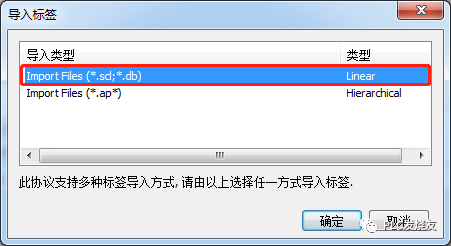
Step 6: (Import tag selection—Import Files (d;*db) Linear)
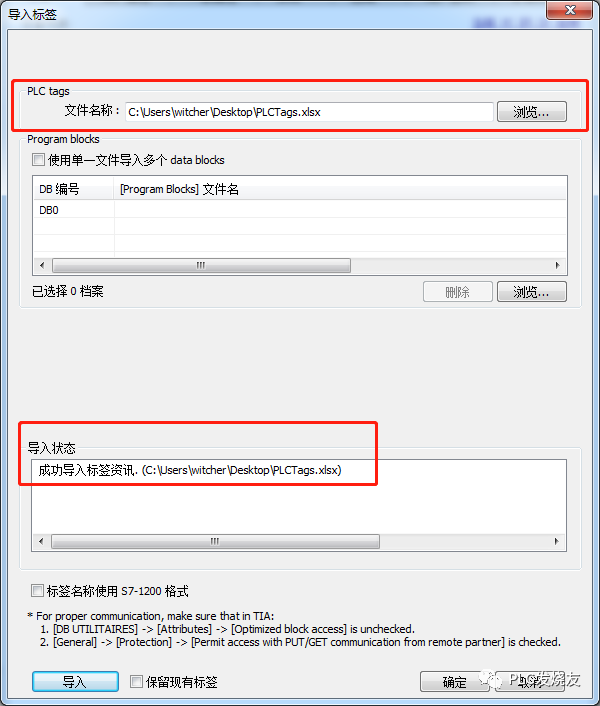
Step 7: (PLC tags—Location to store exported PLC variable table)
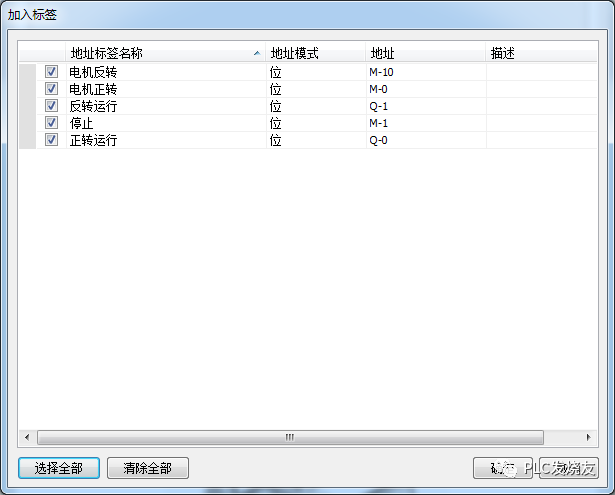
Step 8: (Select all—Click confirm)
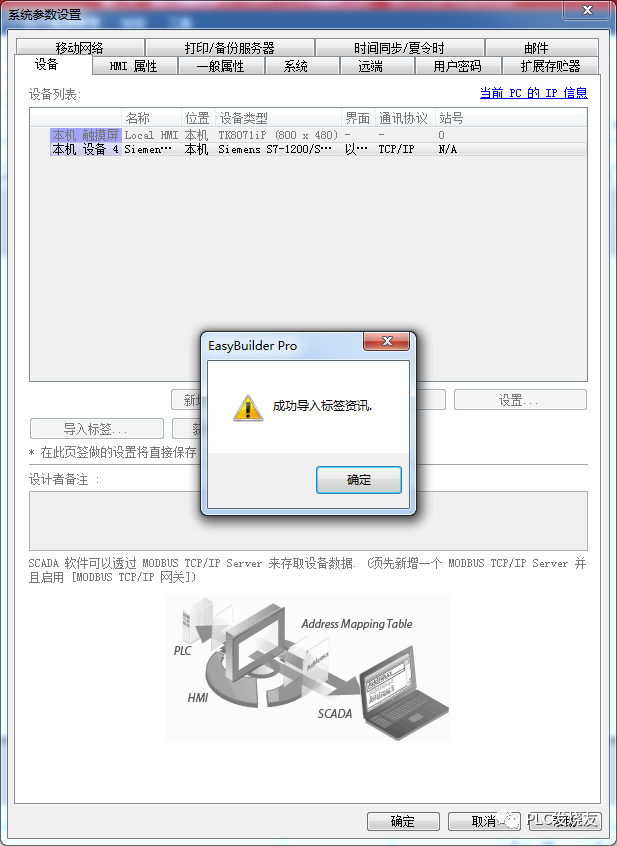
Step 9: (Tag import successful)
Problem 2: If the DB block in PLC has no address or no DB offset address, how to solve it?
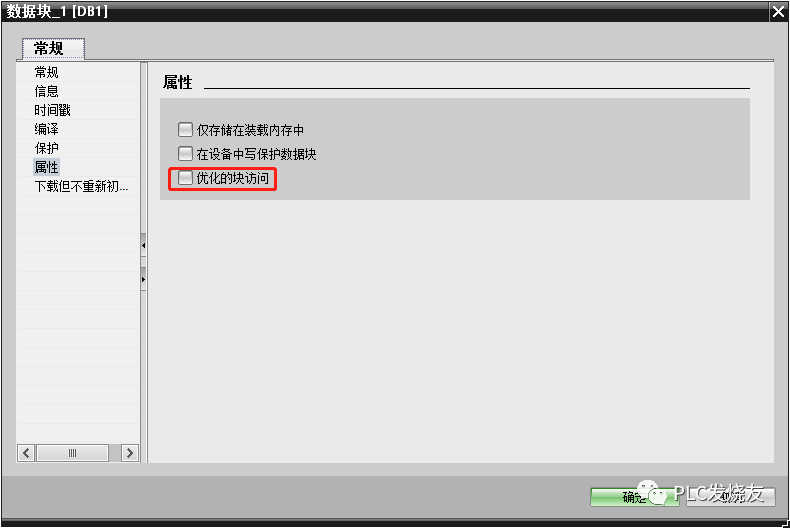
Answer: Cancel block access optimization and recompile. The method is as follows:
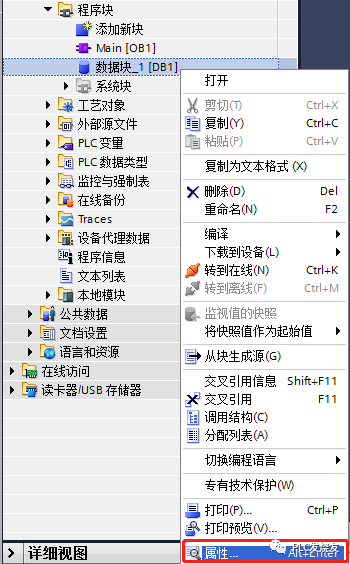
Step 1: (Select the DB data block—Right-click properties)
Step 2: (DB block—Right-click properties—Cancel optimized block access)
Source: Jicheng Training Network, Author: Jicheng – Xu Chenshuang, Unauthorized reproduction is prohibited.
Scan to Get Materials Scan the QR code aboveto receive Siemens materials for free
 Click “Read the Original Text” for continuous improvement!!