This is a simple tutorial aimed at beginners.
It’s actually not like the previous one.10 years ago, this was a WINDOWS tablet — the top configuration THINKPAD X200T for 300 including shipping. After finishing the article, I realized I forgot to mention something.
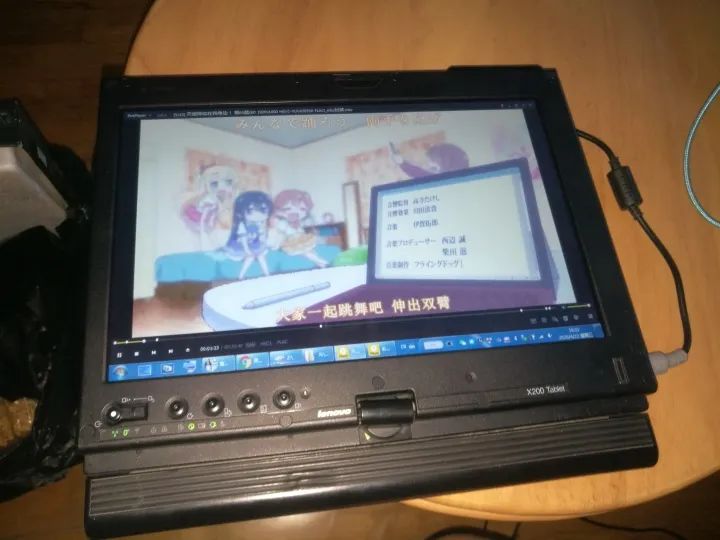
The X200T is a good machine; it can surprisingly play H265 videos smoothly and take screenshots quickly, making it very suitable as a low-budget digital drawing tablet.
This machine actually has no issues. Although it came without a 3G card and SSD, my classmate had a broken X200s, so I easily removed it and installed it here.
The disassembly method for the X200s is basically the same as for the X200. To be honest, because the keyboard and wrist rest layouts are similar, the X200T is the same. Just remove the screws marked for the keyboard on the back to take off the keyboard and wrist rest.
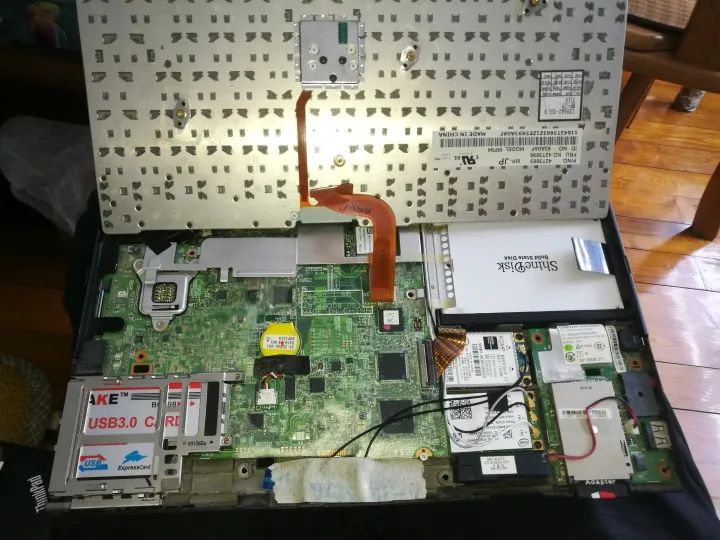
I actually added an antenna to this machine, but it was useless. The X200s motherboard didn’t have a SIM card slot or a 3G card driver, so it was just for decoration.
However, installing a replaced 5100 in the same location could connect to the network, but it seems the system didn’t recognize the dual network cards.
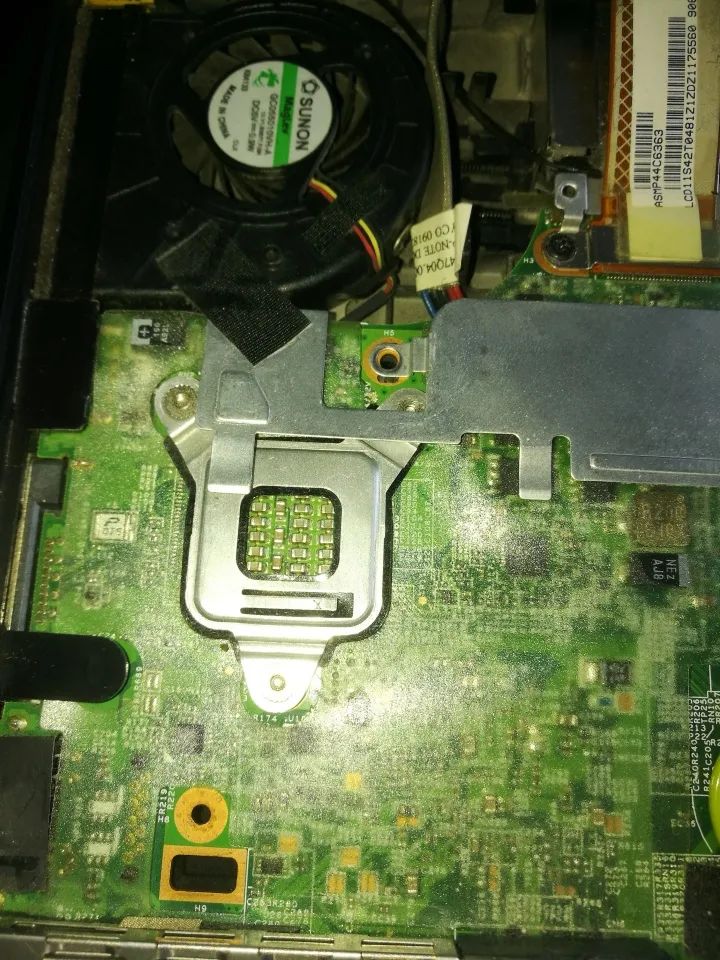
The X200s also has a BGA packaged CPU, but it’s a low-voltage L series. The CPU filter capacitor is also carefully equipped with a single capacitor. I believe most decent laptops will use this type of capacitor; it can be said that manufacturers who use large NEC capacitors are the confusing ones.
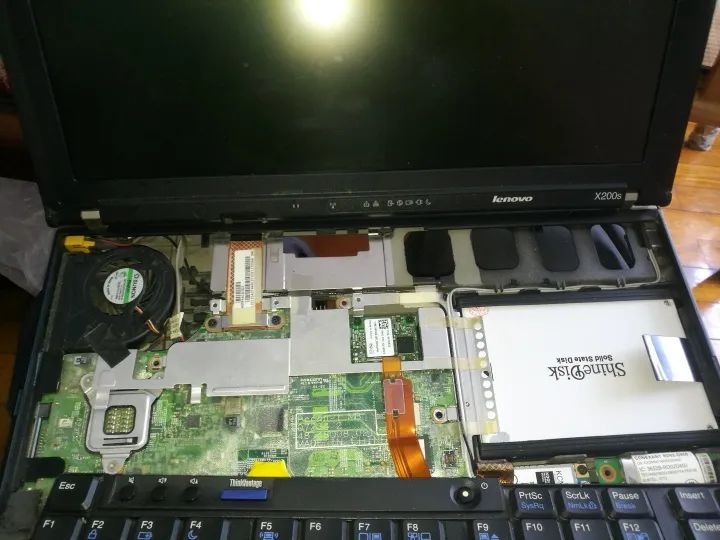
As for the SSD, it’s this thing, which is easy to disassemble with just two screws.
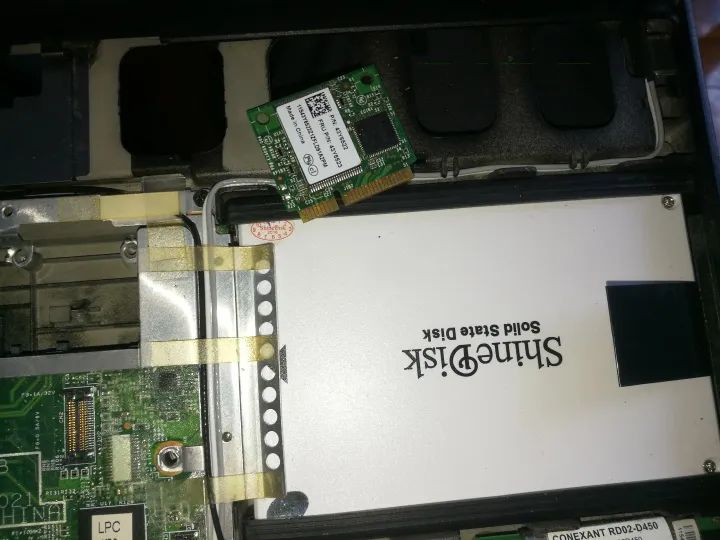
It’s a half-height PCIe SSD.
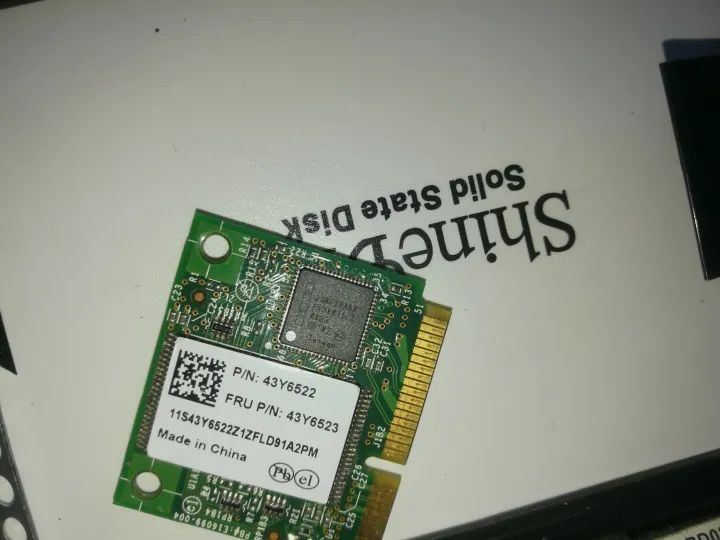
Intel controller with FRU.
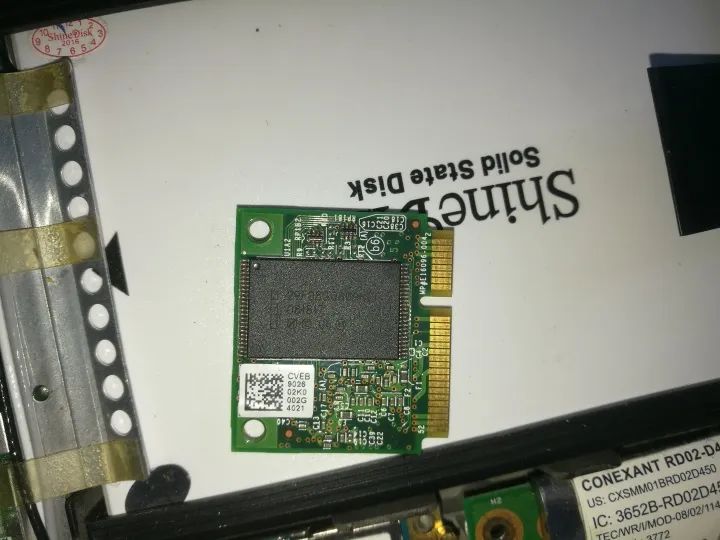
Intel chip, SLC; this should have 1G or 2G, this one is 2G.
If it were 4G, it could barely be used to install XP as the C drive. However, currently, no one knows how to mass-produce partitions for use as SSDs; it can only be used with Intel’s blue screen creator to cache software. Intel’s SSD later became Optane, and honestly, it seems not very useful now that SSDs are everywhere.
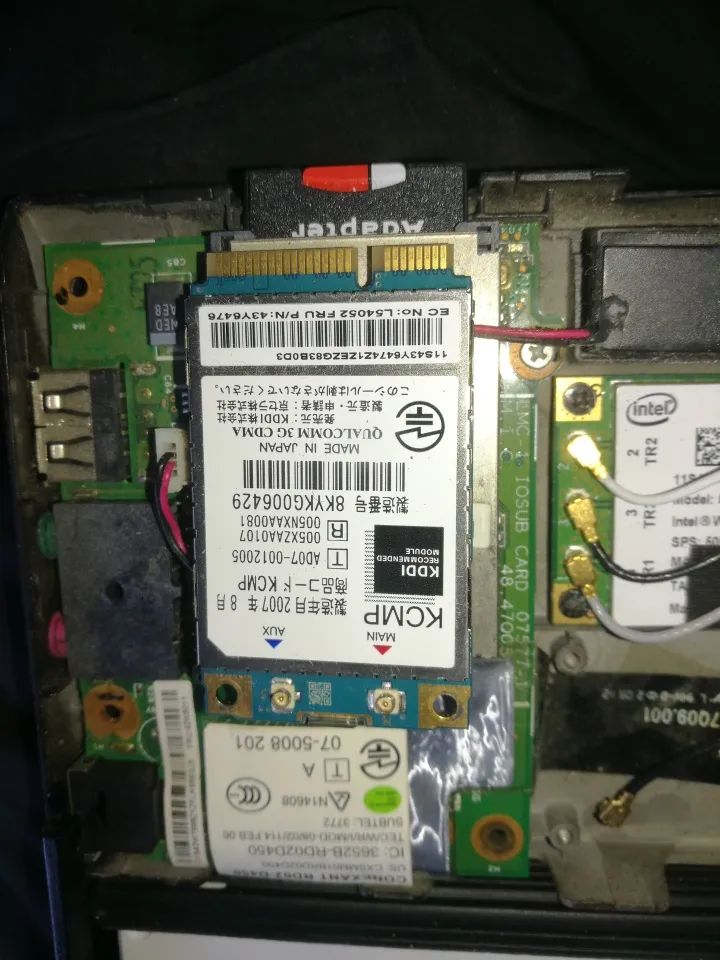
The network card is a KCMP 3G CDMA card with Qualcomm chips.
The color of the 3G antenna is already marked above, so it won’t go wrong.
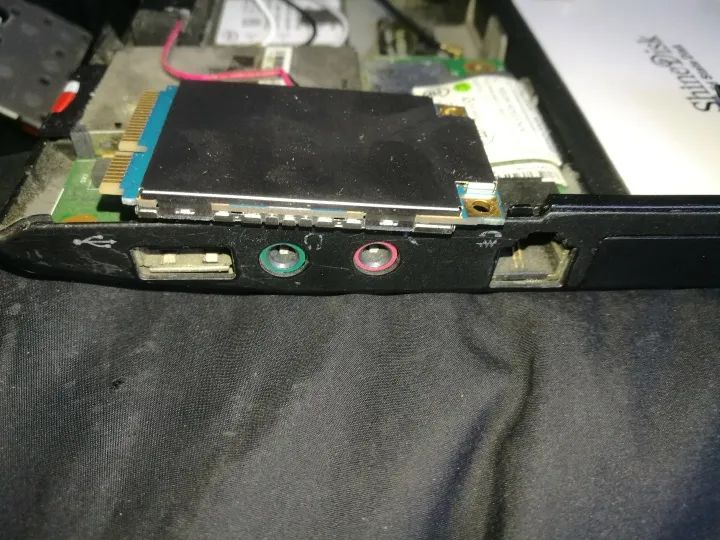
This network card is thick, with components on both sides.
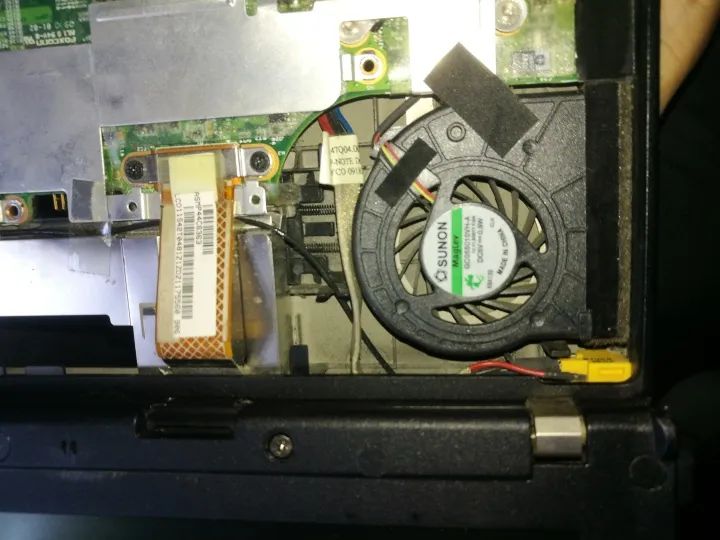
The heatsink of the X200s does not match the reserved position, which raises suspicions that it may have been replaced. However, as long as it works, it’s fine. The L9300 has low standby heat (I mention that low-voltage CPUs generate more heat under the same medium load, while P series CPUs can handle half load easily, causing L series CPUs to run at full load and thus generate more heat).
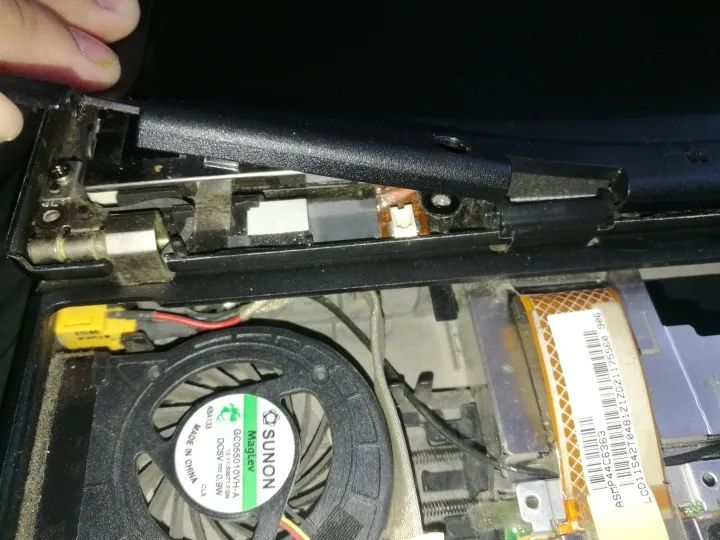
The Bluetooth module is located under this screen. You don’t need to disassemble the entire screen; just remove two screws to access the connector for the Bluetooth module.
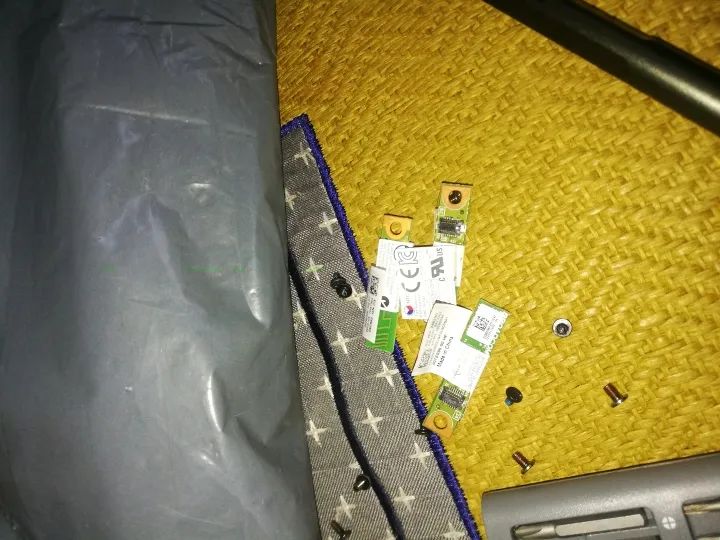
The Bluetooth module looks like this; I bought it online for about 5 yuan each and got three (I actually have three such laptops that need Bluetooth modules).
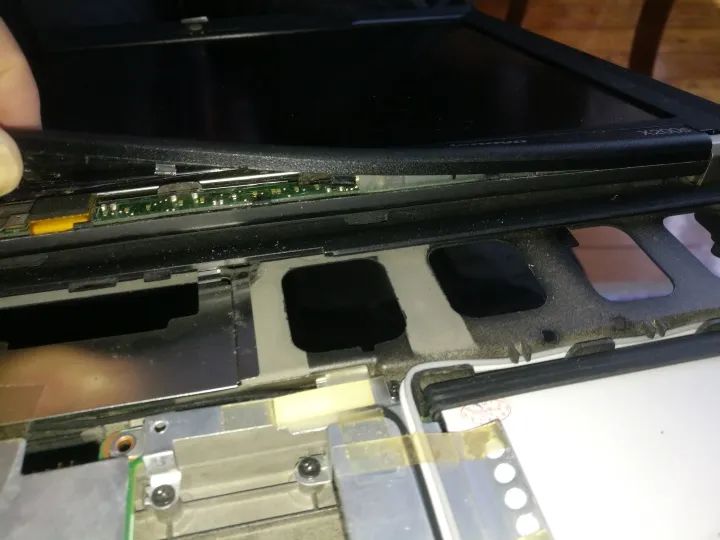
This X200s uses a backlight tube, with the high-voltage strip located just below the indicator light on the screen, and you can see that the high-voltage transformer is integrated on the lamp board.
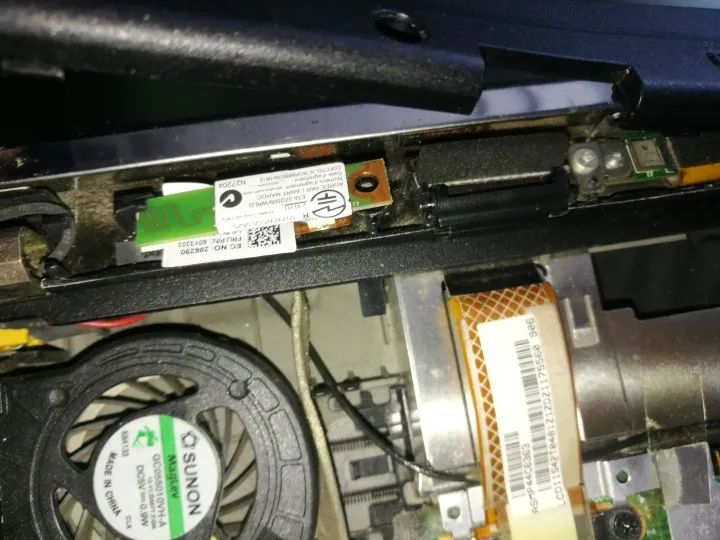
After inserting the Bluetooth module, just tighten the screws on the screen.
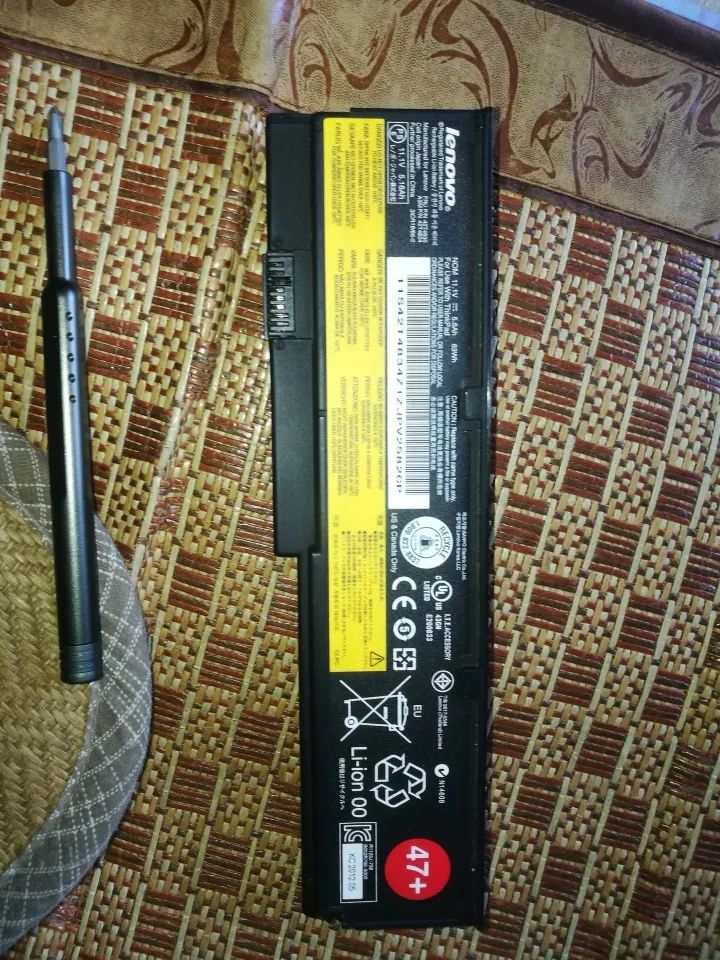
The battery of this machine has been replaced with one from a previous group friend’s X200 battery, and the wear is average, still usable. Unfortunately, it is not compatible with the X200T.
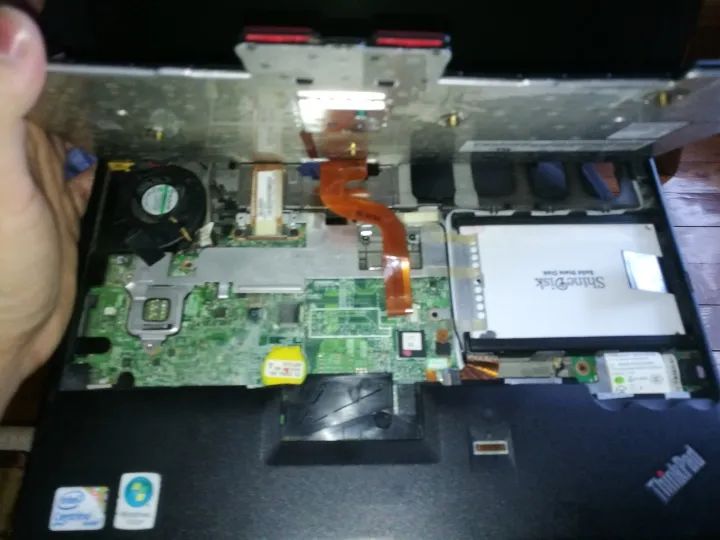
That’s basically it. This X200s even has a fingerprint reader, so it can be considered a high-end machine.
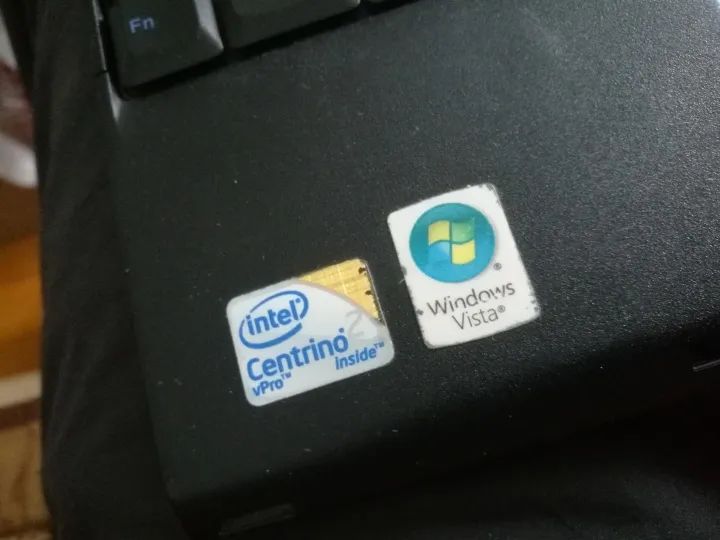
The yellow Xtreme 2 label supports VISTA (it can, but it’s unnecessary to watch).
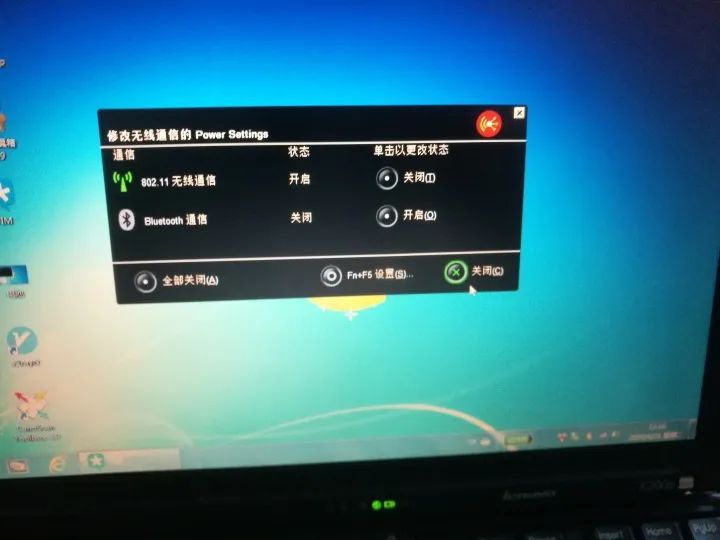
After installing the power management software and shortcut key driver, you can turn on Bluetooth with FN+F5. Previously, I couldn’t turn on the Bluetooth module of Lenovo’s IDEAPAD, but installing the power management solved it.
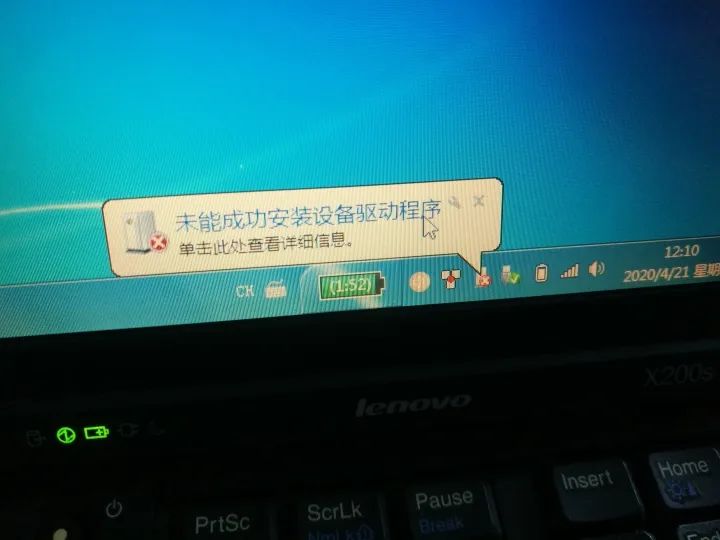
You’ll also need to install the driver.
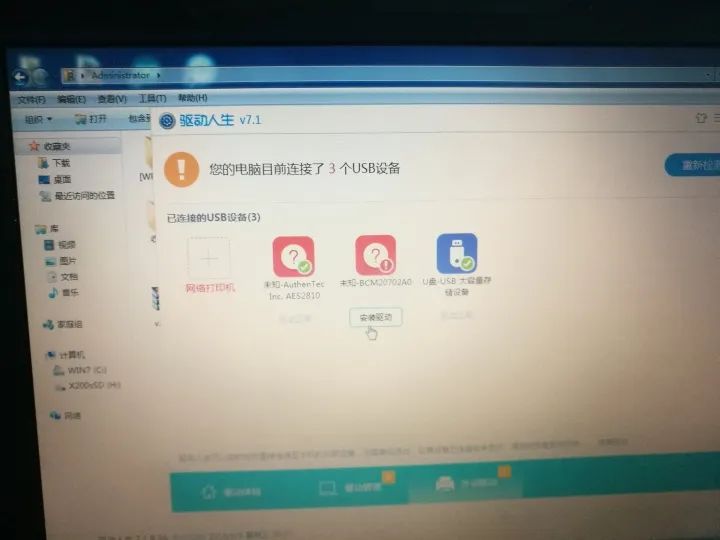
Driver Life can do it; the driver is quite large, around 100MB.
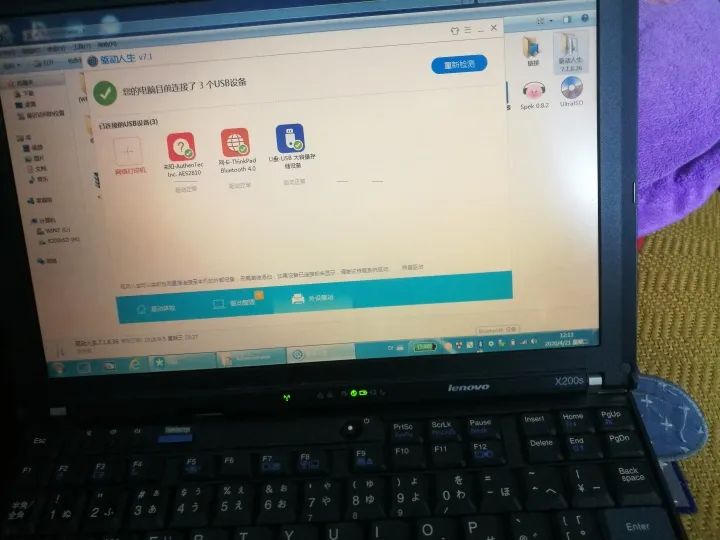
Once the Bluetooth module is installed, it can be activated. Unfortunately, although the LED is known to be present at the indicator light position, models that do not support Bluetooth do not have a reserved light guide hole for Bluetooth, which is awkward.
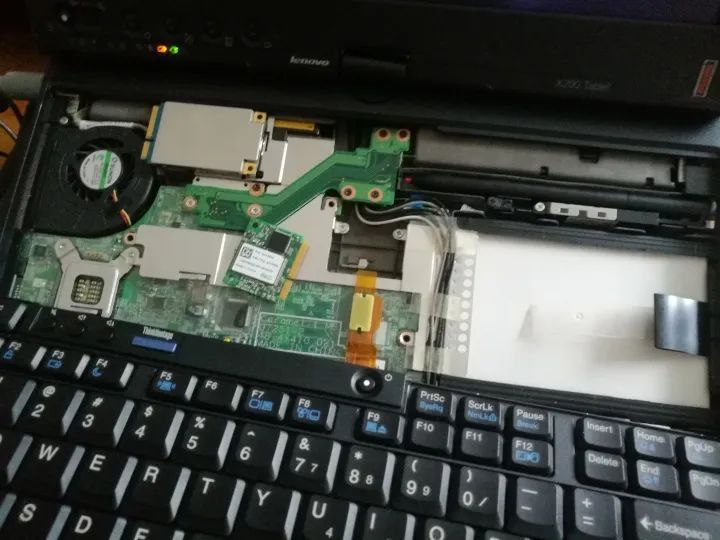
Conveniently, I also installed the SSD and 3G card on the X200T.
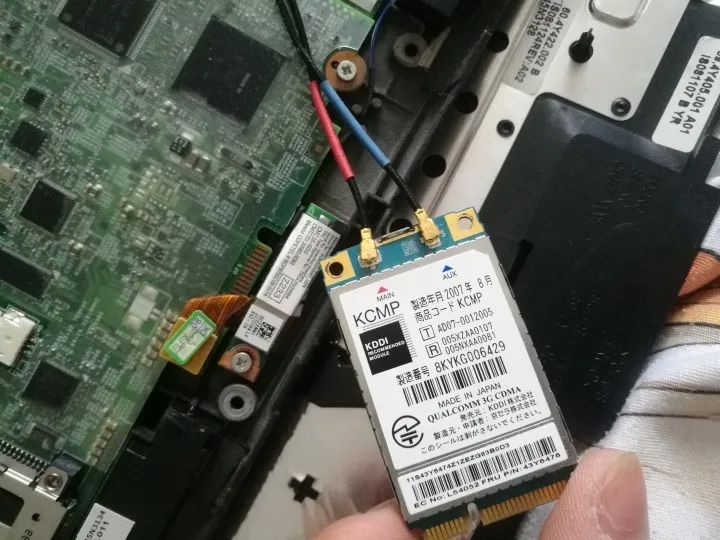
The antennas are all color-coded, so you can’t get them wrong.
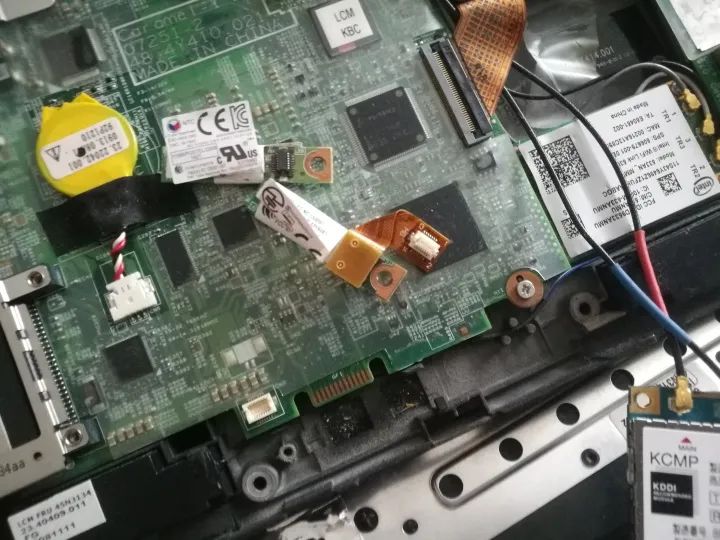
The Bluetooth module for the X200T is located at the bottom of the machine, indicating that this position still has a signal. Previously, I also placed the 3G antenna from the X200s here.
The built-in stereo speakers of the X200T are really loud; I don’t even plan to connect it to a dock for the speakers.
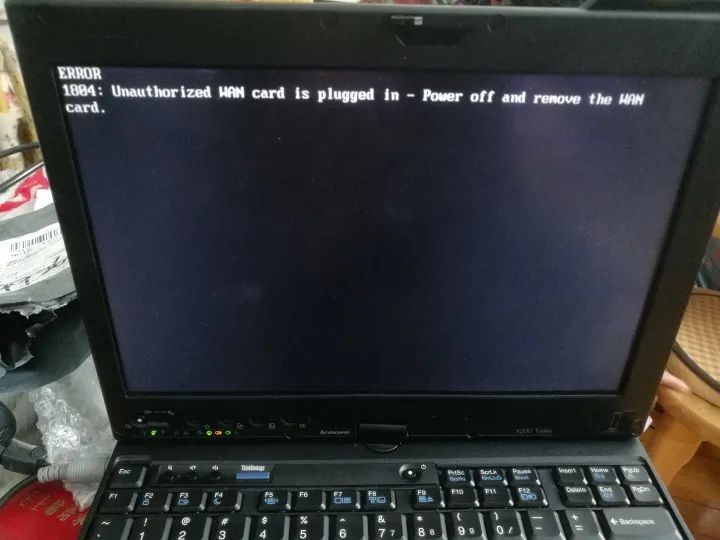
The machine reported an error on startup, indicating that the 3G modules of the X200s and X200T are not interchangeable.
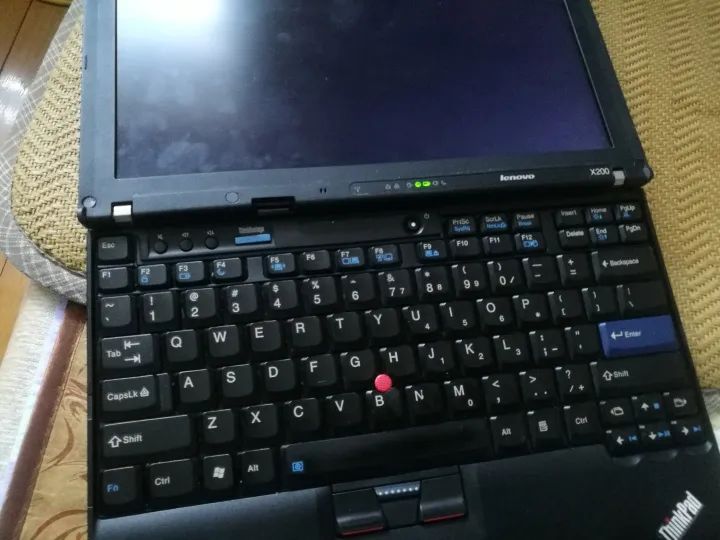
Finally, here’s the X200.
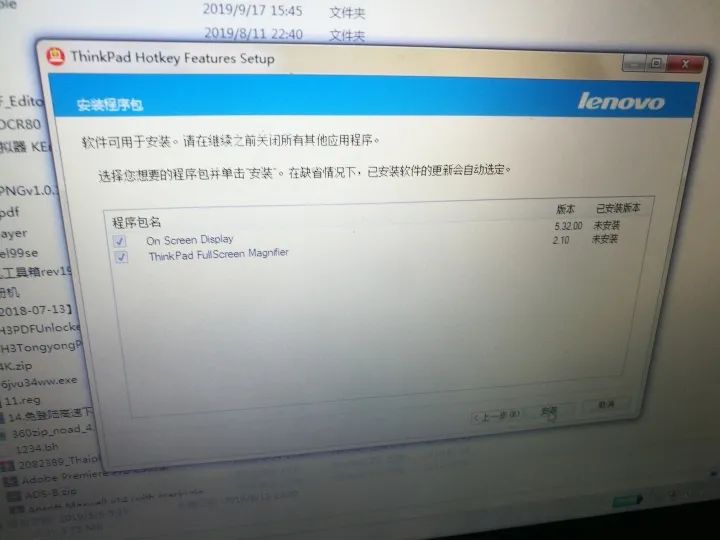
The same method applies, just needing to install an additional shortcut key driver.
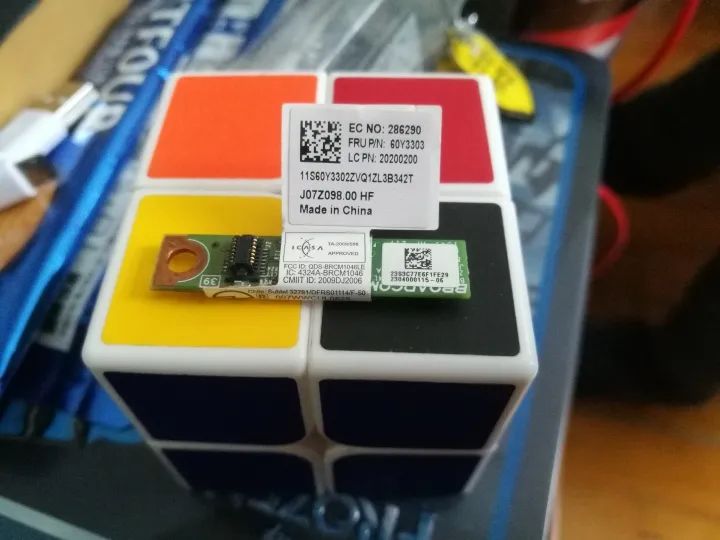
Finally, I just need to install one for my previous P8400 X200, and I’m done.
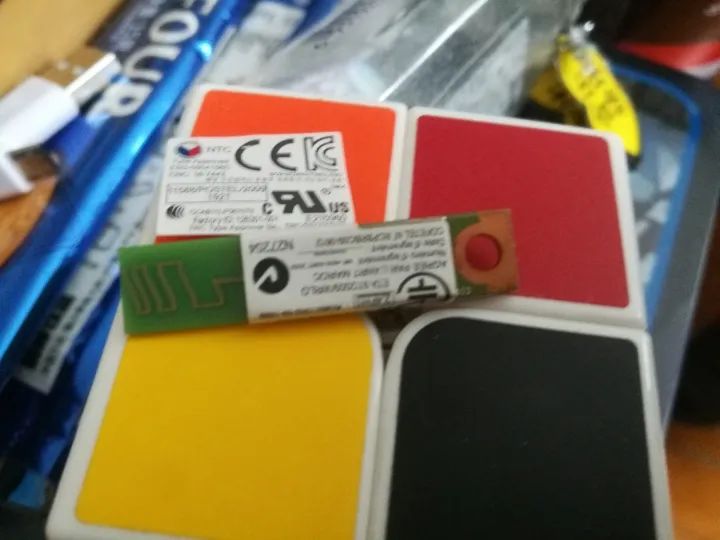
The Bluetooth module isn’t large, but it uses USB defined signals. Regardless, it is a serial device; whether it’s a MACBOOK or a SONY VAIO, any Bluetooth wireless card will use USB defined signals. Other network cards can also be used, but Bluetooth from other network cards might not work with laptops that have Bluetooth in different locations.
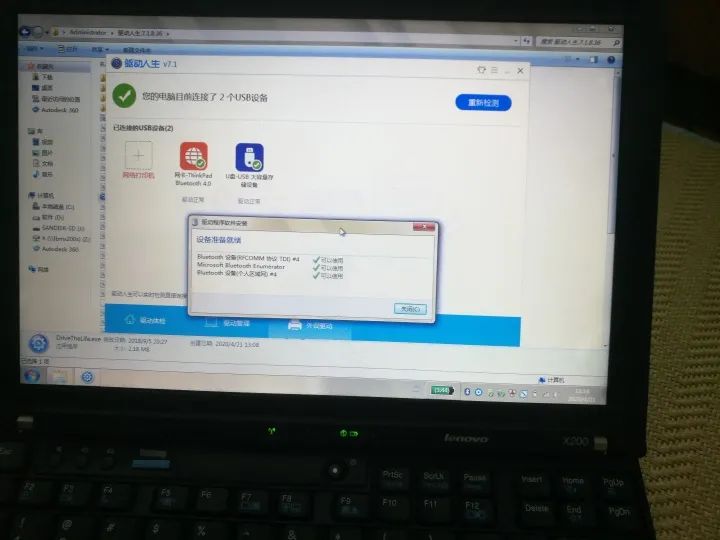
That’s it. As for the SSD, after installing the management software, it will ask where you want to use the SSD. You can try to use the SSD for CHROME cache, which should speed things up. Don’t put everything on the SSD, or it might cause a blue screen. That’s all.