The topic of using Vim on Linux has been discussed countless times, and not everyone is interested in Vim, but the fact is that Vim is a very powerful editor.
I personally really like Vim, mainly because of its efficiency and power. The modal editing of Vim (normal mode, insert mode, visual mode, etc.) allows you to perform text operations very quickly without frequently switching finger positions. For proficient users, this method can greatly improve editing efficiency.
Markdown is a lightweight markup language designed to allow people to write documents in an easy-to-read and easy-to-write plain text format, which can then be converted into structured HTML documents. The syntax of Markdown is very simple and intuitive, making it suitable for writing various types of documents, such as blog posts, technical documentation, README files, etc.
Using Vim to edit Markdown files on Linux can be enhanced with some plugins.
For example, plugins like vim-markdown provide syntax highlighting, folding, and other features, making it more convenient to edit Markdown files. Additionally, there are plugins that can help preview the rendered effect of Markdown files, such as vim-markdown-preview.
In fact, many software options are more convenient than using Vim to edit Markdown, such as Typora’s WYSIWYG interface or using VSCode with Markdown plugins. However, Vim’s advantages lie in its lightweight nature and customizability.
For users who prefer working in the terminal, Vim provides a powerful text editing environment that allows for quick editing and management of Markdown files without leaving the terminal.
Therefore, the following discussion is limited to the scenario of using Vim to edit Markdown files on Linux. This is not suitable for everyone, but it is a good choice for users who want to efficiently edit Markdown files in a Linux environment.
Typically, Linux distributions do not come with Vim installed by default, but rather a simplified version called vi. If you want to use the full functionality of Vim, you can install it through a package manager. For example, on a LinuxMint system, you can use the following command to install Vim.
sudo apt-get install vim
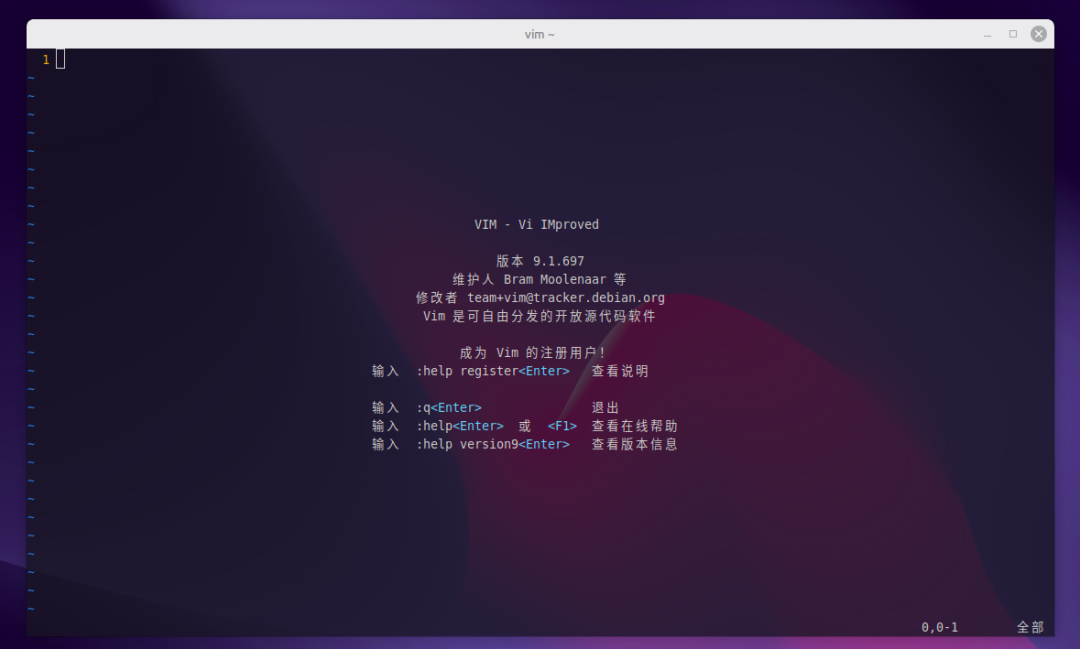
After installation, you can start the Vim editor by typing <span><span>vim</span></span> in the terminal. You can view the current installed version of Vim, similar to the following:
To better edit Markdown files, it is recommended to install some Vim plugins, which can be done using a plugin manager like vim-plug.
First, install vim-plug with the following command:
curl -fLo ~/.vim/autoload/plug.vim --create-dirs \
    https://raw.githubusercontent.com/junegunn/vim-plug/master/plug.vim
For first-time users of Vim, some simple configuration is needed. Open or create the <span><span>~/.vimrc</span></span> file and add the following content:
" Enable syntax highlighting
syntax on
" Set line number display
set number
" Enable file type detection and plugins
filetype plugin on
You can see that this enables syntax highlighting, line number display, and file type detection and plugin support. There is already a certain visual effect:
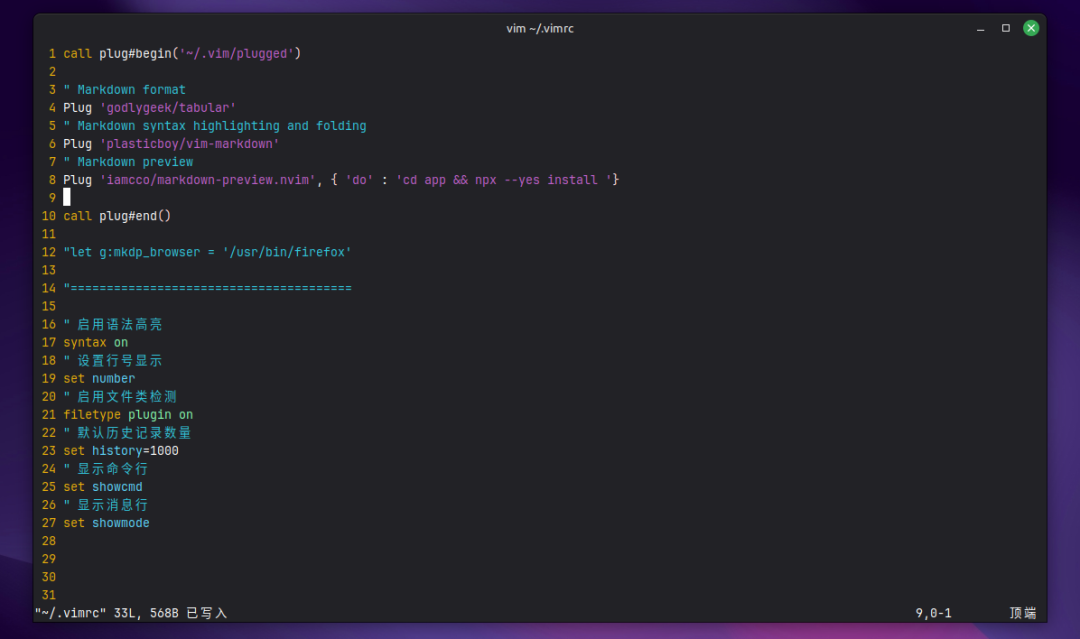
Next, add the plugin configuration section for vim-plug: After vim-plug is installed, add the plugin configuration to your <span><span>~/.vimrc</span></span> file. For example, add the following content to install some commonly used Markdown plugins:
call plug#begin('~/.vim/plugged')
" Markdown syntax highlighting and folding
Plug 'plasticboy/vim-markdown'
" Markdown preview
Plug 'iamcco/markdown-preview.nvim', { 'do': 'cd app && npx --yes yarn install' }
call plug#end()
After saving and closing the <span><span>~/.vimrc</span></span> file, reopen Vim and run the following command to install the plugins:
:PlugInstall
This will download and install the plugins specified in your <span><span>~/.vimrc</span></span> file.
Once the installation is complete, you can start using Vim to edit Markdown files.
Open a Markdown file, for example index.md:
vim index.md
During editing, the vim-markdown plugin will provide syntax highlighting and folding features, making editing more convenient. You can use common Vim commands for text operations, such as:
<span>i</span>to enter insert mode<span>Esc</span>to return to normal mode<span>:w</span>to save the file<span>:q</span>to exit Vim<span>:wq</span>to save and exit<span>:MarkdownPreview</span>to preview the rendered effect of the Markdown file. Make sure you have Node.js installed, as this plugin depends on it. Then, open your Markdown file in Vim and run the following command to start the preview:
:MarkdownPreview
At this point, you can preview the effect while editing in Vim and displaying it in the browser side by side.
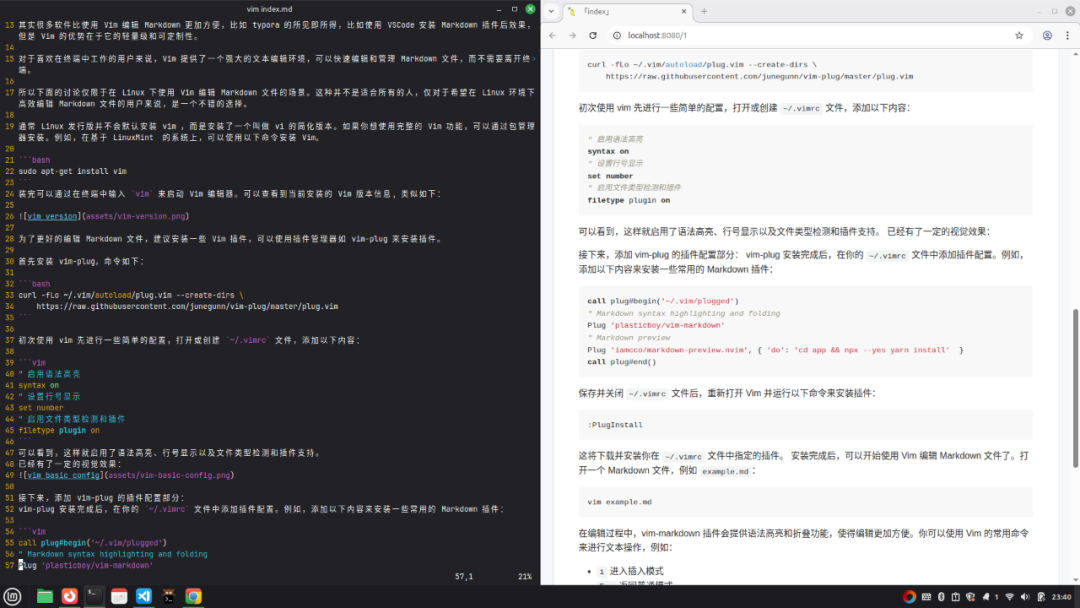
We can map the preview operation to a shortcut key in Vim, such as the F9 key, by adding the following configuration to the <span><span>~/.vimrc</span></span> file:
nnoremap <F9> :MarkdownPreview<CR>
After saving and reloading the <span><span>~/.vimrc</span></span> file, you can press the F9 key in normal mode to start the Markdown preview.
You can continue editing the file in Vim, and the preview in the browser will update automatically.
By following these steps, you can efficiently edit and preview Markdown files using Vim on Linux.
Of course, in addition to using the markdown-preview.nvim plugin for real-time preview in Vim, you can also achieve this with the coc.nvim plugin.
Plug 'neoclide/coc.nvim', {'branch': 'release'}
coc.nvim is an intelligent completion plugin for Vim/nvim based on Node.js, which allows you to install sub-plugins for Markdown preview.
After installing the coc.nvim plugin, you can install sub-plugins with the following command.
:CocInstall coc-markdown-preview-enhanced coc-webview
Once the plugins are installed, you can preview while editing Markdown files by entering the following command.
:CocCommand markdown-preview-enhanced.openPreview
At the same time, you can bind the above command to the F8 shortcut key, so you can preview by just pressing the shortcut key.
nnoremap <F8> :CocCommand markdown-preview-enhanced.openPreview<CR>
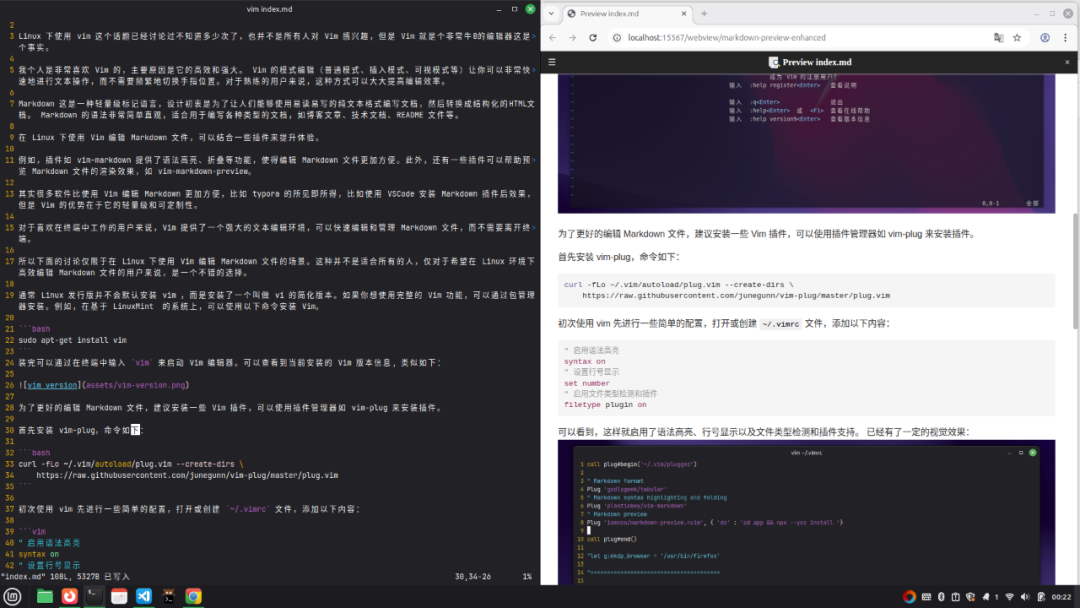
This is a brief introduction to using two different plugins to achieve real-time preview of Markdown files in Vim.
In fact, depending on personal needs, you can install other plugins to enhance Vim’s functionality, making it more suitable for your workflow. However, Vim’s approach is more suitable for personal customization, allowing you to fully adapt the functionality to your habits and operations, creating your own tool platform.
Of course, all of the above content, whether configuration or learning, requires time and effort. If you only occasionally edit Markdown files or do not want to spend energy on this, you can completely use other more intuitive editors, such as Typora or VSCode, which would be more suitable.
 Linux can perhaps start with beautification!There are countless Linux distributions; try installing Nitrux!Some say it’s difficult to install Chinese input methods on Linux!Linux is hard to please everyone!Users’ Linux desktops and my Linux desktop!Old friend, remember to 🌟star it, so it’s easier to find me next time!