1. Install PX4 and Gazebo
First, you need to install the PX4 autopilot firmware and the Gazebo simulation environment. It is recommended to use the official script for installation:
# Clone the PX4 repository
git clone https://github.com/PX4/PX4-Autopilot.git --recursive

# Change to the directory
cd PX4-Autopilot

# Run the installation script (this will automatically install Gazebo and other dependencies)
bash ./Tools/setup/ubuntu.sh
2. Start Gazebo Simulation
After installation, you can directly start the PX4 and Gazebo simulation environment:
# Basic multirotor simulation (default is the iris drone)
make px4_sitl gazebo

# Fixed-wing simulation
make px4_sitl gazebo_standard_vtol

# Ground robot simulation
make px4_sitl gazebo_rover

# Underwater robot simulation
make px4_sitl gazebo_uuv_hippocampus
After running the command, the following will automatically start:
- PX4 SITL (Software In The Loop) simulator
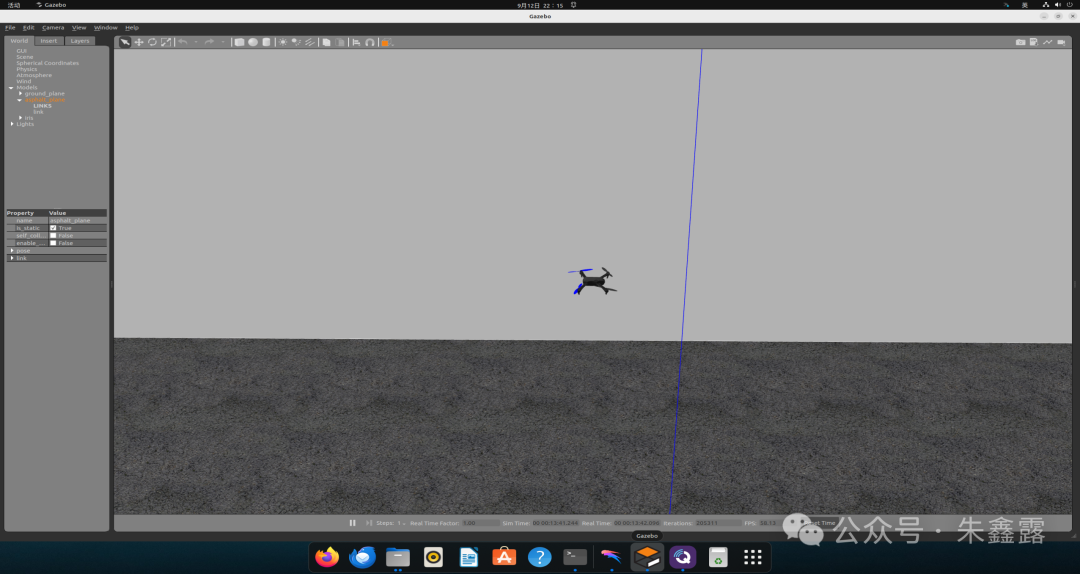
- Gazebo simulation environment, displaying the corresponding robot model
- MAVLink connection for communication with the ground station
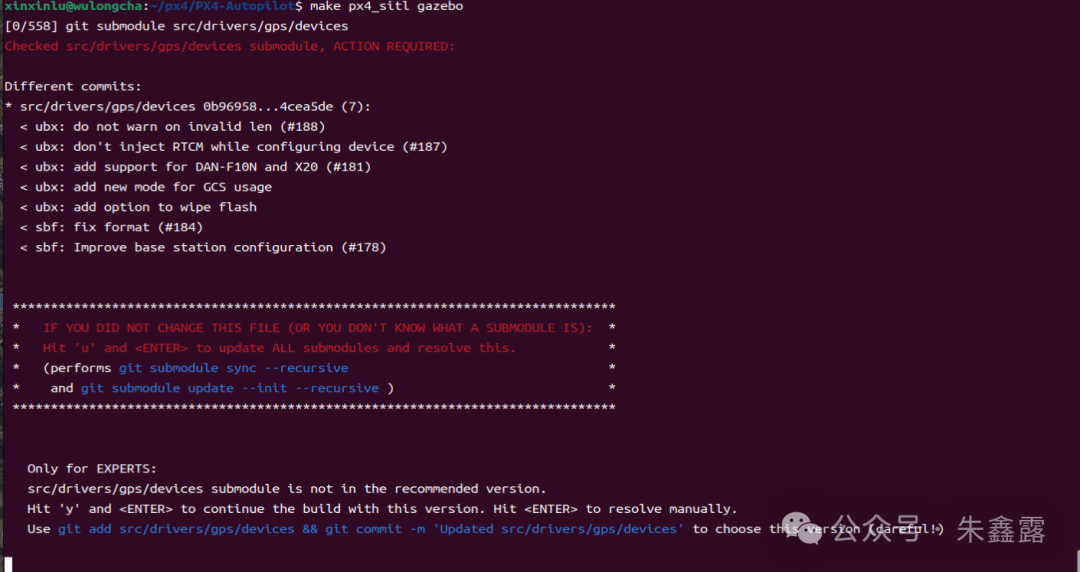
This is the issue of submodule version mismatch encountered during the PX4 compilation process.
Specifically, the current version of the submodule <span>src/drivers/gps/devices</span> does not match the version expected by the PX4 main repository, causing the compilation process to be interrupted.
Solution for `devices` submodule version mismatch
1. Automatically update submodules (recommended, suitable for most cases):
In the interactive prompt after the compilation is interrupted, enter <span>u</span> and press Enter; the system will automatically synchronize and update all submodules to the correct version:
u
2. Manually update submodules: If you missed the interactive prompt, you can manually execute the following commands in the PX4-Autopilot directory:
# Synchronize submodule configuration
git submodule sync --recursive

# Update submodules to the specified version
git submodule update --init --recursive
3. If you are an expert user and really need to use the current submodule version:
You can enter <span>y</span> to ignore the version check and continue compiling, or execute the following commands to commit the current submodule version to the local repository:
git add src/drivers/gps/devices
git commit -m 'Updated src/drivers/gps/git_init_devices.stamp'
After completing the above operations, re-run the compilation command:
make px4_sitl gazebo
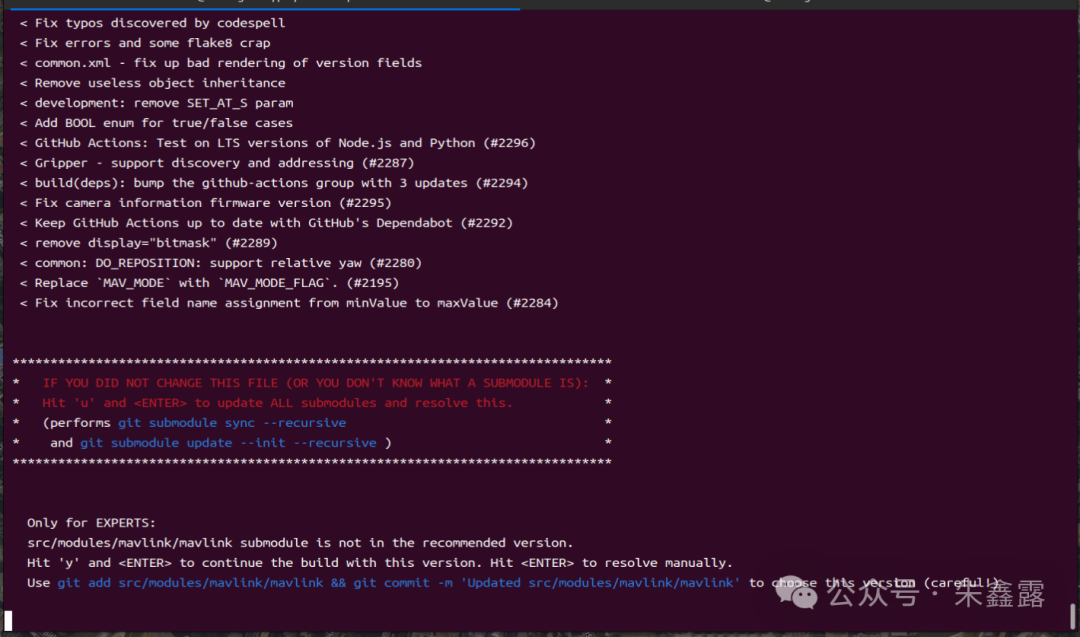
This is the issue of submodule version mismatch encountered during the PX4 compilation process, involving the <span>src/modules/mavlink/mavlink</span> submodule.
Solution for `mavlink` submodule
If you did not actively modify this submodule (or are unsure what a submodule is), follow the prompt and enter <span>u</span> in the current interactive interface and press Enter; the system will automatically synchronize and update all submodules to the correct version, then try compiling again.
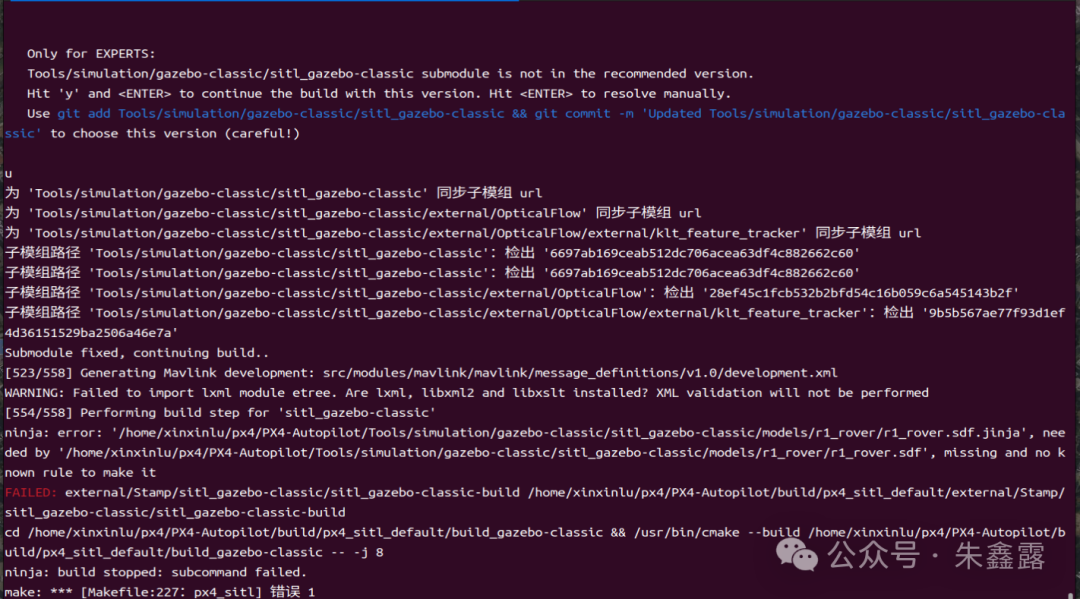
This is an error encountered while compiling PX4 (a drone flight control software), involving submodule and dependency issues related to Gazebo – classic (a type of robot simulation software).
Steps to resolve Gazebo – classic dependency issues
1. Install missing dependency libraries
Run the following command in the terminal to install <span>lxml</span>, <span>libxml2</span>, and <span>libxslt</span> related dependencies:
sudo apt - get install python3 - lxml libxml2 - dev libxslt1 - dev
2. Update or reinitialize submodules
Change to the PX4 – Autopilot directory and execute the following commands to ensure the submodules are correct:
git submodule sync --recursive
git submodule update --init --recursive
3. Clean and recompile
Clean previous compilation artifacts and then recompile:
make clean
make px4_sitl gazebo_classic
If there are issues with installing the dependency libraries
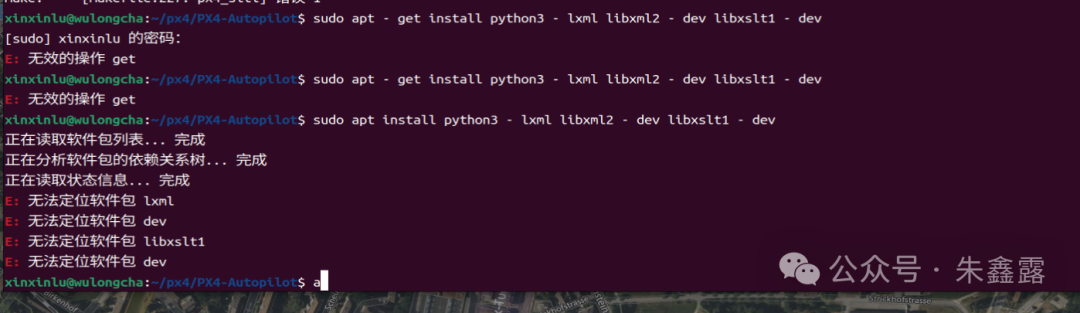
Steps to resolve installation failure of missing dependency libraries
-
Update the software source list: Enter the following command in the terminal to update the system’s software source information, ensuring you can obtain the latest package list.
sudo apt update -
Reinstall the packages: After the update is complete, try installing the required packages again by entering the command:
sudo apt install python3-lxml libxml2-dev libxslt1-dev
Successfully entered simulation mode