Whether you are a regular user or a Linux system administrator, there is often a need to automatically execute certain programs at regular intervals.
For example, an administrator may need to monitor the system’s disk usage, in which case the <span>cron</span> job scheduler is a convenient tool to achieve this goal.
Assuming the system administrator needs to execute the <span>/usr/local/sbin/backup.sh</span> script at <span>2:31 AM</span> every Sunday, this can be done by editing the <span>crontab</span> file, as shown in the following image:
$ sudo crontab -e
<span>Crontab</span> entries have a very simple format, consisting of 7 fields separated by spaces or tabs. The 6th field (username) can be omitted as it is only used for system-level <span>crontab</span> schedulers.
The following image shows an example of a <span>crontab</span> entry that automatically executes the script at <span>2:31 AM</span> every Sunday (including <span>crontab</span> syntax):
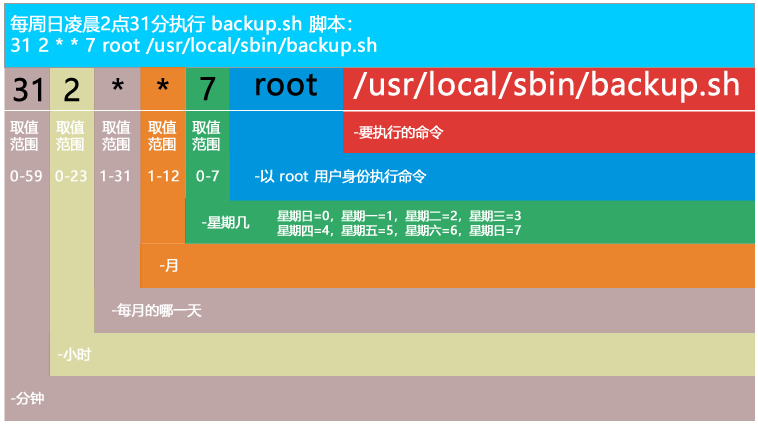
The above image is quite intuitive, and it is important to note the use of the <span>*</span> symbol, which acts as a wildcard representing “always.”
Below are 3 other basic <span>crontab</span> usages:
| Crontab Entry | Description |
|---|---|
<span>*/5 * * * *</span> |
Execute the task every 5 minutes |
<span>0 * * * *</span> |
Execute the task every hour |
<span>0 0 * * *</span> |
Execute the task daily at 00:00 |
# How to Edit Scheduled Tasks
Users can edit their own <span>crontab</span> tasks using the following command:
$ crontab -u username -e
This command will open the user’s personal <span>crontab</span> configuration file using the default text editor. After making modifications, simply save it without needing to restart the <span>crontab</span> service; the system will automatically load the changes.
To view the current <span>crontab</span> tasks:
$ crontab -l
To delete all <span>crontab</span> tasks (note that this operation will clear all entries):
$ crontab -r
# System-Level Scheduled Task Scheduling
Many services automatically use <span>crontab</span>, and they store scheduled tasks directly in the <span>/etc/cron.d</span> directory. All files in this directory will be automatically loaded and executed by the <span>crontab</span> scheduler.
Linux system administrators can also utilize pre-configured scheduling directories:
<span>/etc/cron.daily</span><span>/etc/cron.hourly</span><span>/etc/cron.monthly</span><span>/etc/cron.weekly</span>
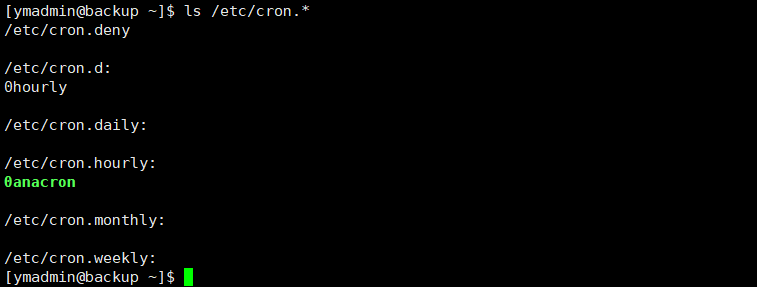
The scripts in these directories will be traversed and executed by the <span>crontab</span> scheduler at the corresponding intervals. For example, scripts in <span>/etc/cron.daily</span> are executed once a day. If the root user needs to run the <span>backup.sh</span> script weekly, they just need to place it in the <span>/etc/cron.weekly</span> directory.
# More <span><span>Crontab</span></span> Examples
Example 1: Execute the <span>updatedb</span> command at the 35th minute of every hour
35 * * * * updatedb
Example 2: Execute the <span>/usr/local/bin/diskusage.sh</span> script at <span>14:00</span> on the 10th of March, June, September, and December
00 14 10 3,6,9,12 * /usr/local/bin/diskusage.sh
Example 3: Execute the <span>/usr/local/bin/diskusage.sh</span> script at <span>1:25</span> and <span>1:50</span> on the 15th of every month and every Tuesday
25,50 1 15 * 2 /usr/local/bin/diskusage.sh
Example 4: Execute the <span>/usr/local/bin/diskusage.sh</span> script at <span>21:00</span> on Mondays, Wednesdays, and Fridays
00 21 * * 1,3,5 /usr/local/bin/diskusage.sh
Example 5: Execute the <span>/usr/local/bin/diskusage.sh</span> script every 5 minutes during weekdays from Monday to Friday
*/5 * * * 1-5 /usr/local/bin/diskusage.sh
Example 6: Execute the <span>/usr/local/bin/diskusage.sh</span> script every Sunday starting at the first minute of every 4 hours, continuing every minute
* */4 * * 7 /usr/local/bin/diskusage.sh