Linux vi/vim
All Unix-like systems come with the vi text editor built-in, while other text editors may not necessarily be present.
However, the editor we use more frequently nowadays is the vim editor.
Vim has the capability of program editing, actively distinguishing syntax correctness with font colors, which is convenient for program design.
What is vim?
Vim is a text editor developed from vi. It is rich in features that facilitate programming, such as code completion, compilation, and error jumping, making it widely used among programmers.
In simple terms, vi is an old-fashioned word processor, but it is already quite complete in functionality, though there is still room for improvement. Vim can be considered a very useful tool for software developers.
Even the official website of vim (https://www.vim.org/) states that vim is a programming development tool rather than a word processing software.
Vim Keyboard Layout
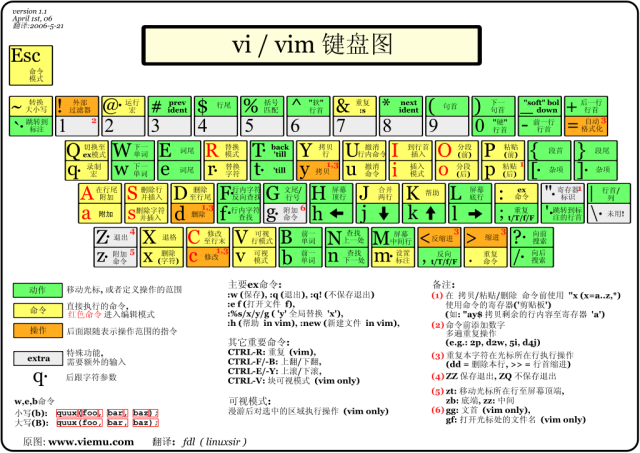
Using vi/vim
Basically, vi/vim is divided into three modes: Command Mode, Insert Mode, and Command-Line Mode.
Command Mode
When a user first starts vi/vim, they enter Command Mode.
In this state, keystrokes are recognized by Vim as commands rather than input characters. For example, if we press i, it will not input a character; i is treated as a command.
Here are some commonly used commands in Normal Mode:
- i — Switch to Insert Mode and start entering text at the cursor’s current position.
- x — Delete the character at the current cursor position.
- : — Switch to Command-Line Mode to input commands in the bottom line.
- a — Enter Insert Mode and start entering text at the next position after the cursor.
- o — Insert a new line below the current line and enter Insert Mode.
- O — Insert a new line above the current line and enter Insert Mode.
- dd — Cut the current line.
- yy — Copy the current line.
- p (lowercase) — Paste clipboard content below the cursor.
- P (uppercase) — Paste clipboard content above the cursor.
- u — Undo the last operation.
- Ctrl + r — Redo the last undone operation.
- :w — Save the file.
- :q — Exit the Vim editor.
- :q! — Force exit the Vim editor without saving changes.
To edit text, simply start Vim, enter Command Mode, and press i to switch to Insert Mode.
Command Mode has only some basic commands, so you still need to rely on Command-Line Mode to input more commands.
Insert Mode
Pressing i in Command Mode enters Insert Mode, and you can return to Normal Mode using the Esc key.
In Insert Mode, you can use the following keys:
- Character keys and Shift combinations to input characters
- ENTER to create a new line
- BACK SPACE to delete the character before the cursor
- DEL to delete the character after the cursor
- Arrow keys to move the cursor within the text
- HOME/END to move the cursor to the beginning/end of the line
- Page Up/Page Down to scroll up/down a page
- Insert to toggle between input/replace mode, changing the cursor to a vertical line/underscore
- ESC to exit Insert Mode and switch back to Command Mode
Command-Line Mode
Pressing : (colon) in Command Mode enters Command-Line Mode.
In Command-Line Mode, you can input single or multiple character commands, and there are many available commands.
Basic commands in Command-Line Mode include (the colon is omitted):
<span>w</span>— Save the file.<span>q</span>— Exit the Vim editor.<span>wq</span>— Save the file and exit the Vim editor.<span>q!</span>— Force exit the Vim editor without saving changes.
You can exit Command-Line Mode at any time by pressing the ESC key.
In simple terms, we can represent these three modes with the following icons:
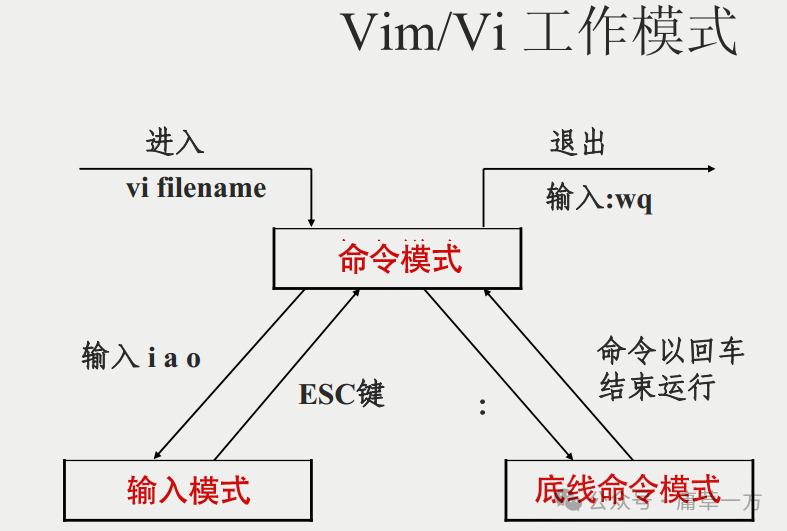
Examples of Using vi/vim
Using vi/vim to enter Normal Mode
If you want to use vi to create a file named runoob.txt, you can do it like this:
$ vim runoob.txtSimply inputting vi filename will allow you to enter vi’s Normal Mode. Note that you must always add a filename after vi, regardless of whether the file exists or not!
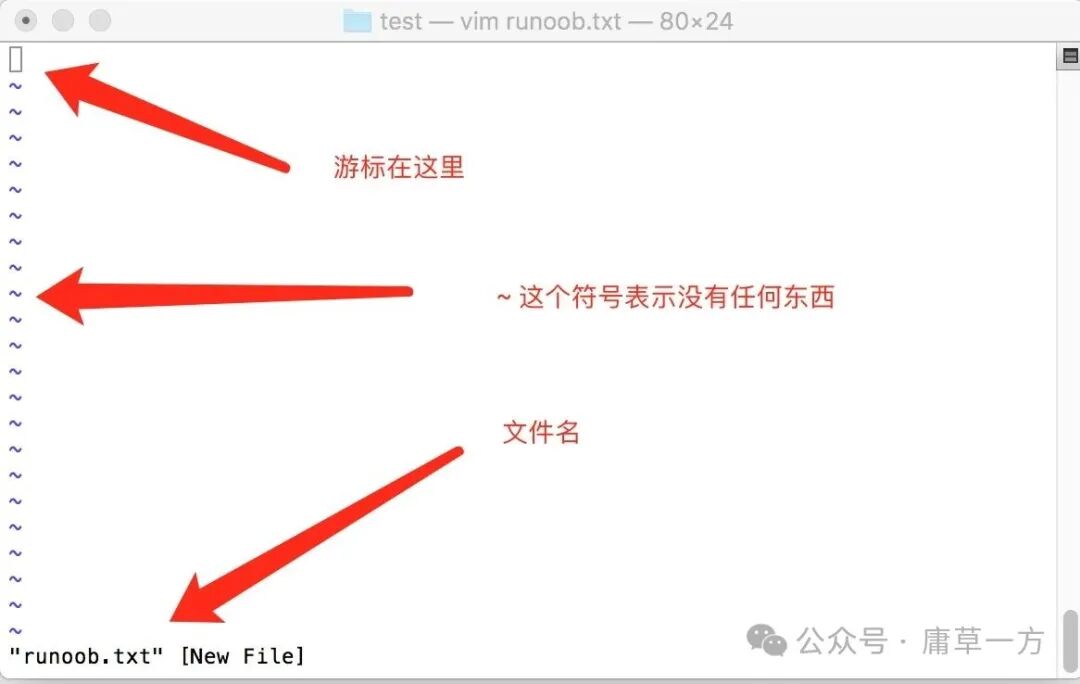
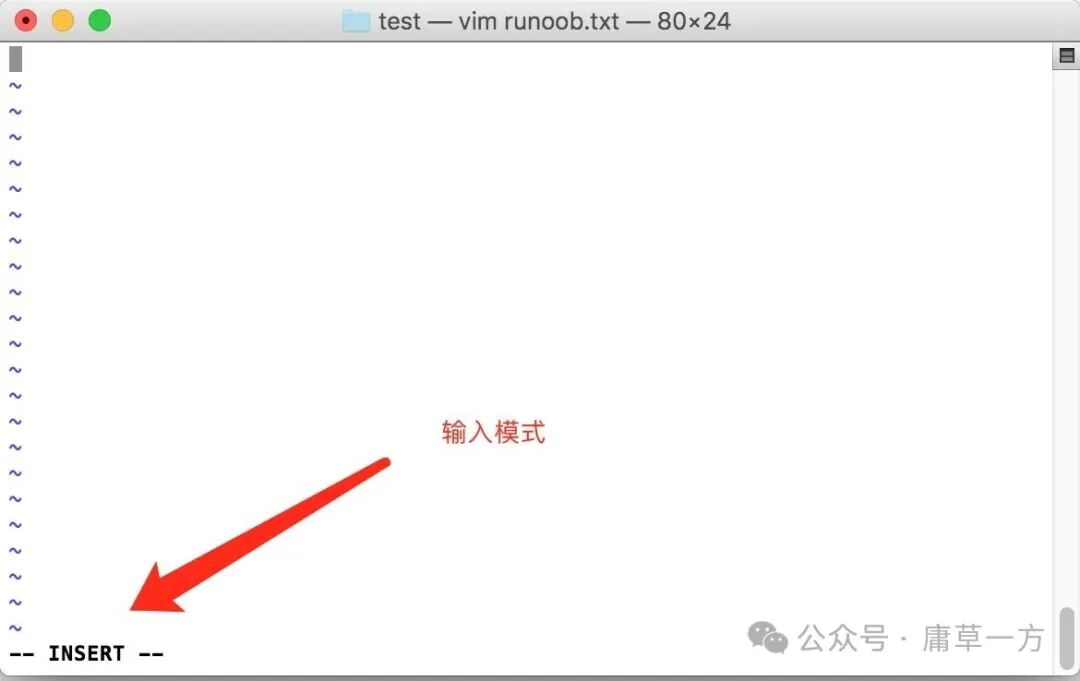
Press i to enter Insert Mode (also known as Edit Mode) and start editing text
In Normal Mode, simply pressing i, o, a, etc., will allow you to enter Insert Mode!
In Edit Mode, you will notice the text –INSERT– appears in the lower left status bar, indicating that you can input any character.
At this point, all keys except for Esc can be treated as regular input buttons, allowing you to perform any editing.
Press the ESC key to return to Normal Mode
Now, assuming I have finished editing as described above, how do I exit? Yes! That’s right! Just press the Esc key! You will immediately notice that the text –INSERT– has disappeared from the lower left corner!
In Normal Mode, press :wq to save and exit vi
OK, we need to save. The command to save and exit is simple: just input :wq to save and exit!
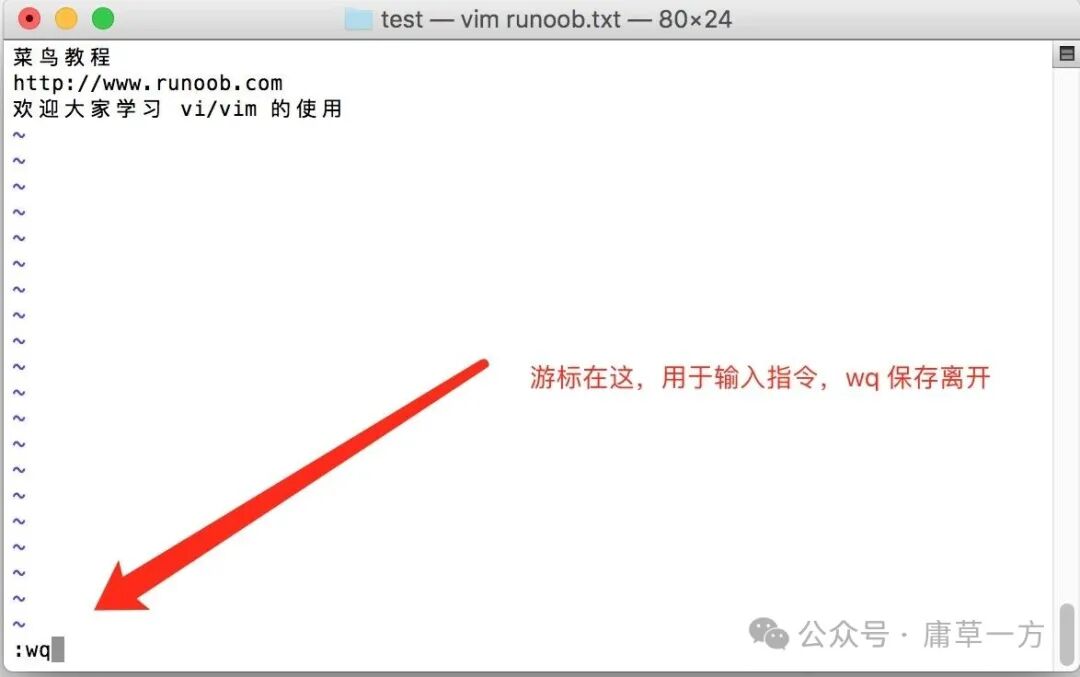
OK! This way, we have successfully created a file named runoob.txt.
vi/vim Key Descriptions
In addition to the simple examples of i, Esc, and :wq mentioned above, vim actually has many more keys that can be used.
Part One: Cursor Movement, Copying, Pasting, Searching, and Replacing in Normal Mode
| Methods to Move the Cursor | |
|---|---|
| h or Left Arrow Key (←) | Move the cursor left by one character |
| j or Down Arrow Key (↓) | Move the cursor down by one character |
| k or Up Arrow Key (↑) | Move the cursor up by one character |
| l or Right Arrow Key (→) | Move the cursor right by one character |
| If you place your right hand on the keyboard, you will find that hjkl are arranged together, so you can use these four buttons to move the cursor. If you want to move multiple times, for example, to move down 30 lines, you can use “30j” or “30↓” by adding the desired number (digit) before the action! | |
| [Ctrl] + [f] | Scroll the screen down one page, equivalent to the [Page Down] key (commonly used) |
| [Ctrl] + [b] | Scroll the screen up one page, equivalent to the [Page Up] key (commonly used) |
| [Ctrl] + [d] | Scroll the screen down half a page |
| [Ctrl] + [u] | Scroll the screen up half a page |
| + | Move the cursor to the next non-space character in the next line |
| – | Move the cursor to the previous non-space character in the previous line |
| n<space> | Where n represents a number, for example, 20. After pressing the number, pressing the space key will move the cursor right by n characters in that line. For example, 20<space> will move the cursor 20 characters to the right. |
| 0 or Function Key [Home] | This is the digit “0”: Move to the first character of this line (commonly used) |
| $ or Function Key [End] | Move to the last character of this line (commonly used) |
| H | Move the cursor to the first character of the top line of the screen |
| M | Move the cursor to the first character of the middle line of the screen |
| L | Move the cursor to the first character of the bottom line of the screen |
| G | Move to the last line of the file (commonly used) |
| nG | n is a number. Move to line n of the file. For example, 20G will move to line 20 of the file (can be combined with :set nu) |
| gg | Move to the first line of the file, equivalent to 1G! (commonly used) |
| n<Enter> | n is a number. Move the cursor down n lines (commonly used) |
| Search and Replace | |
| /word | Search for a string named word below the cursor. For example, to search for the string vbird in the file, just input /vbird! (commonly used) |
| ?word | Search for a string named word above the cursor. |
| n | This n is the English key. It represents repeating the previous search action. For example, if we just executed /vbird to search down for the string vbird, then pressing n will continue to search for the next occurrence of the string vbird. If we executed ?vbird, then pressing n will continue to search for the string vbird upwards! |
| N | This N is the English key. It performs the previous search action in the opposite direction. For example, after /vbird, pressing N will search for vbird upwards. |
| Using /word with n and N is very helpful! It allows you to repeatedly find some keywords you are searching for! | |
| :n1,n2s/word1/word2/g | n1 and n2 are numbers. Search for the string word1 between lines n1 and n2, and replace it with word2! For example, to search for vbird and replace it with VBIRD between lines 100 and 200, you would use: “100,200s/vbird/VBIRD/g”. (commonly used) |
| :1,$s/word1/word2/g or :s/word1/word2/g | Search for the string word1 from the first line to the last line, and replace it with word2! (commonly used) |
| :1,$s/word1/word2/gc or :s/word1/word2/gc | Search for the string word1 from the first line to the last line, and replace it with word2! It will prompt the user for confirmation before replacing! (commonly used) |
| Delete, Copy, and Paste | |
| x, X | x deletes one character forward in a line (equivalent to the [del] key), while X deletes one character backward (equivalent to the [backspace] key) (commonly used) |
| nx | n is a number, delete n characters forward. For example, to delete 10 characters continuously, use “10x”. |
| dd | Cut the entire line where the cursor is located (commonly used), use p/P to paste. |
| ndd | n is a number. Cut the n lines below the cursor, for example, 20dd will cut 20 lines (commonly used), use p/P to paste. |
| d1G | Delete all data from the cursor to the first line |
| dG | Delete all data from the cursor to the last line |
| d$ | Delete from the cursor to the last character of that line |
| d0 | That is the digit 0, delete from the cursor to the first character of that line |
| yy | Copy the line where the cursor is located (commonly used) |
| nyy | n is a number. Copy the n lines below the cursor, for example, 20yy will copy 20 lines (commonly used) |
| y1G | Copy all data from the cursor to the first line |
| yG | Copy all data from the cursor to the last line |
| y0 | Copy the character at the cursor to the beginning of that line |
| y$ | Copy the character at the cursor to the end of that line |
| p, P | p pastes the copied data below the cursor, while P pastes it above the cursor! For example, if my cursor is on line 20 and I have copied 10 lines of data, pressing p will paste those 10 lines starting from line 21. But if I press P, the original line 20 will be pushed down to become line 30. (commonly used) |
| J | Join the line where the cursor is located with the next line |
| c | Repeat the deletion of multiple data, for example, delete 10 lines down, [10cj] |
| u | Undo the previous action. (commonly used) |
| [Ctrl]+r | Redo the last action. (commonly used) |
| This u and [Ctrl]+r are very commonly used commands! One is to undo, and the other is to redo! With these two function keys, your editing will be very enjoyable! | |
| . | Don’t doubt it! This is the period! It means to repeat the previous action. If you want to repeat a deletion, paste, etc., just press the period ‘.’! (commonly used) |
Part Two: Button Descriptions for Switching from Normal Mode to Edit Mode
| Entering Insert or Replace Edit Mode | |
|---|---|
| i, I | Enter Insert Mode: i means “insert from the current cursor position”, I means “start inserting at the first non-space character of the current line”. (commonly used) |
| a, A | Enter Insert Mode: a means “start inserting from the next character after the current cursor”, A means “start inserting from the last character of the current line”. (commonly used) |
| o, O | Enter Insert Mode: o means to insert a new line below the current cursor position; O means to insert a new line above the current cursor position! (commonly used) |
| r, R | Enter Replace Mode: r will only replace the character at the cursor once; R will continuously replace the text at the cursor until you press ESC; (commonly used) |
| Among the above keys, the lower left corner of the vi screen will display “–INSERT–” or “–REPLACE–“. From the name, you can tell what action it is! It is especially important to note that, as mentioned above, you must see INSERT or REPLACE in the lower left corner to input characters in the file! | |
| [Esc] | Exit Edit Mode and return to Normal Mode (commonly used) |
Part Three: Button Descriptions for Switching from Normal Mode to Command-Line Mode
| Commands for Saving, Exiting, etc. | |
|---|---|
| :w | Write the edited data to the hard disk file (commonly used) |
| :w! | If the file is read-only, force write to that file. However, whether you can write depends on your file permissions! |
| :q | Exit vi (commonly used) |
| :q! | If the file has been modified and you do not want to save, use ! to force exit without saving the file. |
| Note that the exclamation mark (!) in vi often means “force”~ | |
| :wq | Save and exit; if it is :wq!, it means force save and exit (commonly used) |
| ZZ | This is the uppercase Z! If modified, save the current file and then exit! It is equivalent to (save and exit) |
| ZQ | Do not save, force exit. It is equivalent to :q!. |
| :w [filename] | Save the edited data as another file (similar to Save As) |
| :r [filename] | Read the data from another file into the edited data. That is, add the content of “filename” after the line where the cursor is located |
| :n1,n2 w [filename] | Save the content from n1 to n2 as the filename file. |
| :! command | Temporarily exit vi to execute the command in Command-Line Mode and display the result! For example, “:! ls /home” can be used to view the file information under /home using ls output in vi! |
| Changing the vim Environment | |
| :set nu | Display line numbers; after setting, the line number will be displayed as a prefix for each line |
| :set nonu | Opposite of set nu, cancels line numbers! |
It is especially important to note that in vi/vim, numbers are very significant! Numbers usually represent how many times to repeat an action! They may also represent which line to go to.
For example, to delete 50 lines, you would use “50dd”, right? Numbers are placed before the action, for example, to move down 20 lines, you would use “20j” or “20↓”.