1. File Owner
The Linux system is a multi-user, multi-tasking operating system. The user’s role (who you are) is identified by UID (user) and GID (group). Users are divided into three categories: superuser, ordinary user, and virtual user.
- UID (user): The user’s UID is akin to our ID card, while the username is like our name.
- GID (group): The group ID is similar to the user’s school, family, or place of belonging.
1.1. Superuser
A user with UID=0 is the superuser.
1.2. Ordinary User
A user with 500≤UID≤65535 is an ordinary user.
1.3. Virtual User
In Linux, users with 0 < UID < 500 are virtual users, distinguished from ordinary users. Virtual users exist by default after the system installation and generally cannot log in, but they are essential for the normal operation of the system. Their primary purpose is to facilitate system management and meet the requirements of system processes for file ownership, as service programs need to be executed by someone, hence the existence of virtual users.

2. File Group
When we need multiple users to have the same permissions, such as viewing or modifying a certain file or directory, it becomes cumbersome to manage permissions without user groups. Using user groups simplifies this process; by adding authorized users to the same group and modifying the permissions of the corresponding user group for that file or directory, all users in the group will have the same permissions for that file or directory.
Grouping users is a means of managing users and controlling access permissions in the Linux system. By defining user groups, operational management work is significantly reduced.
3. Permission Description
3.1. Composition of Permissions
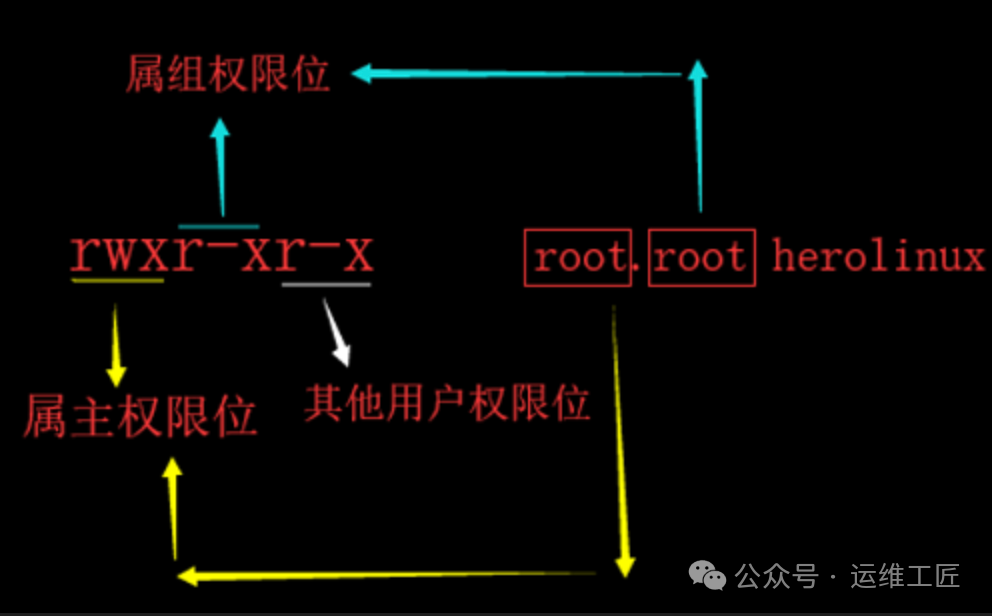
File permissions consist of a total of twelve bits, comprising 9 basic permissions and 3 special permissions. Below is the explanation of basic permissions.
- rwx: Permissions for the file owner.
- r-x: Permissions for the group owner.
- r-x: Permissions for other users of the file.
3.2. Permission Details
| Permission | Number | Directory | File |
|---|---|---|---|
| r (read) | 2 | You can read the filenames or subdirectory names in this directory. | You can read this file. |
| w (write) | 4 | You can delete files or subdirectories in this directory. | You can modify or add content to this file. |
| x (execute) | 1 | You can enter this directory. | You can execute this file, such as command files. |
3.3. Explanation of Read, Write, and Execute Permissions for Files
Readable r: Indicates permission to read the content of the file.
Writable w: Indicates permission to add or modify the content of the file. If there is no r permission, vim will prompt that the file cannot be edited (but it can be forced to edit, and echo can redirect or append). The permission to delete a file is controlled by the parent directory’s permissions, not the file’s own permissions, as the filename is in the parent directory’s block.
Executable x: Indicates permission to execute the file. The text itself must be executable, and ordinary users also need to have r permission to execute it.
3.4. Explanation of Read, Write, and Execute Permissions for Directories
Readable r: Indicates permission to browse the files and subdirectories in the directory. Without x permission, you cannot enter the directory; using ls -l will show the filenames, and the file attributes will have a question mark.
Writable w: Indicates permission to add, delete, or modify the filenames or subdirectory names within the directory (requires x permission).
Executable x: Indicates permission to enter the directory, but without r, you cannot list files and directories; without w, you cannot create or delete.
4. chmod to Set Permissions
The chmod command is used to set permissions for files or directories.
4.1. Parameters
-R: Recursively set permissions
4.2. Usage of chmod
| User Type | Operation Character | Permission Character | Number |
| u (user) | +/-/= | r (read) readable | 4 |
| g (group) | +/-/= | w (write) writable | 2 |
| o (others) | +/-/= | x (execute) executable | 1 |
4.3. Examples
The default permissions for directories created by the superuser are 755, and for files, they are 644.
chmod 644 testfile
chmod 755 testdir
chmod u+w test.txt
chmod g-r test.txt
chmod o+x test.txt
chmod ug=rw test.txt
chmod u+w,g-r,o+x test.txt
chmod a=rwx test.txt
5. umask
umask is the permission configuration for initializing files or directories. The system will automatically assign permissions to newly created files or directories based on the value of umask.
5.1. umask Setting for Files
umask = 0022 (default) file permissions start from 666, and if the result is odd after subtraction, one needs to add one.
Creating files
umask = 0022 (default)
6  6  6
0  2  2
6  4  4
Permissions: 644

umask = 0354 (default)
6  6  6
3  5  4
4  2  2
Permissions: 422
5.2. umask Setting for Directories
The default permissions for directories start from 777, and there is no odd/even distinction; it is a direct subtraction. The smaller the umask, the greater the permissions.
7  7  7
0  2  2
7  5  5
Permissions: 755
6. Special Permission Bits
6.1. suid
When the owner has execute permission, adding suid will display an ‘s’ in the owner’s execute permission bit. After setting suid, other users’ permissions for this file will be equivalent to the owner’s execute permissions. If the owner does not have execute permission, suid is ineffective, and the execute permission bit will display ‘S’.
The purpose of suid is to allow ordinary users to run programs or commands as the root (or other) user.
For example, an ordinary user does not have permission to modify the /etc/shadow file, but the passwd command sets the SUID bit (owned by root), allowing it to run with root privileges, thus enabling ordinary users to safely change their passwords through this command.
Use chmod u+s test.txt to add suid permission, where suid corresponds to the number 4, i.e., 4000.
6.2. sgid
When the group has execute permission, adding sgid will display an ‘s’ in the group’s execute permission bit. After setting sgid, other users’ permissions for this file will be equivalent to the group’s execute permissions. If the group does not have execute permission, sgid is ineffective, and the execute permission bit will display ‘S’.
The purpose of sgid is to grant permissions to directories. All files and directories created by users in an sgid directory will have the same group as this directory.
Use chmod g+s test.txt to add sgid permission, where sgid corresponds to the number 2, i.e., 2000.
6.3. Sticky Bit
When others have execute permission, adding the sticky bit will display a ‘t’ in the others’ execute permission bit. If others do not have execute permission, the sticky bit is ineffective, and the execute permission bit will display ‘T’.
The purpose of the sticky bit is to grant permissions to directories. Users can create files or directories in a directory with the sticky bit, but they can only manage the files or directories they created. For example, the /tmp directory has sticky bit permissions.
Use chmod o+t test.txt to add sticky bit permission, where the sticky bit corresponds to the number 1, i.e., 1000.
7. Hard Links and Soft Links
In the Linux system, for file backup or convenient file browsing, links are divided into two types: hard links and soft links (also known as symbolic links). The ln command creates hard links directly, while ln -s creates soft links (file type is ‘l’).
7.1. Hard Links
- In the Linux file system, it is normal and allowed for multiple filenames to point to the same inode. This situation is called a hard link, which is equivalent to adding multiple entries to a file. However, generally, hard links cannot be added to directories (as each disk’s partition format may differ, hard links cannot cross file systems). Deleting static files (with no processes calling them, and directories are also files) requires that all related hard link files be deleted.
- Hard links are equivalent to multiple entries for a file; as long as they are not all deleted, there is no impact.
- Hard links are ordinary files, and all corresponding hard link inode numbers of a file are the same, and can be considered as the source file. The number of hard links is controlled by the environment variable i_link, and only files stored on the same disk file system with the same inode number are considered the same file.
- When both the hard link and the source file are deleted, the file’s inode enters a human-invisible state, waiting for new content to fill it. If the file is called by a process at this time (if a user is using it, it is similar to Windows showing that a process is open and cannot delete), the file has not actually been deleted. At this point, it is necessary to close the process or restart the service to recover disk space, or clear the file content instead of deleting it.
- When the variable i_link (number of hard links) is zero, and i_count (process call count) is also zero, the file is completely deleted.
- Creating a new directory /opt/ett with the mkdir command will contain two hard links: one for itself and another for the current directory ‘.’. When creating a subdirectory /opt/ett/test, this subdirectory will contain three hard links: one for itself, one for the current directory ‘.’, and one for the parent directory ‘..’ ![[Pasted image 20251118110514.png]]
7.2. Soft Links
- Soft links are equivalent to file shortcuts in Windows and are not the file itself. In Linux, a soft link file contains the path to the source file, and the inode of the soft link points to the source file (soft links do not have blocks), and then the block is read through the inode number of the source file.
- Soft links depend on the source file; deleting a soft link does not affect the source file. If the source file is deleted, the soft link will become invalid.
- Soft links are represented by ‘l’ in the file attribute type. Each soft link of the same file is different because a soft link is not equal to the source file ![[Pasted image 20251118110524.png]]
8. File Size
The size of the file, ls -lhi size is human-readable, and the size of an empty directory occupies exactly one block.
9. File Time
The time attribute of a file defaults to the file modification time, as the file’s attributes naturally change when the file changes.
The ls command with the –time-style=long-iso parameter can display detailed time.
- modify: Modification time, -mtime, modifies file content.
- change: Change time, -ctime, modifies file attributes.
- access: Access time, -atime, accesses file content.
10. File Name
The filename is stored in the block of the parent directory.