Clickthe blue text,follow me!
Linux
System

Packaging
Compression Tools
Loading ……

tar command (Packaging Tool)
tar (Tape ARchive) is a commonly used packaging tool in Linux/Unix systems that can package multiple files or directories into a single file (commonly referred to as a tarball) without compression.
Command: tar
Syntax: tar [options] [filename] [files or directories…]
Common options:
-c: Create a new archive file
-x: Extract the archive file
-v: Show the operation process (verbose)
-f: Specify the archive filename (placed at the end of other options)
-t: List the contents of the archive
-z: Compress/Extract using gzip (usually generates .tar.gz or .tgz files)
-j: Compress/Extract using bzip2 (usually generates .tar.bz2 files)
-J: Compress/Extract using xz (usually generates .tar.xz files)
-C: Extract to a specified path
-p: Preserve file permissions
-P: Compress using absolute paths
–exclude: Exclude specific directories when packaging, do not add “/” when using, otherwise it will still package the directory and its internal files, for example:
tar -czvf bics1.tar.gz –exclude=/opt/bics1/logs /opt/bjcs1
Common examples:
# Package directory
tar -cvf archive.tar /path/to/directory
# Package and gzip compress
tar -czvf archive.tar.gz /path/to/directory
# Extract .tar file
tar -xvf archive.tar
# Extract .tar.gz file
tar -xzvf archive.tar.gz
# List archive contents
tar -tvf archive.tar
zip Compression Tool
zip is a cross-platform compression tool widely used on both Windows and Linux.
Command: zip
Syntax: zip [options] [compressed filename] [files or directories…]
unzip [options] [compressed filename]
Common options: (zip)
-r: Recursively process, compress directories
-q: Quiet mode, do not display command execution process
-e: Encrypt compression
-1 to -9: Compression level (1 fastest, 9 highest compression rate)
Common options: (unzip)
-l: List contents of the compressed package
-d: Specify extraction directory
-o: Overwrite without asking
-P: Use password to extract
Common examples:
# Compress files
zip archive.zip file1 file2
# Compress directory
zip -r archive.zip /path/to/directory
# Encrypt compression
zip -e secure.zip file1 file2
# Extract zip file
unzip archive.zip
# Extract to specified directory
unzip archive.zip -d /target/directory
# List zip file contents
unzip -l archive.zip
gzip – GNU Compression Tool:
Used for compressing single files, generating .gz format files.
# Compress file (will replace original file)
gzip filename.txt.gz
# Decompress
gzip -d filename.txt.gz or
gunzip filename.txt.gz
# Keep source file during compression
gzip -c filename.txt > filename.txt.gz
# Keep source file during decompression
gzip -dc filename.txt.gz > filename.txt
# Show compression information
gzip -l filename.txt.gz
RPM Package Management
RPM (Red Hat Package Manager) is the package management system used by Red Hat-based Linux distributions (such as CentOS, Fedora).
RPM package namingCommon format is:
name-version-release.architecture.rpm
For example: nginx-1.12.2-2.el7.x86_64.rpm
Command: rpm
Syntax: rpm [options] [package name/filename]
Common options: (installation related)
-i or –install: Install RPM package
-U or –upgrade: Upgrade RPM package (install if not already installed)
-F or –freshen: Only upgrade installed packages
-v: Show detailed installation information
-h: Show installation progress bar
–nodeps: Ignore dependencies (not recommended)
–force: Force installation (overwrite files)
Common options: (query related)
-q or –query: Query operation
-a: Query all installed packages
-f <file>: Query which package a file belongs to
-l: List files in the package
-i: Show package information
-R: List package dependencies
–provides: List features provided by the package
–changelog: Show package change log
Common options: (verification related)
-V or –verify: Verify package file
-K or –checksig: Verify package signature
Common options: (uninstallation related)
-e or –erase: Uninstall RPM package
Common examples:
# Install rpm package
rpm -ivh package.rpm
# Upgrade rpm package
rpm -Uvh package.rpm
# Uninstall rpm package
rpm -e package_name
# Query installed packages
rpm -qa | grep package_name
# Query package information
rpm -qi package_name
# Query files installed by package
rpm -ql package_name
# Query which package a file belongs to
rpm -qf /path/to/file
# Verify package
rpm -V package_name
# Install while ignoring dependencies (not recommended)
rpm -ivh –nodeps package.rpm
Notes:
1. RPM does not automatically resolve dependencies, it is recommended to use yum/dnf for package management
2. Using –nodeps and –force options may lead to system instability
3. The RPM database is located at /var/lib/rpm, if corrupted, you can try to rebuild it: rpm –rebuilddb
Relationship between RPM and YUM/DNF
YUM/DNF is an advanced package management tool based on RPM that can automatically resolve dependencies. RPM is the underlying tool, and YUM/DNF provides a more user-friendly interface on top of it.
Common YUM/DNF commands:
# Search package
yum search package_name
dnf search package_name
# Install package
yum install package_name
dnf install package_name
# Update all packages
yum update
dnf upgrade
# Remove package
yum remove package_name
dnf remove package_name
# View package information
yum info package_name
dnf info package_name
# List installed packages
yum list installed
dnf list installed
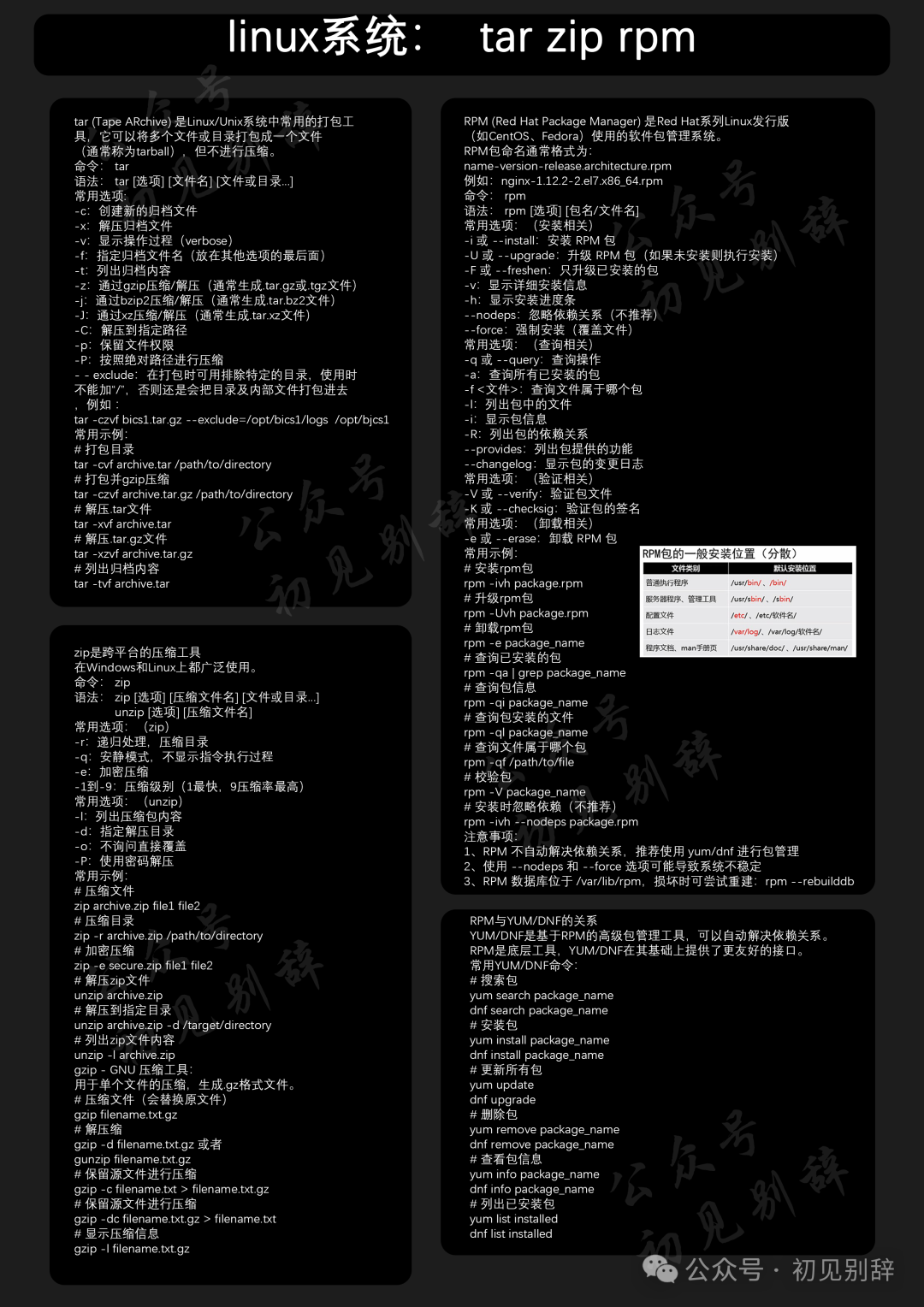
Homemade memory cards

Initial farewell


Thank you for following


Cover image available for download
Long press to save