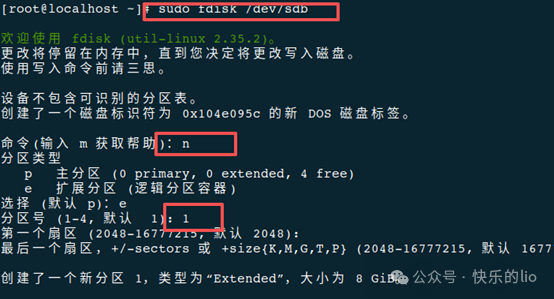
This article takes the addition of an 8GB hard drive as an example: (This article is merely a record and communication of daily work)The mounting steps are as follows:1. Check if the hard drive has been recognized by the system# lsblk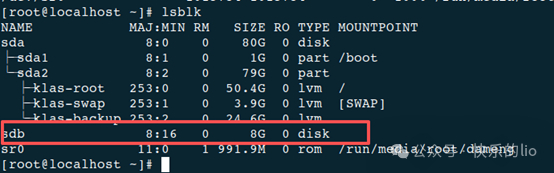 2. Create a partition on the newly added hard drive# sudo fdisk /dev/sdb (Note: sdb should be based on the specific name recognized for the hard drive; my new hard drive is recognized as sdb as shown in the image above)
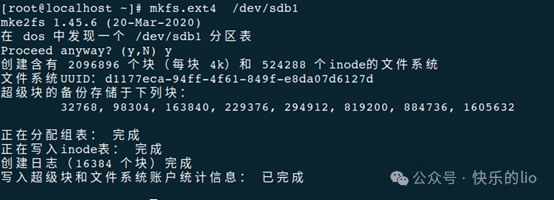
 3. Format the newly created partition# mkfs.ext4 /dev/sdb1 (Note: Since I only created one partition, the partition name is sdb1. Additionally, the commonly used file system is ext4. It can also be formatted to other file systems as needed)
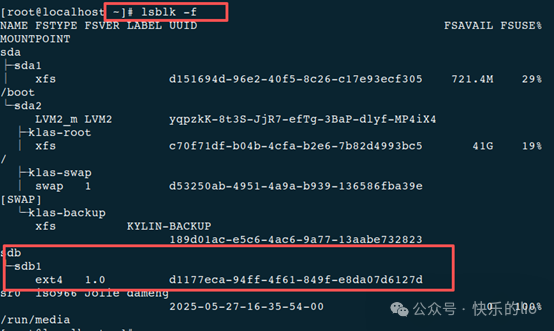
 4. Check if the partition has been formatted successfully# lsblk -f
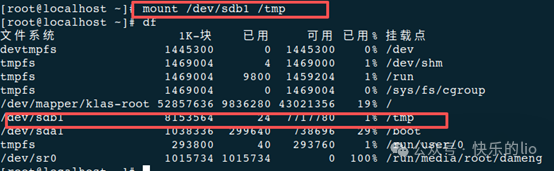
 5. Mount the newly created partition to the desired location# mount /dev/sdb1 /tmp (Since my /tmp location has insufficient space, I mounted it there)
 6. Set up automatic mounting at startup# Vim /etc/fstab
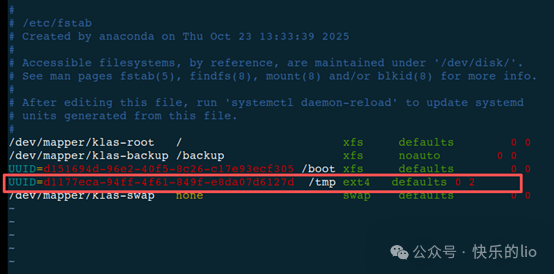 Add the disk partition information for automatic mounting, with UUID being the partition ID recognized in step fourAfter modification, save and exit. Restart to apply changes. If this was helpful to you, please consider following and supporting↓↓↓