GRUB encryption can protect the integrity of the system boot process,preventing unauthorized access to the system in single-user mode to tamper with the file system.
Note:
1. This article is for learning purposes only; please do not criticize if you dislike it.
2. The experimental environment is CentOS 7.
3. There is no absolute security, but GRUB encryption adds an extra layer of protection.
4. If readers are interested in this content, I will update on how to clear or reset the GRUB password in the next issue. I hope everyone pays attention and shares.
GRUB Encryption Configuration
1. Create a password using grub2-mkpasswd-pbkdf2
[root@localhost ~]# grub2-mkpasswd-pbkdf2
Enter password:
Reenter password:
PBKDF2 hash of your password is grub.pbkdf2.sha512.10000.C5255CE1D8756DD195C6B6CF42A1874B28C15D1EC9D07E6BFCCBF2E4AA12D338F9B9E876041912A922669D36E7D5E399D3FFDC579B54699E910BF4AD0576C342.5B251807A404DCEECD218A8DAAEE267202C1CD521D16B3D640B574282C7E730B56E598F1B7F072308CC1413D7FFA52C6423C6184B0E373926DD524E71529B335
2. Configure /etc/grub.d/40_custom
[root@localhost ~]# vi /etc/grub.d/40_custom
[root@localhost ~]# more /etc/grub.d/40_custom
#!/bin/sh
exec tail -n +3 $0
# This file provides an easy way to add custom menu entries.  Simply type the
# menu entries you want to add after this comment.  Be careful not to change
# the 'exec tail' line above.
set superusers="root"
password_pbkdf2 root grub.pbkdf2.sha512.10000.C5255CE1D8756DD195C6B6CF42A1874B28C15D1EC9D07E6BFCCBF2E4AA12D338F9B9E87
6041912A922669D36E7D5E399D3FFDC579B54699E910BF4AD0576C342.5B251807A404DCEECD218A8DAAEE267202C1CD521D16B3D640B574282C7
E730B56E598F1B7F072308CC1413D7FFA52C6423C6184B0E373926DD524E71529B335
[root@localhost ~]# more /etc/grub.d/40_custom
#!/bin/sh
3. Activate the configuration with grub2-mkconfig -o /boot/grub2/grub.cfg
[root@localhost ~]# grub2-mkconfig -o /boot/grub2/grub.cfg
Generating grub configuration file ...
Found linux image: /boot/vmlinuz-3.10.0-327.el7.x86_64
Found initrd image: /boot/initramfs-3.10.0-327.el7.x86_64.img
Found linux image: /boot/vmlinuz-0-rescue-385d8b27677e4670a17d1652a77ab723
Found initrd image: /boot/initramfs-0-rescue-385d8b27677e4670a17d1652a77ab723.img
done
4. Restart to test if it is effective
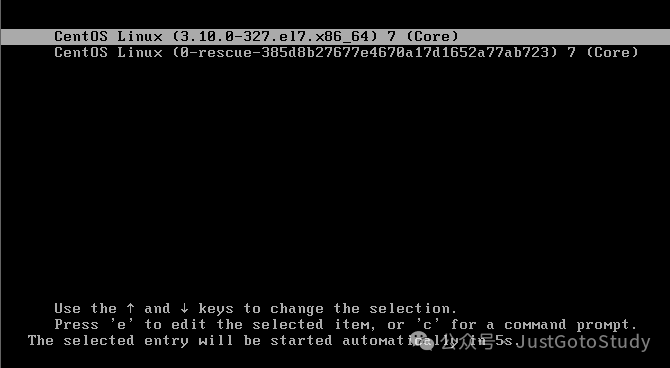
1. Press ‘e’ on the kernel boot screen, as shown below
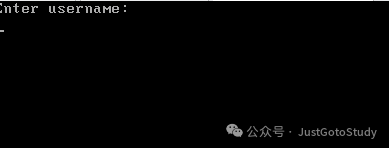
2. The following screen appears, prompting for the username
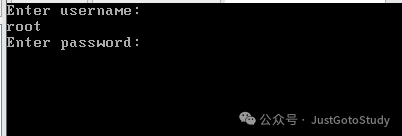
 3. After entering the username, it prompts for the password
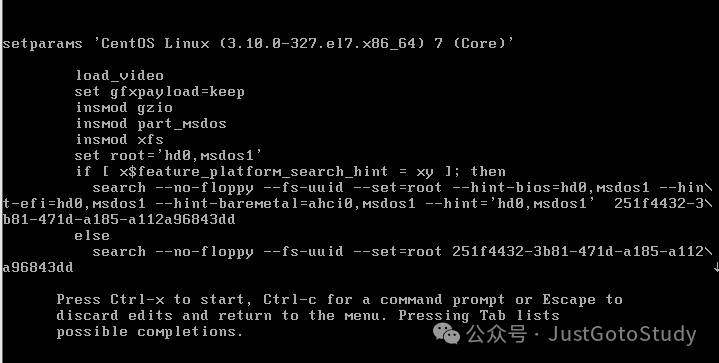
 4. After entering the password, you will enter the kernel editing screen
Thus, the GRUB interface experiment is complete.