1.1 The J-Link indicator light is off, and the USB cannot recognize the CPU
Solution: First, confirm whether the USB port of the computer connected to the emulator is functioning properly and can recognize USB devices. We can test it with other devices like USB flash drives or mice, or try a different USB port to see if the light comes on. If nothing lights up, connect the emulator and check if the computer prompts for new hardware detection. Open the Device Manager to see if the computer recognizes the emulator. If new hardware is detected and the emulator is identified after installation, it indicates that there is a problem with the power indicator light of the emulator, which may be burnt out or poorly soldered. If new hardware is not detected and the emulator is not recognized, the firmware may have been erased. Please download the latest firmware flashing method:
Emulator firmware flashing tutorial (including firmware and flashing tools)
(Green PCB version emulator)
(Black PCB version emulator)
(Please download it yourself)
1.2 An error message appears when selecting RDI Interface Driver during Settings: Error: Cannot load driver
‘C:KeilARMBINAGDIRDI.DLL’
Solution: Change this option to Cortex-M/R J-LINK/J-Trace, keeping the rest unchanged, and follow the manual to resolve the issue.
1.3 Selecting the JLINK V8 driver (e.g., versions 4.08, 4.12, 4.40, 4.56, etc.)
Solution: Generally, the drivers on the emulator CD are sufficient. If other drivers are needed, users can download and install them themselves. Official driver download address: http://www.segger.com/j-link-older-versions.html.
After installing the driver, open the J-Link Commander of the emulator driver to check the status of the emulator and see if there are prompts for upgrades. You can also connect the emulator to the board to test if it can read the board. If everything is fine, we can use the emulator to download the program.
1.4 Issue: The emulator cannot be used with the latest version of MDK
Solution: The latest version of MDK requires the latest driver for the emulator to run. Currently, you only need to upgrade the emulator to version 4.56D.
First, download the latest JLINK firmware. If it does not work, follow the instructions in 1.1 to re-flash the emulator firmware.
1.5 How to use JLINK to download via SWD or JTAG
Solution: If we are using the MDK KEIL software, we can select the desired download emulation mode in the Debug options under Target Options.
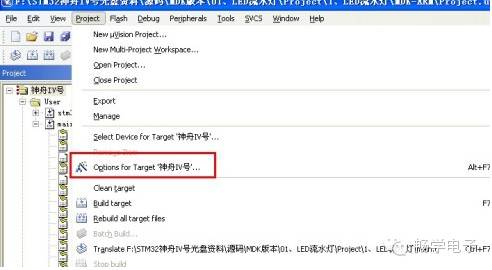
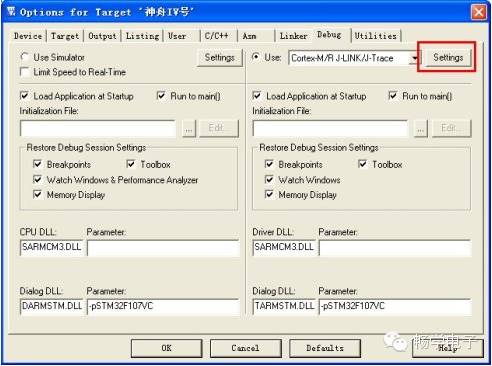
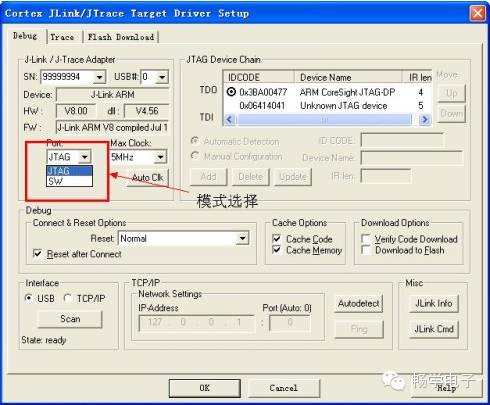
1.6 If JLINK does not successfully download using SWD or JTAG
Solution: There are several possibilities:
1) If both SWD and JTAG do not work, first check if the JLINK COMMANDER can recognize the CPU. If it can, try using this JLINK with another development board to see if it can download. If it works, it indicates a problem with the JTAG download circuit of the target board. If it does not work with another development board, it indicates a fault with the emulator.
2) If JTAG works and SWD does not, the JLINK may be faulty, or there may be a problem with the JTAG circuit design on the target board (in this case, if it was just purchased, it is recommended to contact the manufacturer for after-sales service; if it was purchased a long time ago, you may have to make do with it or replace the internal ALVC164245DL chip of the JLINK yourself).
3) If JTAG does not work and SWD does, it may be that the target board only supports SWD download mode. Please refer to the user manual of the target board or consult the manufacturer; this situation is normal.
1.7 How to set the corresponding Flash size in MDK using JLINK
Solution: Please see the image below.
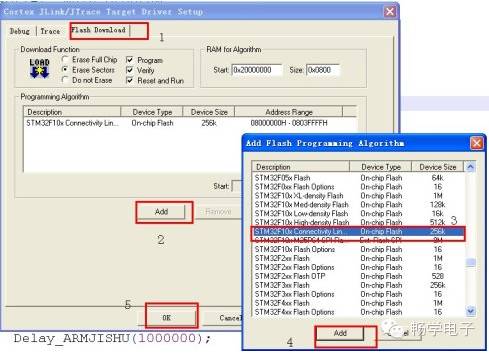
1.8 The computer’s Device Manager does not recognize the emulator
Solution: Open the Device Manager of the computer and check under Universal Serial Bus.
1.9 What to do if unable to upgrade to JLINK version 4.5X or higher?
Solution: Download the emulator firmware flashing tutorial (including firmware and flashing tools).
(Green version emulator)
(Black version emulator), sufficient to support various chips above M4, A8, A9.
Please use an XP system to re-flash the emulator firmware.
1.11 What are the signal lines when using the standard SWD interface of JLINK V8 or ULINK2 emulator?
Solution: Four lines, which are power, ground, SWDIO (multiplexed with TMS), and SWCLK (multiplexed with TCK).
1.12 When using J-link to download a program, why does the program not run once the downloader is unplugged?
Solution: This is because after unplugging the emulator, the ribbon cable is still connected to the board. You can unplug the ribbon cable from the board after downloading the program; this is because unplugging the USB line from the emulator causes a short-circuit phenomenon with the ribbon cable connected to the board, preventing the program from executing.
1.13 The emulator’s light keeps flashing when connected to the computer
Solution:
1) Check if the emulator driver is installed. After installing the driver, restart the computer and try again.
2) Try using another USB port; it may be that the USB port cannot recognize the device. If it still does not work, try another computer.
3) If the driver is installed and the USB port and computer still show this issue, please use a computer with XP system to re-flash the firmware.
1.14 When the JLINK program download is successful, why does the program not run?
Solution: Power cycle the board to see if it can run normally. If not, check if the emulator lost power while the ribbon cable is still connected to the board. Please unplug the ribbon cable from the emulator or ensure the emulator is powered normally.
1.15 The emulator’s light keeps flashing when connected to the computer
Solution:
1) Check if the emulator driver is installed. After installing the driver, restart the computer and try again.
2) Try using another USB port; it may be that the USB port cannot recognize the device. If it still does not work, try another computer.
3) If the driver is installed and the USB port and computer still show this issue, please use a computer with XP system to re-flash the firmware.