Click on the “Technical Training” above and select “Pin to Top”
120,000+ industrial control professionals follow this WeChat platform: technical sharing, learning exchange, industrial control videos
Author: Zeng Xin
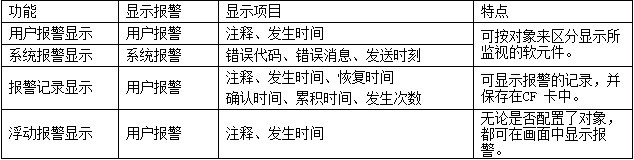
The alarm function is a relatively important feature in the use of touch screens. The alarm function in Mitsubishi touch screens includes the following categories: (1) User Alarm Display (User Alarm) (2) System Alarm Display (System Alarm) (3) Alarm Record Display (User Alarm) (4) Floating Alarm Display (User Alarm)
The content and characteristics of each display are shown in the figure below:
User Alarm Display Configuration
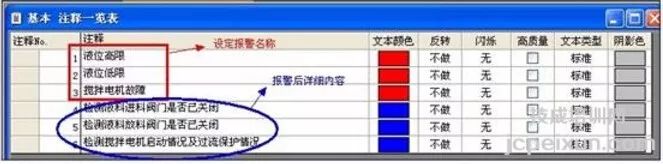
First, create annotations by clicking on the “Common Settings” in the menu bar of GT Designer3 software and selecting the “Open” option in the annotations item to open basic annotations and set them up as shown in the figure below:
The first three annotations indicate the content of the alarms, while the last three annotations are used to indicate some details that need to be checked when an alarm occurs.
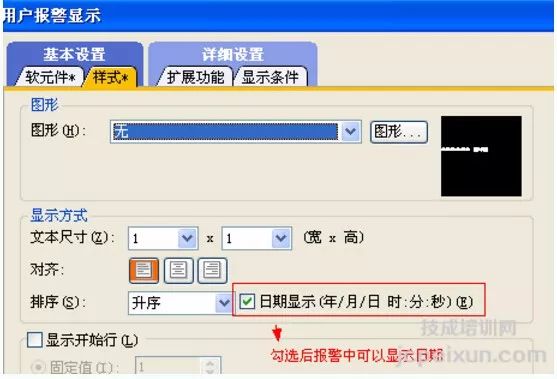
Once the annotations are created, click on the “Object” menu in the menu bar of GT Designer3 software, select “User Alarm Display” from the alarm display options, and then drag a display box into the programming area to show the alarm. Double-click to configure the main content as shown in the figure below:
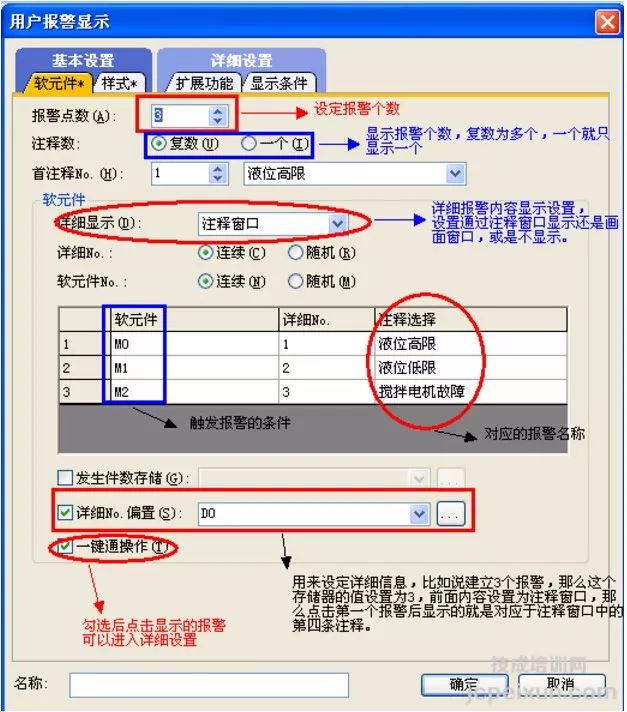
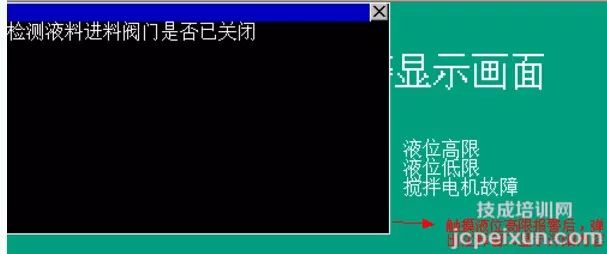
When M0, M1, or M2 is ON, the alarm display on the touch screen can pop up the desired alarm information. The touch screen alarm information can also show detailed alarm content as shown in the figure below:
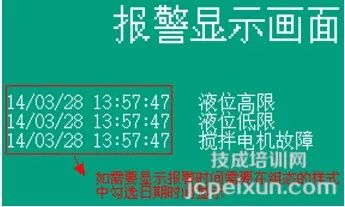
The alarm content can be displayed in detail in the upper left corner of the display (it is necessary to select the annotation window in the detailed display when configuring the alarm).
Hurry up and share this in your circle!
Click Read Original to learn about electrical engineering, PLC, frequency servo, CNC robots, and more.