
ST has launched a free compilation and debugging development environment STM32CubeIDE, which is gaining more attention and use among STM32 users. A common question during the development process based on STM32CubeIDE is how to view variables during debugging. Here, I will briefly demonstrate the implementation process.
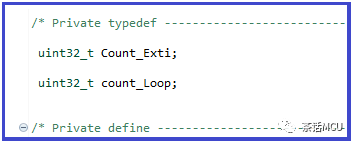
I defined two global variables in the project, as shown in the image below. 【Note: The images in this article can be enlarged by clicking in mobile mode.】
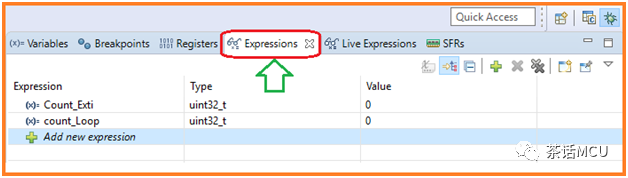
After the code compilation is complete, we start debugging. We can open the Debug window’s expression window to view the variable values after the program runs.
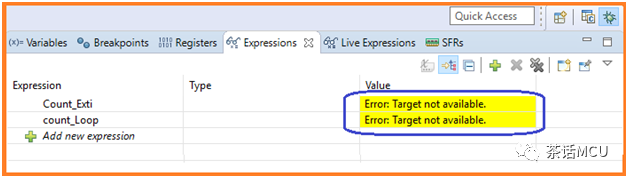
When using the expression window to view variable results, the dynamic results cannot be viewed while the program is running. At this time, the data may remain static or even show an error, as shown in the image below; you can ignore this.
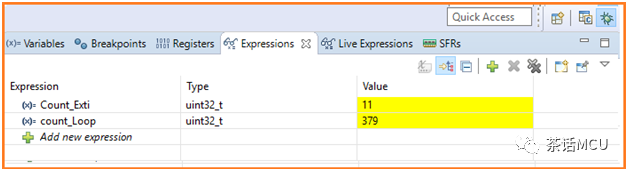
When you pause or stop running, the final result will be displayed, as shown below.
In some cases, we want to dynamically view variable values during debugging. Is it possible?
At this time, we can use the Live Expression window to achieve this. It allows real-time monitoring of variable data changes. Of course, we can decide based on our needs; if real-time viewing is not required, we can just use the expression window.
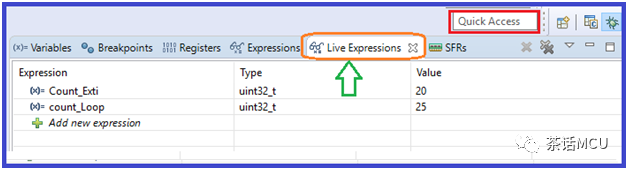
Sometimes, after entering debugging mode, we may not find the expression or Live expression window. In this case, we can type expression or Live expression in the Quick Access box shown in the image above to open the corresponding window. Alternatively, we can open the menu command for the corresponding window in debugging mode.
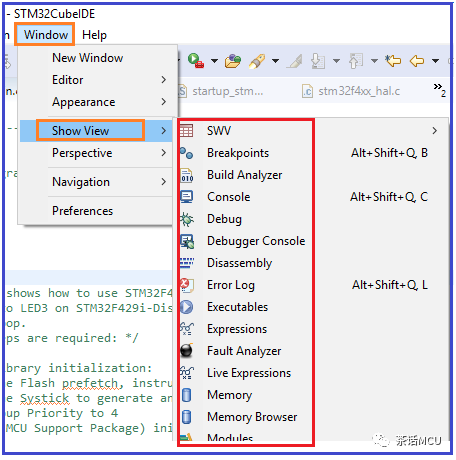
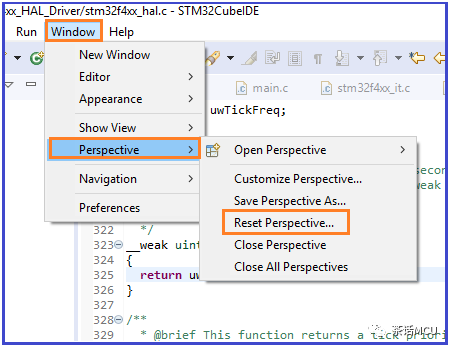
When using CubeIDE for debugging, there are many windows that can often be moved, and sometimes the entire layout can become a bit messy. In non-debugging mode, we can reset the entire layout.
Here are two more reminders: when viewing variables through the expression or Live expression windows, sometimes after resetting or stopping and then running again, you may encounter data invalidation. In this case, you can remove the variables in the window and rewrite them.
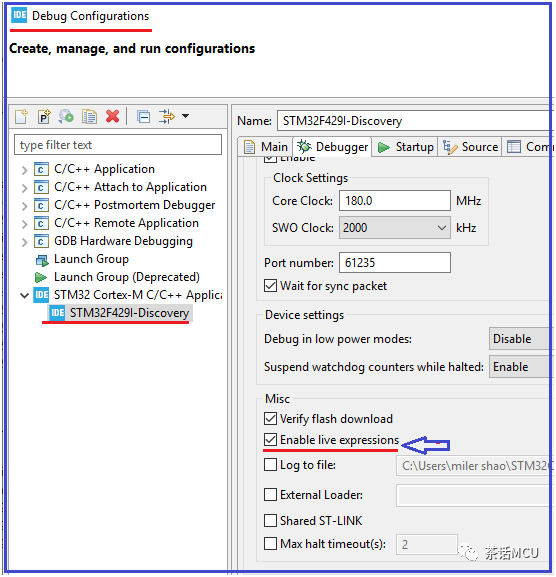
Additionally, the use of the Live Expression function needs to be enabled. Therefore, when we try to use Live Expression to dynamically view variable data and find that this function seems to be unavailable, check whether this function has been enabled. The location to enable this function is shown in the image below: 【You can right-click on the project, go to Debug as/Debug configuration to access it.】
Ok, that’s all for sharing about variable display and monitoring in the STM32CubeIDE environment. Good luck!
===================
Previous topics reading links 【Click to read】:
1、Example of implementing printf based on the semi-hosting mechanism
2、Case of STM32H743 starting from RAM exception
3、Does one event trigger two interrupts?
4、Application example of STM32 timer ETR signal
5、What is the purpose of STM32’s DMAMUX?
6、Common issues in getting started with STM32CubeIDE