Keywords: LSM6DSO, MEMS, Unicleo-GUI
Table of Contents
1. Information Center
2. Workspace and Project
3. Project Information
4. Debugging
0. Introduction
This document is a concise guide to help users quickly familiarize themselves with STMicroelectronics STM32CubeIDE. STM32CubeIDE is an integrated development environment (IDE) based on the ECLIPSE™ framework. It is designed for users developing embedded software using C/C++ for STMicroelectronics’ STM32 MCUs and MPUs. This manual provides basic information on the following aspects: Information Center, Workspace and Project, Project Information, and Debugging.
1. Information Center
Use STM32CubeMx or the integrated CubeMX in STM32CUBEIDE to select the development board, and use the default configuration of the development board.
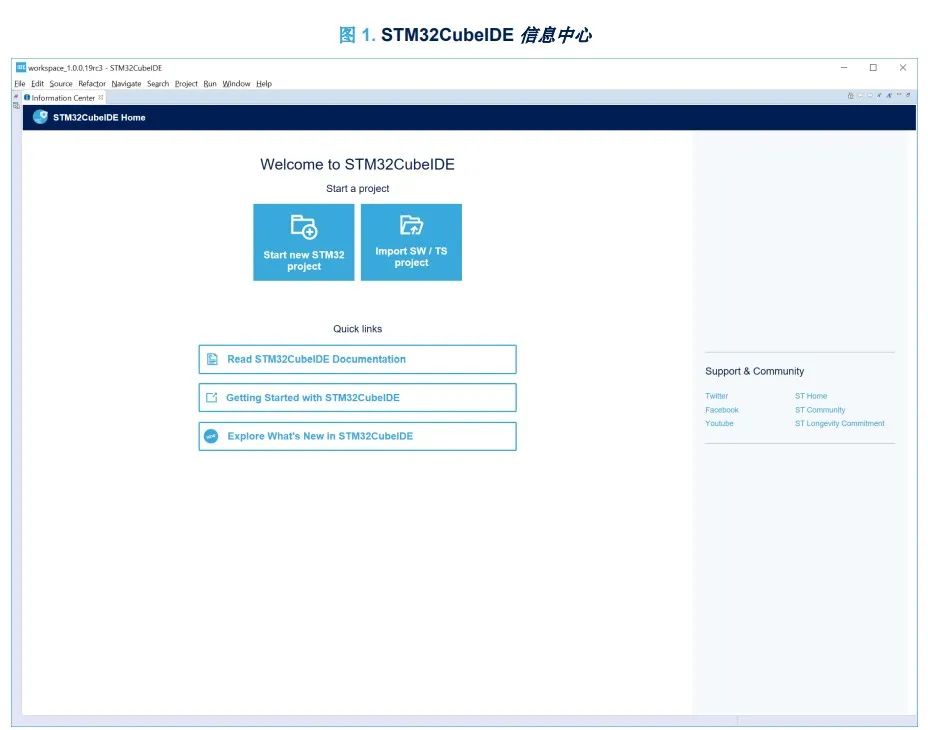
In the Information Center, users can quickly learn about products and how to use them.
Clicking on the corresponding hypertext link will open the manual and also access the latest information from the STMicroelectronics website www.st.com. There is no need to read all materials before first using STM32CubeIDE.
It is recommended to return to the Information Center for reference information as needed. You can access the Information Center window at any time via the command [Help] > [Information Center]. Closing the Information Center tab will open the C/C++ view.
2. Workspace and Project
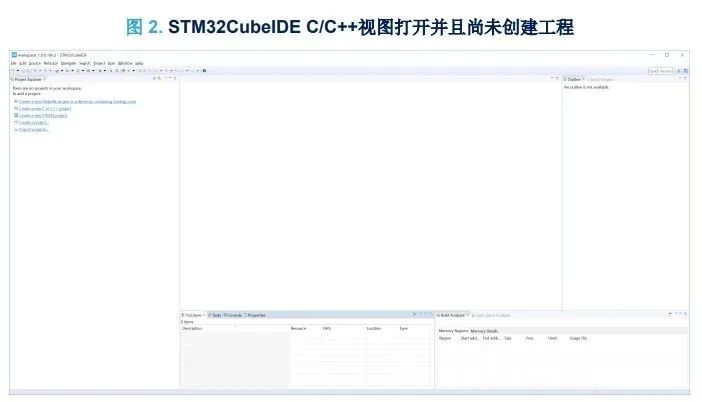
STM32CubeIDE is created using the ECLIPSE™ framework; it inherits some features that new users may not be familiar with.
The ECLIPSE™ editing environment utilizes multiple views. A view is a set of dedicated windows. The C/C++ view is specifically for writing and editing code and browsing various projects.
Users spend a significant amount of time in this view. Another commonly used view is the Debug view, where users can perform debugging and testing. Users can easily switch between the two views, and in some cases, automatic switching can even be achieved.
Workspace and Project: The next step is to create a project, and we need to introduce the concept of a workspace first. A workspace is a container that holds project folders or related information about project folders, with a .metadata folder containing information about the project.
A workspace is simply a folder on the hard drive and can be located anywhere on the hard drive. When STM32CubeIDE starts, it will ask which workspace to use. Users can navigate to other folders to change the workspace at any time via [File] > [Switch Workspace]. Note: Workspace and project names can only contain ASCII characters. This requirement also applies to the workspace path.
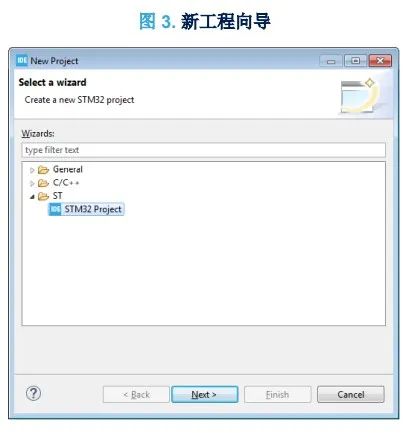
Creating the First Project: The easiest way to create an embedded project is to use the STM32 Project Wizard.
Select it through the menu command [File] > [New] > [STM32 Project], then start the embedded MCU Finder:
-
Select the target MCU or mainboard, then proceed to the next page.
-
Enter the project name and select the required settings in the directory box.
-
Click [Finish]. The STM32CubeMX window will then open, where peripherals, clocks, middleware, and power consumption can be configured.
The information collected by the Project Wizard includes:
1. Target information, such as whether to use a given evaluation board or a specific microcontroller.
2. Project name
3. Target language, target file type, and project type
4. Code generation options
Due to space limitations, only part of the document is displayed. Please click “Read More” to download the complete document. © THE END▽Click “Read More” to download the original document