ST has provided a free integrated development tool STM32CubeIDE for many STM32 users for some time now. As the saying goes, the beginning is always the hardest. Here are a few common issues regarding its initial use that I would like to share. 【Note: Images in this article can be enlarged for viewing on mobile mode】
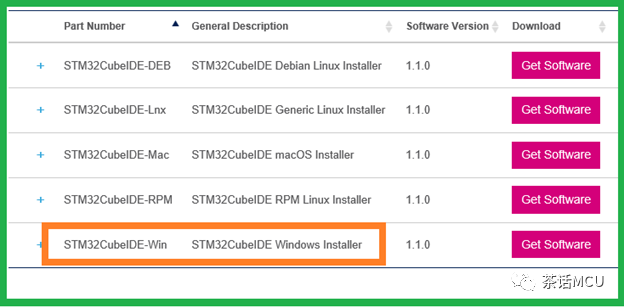
1. Where can I download the free tool STM32CubeIDE?
You can go to www.st.com to search for the download. It is based on the Eclipse™/CDT framework and GCC toolchain, supports ECLIPSE plugins and GDB debugger. It has versions supporting multiple platforms, such as LINUX/macOS/WINDOWS, etc.
2. What should I do if the installation of STM32CubeIDE often fails?
The most common issue is that there are Chinese characters in the path. Additionally, if this is not your first installation of STM32CubeIDE, remember to completely uninstall the previous version.
3. Does it support coordination with the graphical configuration tool STM32CubeMX?
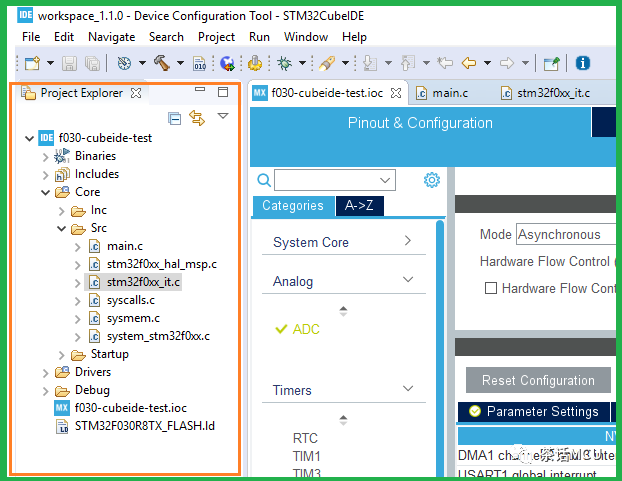
Of course. It can be said that STM32CubeIDE has embedded STM32CubeMX as a module in its development environment. When we create a new project through CubeIDE, it will automatically call STM32CubeMX to allow users to perform graphical initial configurations.
4. Why does it prompt to install STM32CubeIDE when generating a project based on STM32CubeIDE using STM32CubeMX even though STM32CubeIDE is already installed? You may often see the following prompt:
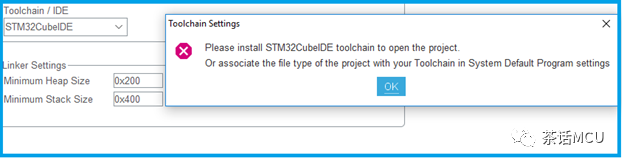
In this case, it is likely that there is a configuration missing in the STM32CubeIDE environment, specifically the file association configuration. The operation is as follows:
Open STM32IDE, then click the menu WINDOWS/Preference
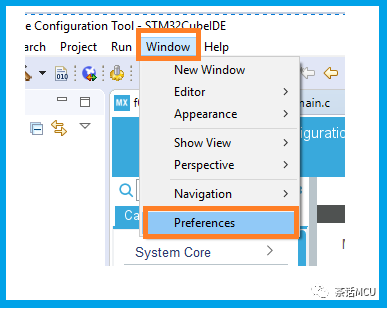
Continue clicking until you see the install pointed at by the arrow in the image below. Finally, remember to click the apply button at the bottom to make it effective 【This part is not captured in the screenshot】.
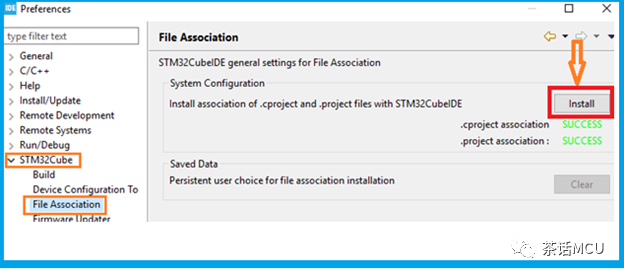
If it still does not work, do not keep trying. As mentioned in point 3 above, you can still automatically call STM32CubeMX when creating a new project in STM32CubeIDE (of course, provided that you have already installed STM32CubeMX on your computer). After completing the CubeMX configuration, click the hammer icon in the CubeIDE menu to generate or update the initialization configuration code. See the image below:
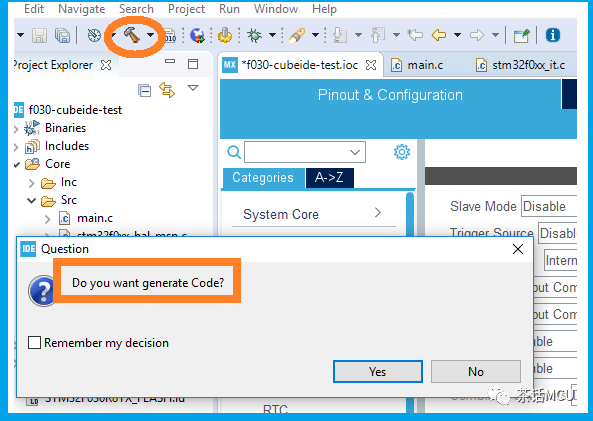
5. Can I generate BIN or HEX files after compiling through STM32CubeIDE?
By default, the file generated after compiling through STM32CubeIDE is an ELF file. If you wish to generate HEX or BIN files, that is also possible. The configuration process is as follows.
In the main menu under project\properties\C/C++ Build, open the following interface:
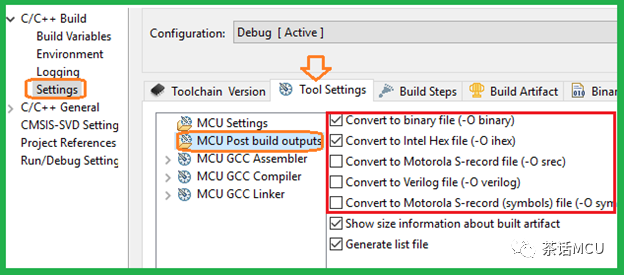
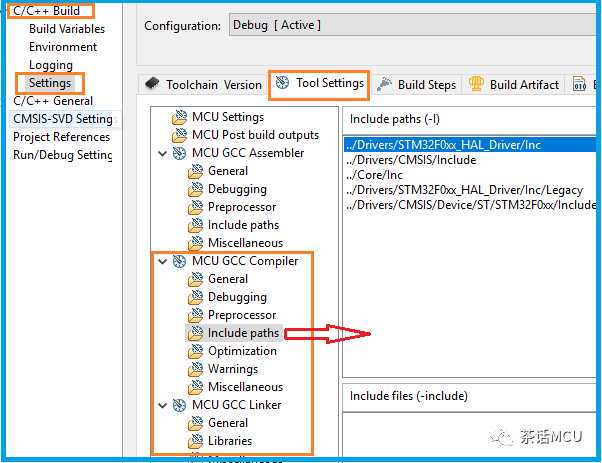
6. Where can I configure the search paths and macro definitions for project files?
Still in the main menu under project\properties\C/C++ Build, see the following interface:
7. What is the ld file in the STM32CubeIDE project display bar?
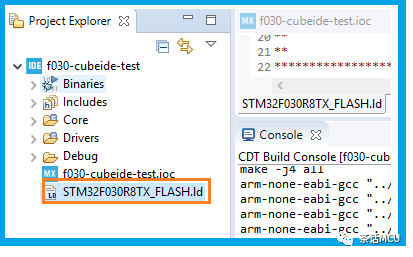
It is the project link script file or program loading file; other IDEs also have similar files. For example, the .sct file in ARMmdk and the .icf file in IAR IDE.
Well, this concludes the sharing on the initial operation of STM32CubeIDE. Other aspects can be learned and improved while using.
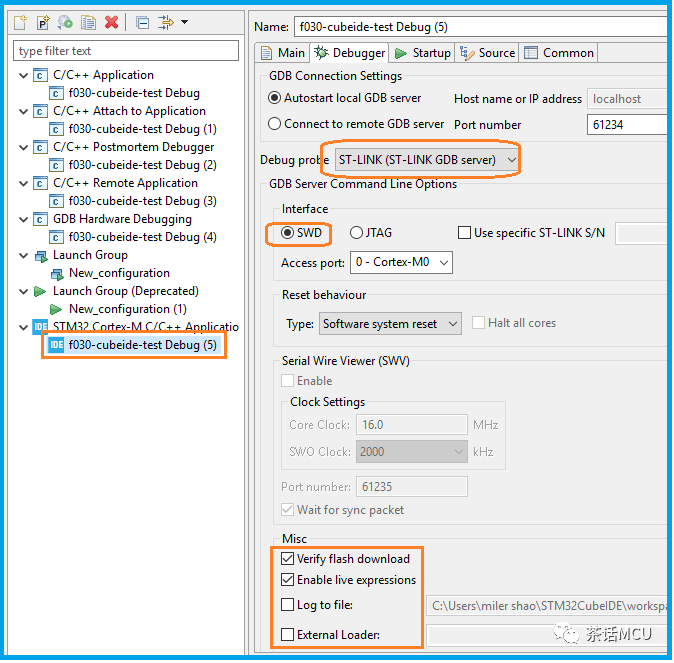
Good luck!
===================================
Previous topic links 【Click to view】:
1. Example and application reminder of FFT operation based on STM32
2. Using MDK’s built-in logic analyzer to display arbitrary waveforms
3. Several basic issues of the STM32H7 series dual-core products
4. Brief introduction to several programming methods of STM32 chips
5. Example of custom waveform switching using timer comparison output