Follow,Star Public Account Number, don’t miss exciting content
More and more people are using the STM32CubeIDE tool, and I am also taking time to master this tool (of course, I haven’t used it in a project yet).
The STM32CubeIDE tool integrates many features, but the threshold may be relatively high for beginners.
Recommended reading of the previous introductory article:Installation and Configuration of STM32CubeIDE, Code Generation, and Hardware Online Debugging
1. Review of STM32CubeIDE
STM32CubeIDE officially launched V1.0.0 in April and has undergone two upgrades to the current V1.0.2 version in July.
Although it has undergone two upgrades, it is impossible to say that there are no bugs. At the same time, the official also stated that STM32CubeIDE has some problems and limitations.
Windows System Requirements: 64-bit systems of Windows 7, 8, and 10.
You will see that the downloaded file is: xxx20190716-0927_x86_64.exe
You might think it supports 32-bit Windows systems, but in fact, it does not.

Chinese Path Not Allowed:
Both installation and project paths must not contain Chinese characters.
Known Issues and Limitations: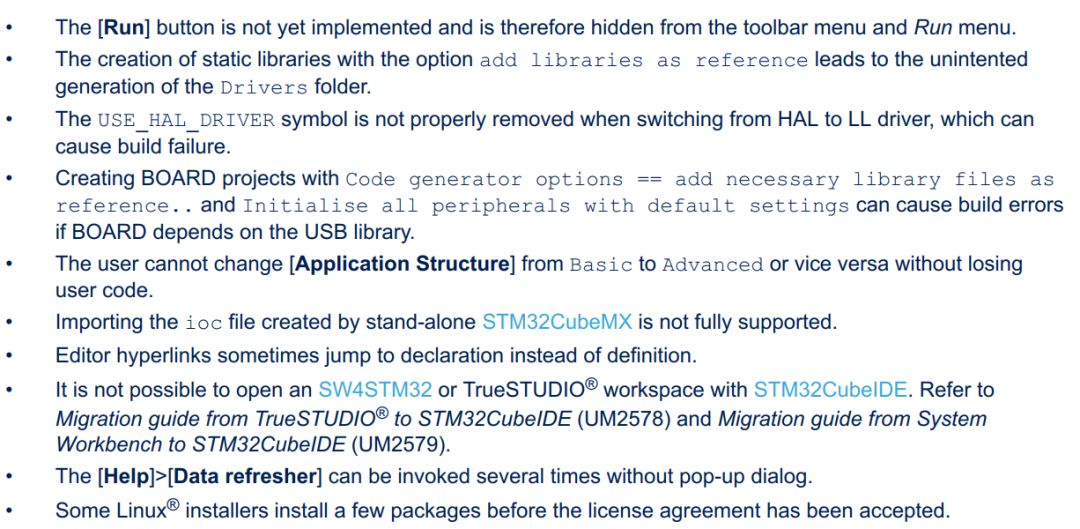
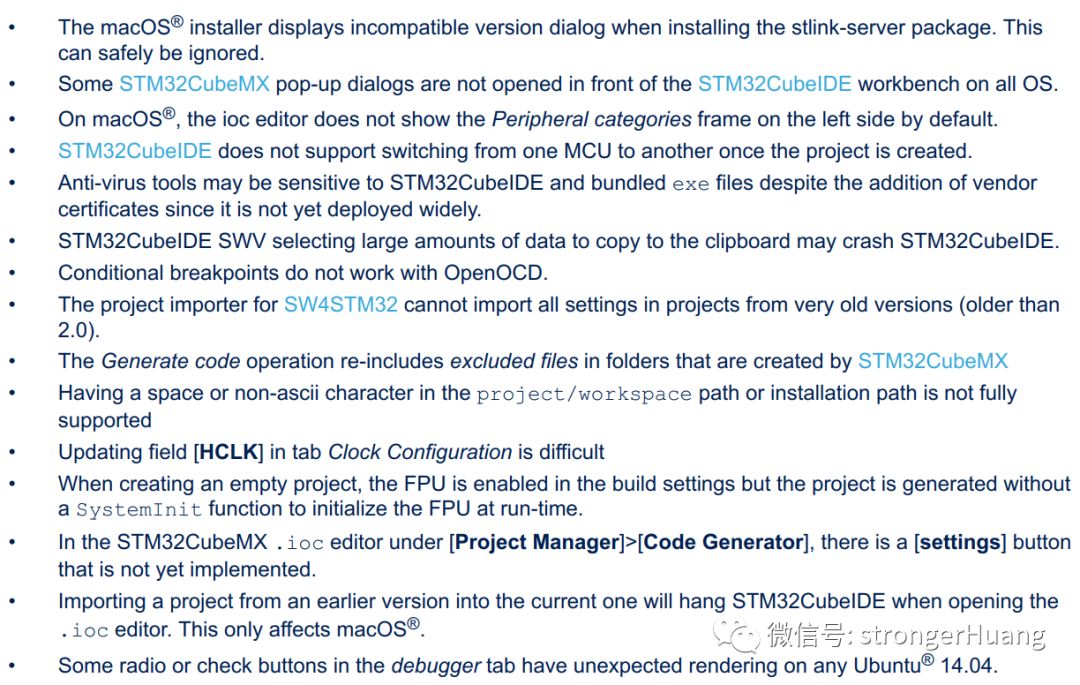
Among them, it is mentioned that STM32CubeIDE cannot directly open TrueSTUDIO projects.
2. Migration Work
This article refers to: UM2578 User Manual.
Step 1:
Copy the TrueSTUDIO project to the STM32CubeIDE currently used workspace.
Step 2:
After the first step is successful, start STM32CubeIDE and ensure to specify its workspace when starting the correct workspace.
Step 3:
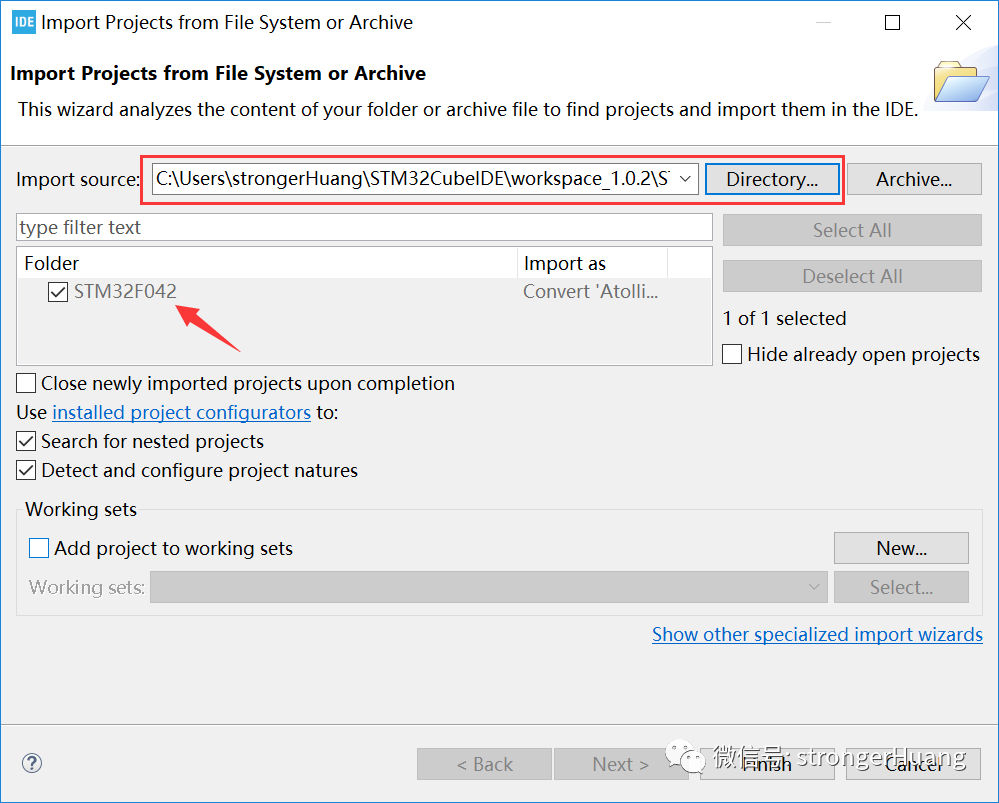
Click the [Import SW / TS project] button, or from the menu [File] > [Open Projects from File System…].
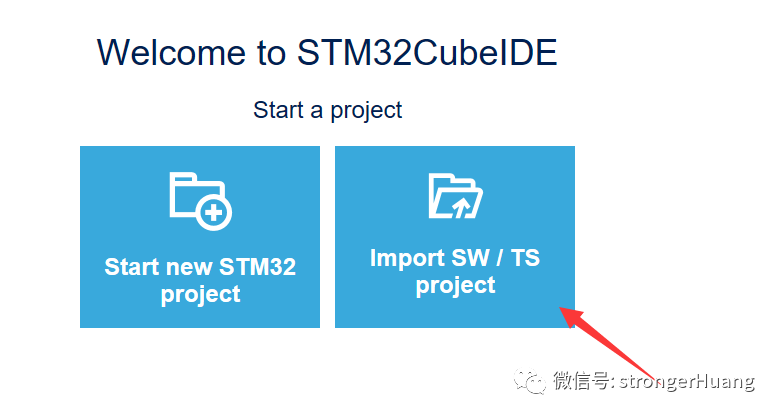
Step 4:Select [Directory…] and navigate to the project location, which must be the current workspace in this case, select it, confirm the information, and click [Finish]. As shown below:
Step 5:
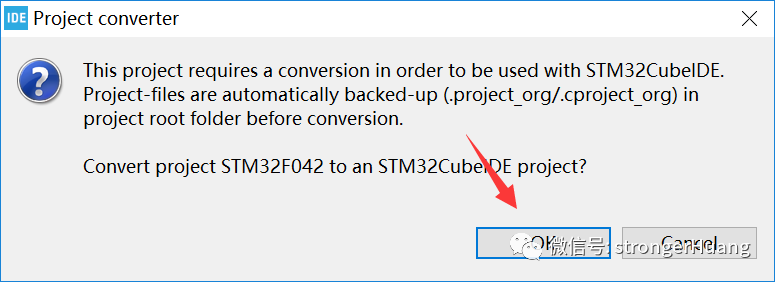
Then a dialog box will appear asking for confirmation of the project conversion, click [OK] to authorize and start the project conversion.
Step 6:
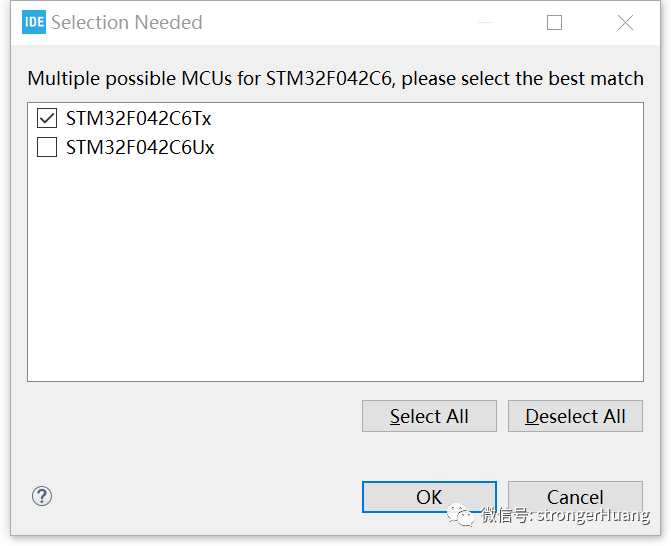
There may be ambiguity in the MCU model, manually select it, and click OK.
For more details, refer to the UM2578 User Manual.
Recommended Reading:
8 Heartfelt Suggestions for Newcomers in the Workplace
Can STM32’s HAL and LL Libraries Be Used Together (Mixed)?
Follow the public account ‘strongerHuang’ to see more exciting content in the bottom menu!

Long press to recognize the QR code in the image to follow