1. Basic Principles
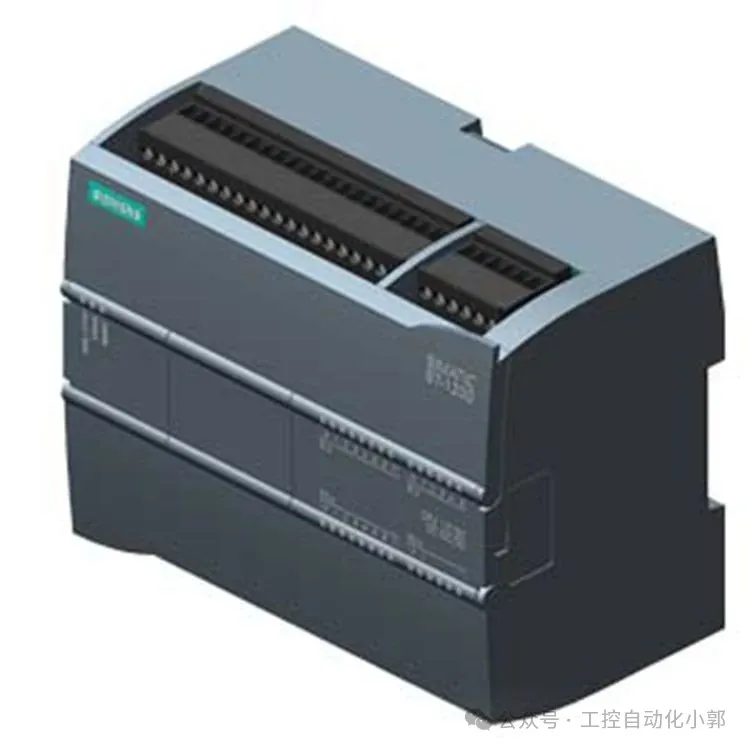
When establishing industrial Ethernet communication between SIMATIC S7-1200 or with other devices in automation projects, engineers need to understand what communication services the integrated Ethernet interface can provide, which communication protocols are supported, how many connection resources are available, and how to flexibly use communication instructions. The S7-1200 CPU integrates a PROFINET communication port that supports Ethernet and TCP/IP-based communication standards. This communication port enables communication between the S7-1200 CPU and programming devices, HMI touch screens, and other CPUs. The PROFINET physical interface is an RJ45 port that supports 10/100Mb/s and features cable crossover adaptation, allowing either a standard or crossover Ethernet cable to be used with this interface.
2. Hardware Connection Requirements
(1) Required Equipment
To establish Profinet wireless Ethernet communication between KingView and S7-1200 PLC, the following equipment is required:
- Siemens PLC model: S7-1200 × 2 units
- Host computer: KingView 6.55 × 1 unit
- Wireless communication terminal: DTD418MB × 3 units
- Master-slave relationship: 1 master, 2 slaves
- Communication interface: RJ45 interface
- Power supply: 12 – 24VDC
(2) Wiring Method
- Wiring between the host computer and DTD418MB: Use a communication cable, connecting one end to the RJ45 interface of DTD418MB and the other end to the RJ45 interface of the host computer.
- Wiring between PLC and DTD418MB: Use a communication cable, connecting one end to the RJ45 interface of DTD418MB and the other end to the RJ45 interface of S7-1200.
(3) Network Connection Description
The PROFINET interface of S7-1200 is an RJ45 interface that supports standard home network cables, and Siemens industrial Ethernet cables (green four-core) can also be used. When a single S7-1200 CPU communicates with a programming device, HMI, or another PLC, meaning there are only two communication devices, direct communication is achieved without the need for a switch; simply connect the two devices directly with an Ethernet cable. When multiple communication devices are involved, meaning there are more than two communication devices, network connection is required, and an Ethernet switch must be used to connect multiple communication devices. The Siemens CSM1277 4-port switch can be used to connect other CPUs and HMI devices, and it is plug-and-play, requiring no configuration before use.
3. Software Configuration Steps
(1) PLC Configuration
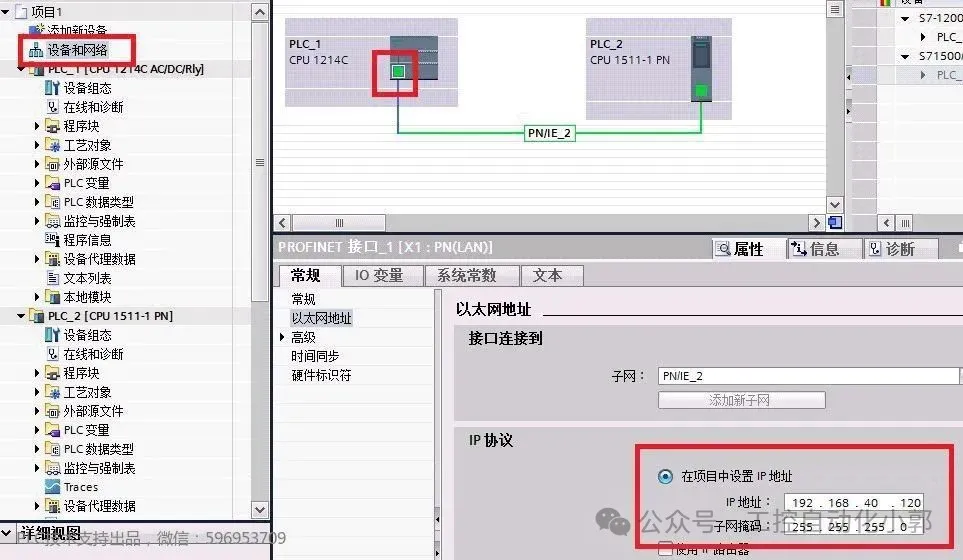
- Set the PLC’s IP address, for example, 192.168.0.1.
- In Protection and Security – Connection Mechanism, check the option to allow PUT/GET communication access from remote objects.
- If you need to read data from the DB block, you also need to optimize the DB block; if you do not need to read data from the DB block, you can skip this step.
(2) KingView Configuration
- Create or open a KingView project: Click on the menu bar to create a new project, then click next.
- Create a new device: Click on Device, select S7-1200 TCP driver, click New, a dialog box will pop up, select TCP under S7-1200, click next; set a name, then click next; keep the default parameters and click next; enter the PLC’s IP address followed by :0 (note that the colon should be entered in English half-width mode, the specific meaning can be checked by clicking on address help), then click next; no changes are needed on this page, just click next; click finish to complete the driver configuration.
- Define variables: Create and fill in PLC variable addresses in the data dictionary, for example, create a variable MW100.
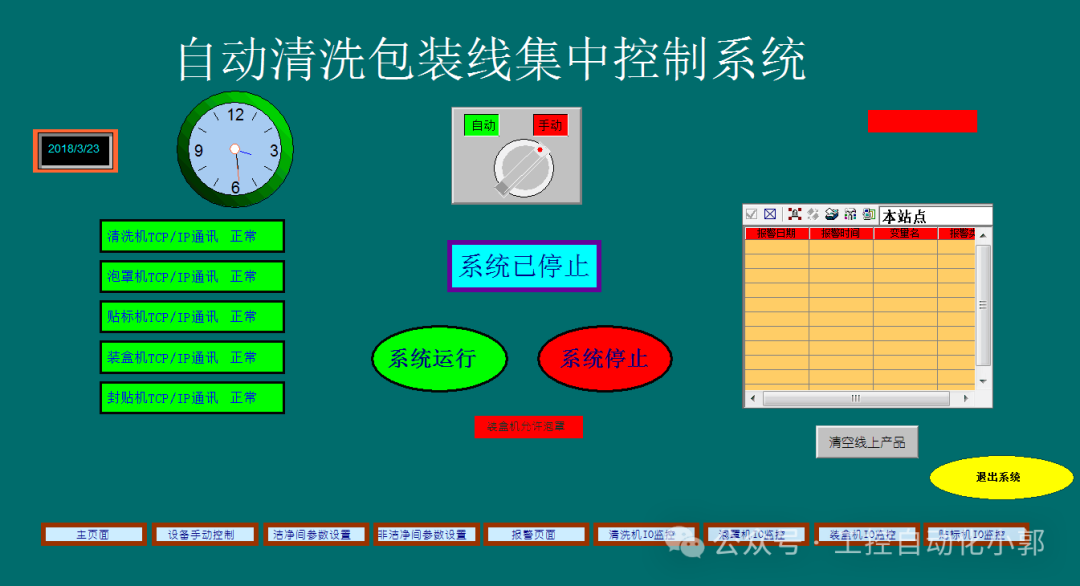
- Set up the configuration screen: Create a new screen, associate variables, for example, create a reset switch M0.0 and a counting switch M0.1, and associate them with PLC’s M0.0 and M0.1, configure an indicator light associated with output Q0.2 for intuitive observation of the reset status, etc.
(3) Communication Testing
Monitor MW100 in the TIA Portal monitoring table and write the value 43; if the KingView interface also displays the value 43, it indicates that communication is normal. You can also use the M point button in KingView to control the corresponding Q point of the PLC while monitoring the Q point output in KingView; input a signal to the PLC’s I point and check if KingView detects the corresponding point’s signal.
4. Possible Issues and Solutions
(1) Communication shows read/write failure
This may be due to variable configuration errors; you can refer to documents such as “Communication Settings between S7-1200 and TIA Portal and KingView” and “Ethernet Communication between TP900 Comfort and S7-1200 PLC” for checking and setting.
(2) The host computer can ping, but the PLC does not receive data
You can check if the TCON instruction has been called, whether M0.5 remains constantly connected, and you can also try using the TRCV instruction. Refer to the document “Ethernet TCP Communication between SIMOTION and S7-1500” for configuration methods for the 1500.
(3) The computer has only one network port and needs to communicate with both the remote database and PLC
You can buy a PCI Gigabit Ethernet expansion card to insert into the industrial computer, using one port for remote database communication and the other for PLC communication. Be careful not to use USB to Ethernet converters, as they are unstable.
(4) The same KingView project communicates abnormally with different models of PLCs
The same KingView project can communicate normally one-to-one with CPU1215C on the same computer, but when communicating with CPU1212C, it shows that communication is established, but the indicators and data on the screen do not respond. This situation may be due to the driver not supporting that model; further confirmation of driver compatibility is needed.
5. Conclusion
Through the introduction of the basic principles, hardware connection requirements, software configuration steps, and possible issues and solutions for Ethernet communication between S7-1200 PLC and KingView, we can gain a comprehensive understanding of how to achieve Ethernet communication between the two. In practical applications, it is essential to strictly follow the steps and pay attention to the details of each link to ensure stable and normal communication. Additionally, when encountering issues, analyze and troubleshoot based on the specific situation and take appropriate solutions.
 If you found this helpful, please give it a thumbs up! Follow me for more practical electrical insights to come!