Siemens General + TIA Portal + EPLAN Electrical Drawing Video Recordings for Sale at Low Price!
Chuangkong Education Siemens General Class Course Introduction
S7-1200 Memory Card User Guide
1. Basic Introduction to S7-1200 Memory Card
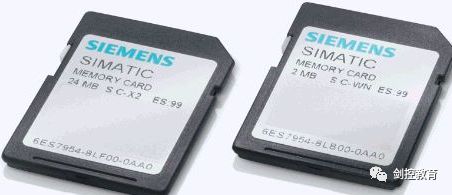
The memory card used by S7-1200 CPU is an SD card, which has the following four functions (actually three):
1. As a preloading storage area for the CPU, user project files are only stored on the card, and there are no project files in the CPU. Without the memory card, it cannot run.
2. In the presence of an encoder, it serves as a medium for transferring project files to multiple S7-1200 PLCs.
3. When the password is forgotten, it clears the internal project files and password of the CPU.
4. Updates the firmware version of the S7-1200 CPU (limited to 24M card).
Note:
1. For S7-1200 CPU, the memory card is not required.
2. Inserting the memory card into a running CPU will cause the CPU to stop.
3. S7-1200 CPU only supports memory cards pre-formatted by Siemens manufacturers.
Order Number:
| Order Number | Capacity |
| 6ES7 954-8LB00-0AA0 | 2M |
| 6ES7 954-8LC00-0AA0 | 4M |
| 6ES7 954-8LF00-0AA0 | 24M |
4. If the memory card is formatted using Windows format tools, the CPU will not be able to use that memory card.
5. Currently, S7-1200 cannot achieve advanced functions of recipe and data archiving with the memory card.
2. Working Modes of S7-1200 Memory Card
Two working modes:
1. Program Card: As a loading storage area for S7-1200 CPU, all programs and data are stored on the card, and there are no project files in the integrated storage area of the CPU. The memory card cannot be removed while the device is running.
2. Transfer Card: Used to transfer projects from the memory card to the CPU. After the transfer is complete, the memory card must be removed, and the CPU can run independently without the memory card.
3. Program Card Mode
Advantages: No need to re-download project files when replacing the CPU.
How to load project files onto the memory card:
Step 1: Set the memory card to “Programming” mode. It is recommended to clear all files on the memory card before performing this operation.
Step 2: Set the CPU’s startup state to “Warm restart-RUN”.
Step 3: Power off the CPU.
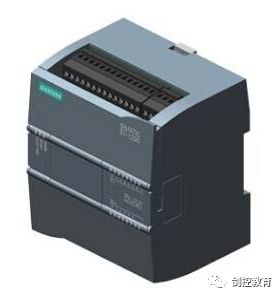
Step 4: Insert the memory card into the CPU card slot.
Step 5: Power on the CPU.
Step 6: Use TIA Portal software to download the project. At this time, the project files (including user programs, hardware configuration, and forced values) will be downloaded to the memory card, not to the integrated storage area of the CPU.
After completing the above steps, the CPU can operate normally with the card. If the memory card is removed at this time, the CPU will report an error, and the “ERROR” red light will flash.
4. Transfer Card Mode
Advantages: Convenient and quick to copy project files to multiple S7-1200 CPUs without a programmer.
How to load project files onto the transfer mode memory card:
Step 1: Set the memory card to “Transfer” mode. It is recommended that customers clear all files on the memory card before performing this operation.
Step 2: Set the CPU’s startup state to “Warm restart-RUN”.
Step 3: Drag and drop the PLC device to the memory card drive letter.
Note:
The completed “Program Card” can be directly changed to a “Transfer Card”.
Copying projects from the memory card to S7-1200 CPU:
Step 1: Power off the CPU.
Step 2: Insert the memory card into the CPU card slot.
Step 3: Power on the CPU, the “MAINT” yellow light on the CPU flashes.
Step 4: Power off the CPU and remove the memory card.
Step 5: Power on the CPU.
5. Using the Memory Card to Clear Password
If the previously set password for S7-1200 is forgotten, it cannot be cleared through “Restore Factory Settings”. The only way to clear it is to use the memory card. The steps are as follows:
1. Power off the S7-1200 device.
2. Insert a memory card into the S7-1200 CPU; the program on the memory card must not be password protected.
3. Power on the S7-1200 device.
After powering on the S7-1200, it will copy the program from the memory card to the internal FLASH register, thus executing the password clearing operation.
It is also possible to use the same method to insert a brand new or blank memory card into the S7-1200 CPU. After powering on the device, the S7-1200 CPU will transfer the program from the internal storage area to the memory card. After removing the memory card, the S7-1200 CPU will no longer have user programs, thus achieving password clearance.
The contents of the memory card can be cleared using a card reader.
Note:
1. Do not format the memory card.
2. The IP address cannot be cleared.
3. After inserting a blank memory card, the device configuration, user programs, and any forced values in the internal storage area will be copied to the memory card (even if the original CPU content is empty). At this time, the memory card becomes a program card that includes the previously stored data in the internal storage area. After copying is complete, the internal storage area is cleared. If a non-blank card is inserted, the internal storage area will not be cleared.
(Content sourced from the internet, copyright belongs to the original author)
Disclaimer: If it involves copyright, please contact for deletion! No individual or organization shall bear related legal responsibilities.
Siemens General + TIA Portal + EPLAN Electrical Drawing Video Recordings for Sale at Low Price!
Chuangkong Education Siemens General Class Course Introduction