Siemens All-in-One + TIA Portal + EPLAN Electrical Drawing Video Recordings for Sale at Low Prices!
Chuangkong Education Siemens All-in-One Course Introduction
Recently, when using the Siemens touch screen, I experienced screen lag. I consulted Siemens 400 technical support, and they suggested restoring the factory settings. Next, I will share with you the method to restore the touch screen to factory settings.
There are two ways to restore factory settings; we will introduce the method using TIA Portal WinCC software.
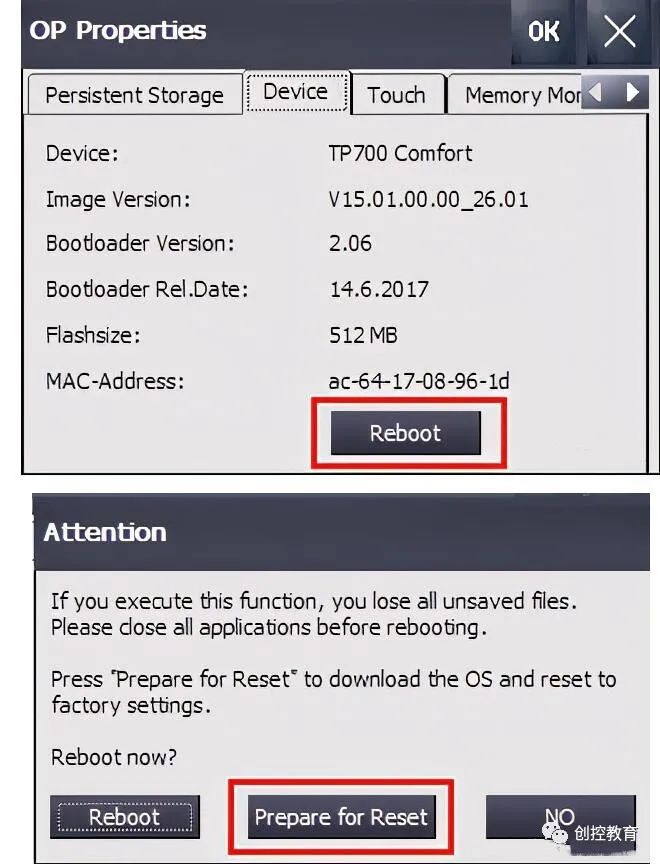
First, power off the touch screen and restart it. Enter the Start Center interface, click Settings -> OP -> Device -> Reboot -> Prepare for Reset; the screen will enter boot mode.
Note: Before restoring factory settings, make sure to back up the screen program and record important parameters!
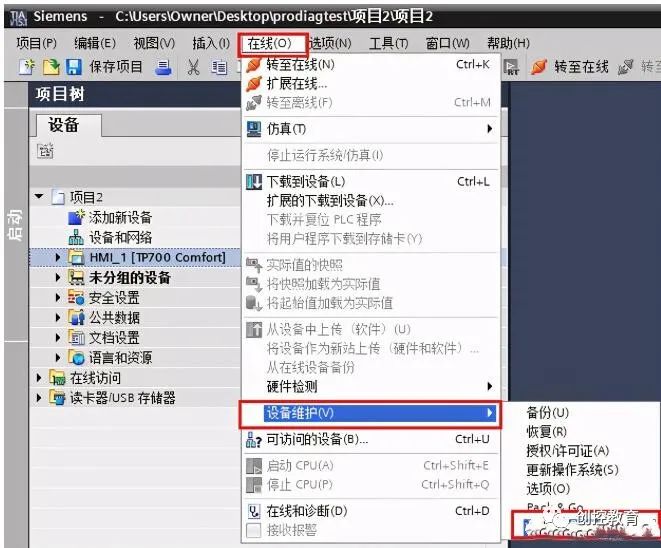
Open the TIA Portal software, find “Online” -> Device Maintenance -> Reset to Factory Settings in the menu bar. In the pop-up interface, enter the MAC address of the touch screen, which can be found on the label at the back of the screen. This step is crucial, as the software cannot directly read the MAC address; it must be entered manually. After entering it correctly, click loading, and in the pop-up operation interface, click update OS.
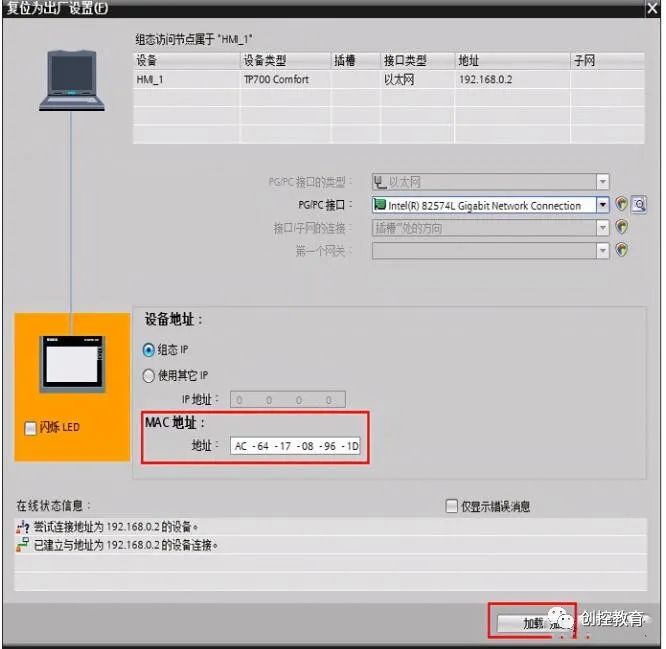
Select “Yes” in the pop-up box and click the Update OS button.
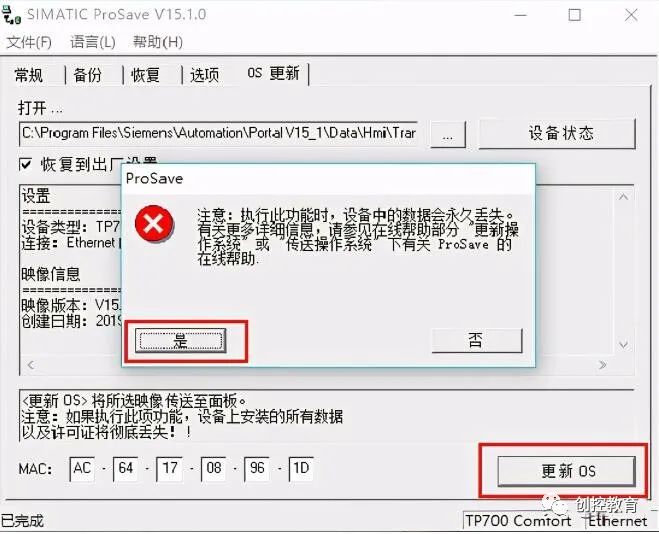
The pop-up interface will display Please guide the HMI device -> Transmitting firmware.
Before transmitting the firmware, ensure that the power supply is stable and reliable, and the network cable is securely connected.
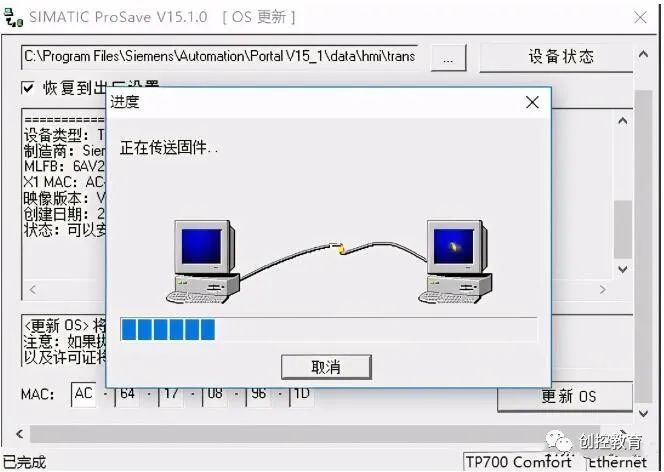
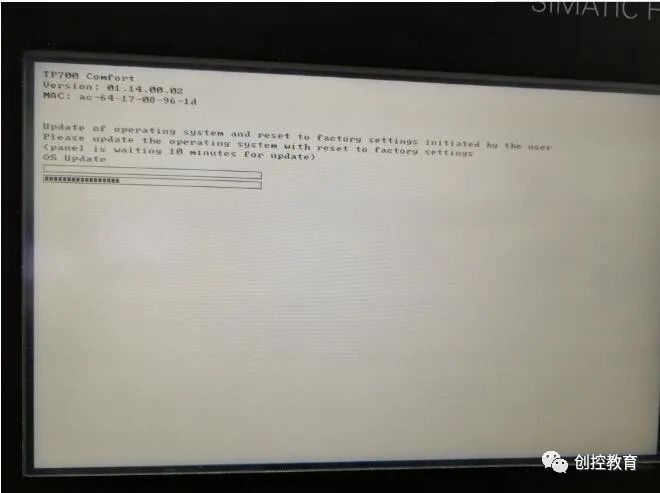
During the operation, there will also be a corresponding progress bar displayed on the screen. After successfully restoring the factory settings, the screen will automatically restart.
Once the restart is complete, the Start Center interface will be displayed automatically. Thus, the factory reset is complete.
(Content sourced from the internet, copyright belongs to the original author)
Disclaimer: If it involves copyright, please contact for deletion!No person or organization bears relevant legal responsibility.
Siemens All-in-One + TIA Portal + EPLAN Electrical Drawing Video Recordings for Sale at Low Prices!
Chuangkong Education Siemens All-in-One Course Introduction
Schneider PLC training videos are available for free learning for a limited time (not only can you learn for free, but there are also gifts, and those who pass the exam will receive a certificate).