Software Introduction:
Multisim is a simulation tool based on Windows developed by National Instruments (NI) for the design of board-level analog/digital circuits. It includes graphical input for circuit schematics and circuit hardware description language input methods, with rich simulation analysis capabilities. (For learning and communication purposes only)
Installation Prerequisites:
1. The entire installation process must disconnect from the internet, otherwise the installation will fail;
2. The Multisim 14.0 provided on this site is suitable for WIN7/8/10 systems; XP users should install a lower version;
Multisim 12.0 64 Installation Steps:
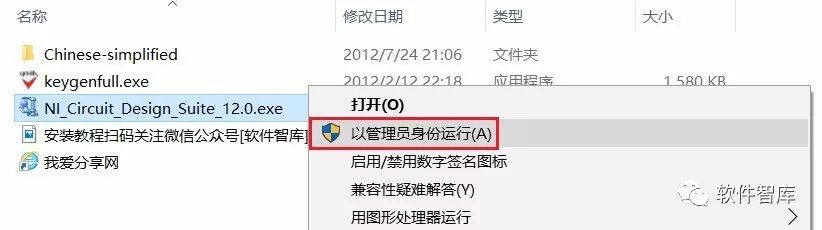
1. Use the “Baidu Cloud Client” to download the Multisim 12.0 software installation package to your computer’s hard drive, unzip it, and then find NI_Circuit_Design_Suite_12.0.exe, right-click and choose [Run as administrator]
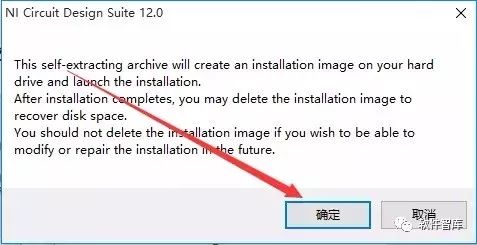
2. Click [OK]
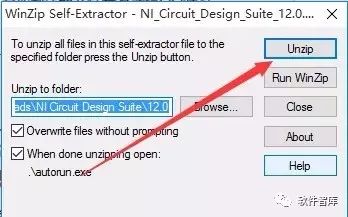
3. Click [Unzip]
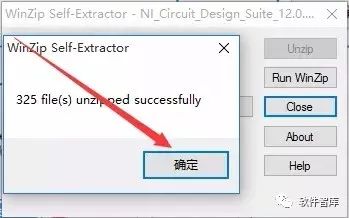
4. Click [OK]
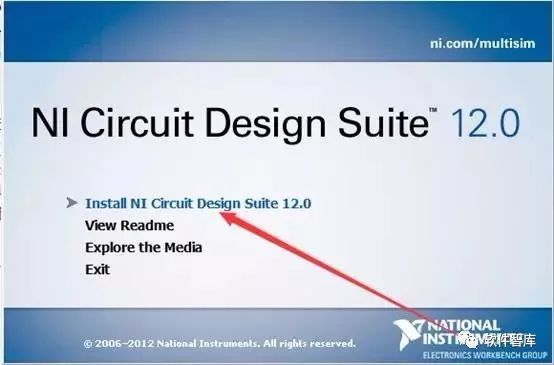
5. Click [Install NI Circuit Design Suite 12.0]
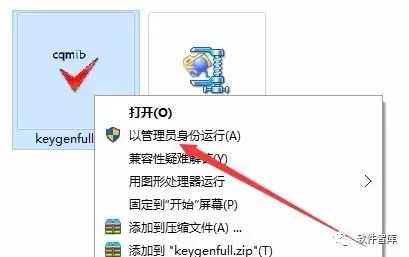
6. Return to the installation package folder, find keygenfull.exe in the Multisim 12.0 folder, right-click and choose [Run as administrator]
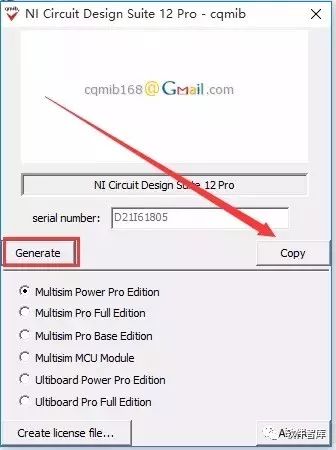
7. Click [Generate], then click [Copy]
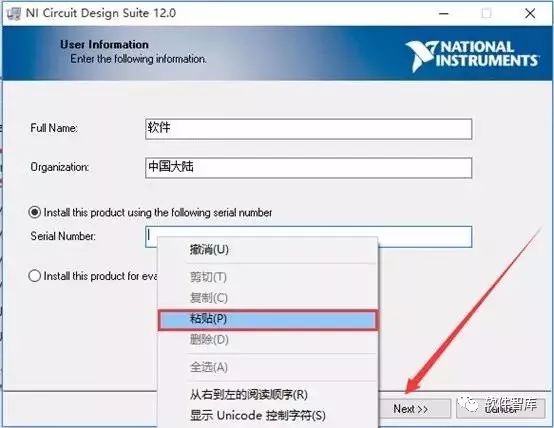
8. Enter any name, right-click in the blank space next to Serial Number, choose paste, then click [Next]
9. Choose the software installation path, the default is installed in the C drive, you can click [Browse] to change the installation location, note: the folder name of the installation path cannot contain Chinese characters! Here, I will install the software in the D drive under the Multisim 12.0 folder, then click [Next]
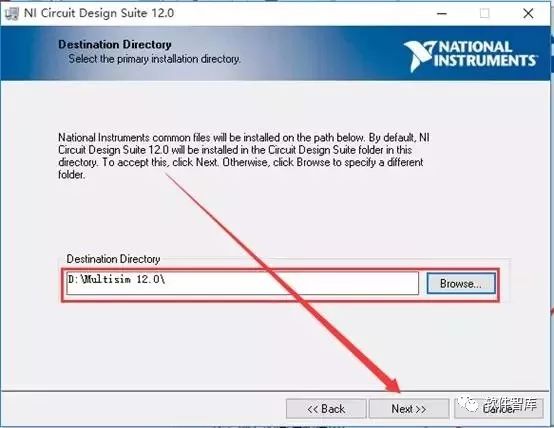
10. Click [Next]
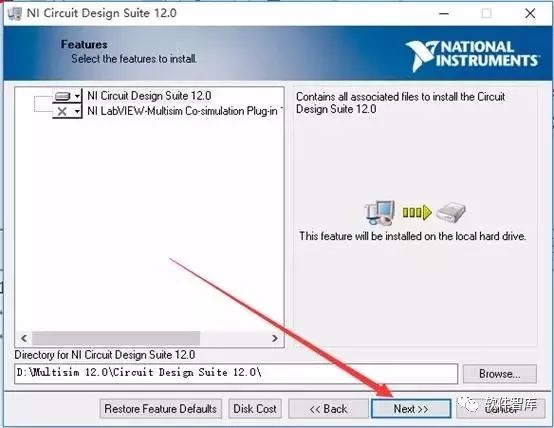
11. Click [Next]
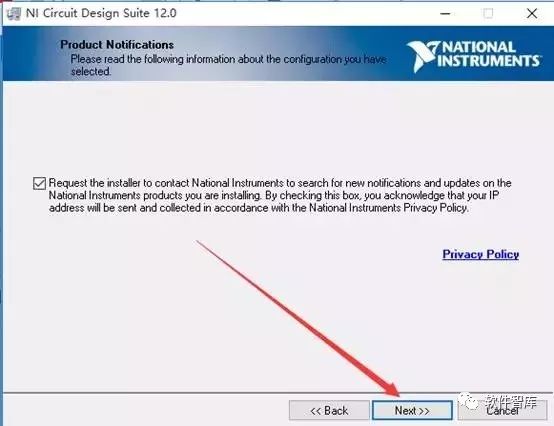
12. Check the “I accept the” option, then click [Next]
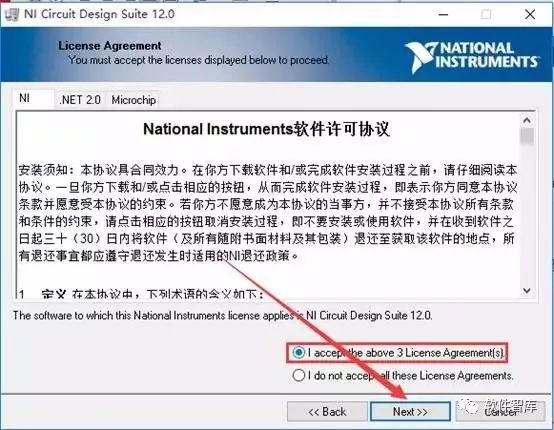
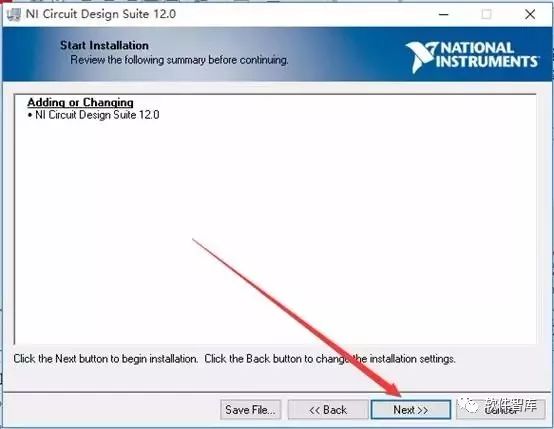
13. Click [Next]
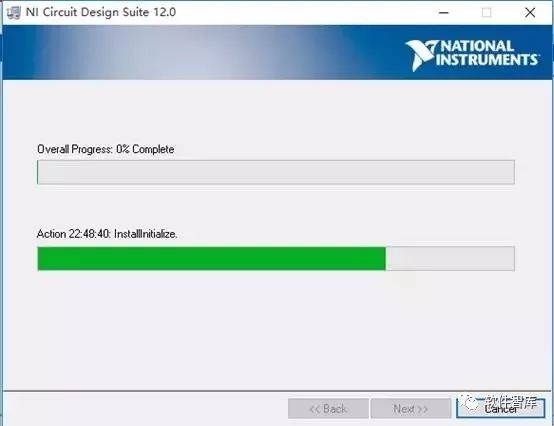
14. Installation in progress, please wait for about 10 minutes
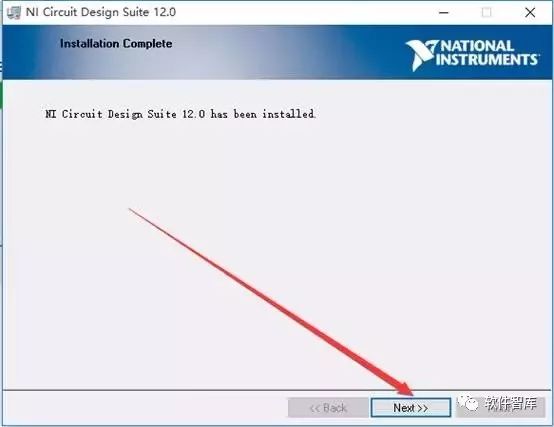
15. Click [Next]
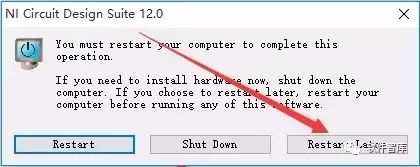
16. Click [Restart Later]
17. Return to the installation package folder, then find NI_Circuit_Design_Suite_12.0.exe, right-click and choose [Run as administrator], then click [Create license file…]
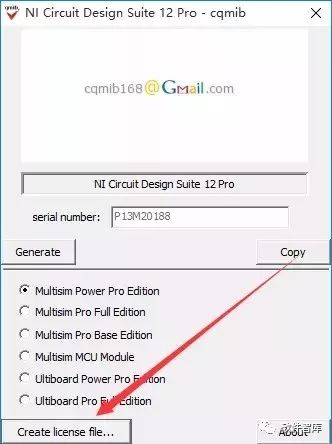
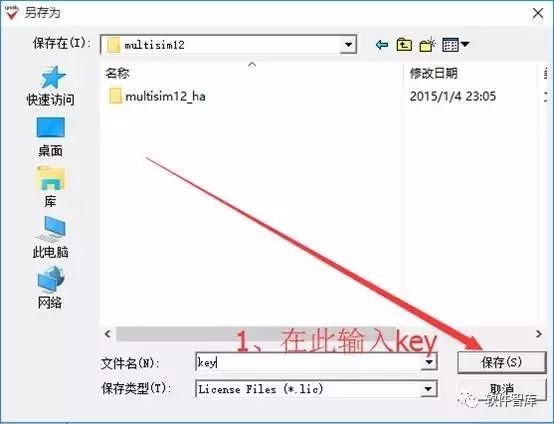
18. In the pop-up window, open the multisim12 folder (refer to the path in step 9), enter the key in the file name field, and click [Save]
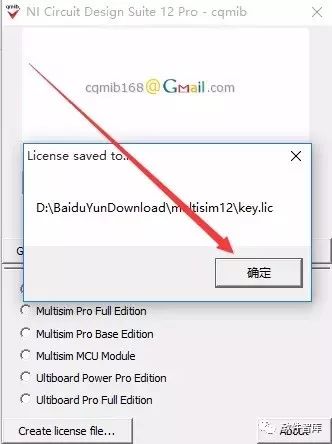
19. Click [OK]
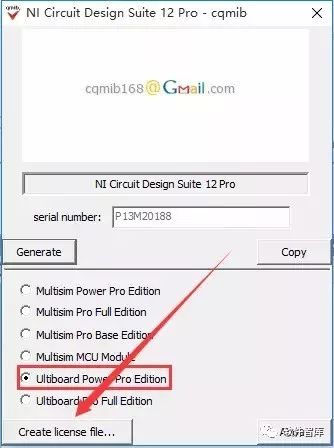
20. Select Ultiboard PowerPro Edition, click [Create license file…]
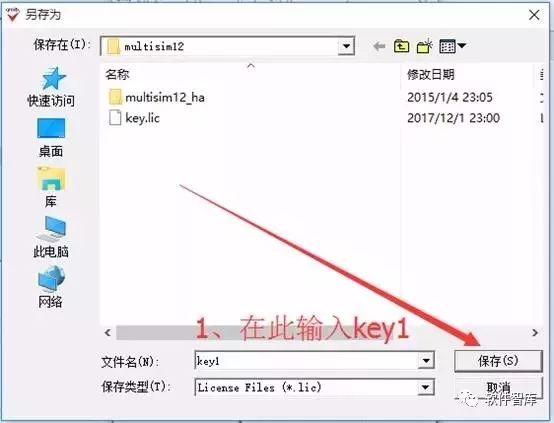
21. In the pop-up window, enter key1 after the file name, click [Save]
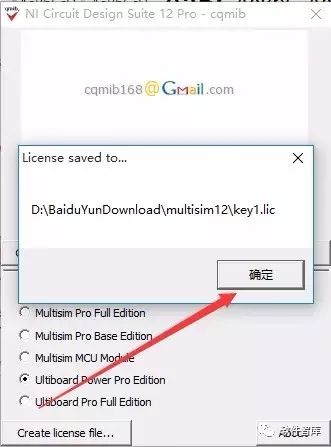
22. Click [OK]
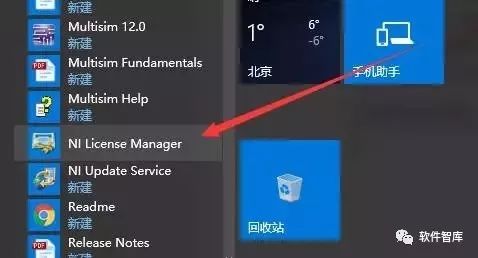
23. Click the start menu, click all programs, find NILicense Manager to open
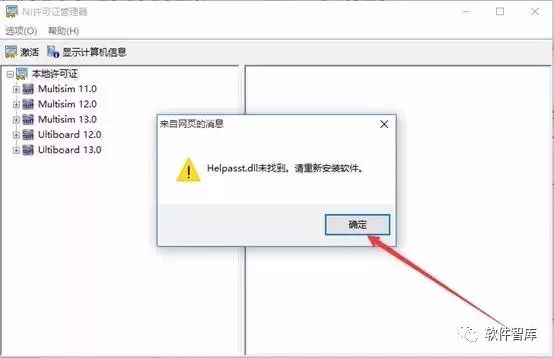
24. Click [OK]
25. Drag the key.lic file from the Multisim11 folder into the NI License Manager
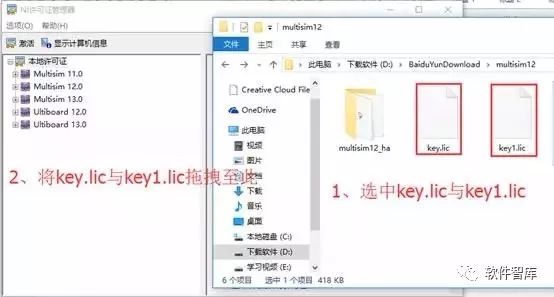
26. Click [Yes]
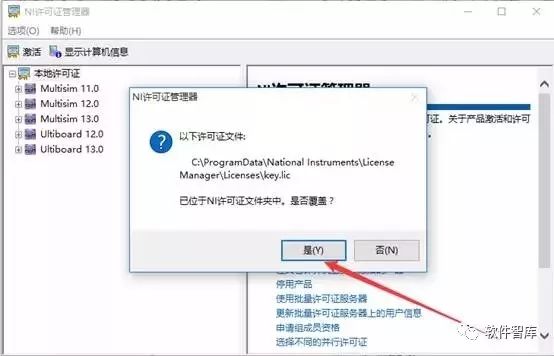
27. Click [Yes], and close this software.
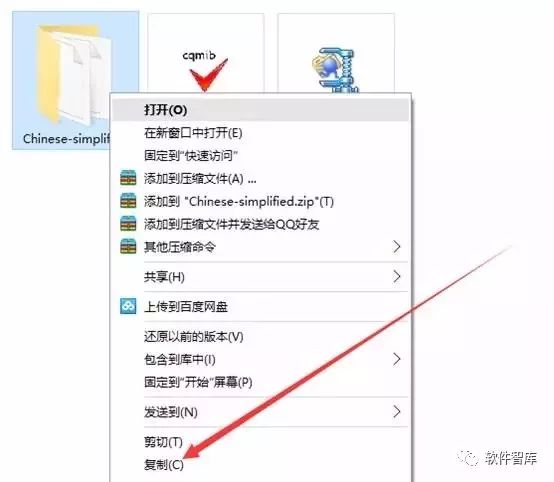
28. Return to the installation package folder, select the Chinese-simplified folder under the Multisim12 folder, right-click and choose copy
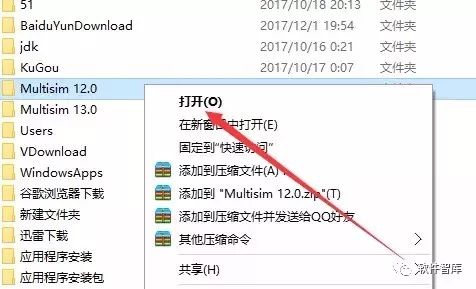
29. In the software installation path, find the Multisim12.0 folder (refer to the path in step 9), right-click and choose open
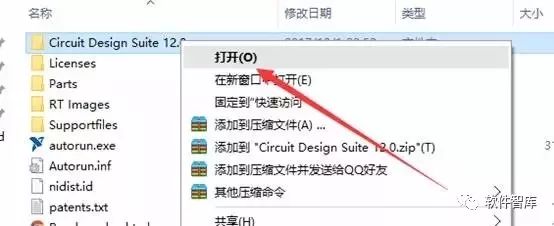
30. Find the Circuit Design Suite 12.0 folder, right-click and choose open
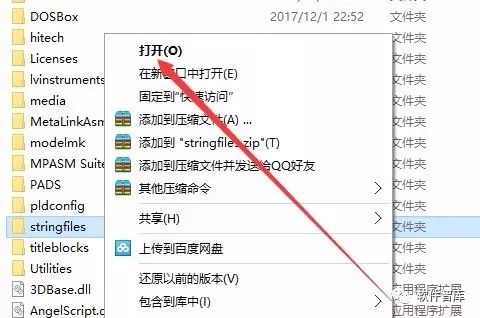
31. Find the stringfile folder, right-click and choose open.
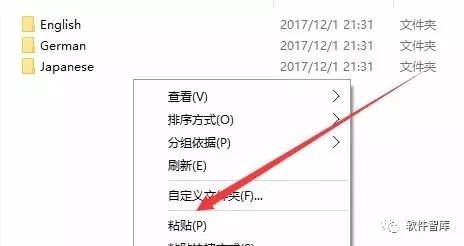
32. Right-click in the blank space, click to select paste.
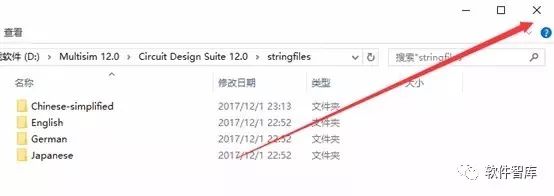
33. Close this window
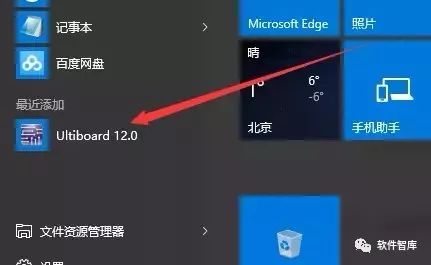
34. Click the start menu, find Ultiboard 12.0 to open
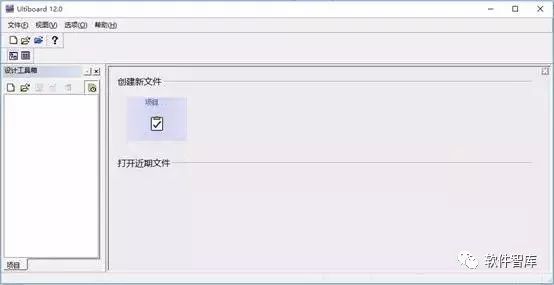
35. The Multisim 12.0 interface is as follows:
END
If you find it useful, feel free to share it with your friends!

Software Library
Installation · Learning · Technology · Innovation

·↑Long press this QR code to follow ↑·
WeChat ID: rjzkgzh