Have you ever had this experience? While typing commands on a Linux server, you decide to try Docker, but when you run <span>docker run</span>, the system coldly responds with “permission denied”. You sigh, switch to root, use sudo, and the container starts, but there’s always a nagging feeling—what if a script goes awry and root permissions compromise the entire system? As an experienced operations enthusiast, I understand this pain point. Today, I will discuss how to allow ordinary users to freely use Docker in Linux without having to constantly beg for root permissions.

Why is it so important to run Docker as a non-root user? Simply put, Docker requires root permissions by default to manipulate the host’s kernel namespaces, cgroups, and network stack. While this is powerful, it can also be a double-edged sword. A careless root user could allow container escape, disrupt the file system, or even compromise the entire host. Imagine testing an image in a development environment that hides a trojan; once root permissions are granted, it could lead to disaster. In non-root mode, risks are isolated within a user sandbox, exemplifying the Principle of Least Privilege. In enterprise production environments, this is standard practice—consider compliance audits; root abuse is a major taboo.
To solve the non-root issue, we first need to understand why Docker is so “proud”. The core of Docker is Linux container technology, managed by the daemon (dockerd) process. This daemon runs as root by default and listens on the Unix socket <span>/var/run/docker.sock</span>, with permissions set to srw-rw—- (root:docker group). For ordinary users to send commands to it, they must have read and write permissions on this socket—by default, only root and members of the docker group can access it.
Recall the Docker installation process (assuming you installed it from the official repository on Ubuntu/Debian). After installation, Docker automatically creates the docker group but does not add your user to it. When you run <span>docker ps</span>, the system checks your uid/gid, finds a mismatch, and throws an error. Essentially, this is a combination of file system permissions (chmod/chown) and group membership checks.
Why not default to non-root? It’s a historical legacy. When Docker was first designed, security wasn’t a top priority; now, with rapid community iterations, rootless mode has emerged. But let’s not dwell on the past; let’s take action: the first step is to confirm your environment.
Open a terminal and run these commands to check:
# Check if Docker is installed and running
docker --version
systemctl status docker
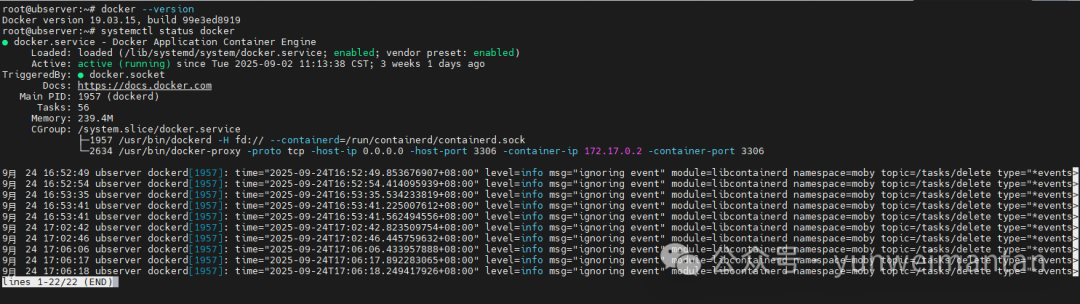
# Check current user groups
groups $USER
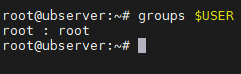
# Check socket permissions
ls -l /var/run/docker.sock

If the docker group does not exist, create it: <span>sudo groupadd docker</span>. At this point, you might wonder: is adding to the group enough? Not quite. We will discuss this in detail in the next section.
Basic Configuration
This is the simplest and most common solution: add the user to the docker group. It sounds like elementary school homework, but details determine success or failure. I have stumbled here: after adding to the group, restarting the shell did not take effect, and permissions were still incorrect.
Let’s go through it step by step.
Step 1: Install Docker (if not already installed)
Assuming you are using Ubuntu 22.04, the process is similar for CentOS/RHEL. Do not use the snap version, as it has more permission issues.
# Update the repository
sudo apt update

# Install dependencies
sudo apt install ca-certificates curl

# Add Docker GPG key and repository
sudo install -m 0755 -d /etc/apt/keyrings
curl -fsSL https://download.docker.com/linux/ubuntu/gpg -o /etc/apt/keyrings/docker.asc
sudo chmod a+r /etc/apt/keyrings/docker.asc
echo "deb [arch=$(dpkg --print-architecture) signed-by=/etc/apt/keyrings/docker.asc] https://download.docker.com/linux/ubuntu $(. /etc/os-release && echo "$VERSION_CODENAME") stable" | sudo tee /etc/apt/sources.list.d/docker.list > /dev/null

# Install Docker
sudo apt update
sudo apt install docker-ce docker-ce-cli containerd.io docker-buildx-plugin docker-compose-plugin
For CentOS users, switch to yum/dnf, and adjust the repository URL slightly. After installation, start the service: <span>sudo systemctl enable --now docker</span>.
Step 2: Create and Configure the Docker Group
sudo groupadd docker  # If it does not exist
sudo usermod -aG docker $USER  # Add current user to the group, -a is append to avoid overwriting other groups
The key here is <span>-aG</span>; without -a, the user will be removed from other groups, which is disastrous.
Step 3: Apply Group Changes
Adding to a group is not plug-and-play; you need to restart the session. Options include:
- Log out and log back in (the most thorough).
- Or run
<span>newgrp docker</span>, but this only affects the current shell. - Verify:
<span>groups $USER</span>, and if you see docker, you are good to go.
Step 4: Test Non-Root Execution
docker run hello-world
If you see “Hello from Docker!”, congratulations! If not, check the logs: <span>sudo journalctl -u docker -f</span>. Common issues include interference from SELinux (CentOS) or AppArmor (Ubuntu), which we will discuss in troubleshooting later.
What are the pros and cons of this solution? Pros: simple, no extra configuration. Cons: members of the docker group still inherently have root-level access risks to the socket, as the socket connects to the root process of dockerd. Want to be more secure? Read on for advanced modes.
After adding to the group, you may find permission issues when mounting container volumes. For example, running an Nginx container where the host directory <span>/data</span> is owned by your user, but writing files in the container results in “Operation not permitted”. Why? Docker runs with root user inside the container by default, and the file uid is 0, which does not match the host.
Use <span>--user</span> to specify the user inside the container:
docker run -d --name nginx -v /data:/usr/share/nginx/html --user $(id -u):$(id -g) nginx
This sets the container process uid/gid to your user ID. Verify with: <span>docker exec nginx whoami</span>, which should output your username.
A more elegant solution: use Docker Compose. Create a <span>docker-compose.yml</span>:
version: '3.8'
services:
  nginx:
    image: nginx
    volumes:
      - /data:/usr/share/nginx/html:delegated
    user: "${UID:-1000}:${GID:-1000}" # Inject environment variables
    ports:
      - "8080:80"
Run <span>UID=$(id -u) GID=$(id -g) docker-compose up -d</span>. The delegated mode optimizes IO performance and is worth trying.
The default socket has 660 permissions (rw for owner/group). Want to be more specific? Change it to 770 (only group), or use ACL:
sudo setfacl -m u:$USER:rw /var/run/docker.sock
But this is temporary; it will be lost when Docker restarts. To make it persistent: edit <span>/lib/systemd/system/docker.service</span> and add <span>ExecStartPost</span>:
[Service]
ExecStartPost=/usr/bin/setfacl -m u:1000:rw /var/run/docker.sock
Then run <span>sudo systemctl daemon-reload && sudo systemctl restart docker</span>. Replace 1000 with your uid.
These tricks have saved me on multi-user servers: after adding Developer A to the group, Developer B’s files were being overwritten by A’s container. With ACL in place, permissions are kept separate.

Important! Operations Discussion – Technical Group Open for External Access!Scan the code to add the editor’s WeChat, and apply to join the group.Group ▲ Long press to join the group