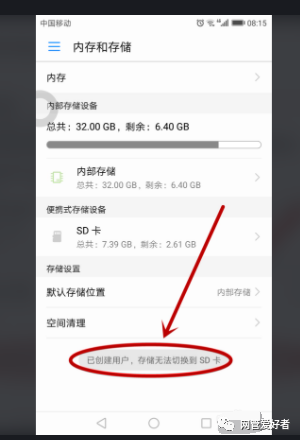
User Created, Storage Cannot Switch to SD Card:
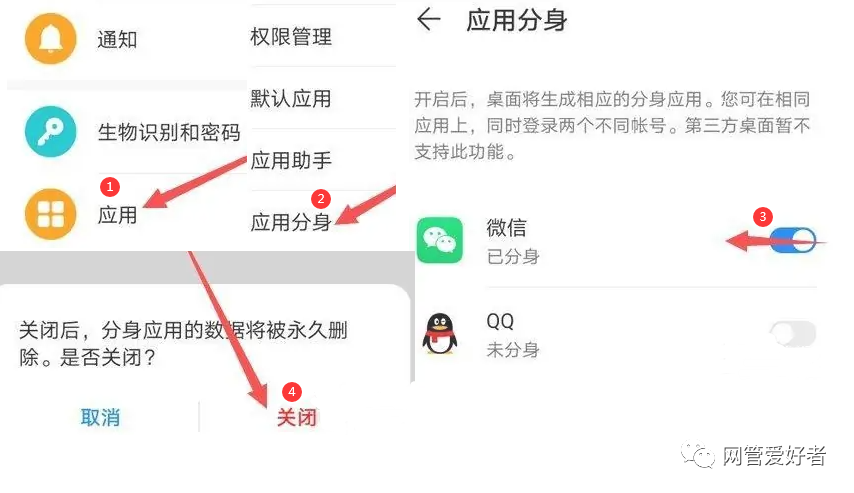
1. Reason for the Issue: Please check in 【Settings】 > 【Advanced Settings】 > 【Users】, whether multiple users have been created? If so, delete them. Also, check in 【Settings】 > 【App Twin】, whether the App Twin feature is enabled? If it is, please disable it.
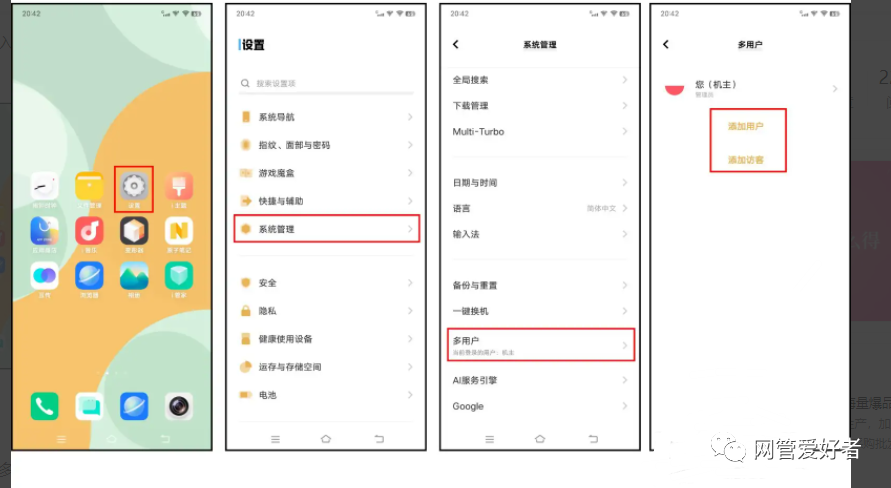
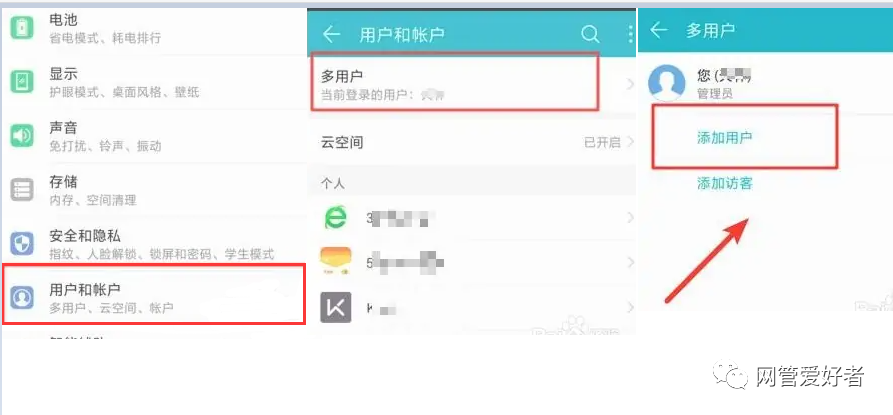
2. In the case of multiple users or the App Twin feature being enabled, the default storage location can only be internal storage and cannot switch to microSD card.
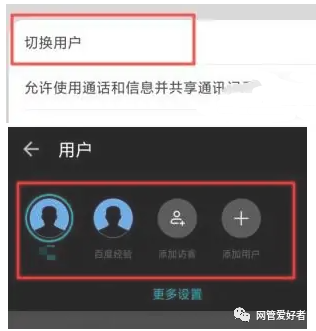
3. Solution: If you want to set the default storage location to the microSD card, please first delete multiple users from the phone or disable the App Twin feature.
4. Reminder: If your SD card has a small capacity, it is not recommended to set the SD card as the default storage location.
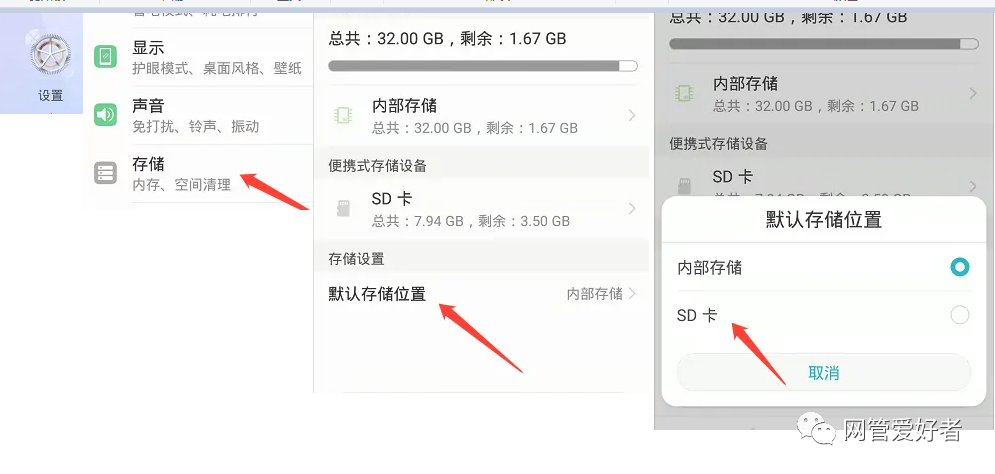
Samsung phones cannot change the storage location. (You can only choose between phone memory and built-in SD card, and cannot choose the external SD card as the default location.) You can move already installed software to the external SD card (external storage card) to indirectly increase the space of the built-in SD card. The method is as follows:
1. First, download the 360 Mobile Assistant on your computer, and install it on your computer.
2. After installation, open the phone and connect it to the computer using a USB data cable through the 360 Mobile Assistant.
3. Open the 360 Mobile Assistant on the computer.
4. After opening, click on 【My Phone】.
5. Then select 【App Management】.
6. Once in the 【App Management】 page, select 【Installed】, and the installed applications will appear.
7. At this time, you will find that almost all installed applications are in the phone memory; find the application you want to move to the SD card and click 【Move to SD Card】 on the right.
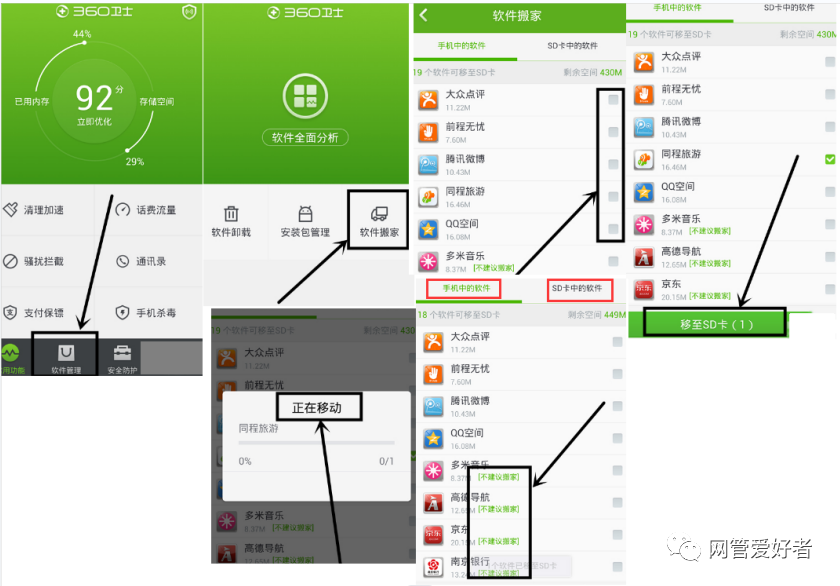
8. Wait a moment, and the move will be successful. After moving successfully, it will show 【Move to Internal Memory】.
If you have enabled privacy space, multiple user space, or App Twin, you cannot change the default storage location.
Check if the App Twin feature is enabled.
After disabling the App Twin, all data of the twin will be deleted, so please back up the data using the backup/recovery function inside the App Twin application in advance.
To prevent the information stored on the SD card from being leaked, when the App Twin is enabled, switching the SD card to the main storage path is not supported. Please go to settings, search for App Twin, and check whether the App Twin switch is turned on. If it is on, please turn off the App Twin switch.
You can go to Settings — (Apps and Permissions) — App Twin — turn off the switch behind the twin software (for some models, it is to turn off the “Show Twin Button”).
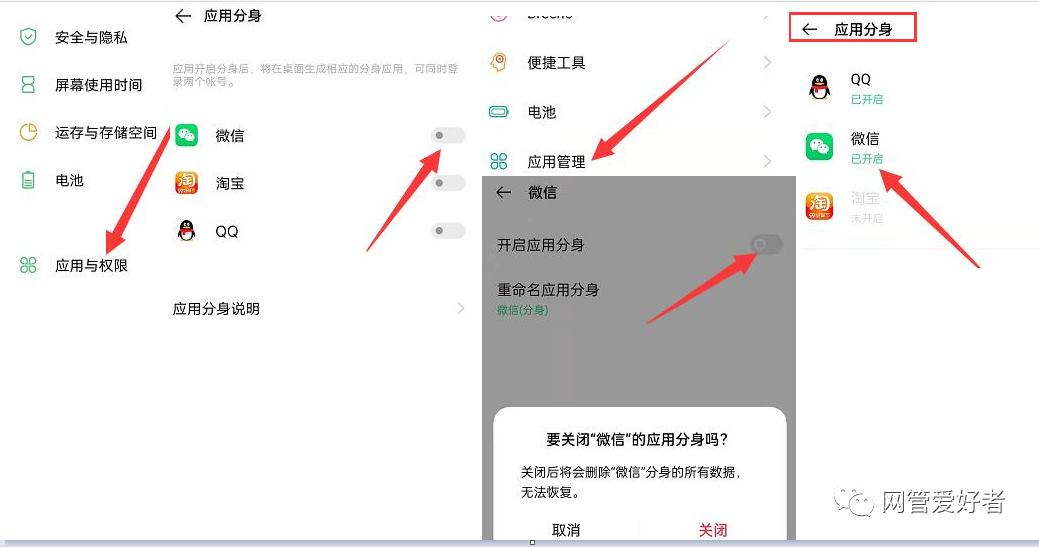
1. First, check whether there are settings for App Twin, multiple user mode, privacy space, or third-party applications that create users on the phone, and whether the storage card has been encrypted.
2. First, back up important data in the privacy space (WeChat, QQ, etc. applications separately), then go to settings, search for the privacy space interface, click the trash can or three-dot icon in the upper right corner, delete the privacy space, and then proceed with the settings.
3. I have encountered similar issues before; deleting the privacy space allowed me to set it.
4. To prevent the information stored on the storage card from being leaked, when the App Twin is enabled, switching the SD card to the main storage path is not supported. Therefore, the App Twin feature must be turned off before trying again.
5. The MatePad Pro 10.8 tablet uses the HarmonyOS; the current Lexar Huawei authorized NM card used will prompt “User Created, Storage Cannot Switch to SD Card” when clicking on the default storage location in settings. After some exploration, I found the solution: it is necessary to delete “App Twin” in settings, delete other users except the main user, and delete the privacy space.
6. If you receive a prompt that a user has been created and storage cannot switch to the SD card, and the App Twin application has been disabled, it still cannot switch to the storage card; the answer is to go to Settings > Security > More Security Settings > Encryption and Credentials to check if an SD card password has been set. This indicates that if you see the prompt “User Created, Storage Cannot Switch to SD Card” in HarmonyOS, please try the above methods; most issues arise from enabling the App Twin, privacy space, or creating multiple users.
7. Check if an SD card password has been set: EMUI 4.X & 5.0: Settings > Advanced Settings > Security > Cancel SD Card Password; EMUI 5.1 & EMUI 8.X: Settings > Security and Privacy > More Security Settings > Cancel SD Card Password; EMUI 9.X & Magic UI 2.X: Settings > Security and Privacy > More Security Settings > Encryption and Credentials > Unlock Storage Card; EMUI 10.X & Magic UI 3.X: Settings > Security > More Security Settings > Encryption and Credentials > Unlock Storage Card.
Check if the App Twin feature is enabled: After disabling the App Twin, all data of the twin will be deleted, so please back up the data using the backup/recovery function inside the App Twin application in advance.