Review of Previous Tutorials:
Zero Host Installation! NVIDIA Jetson AGX Thor System Installation Guide
Quick Start! NVIDIA Jetson AGX Thor Developer Kit Development Environment Configuration Guide
Following the system installation and environment configuration, this issue will continue to take you deeper into the development tutorial journey of NVIDIA® Jetson AGX Thor™ to learn how to efficiently deploy the vLLM inference service on Jetson AGX Thor using Docker.
The specific content includes:
-
Introduction and Advantages of vLLM
-
Building vLLM Docker Container
-
Using vLLM to Download Models Online
-
Running Local Models with vLLM
-
Using Chatbox as Frontend to Call Models Running on vLLM
1. Introduction and Advantages of vLLM
1
What is vLLM?
vLLM is an efficient inference and service engine for large language models, specifically optimized for attention mechanisms and memory management, capable of providing extremely high throughput.
2
Advantages of Running vLLM on Jetson AGX Thor:
-
PagedAttention Technology: Significantly reduces memory fragmentation and improves GPU utilization
-
Continuous Batching Mechanism: Capable of continuously processing requests of varying lengths
-
Open Source Ecosystem: Supports mainstream open-source models (Llama, Qwen, ChatGLM, etc.)
2. Building vLLM Docker Container
In the previous NVIDIA Jetson AGX Thor Developer Kit development environment configuration tutorial, we completed the installation and configuration of Docker. Now, we just need to pull the vLLM image using Docker.

Current Docker Version
1. Following the method introduced in the previous tutorial, after registering and logging into NGC, search for vLLM to enter the container page, click “Get Container”, and copy the image directory.
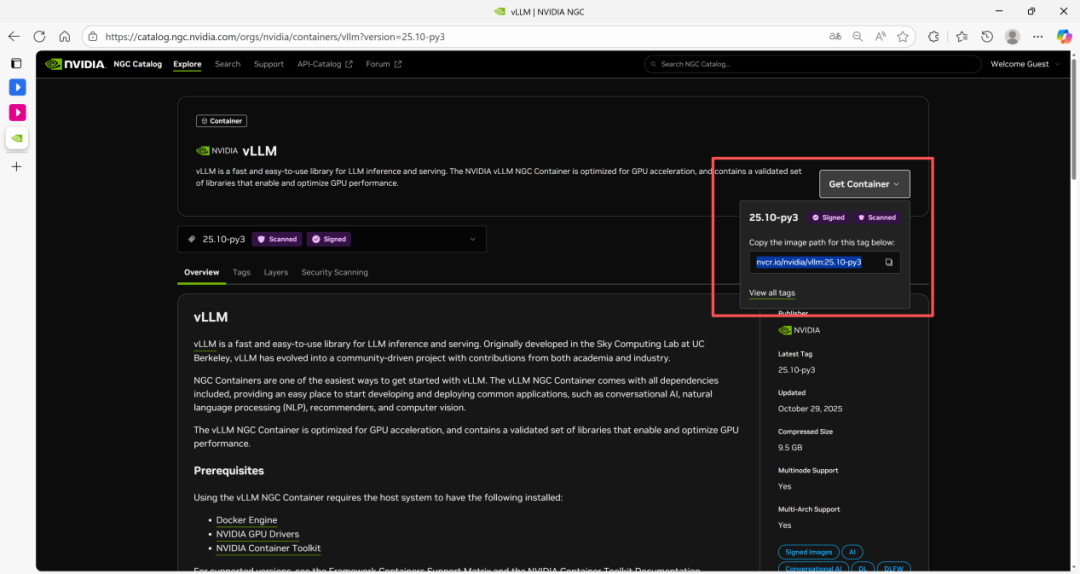
2. Run the command docker pull nvcr.io/nvidia/vllm:25.10-py3 to download the image.

3. After the download is complete, run the container and create the startup command.
sudo docker run -d -t \ --net=host \ --gpus all \ --ipc=host \ --name vllm \ -v /data:/data \ --restart=unless-stopped \ nvcr.io/nvidia/vllm:25.10-py3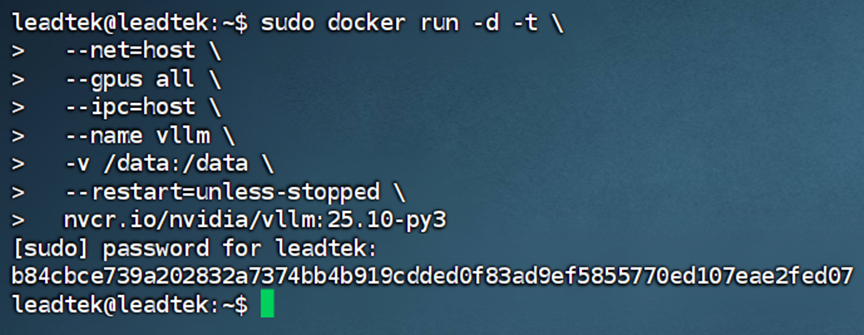
Note: Key Parameter Descriptions
-
-d (detach): Run the container in the background
-
-t (tty): Allocate a pseudo-terminal for convenient log output
-
–name vllm: Specify the name “vllm” for the container
-
–net=host: Use the host network mode, sharing the network namespace with the host
-
–gpus all: Expose all available GPU devices to the container
-
–ipc=host: Use the host’s IPC namespace to improve inter-process communication performance
-
-v /data:/data: Mount the host’s /data directory to the container’s /data directory, which can be used for persisting model files, configuration files, and other data
-
–restart=unless-stopped: Docker container restart policy parameter, indicating that the container will automatically restart unless manually stopped (e.g., due to crash or host reboot), but will not automatically recover if manually stopped
4. After the container is successfully created, use the command docker exec -it vllm /bin/bash to enter this container.

3. Using vLLM to Download Models Online
1. Download Model Weights from Hugging Face:
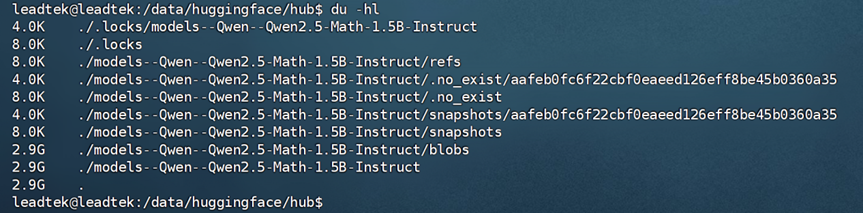
The default model download directory is:.cache/huggingface/hub/, by setting the environment variable, we will specify the model to be downloaded to:export HF_HOME=/data/huggingface directory, then execute vllm serve “Qwen/Qwen2.5-Math-1.5B-Instruct”, this command will pull the model from Hugging Face online and start running.
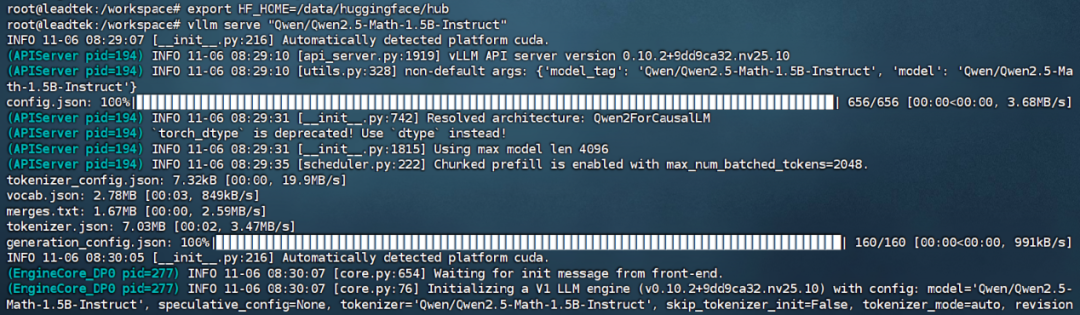
2. Wait for the model file to download (requires scientific internet access).
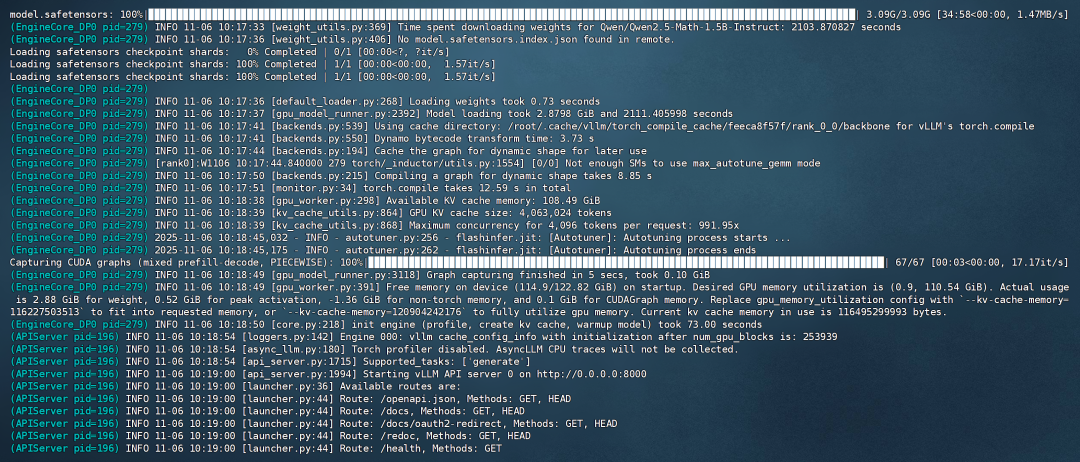
Note: To facilitate subsequent calls, it is recommended to confirm that the model has been downloaded to the preset directory through the local terminal (as shown in the figure below).
In the absence of a frontend, you can send chat requests to the vLLM service using the curl command.
curl http://localhost:8000/v1/chat/completions \-H "Content-Type: application/json" \-d '{ "model": "Qwen/Qwen2.5-Math-1.5B-Instruct", "messages": [{"role": "user", "content": "12*17"}], "max_tokens": 500}'
Note: Key Parameter Descriptions
-
curl: Command-line tool for transferring data
-
http://localhost:8000: Local server address and port
-
/v1/chat/completions: OpenAI compatible chat completion API endpoint
-
-H: Set HTTP request header
-
“Content-Type: application/json”: Specify the request body as JSON format
-
-d: Set request data
-
“model”: “Qwen/Qwen2.5-Math-1.5B-Instruct”: Specify the model to be used, this name should match the model name specified when starting the vLLM service
-
“messages”:[{“role”: “user”, “content”: “12*17”}]: Define the conversation history and current message
-
Message object fields: “role” indicates the message role; “user” indicates user messages, “content” indicates the specific content of the message; “12*17” indicates the math question posed by the user
-
“max_tokens”: 500: Limit the maximum number of tokens generated by the model
4. Running Local Models with vLLM
As mentioned earlier, the model has been downloaded and saved to the specified local directory, and can be started directly using its path.
Taking the “Qwen/Qwen2.5-Math-1.5B-Instruct” model as an example, the model weight path is:
“/data/huggingface/hub/models–Qwen–Qwen2.5-Math-1.5B-Instruct/snapshots/aafeb0fc6f22cbf0eaeed126eff8be45b0360a35”.

Execute the following command to run the local model.
vllm serve /data/huggingface/hub/models--Qwen--Qwen2.5-Math-1.5B-Instruct/snapshots/aafeb0fc6f22cbf0eaeed126eff8be45b0360a355. Using Chatbox as Frontend to Call Models Running on vLLM
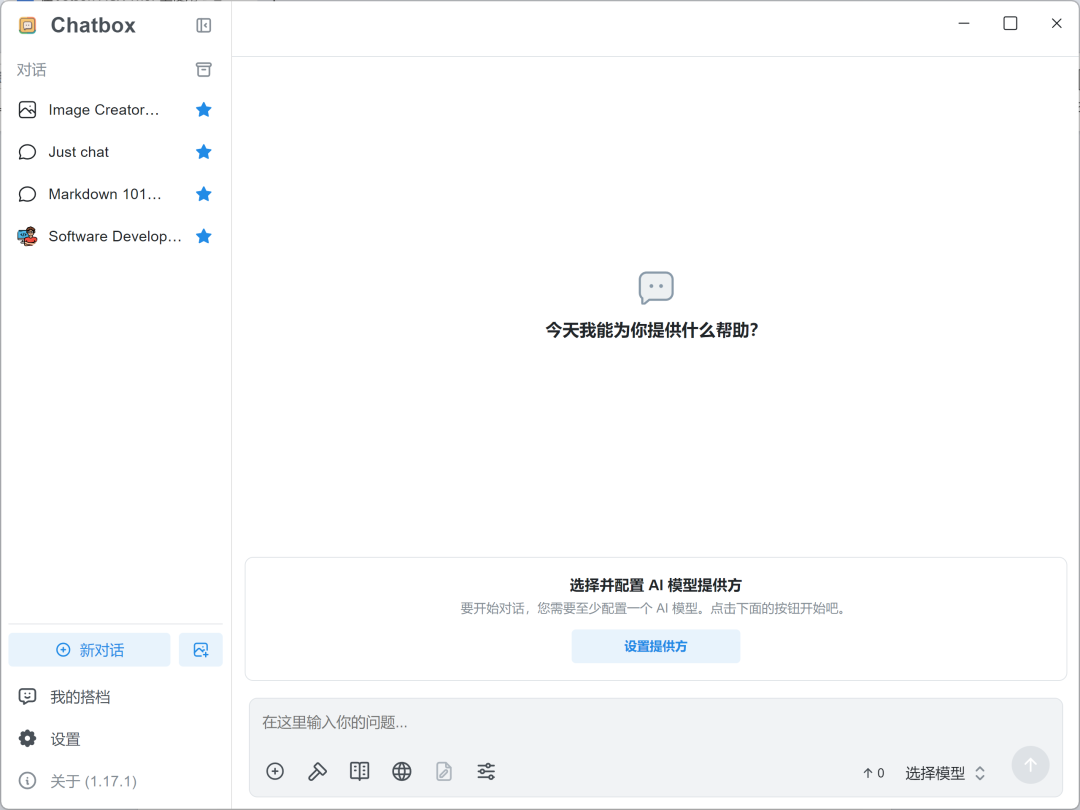
1. Access the Chatbox official website within the local area network (https://chatboxai.app), download and install the Windows version.
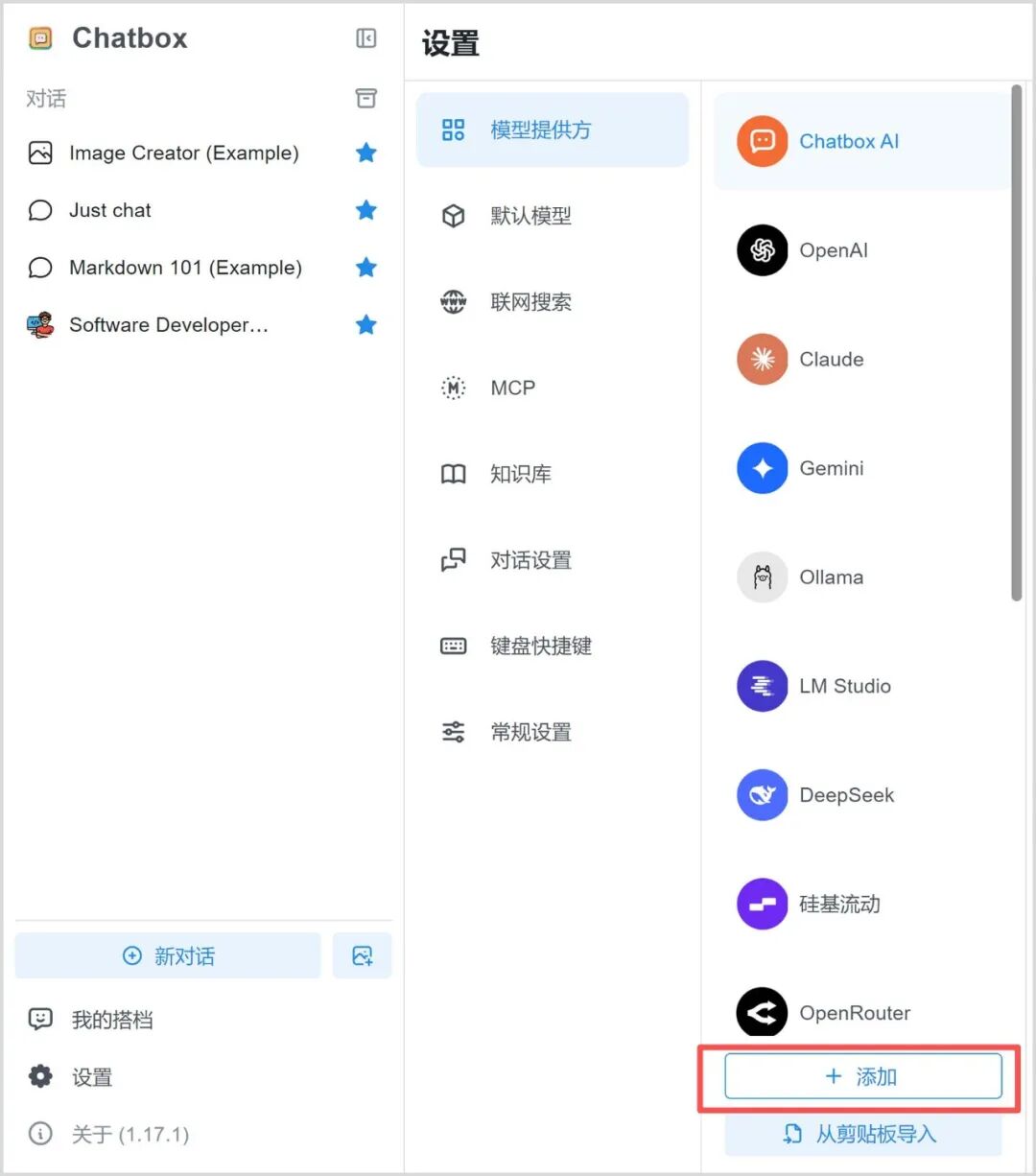
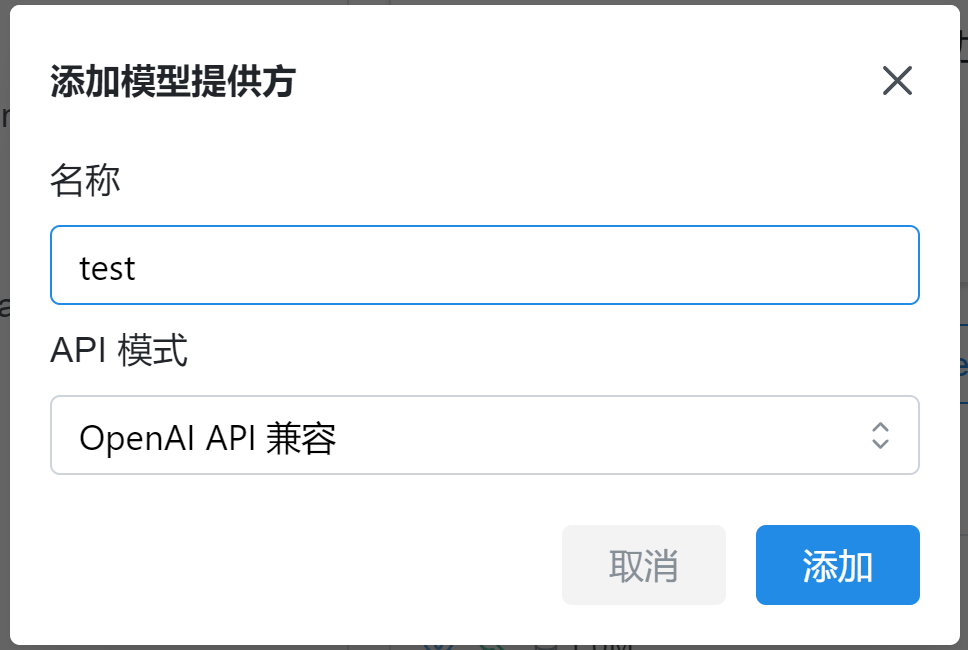
2. Click “Set Provider” — “Add”, enter a name, and click “Add” again.
Scroll up and down to view
3. The API host can input the Jetson AGX Thor host IP and the vLLM service port number.
(Example: http://192.168.23.107:8000)
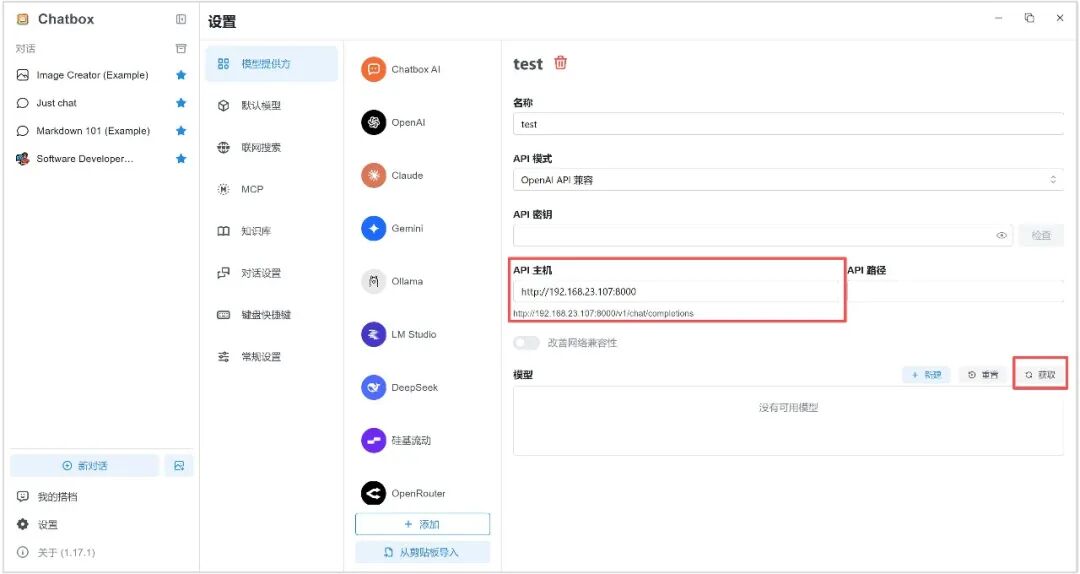
4. Select the model running on vLLM and click “+”.
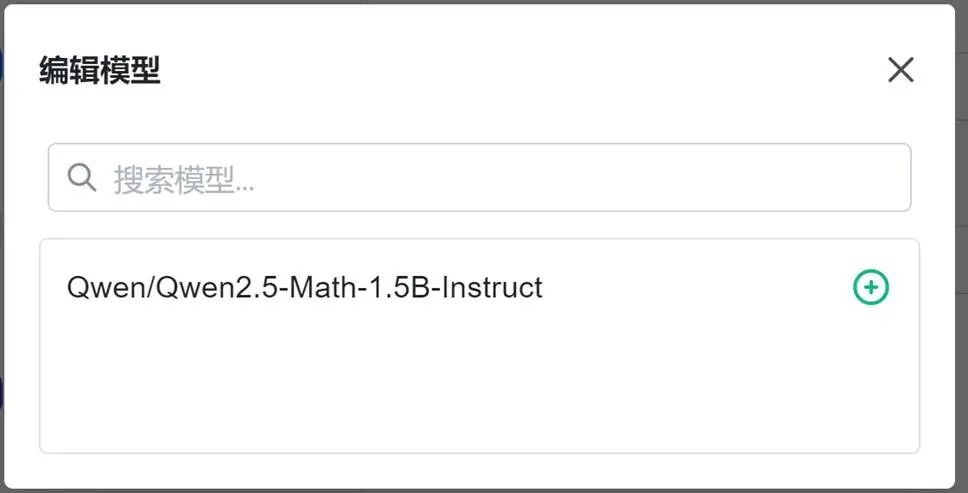
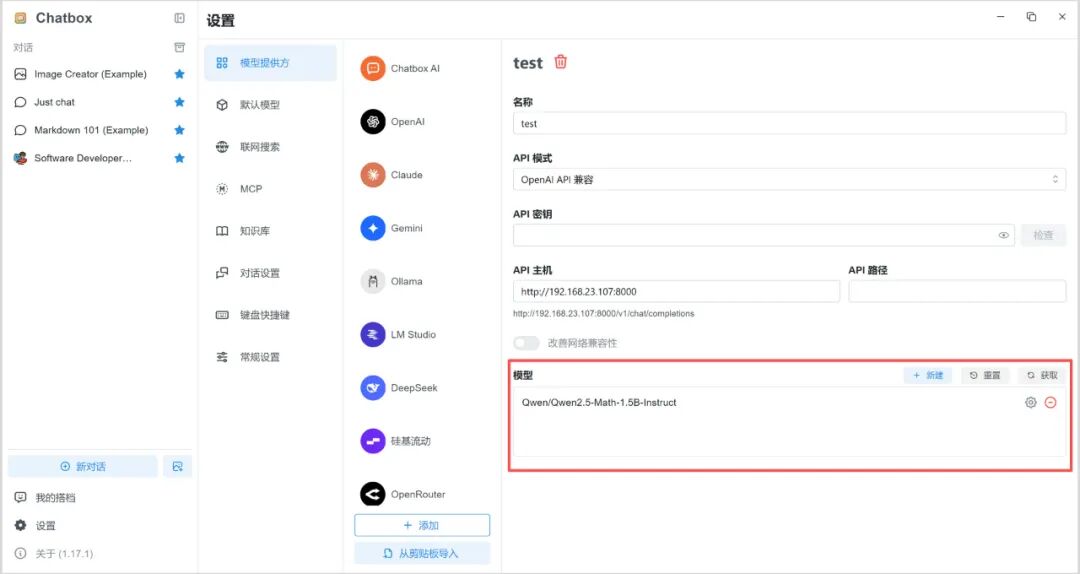
5. Click “New Conversation”, select the model in the lower right corner to start the conversation.
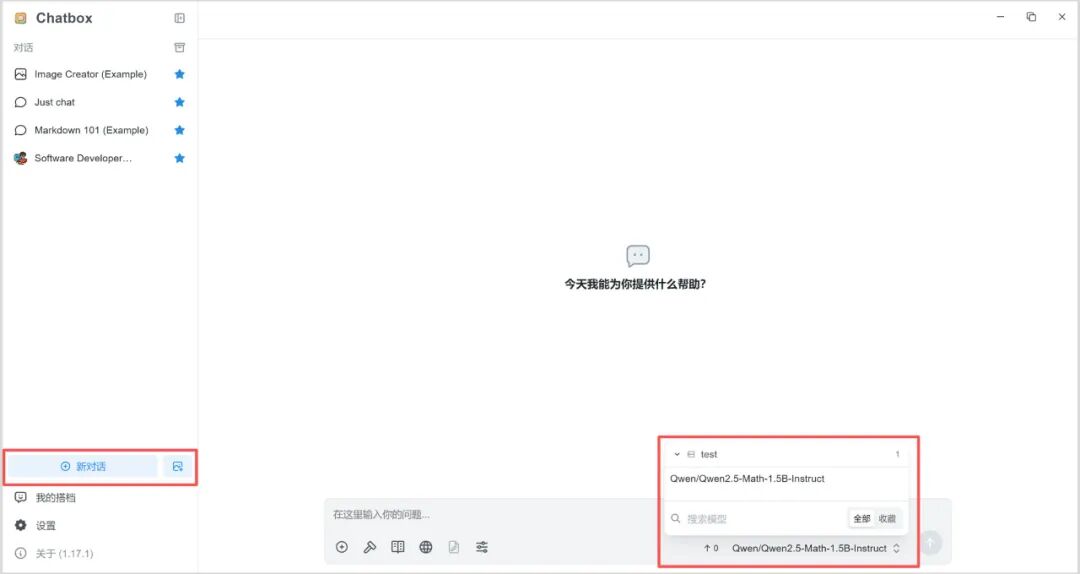
6. Example Run
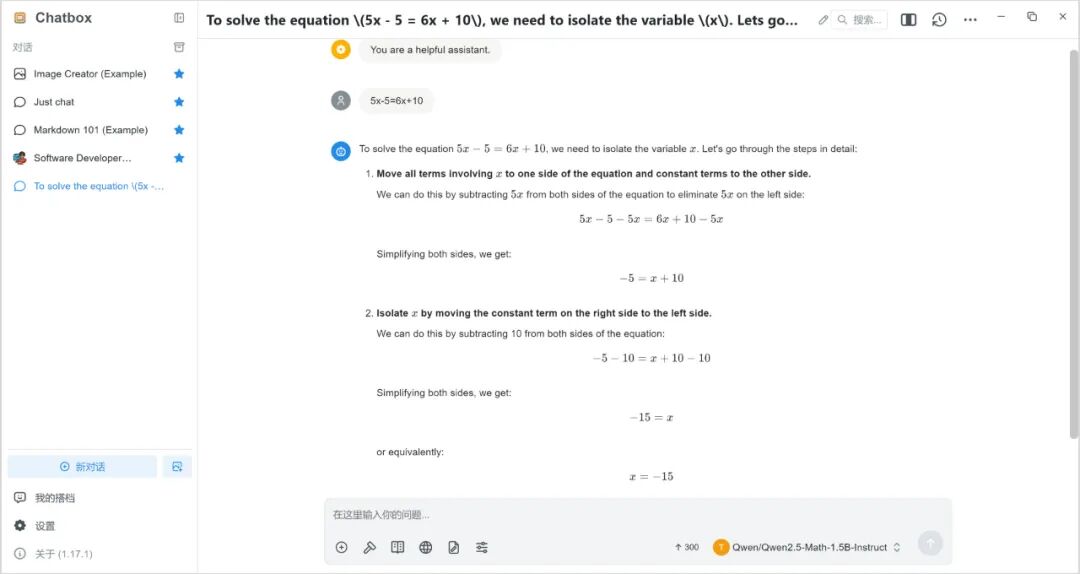
Since Qwen2.5-Math is a specialized large language model for mathematics, we will ask a math question in this example, and the result is as follows:
More exciting tutorials, stay tuned!
Welcome to inquire:
13828433060020-38104195