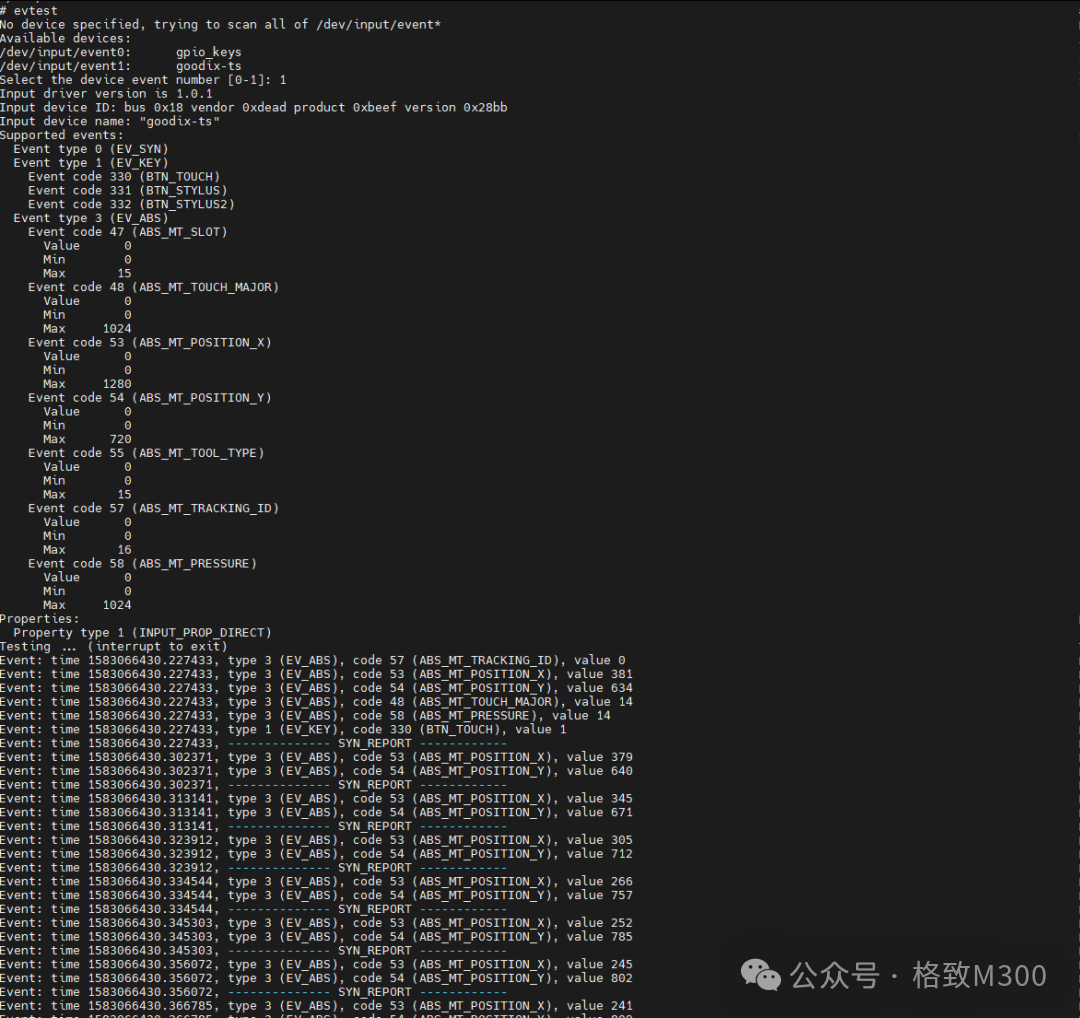
The M300 SDK supports a wide range of touch screens. Due to the limited number of users utilizing screens, the documentation on how to configure the screen on the M300 is somewhat vague. This article introduces how to configure the touch screen in the SDK and the testing process.Note: This article uses SDK v7 for demonstration.Screen OverviewTo correctly configure the screen’s driver and properties, it is essential to confirm the type of screen. Taking the screen configured for the Junzheng development board as an example, the model number is printed on the back of the screen: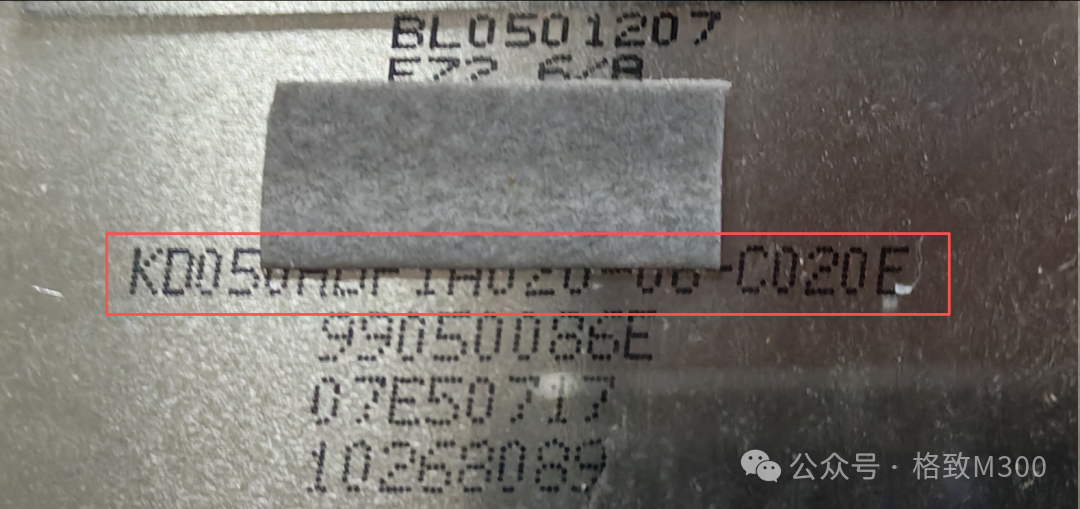 Additionally, the chip on the connection line of the touch-enabled screen determines which driver supports touch functionality. For example: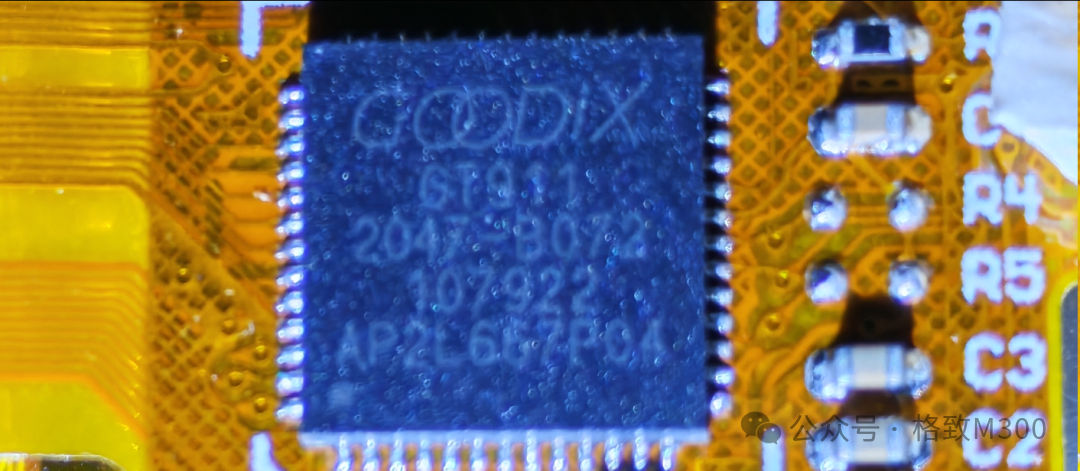
This is the GT911 series touch chip from Goodix (汇顶科技).
Kernel ConfigurationWith the above information, you can proceed to configure the kernel accordingly. Execute make kernel-menuconfig in the SDK root directory. Under Ingenic device-drivers Configurations > [LCD] Panel/Touchscreen Drivers > Ingenic Framebuffer Driver for stage > Supported lcd panels, check the following: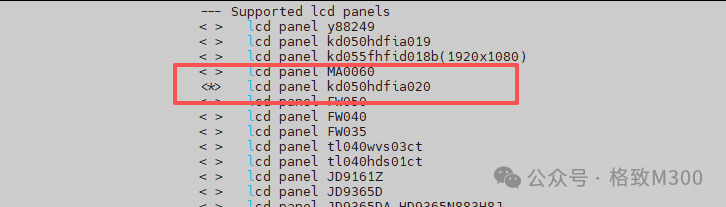 Note that the model here matches the silk screen on the back of the screen. InIngenic device-drivers Configurations > [LCD] Panel/Touchscreen Drivers > Touchscreen Drivers, check the following:
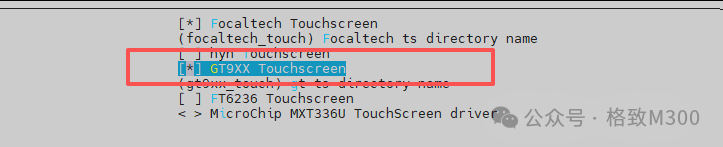 The model selected here should match the touch chip on the connection line.Device Tree ConfigurationIn addition to the corresponding kernel driver configuration, you also need to make the corresponding settings in the device tree. Open the file in the SDK root directory:
kernel/kernel-5.10/module_drivers/dts/gewu_v10.dtsFirst, configure the screen parameters: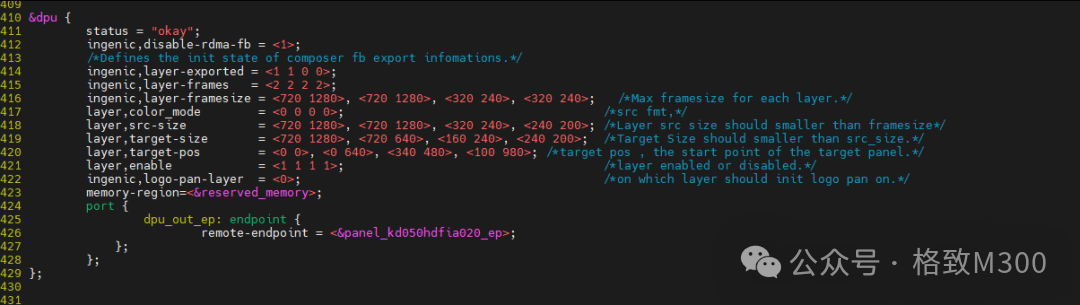
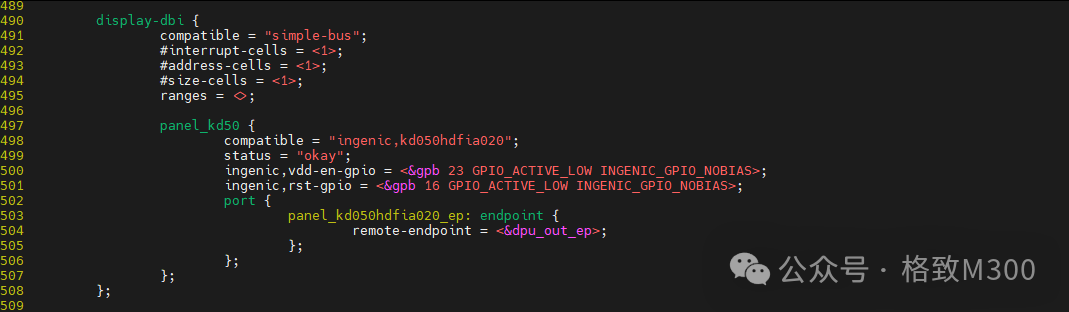 Then configure the touch part:
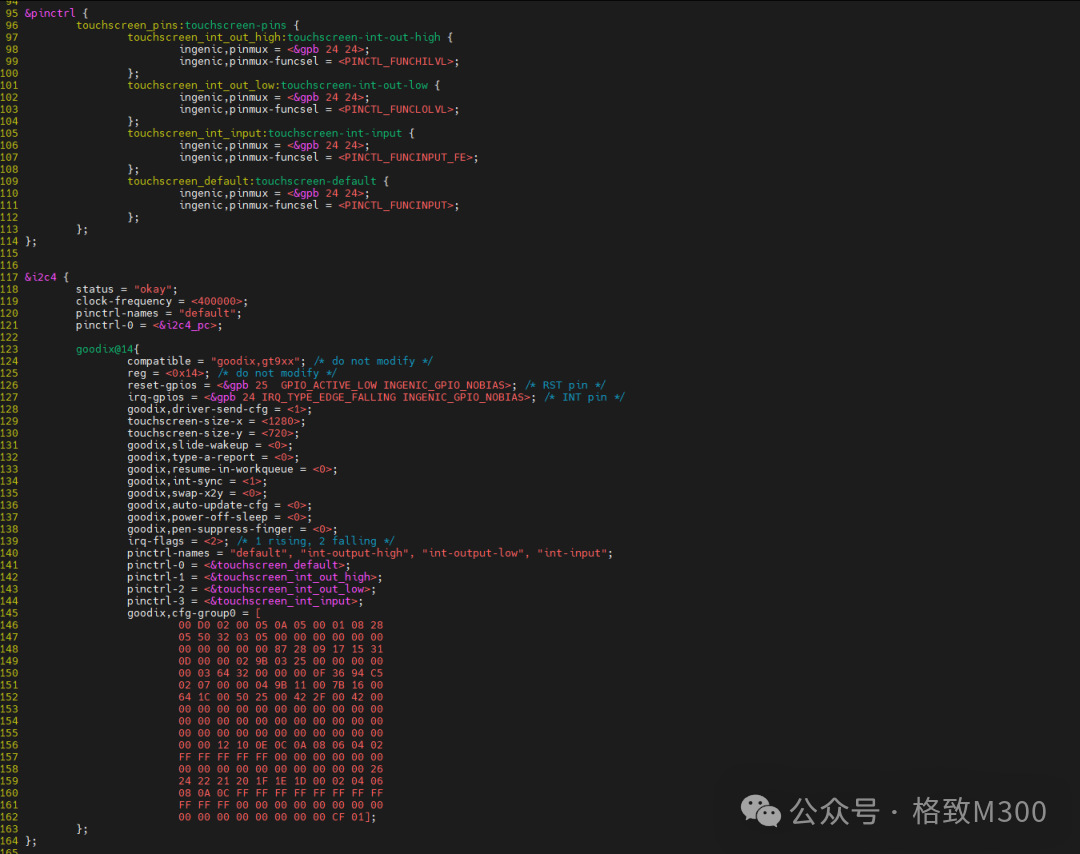 Ensure that the GPIO and I2C configurations for the touch part are correct. After configuration, compile and flash the development board.TestingLog into the development board using a serial program and first check the boot log:
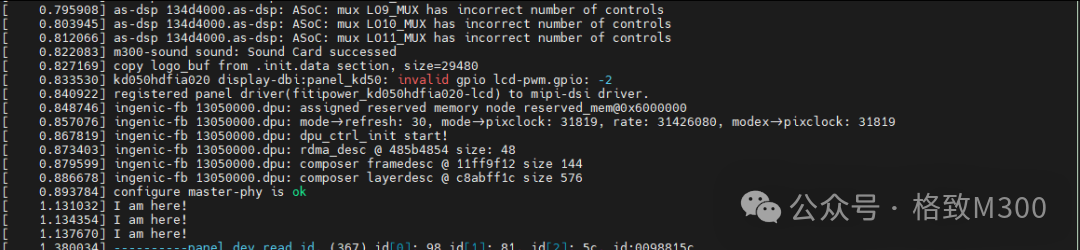 You can observe that the screen driver has been successfully loaded. Next:
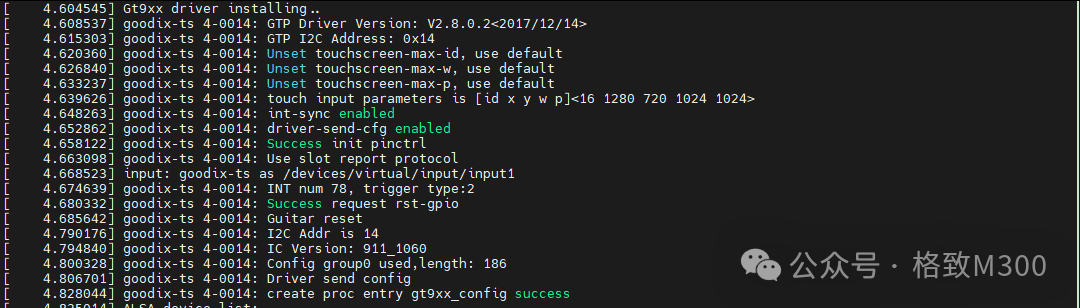 You can see that the Goodix driver for the touch screen has also been successfully loaded.Screen TestingUse the following command to check the screen parameters:
fbset -fb /dev/fb0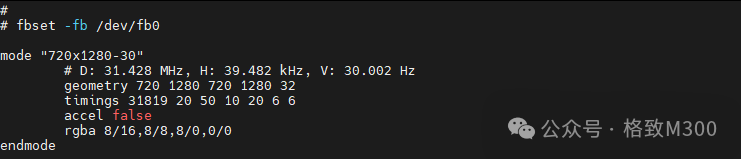 The SDK includes the ffmpeg program. Use the following command to test the clear screen operation:
ffmpeg -f lavfi -i color=white:s=720x1280:d=1 -pix_fmt bgra -f fbdev /dev/fb0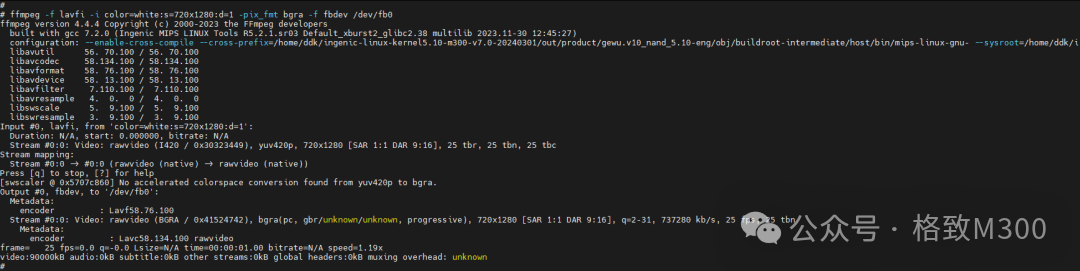 Readers can explore more ffmpeg functionalities on their own.Touch Screen TestingType
 evtest in the console. When the test program displays Testing …, slide your finger on the screen to see the coordinates and other information captured by the touch chip: