For visually impaired individuals, walking safely and confidently can be a challenge, but with the help of technology, we can make it easier for them. This DIY Blind Stick is an innovative and simple solution designed to help users detect obstacles in their path. It uses an Arduino Nano, ultrasonic sensor, and buzzer to sense obstacles in the path and immediately emit a sound alert. This way, they can navigate independently.
The advantage of this Arduino blind stick project is that it is easy to build and affordable. The ultrasonic sensor acts like a third eye, helping to calculate the distance to objects. The Arduino continuously processes data from the ultrasonic sensor and quickly triggers an audio alert when an object is detected nearby.
Here, learn how to connect the ultrasonic sensor to the Arduino and how to write code to respond instantly to nearby obstacles with zero delay. This is crucial for navigation for visually impaired individuals. Let’s start building this Arduino blind stick to provide a safer life for those who need it!
How Does the Arduino Blind Stick Work?
This Arduino stick is designed to help visually impaired individuals walk safely and independently. It works by detecting obstacles and alerting the user through a buzzer. Additionally, I have added an LED indicator light to assist those with partial vision. Now, let’s take a step-by-step look at how this smart stick works:
Obstacle Detection
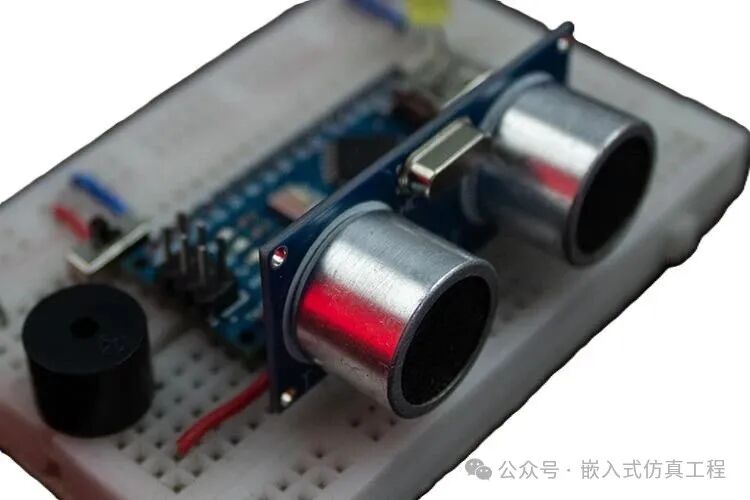
The core of this stick is the ultrasonic sensor, which acts as the stick’s “eye.” Whenever the TRIG pin of the sensor is triggered by the Arduino, it emits ultrasonic waves, which bounce back after hitting an object. It then measures the time taken for the ultrasonic waves to return and sends this measured time as a (timing pulse signal) through the ECHO pin to the Arduino.
Data Reception and Distance Calculation
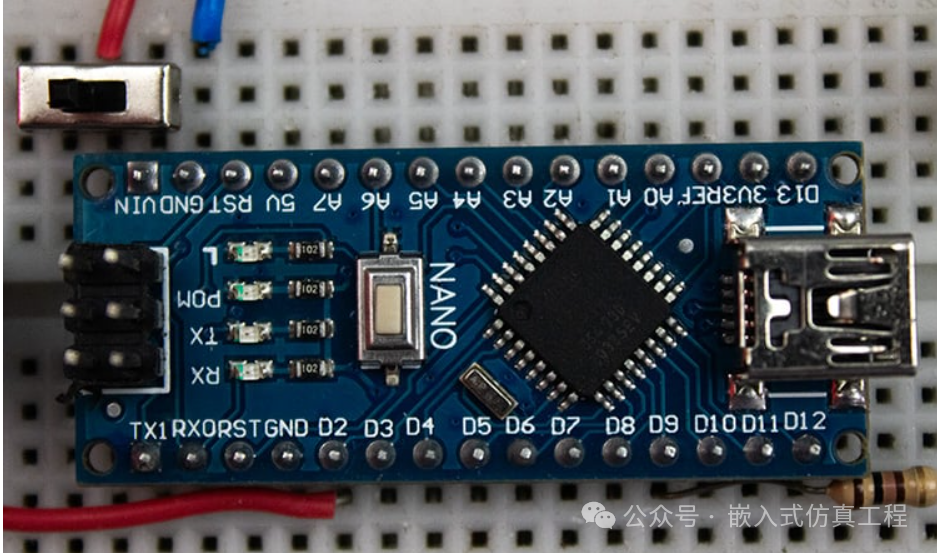
The Arduino acts as the brain of the stick. It retrieves the timing pulse signal from the ECHO pin of the ultrasonic sensor to calculate the time taken for the ultrasonic waves to hit the object and bounce back.
Knowing the time taken (in microseconds), the distance in centimeters can be calculated using the following formula.
{Distance = (Time taken by the signal to Hit and bounce back / 2) / 29.1}
For example, if the signal takes 500 microseconds to reach and bounce back, then
Distance = (500 / 2) / 29.1 => 8.59 cm
The object is approximately 8.59 centimeters away from the sensor.
Implementing Audio-Based Obstacle Detection and Alerts with Arduino
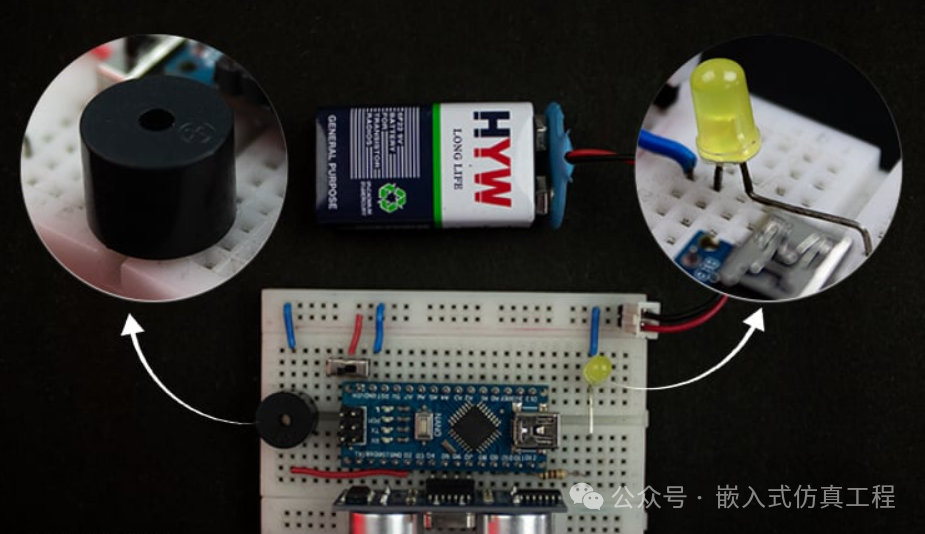
When an obstacle is detected within a safe range (50 centimeters), the Arduino triggers two alert systems:
-
Buzzer: Emits a sound to warn the user of nearby objects. The closer the object, the faster the buzzer beeps to alert the user that an object is approaching.
-
LED Light: Blinking lights provide a visual alert for those with impaired vision. The blinking frequency also increases as the object approaches.
This is how the Arduino blind stick works. Next, let’s look at the materials needed to make it.
Components Required for the Smart Blind Stick
Here is a simple list of components needed to build the blind stick project using Arduino.
-
Arduino Nano
-
HC-SR04 Ultrasonic Sensor
-
5V Active Buzzer
-
LED Light
-
Current Limiting Resistor
-
9V Battery
-
Slide Switch/Toggle Switch
-
Breadboard
-
Connecting Wires
-
PVC Pipe
Next, we will use Arduino to view the block diagram of this smart stick to clearly understand how its components work together.
Block Diagram of the Arduino-Based Blind Stick
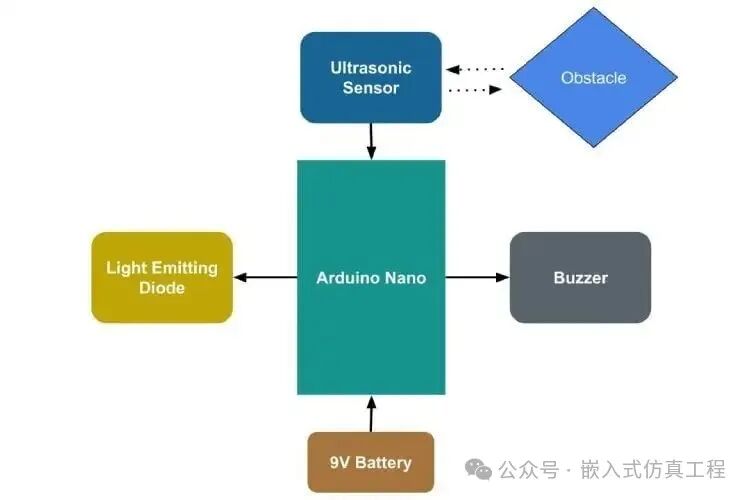
The following diagram shows the topology of the smart blind stick using Arduino Nano, illustrating the relationship between each component.
Wiring Diagram of the Smart Blind Stick Using Arduino
The following wiring diagram illustrates the complete hardware setup of the Arduino-based smart blind stick, detailing how to connect the Arduino Nano, ultrasonic sensor, buzzer, and LED light to form a functional blind stick hardware unit.
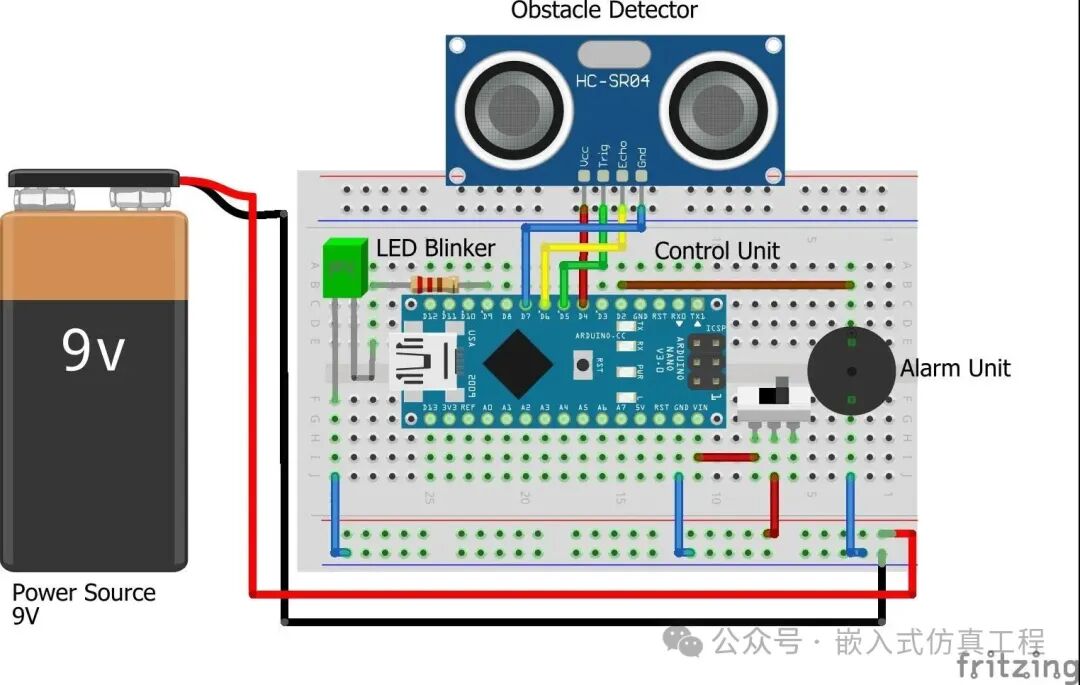
For power, I decided to use a 9V battery, but it is actually better to use a rechargeable 9V battery. Here, you will find that I directly power the ultrasonic sensor from the Arduino GPIO pins to avoid connection complexity, especially on smaller breadboards.
Note that the ultrasonic sensor typically consumes only 15mA, which is sufficient to be powered directly from the Arduino GPIO.
Hardware Connections for the Blind Obstacle Detection Stick
Here is the actual hardware setup we built using the Arduino board and ultrasonic sensor for the ultrasonic blind stick. This setup is based on the previously discussed wiring diagram, demonstrating the actual assembly process of the system..
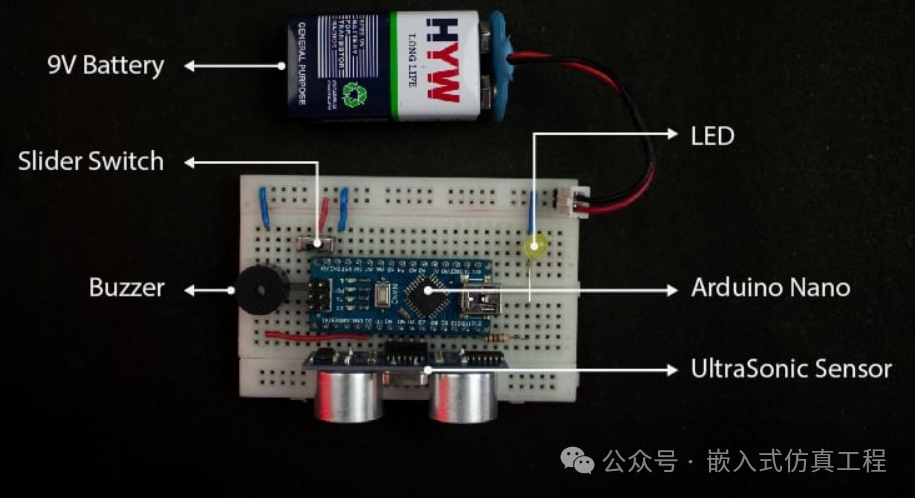
The hardware wiring part ends here, and now it’s time to bring the actual hardware to life by writing software. Let’s proceed to the coding part.
Blind Stick Using Arduino Code
At the bottom of this page, you will find the complete Arduino code for building the smart blind stick using Arduino Nano and ultrasonic sensor. This code continuously calculates the distance to objects using the ultrasonic sensor and checks if the distance is less than 50 and greater than 0. If the distance is within range, it triggers the alert. Additionally, as the distance decreases, the alert frequency also increases.
In this code, I use millis() to perform multitasking for LED blinking and buzzer beeping.
Pin Definitions Using Macros
/* ========================== Pin Definitions ========================== */
// Ultrasonic Sensor Pins
#define vccPin 4 // Ultrasonic sensor VCC pin
#define trigPin 5 // Ultrasonic sensor Trigger pin
#define echoPin 6 // Ultrasonic sensor Echo pin
#define gndPin 7 // Ultrasonic sensor GND pin
// Output Signal Pins
#define ledPin 9 // LED signal pin
#define buzzerPin 2 // Buzzer signal pin
This section defines the pin connection details for the ultrasonic sensor, LED, and active buzzer. These pins will connect to the GPIO pins of the Arduino.
Global Variables for Storing Important Data
/* ========================== Ultrasonic Sensor Data ========================== */
long duration = 0; // Duration of ultrasonic signal bounce-back (in microseconds)
int distance = 0; // Calculated distance between the object and sensor (in cm)
These variables are used to store relevant data from the ultrasonic sensor. Here, “duration” stores the time taken for the ultrasonic signal to reflect back, while “distance” stores the calculated distance value.
/* ========================== Timing Variables ========================== */
// Stores the last time LED and Buzzer states were updated
unsigned long previousLedMillis = 0;
unsigned long previousBuzzerMillis = 0;
Here, these variables hold the previousMillis values for the LED and buzzer, initially set to zero to ensure they work correctly during the first trigger of the LED and buzzer alerts.
/* ========================== Multitasking Interval Variables ========================== */
// Determines the interval between LED blinks and buzzer beeps (in milliseconds)
int ledInterval = 0; // LED blink interval — varies based on object distance
int buzzerInterval = 0; // Buzzer beep interval — varies based on object distance
These variables are crucial for multitasking, allowing independent changes to the LED blinking frequency and buzzer beeping frequency without interference. In short, they define the rates of the buzzer and LED blinking. Initially, they are set to zero but will be updated based on the distance variable during execution.
/* ========================== State Variables ========================== */
// Tracks the current state of LED and Buzzer
bool ledState = LOW; // LED state (ON or OFF)
bool buzzerState = LOW; // Buzzer state (ON or OFF)
These state variables are used to save and track the current state of the LED and buzzer, whether they are ON or OFF.
/* ========================== Current Time Variable ========================== */
// Holds the current time in milliseconds
unsigned long currentMillis = 0;
These currentMillis variables are used to track the value after the timer starts running. This maintained value is crucial for the independent multitasking of LED blinking frequency and buzzer beeping frequency without interference.
measureDistance() function
/* ========================== Measure Distance ========================== */
/**
* Triggers the ultrasonic sensor and calculates the distance to the nearest object.
*/
void measureDistance() {
// Send a 10µs pulse to the trigger pin to start the measurement
digitalWrite(trigPin, LOW);
delayMicroseconds(2);
digitalWrite(trigPin, HIGH);
delayMicroseconds(10);
digitalWrite(trigPin, LOW);
// Measure the duration of the pulse on the echo pin
duration = pulseIn(echoPin, HIGH);
// Calculate the distance in centimeters (speed of sound: 343 m/s)
distance = (duration / 2) / 29.1;
// Output the distance measurement to the Serial Monitor
Serial.print(“Distance: “);
Serial.print(distance);
Serial.println(” cm”);
}
This function actually triggers the ultrasonic sensor by sending a low and high pulse sequence to the TRIG pin. It causes the ultrasonic sensor to emit sound waves. It calls the pulseIn() function to find the echo signal from the sensor’s ECHO pin to measure the time taken for the signal to bounce back.
After obtaining the time, it uses a simple formula mentioned earlier to calculate the distance to the object (in centimeters). Finally, it prints this distance value on the serial monitor.
task_triggerBuzzer()
/* ========================== Task: Trigger Buzzer ========================== */
/**
* Controls the buzzer beep rate based on object proximity.
* Buzzer beeps faster when the object is closer.
*/
void task_triggerBuzzer() {
// Map the distance to a buzzer interval (30ms when close, 100ms when far)
buzzerInterval = map(distance, 0, 50, 30, 100);
// Toggle the buzzer state when the interval has passed
if (currentMillis – previousBuzzerMillis >= buzzerInterval) {
previousBuzzerMillis = currentMillis; // Update the last buzzer time
buzzerState = !buzzerState; // Toggle the buzzer state
digitalWrite(buzzerPin, buzzerState); // Apply the new state to the pin
}
}
task_triggerBuzzer() function controls the speed of the buzzer beeping based on the distance to the object. Here, it continuously maps the buzzerInterval value based on the distance to the object. This, in turn, affects the frequency of the buzzer beeping.
Here, you can find map(distance, 0, 50, 30, 100);; this means the mapping is done based on distance values from 0cm to 50cm and time intervals from 30ms to 100ms. That is, at 0cm, the buzzer beeps every 30ms, and at 50cm, the buzzer beeps every 100ms.
task_triggerLed()
/* ========================== Task: Trigger LED ========================== */
/**
* Controls the LED blink rate based on object proximity.
* LED blinks faster when the object is closer.
*/
void task_triggerLed() {
// Map the distance to an LED interval (150ms when close, 1000ms when far)
ledInterval = map(distance, 0, 50, 150, 1000);
// Toggle the LED state when the interval has passed
if (currentMillis – previousLedMillis >= ledInterval) {
previousLedMillis = currentMillis; // Update the last LED time
ledState = !ledState; // Toggle the LED state
digitalWrite(ledPin, ledState); // Apply the new state to the pin
}
}
task_triggerLed() function controls the speed of the LED blinking based on the distance to the object. Here, it continuously maps the ledInterval value based on the distance to the object. This, in turn, affects the frequency of the LED blinking.
Here, you can find map(distance, 0, 50, 150, 1000); this means the mapping is done based on distance values from 0cm to 50cm and time intervals from 150ms to 1000ms. That is, at 0cm, the LED blinks every 150ms, and at 50cm, the LED blinks every 1000ms.
stopAlert()
/* ========================== Stop Alerts ========================== */
/**
* Deactivates the LED and buzzer when no object is within range.
*/
void stopAlerts() {
digitalWrite(buzzerPin, LOW); // Turn off the buzzer
digitalWrite(ledPin, LOW); // Turn off the LED
ledState = LOW; // Reset LED state
buzzerState = LOW; // Reset buzzer state
}
This stopAlert() function stops the buzzer and LED alerts by using the digitalWrite() function to set the buzzer and LED alerts to low.
setup()
/* ========================== Setup Function ========================== */
/**
* Initializes hardware components, configures I/O pins, and stabilizes the sensor.
*/
void setup() {
// Configure Ultrasonic Sensor Pins
pinMode(vccPin, OUTPUT);
pinMode(trigPin, OUTPUT);
pinMode(echoPin, INPUT);
pinMode(gndPin, OUTPUT);
// Configure Output Signal Pins
pinMode(ledPin, OUTPUT);
pinMode(buzzerPin, OUTPUT);
// Power up the Ultrasonic Sensor
digitalWrite(vccPin, HIGH); // Provide 5V power
digitalWrite(gndPin, LOW); // Connect GND to 0V
// Ensure all signals are in their default LOW state
digitalWrite(ledPin, LOW);
digitalWrite(buzzerPin, LOW);
digitalWrite(trigPin, LOW);
// Initialize Serial Monitor for debugging
Serial.begin(9600);
// Stabilize the ultrasonic sensor after powering up
delay(1000);
}
This setup() function ensures that all hardware pins are correctly initialized, such as setting the respective pins as inputs (INPUTS) and outputs (OUTPUTS). It also initializes the Serial Monitor at 9600 baud rate. After that, it uses a delay to stabilize the ultrasonic sensor after powering up.
loop()
/* ========================== Main Loop ========================== */
/**
* Continuously checks distance and triggers LED and buzzer alerts based on proximity.
*/
void loop() {
// Capture the current time in milliseconds
currentMillis = millis();
// Measure the distance from the ultrasonic sensor
measureDistance();
// Activate LED and buzzer alerts if object is within 30cm range
if (distance >= 0 && distance <= 50) {
task_triggerBuzzer();
task_triggerLed();
} else {
// Stop alerts if the object is out of range
stopAlerts();
}
}
This loop function continuously checks the distance and triggers the buzzer and LED tasks when the distance is >= 0 and <= 50, otherwise, it calls the stopAlerts() function to stop the alerts. Here, the currentMillis function captures the current time of the timer. This timer is crucial for running the buzzer_beep task and led_flash task simultaneously without interference.
Uploading the Code to Arduino
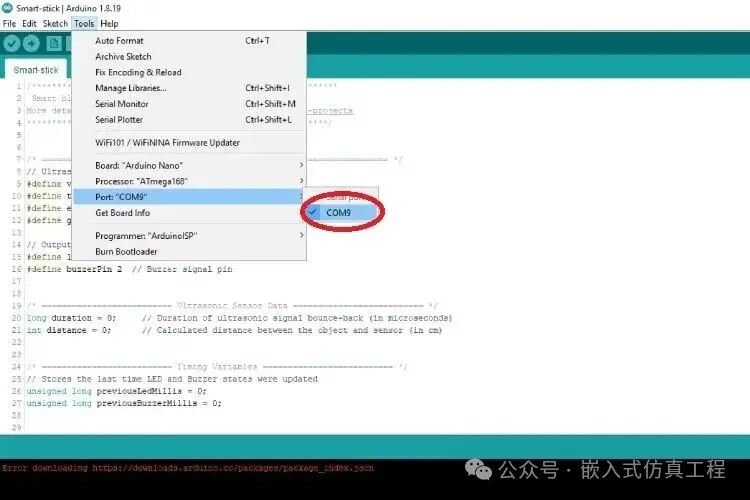
I hope you understand the logic behind the program. Now it’s time to inject the binary file into memory and bring our lovely Arduino back to life. To do this, we need to open the Arduino IDE and ensure that the Arduino Nano board is selected correctly.
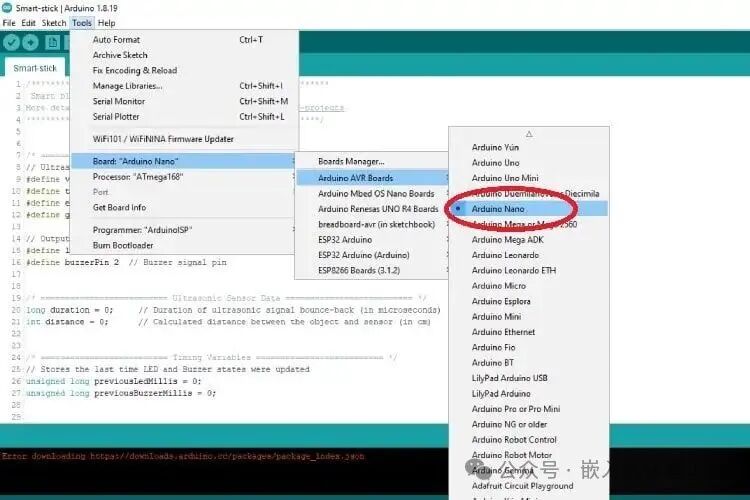
Unlike other Arduino boards, the Arduino Nano has two different processor series, namely ATmega328p and ATmega168. My Arduino Nano is equipped with the ATmega328p processor chip, so I selected Arduino328p.
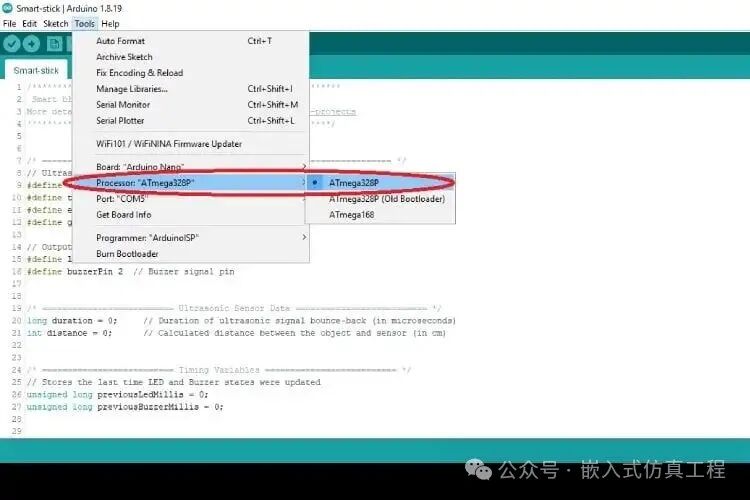
Next, we need to select the corresponding USB associated with our Arduino Nano.
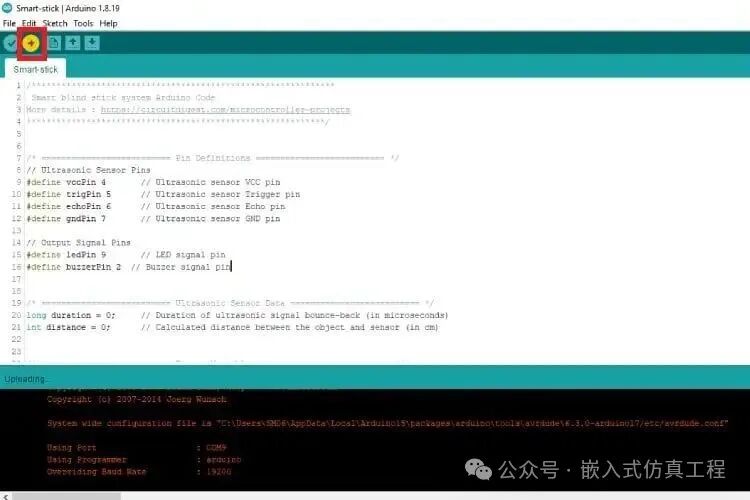
Finally, click the upload button on the Arduino IDE to flash the code into our Arduino Nano.
Alright, the coding part is done. Now, let’s assemble the hardware into the PVC pipe to create a real cane for visually impaired individuals.
Installing the Blind Stick Circuit on the PVC Pipe
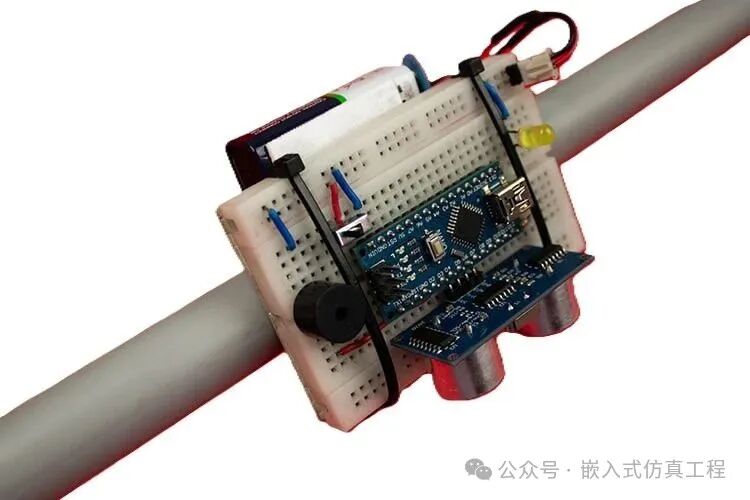
The following image shows how I assembled the hardware circuit into the PVC pipe. I securely fixed the breadboard to the PVC pipe using zip ties. Here, I used double-sided tape to attach the battery to the bottom of the breadboard.
Complete Project Code:
/*************************************************************
Smart blind stick system Arduino Code
More details : https://circuitdigest.com/microcontroller-projects
************************************************************/
/* ========================== Pin Definitions ========================== */
// Ultrasonic Sensor Pins
#define vccPin 4 // Ultrasonic sensor VCC pin
#define trigPin 5 // Ultrasonic sensor Trigger pin
#define echoPin 6 // Ultrasonic sensor Echo pin
#define gndPin 7 // Ultrasonic sensor GND pin
// Output Signal Pins
#define ledPin 9 // LED signal pin
#define buzzerPin 2 // Buzzer signal pin
/* ========================== Ultrasonic Sensor Data ========================== */
long duration = 0; // Duration of ultrasonic signal bounce-back (in microseconds)
int distance = 0; // Calculated distance between the object and sensor (in cm)
/* ========================== Timing Variables ========================== */
// Stores the last time LED and Buzzer states were updated
unsigned long previousLedMillis = 0;
unsigned long previousBuzzerMillis = 0;
/* ========================== Multitasking Interval Variables ========================== */
// Determines the interval between LED blinks and buzzer beeps (in milliseconds)
int ledInterval = 0; // LED blink interval — varies based on object distance
int buzzerInterval = 0; // Buzzer beep interval — varies based on object distance
/* ========================== State Variables ========================== */
// Tracks the current state of LED and Buzzer
bool ledState = LOW; // LED state (ON or OFF)
bool buzzerState = LOW; // Buzzer state (ON or OFF)
/* ========================== Current Time Variable ========================== */
// Holds the current time in milliseconds
unsigned long currentMillis = 0;
/* ========================== Setup Function ========================== */
/**
* Initializes hardware components, configures I/O pins, and stabilizes the sensor.
*/
void setup() {
// Configure Ultrasonic Sensor Pins
pinMode(vccPin, OUTPUT);
pinMode(trigPin, OUTPUT);
pinMode(echoPin, INPUT);
pinMode(gndPin, OUTPUT);
// Configure Output Signal Pins
pinMode(ledPin, OUTPUT);
pinMode(buzzerPin, OUTPUT);
// Power up the Ultrasonic Sensor
digitalWrite(vccPin, HIGH); // Provide 5V power
digitalWrite(gndPin, LOW); // Connect GND to 0V
// Ensure all signals are in their default LOW state
digitalWrite(ledPin, LOW);
digitalWrite(buzzerPin, LOW);
digitalWrite(trigPin, LOW);
// Initialize Serial Monitor for debugging
Serial.begin(9600);
// Stabilize the ultrasonic sensor after powering up
delay(1000);
}
/* ========================== Main Loop ========================== */
/**
* Continuously checks distance and triggers LED and buzzer alerts based on proximity.
*/
void loop() {
// Capture the current time in milliseconds
currentMillis = millis();
// Measure the distance from the ultrasonic sensor
measureDistance();
// Activate LED and buzzer alerts if object is within 30cm range
if (distance >= 0 && distance <= 30) {
task_triggerBuzzer();
task_triggerLed();
} else {
// Stop alerts if the object is out of range
stopAlerts();
}
}
/* ========================== Task: Trigger Buzzer ========================== */
/**
* Controls the buzzer beep rate based on object proximity.
* Buzzer beeps faster when the object is closer.
*/
void task_triggerBuzzer() {
// Map the distance to a buzzer interval (30ms when close, 100ms when far)
buzzerInterval = map(distance, 0, 30, 30, 100);
// Toggle the buzzer state when the interval has passed
if (currentMillis – previousBuzzerMillis >= buzzerInterval) {
previousBuzzerMillis = currentMillis; // Update the last buzzer time
buzzerState = !buzzerState; // Toggle the buzzer state
digitalWrite(buzzerPin, buzzerState); // Apply the new state to the pin
}
}
/* ========================== Task: Trigger LED ========================== */
/**
* Controls the LED blink rate based on object proximity.
* LED blinks faster when the object is closer.
*/
void task_triggerLed() {
// Map the distance to an LED interval (50ms when close, 1000ms when far)
ledInterval = map(distance, 0, 30, 50, 100);
// Toggle the LED state when the interval has passed
if (currentMillis – previousLedMillis >= ledInterval) {
previousLedMillis = currentMillis; // Update the last LED time
ledState = !ledState; // Toggle the LED state
digitalWrite(ledPin, ledState); // Apply the new state to the pin
}
}
/* ========================== Stop Alerts ========================== */
/**
* Deactivates the LED and buzzer when no object is within range.
*/
void stopAlerts() {
digitalWrite(buzzerPin, LOW); // Turn off the buzzer
digitalWrite(ledPin, LOW); // Turn off the LED
ledState = LOW; // Reset LED state
buzzerState = LOW; // Reset buzzer state
}
/* ========================== Measure Distance ========================== */
/**
* Triggers the ultrasonic sensor and calculates the distance to the nearest object.
*/
void measureDistance() {
// Send a 10µs pulse to the trigger pin to start the measurement
digitalWrite(trigPin, LOW);
delayMicroseconds(2);
digitalWrite(trigPin, HIGH);
delayMicroseconds(10);
digitalWrite(trigPin, LOW);
// Measure the duration of the pulse on the echo pin
duration = pulseIn(echoPin, HIGH);
// Calculate the distance in centimeters (speed of sound: 343 m/s)
distance = (duration / 2) / 29.1;
// Output the distance measurement to the Serial Monitor
Serial.print(“Distance: “);
Serial.print(distance);
Serial.println(” cm”);
}
Simulation project download link:
File shared via cloud: Blind_stick.rar
Link: https://pan.baidu.com/s/15Y_sKA2Y4xr8kRxX5AHueg?pwd=gp17 Extraction code: gp17
Welcome to follow, click the blue text at the top “Embedded Simulation Project” or long press to identify the QR code to follow