The Mystery of STM32CubeIDE Debugging “Failure”: Don’t Touch That Crucial Checkbox!
Introduction: The Confusing “Silence”
Have you ever encountered a situation where you modified a few lines of code in STM32CubeIDE, confidently clicked the “Debug” button, ready to observe the program’s execution, only to find… nothing happened? No error messages, no log updates, the debugging session did not start, and the IDE seemed to be “frozen,” leaving you bewildered in front of the screen.
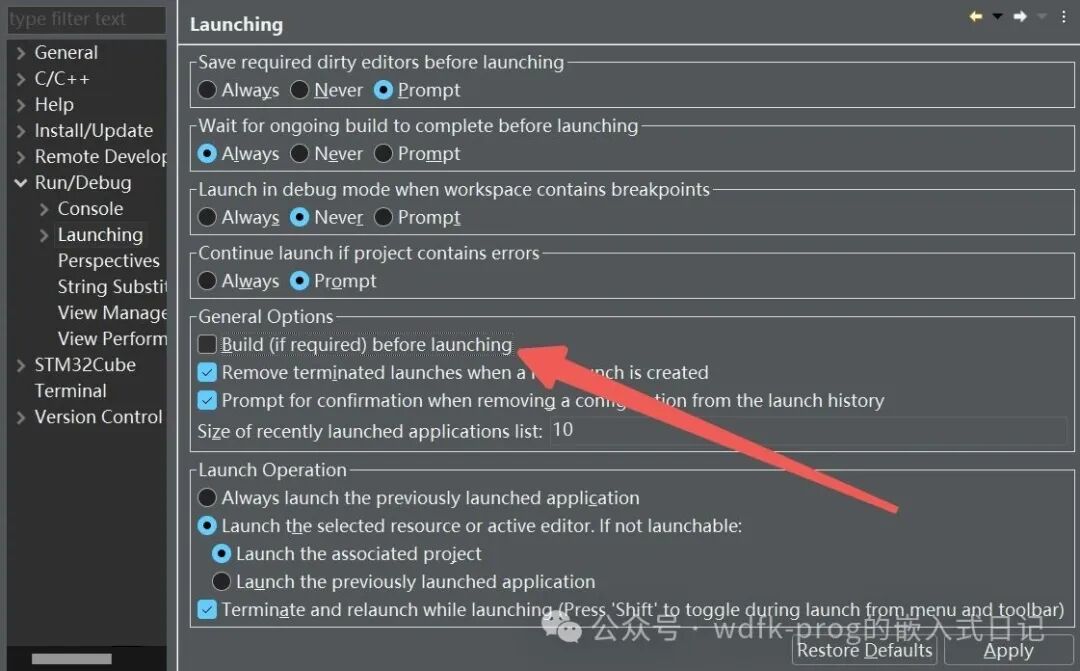
This perplexing “silence” phenomenon is often not due to hardware connection issues or fatal errors in the code, but may simply be because you inadvertently disabled a crucial global setting: Build (if required) before launching.
This article will delve into the role of this option, explain why disabling it can “break” your debugging process, and tell you how to configure it correctly.
Understanding the Three Core Steps from Code to Debugging
To understand the importance of this option, we first need to grasp the process that occurs behind the scenes when you click the “Debug” button. This process can be simplified into three core steps:
- 1. Writing Code: This is the stage where you, as a developer, directly participate, writing and modifying your program logic in
<span>.c</span>and<span>.h</span>files. - 2. Building the Project: This is the process of “translating” the human-readable C code you wrote into machine code that the microcontroller can understand and execute. The compiler (GCC) compiles your source files into object files (
<span>.o</span>), and then the linker bundles these object files and library files together to finally generate an executable and debuggable file. In embedded development, this file is typically in the format of<span>.elf</span>. This<span>.elf</span>file is the key product of the entire process, containing not only the program instructions to be burned into the chip’s Flash but also the symbol information used for debugging (such as variable names, function names, line numbers, etc.). - 3. Launching Debugging: This is the final step. The IDE starts the debugging server (GDB Server), connects to your target microcontroller via a debugging probe (ST-LINK or J-Link), and then downloads the
<span>.elf</span>file generated in step 2 into the microcontroller’s memory. Once the download is complete, the debugger can control the microcontroller’s execution and allow you to set breakpoints, step through the code, view variables, and perform all debugging operations.
“Build before launching”: The Bridge Connecting “Build” and “Debug”
Now, let’s take a look at the option “Build (if required) before launching.” Its role is to automatically check and execute step 2 “Build the Project” before performing step 3 “Launching Debugging”.
It acts like a bridge, tightly connecting the “latest state” of the code with the upcoming “debugging session”.
- • When it is checked (the correct way to work): After modifying the code and clicking “Debug,” the IDE first checks if there are any changes in your code. If there are, it automatically invokes the compiler and linker to rebuild the project, generating a new
<span>.elf</span>file that includes your latest modifications. Then, it starts the debugging session, downloading this new<span>.elf</span>file into the chip. This process ensures that the behavior you see in the debugger is completely consistent with the source code you see in the editor. This is what we call “What You See Is What You Debug”, the golden rule of efficient debugging. - • When it is unchecked (the root of the problem): After modifying the code and clicking “Debug,” the IDE completely skips step 2 “Build the Project” and directly executes step 3 “Launching Debugging.” At this point, it will attempt to use the old
<span>.elf</span>file generated during the last build.
The Catastrophic Consequences of Disabling the Option
Once this automatic build bridge is dismantled, a series of serious issues will follow:
- 1. Silent Debugging Session Failure (The Problem You Encountered) The most common scenario is that if you perform a “Clean Project” operation after unchecking, it will delete all build products in the
<span>Debug</span>folder, including that crucial<span>.elf</span>file. At this point, when you click “Debug,” the IDE cannot find the program file to download, the startup script fails to execute in the background, but for some reason, this underlying failure information is not effectively communicated to the IDE’s front-end interface, ultimately leading to the “no response” phenomenon you observe. - 2. Debugging “Ghost Code”: A Huge Waste of Time and Effort Even if the
<span>.elf</span>file exists, it is outdated. The bugs you recently fixed in the code, the new print statements you added, and the new logic you set do not exist in the program actually running on the chip. You will face:
- • Breakpoints set on new code lines will never trigger.
- • The logic of the program’s execution will be completely different from what you expect, leading you to mistakenly believe that your logic is wrong.
- • You may spend hours debugging a bug that has actually been fixed or searching for a problem that does not exist in the currently running code.
This is undoubtedly a debugging nightmare that will severely mislead your judgment and waste your development time significantly.
The Golden Rule: Always Keep It Checked
So, how should we handle this option?
For 99.9% of developers and development scenarios, the answer is clear: always keep this option checked.
It ensures the integrity and consistency of the development process and is the simplest and most effective way to avoid all the aforementioned issues.
How to Check and Restore the Setting:
- 1. In the STM32CubeIDE menu bar, go to
<span>Window > Preferences</span>. - 2. In the pop-up window, navigate to
<span>Run/Debug > Launching</span>on the left side. - 3. In the right side’s “General Options” area, find and ensure that the checkbox for “Build (if required) before launching” is checked.
- 4. Click “Apply and Close” to save the settings.
Conclusion
As a powerful integrated development environment, STM32CubeIDE offers many flexible configuration options. However, “Build (if required) before launching” is not just an ordinary “preference setting,” but a core function that ensures the integrity of the development-build-debug process. Disabling it is like dismantling the bridge connecting the design blueprint and the actual construction, inevitably leading to confusion and failure.
If you have also encountered the issue of the debugging button “failure,” please check this setting immediately. Developing the good habit of automatically building before launching debugging will save you a lot of valuable time, allowing you to focus on the code logic itself rather than futile struggles with the toolchain.