Smart Networking is a proprietary protocol of Huawei routers that supports networking between Huawei routers for network expansion. When networking with routers from other brands, you can choose either Wi-Fi relay or wired bridging methods.Feature Introduction
By using Huawei routers for Smart Networking, you can build a distributed routing system. Within the Smart Network, the WLAN name, password, login password, and channel parameters of the secondary router remain consistent with the primary router. When your internet devices move within the Smart Network, the hotspots switch automatically, providing seamless roaming and broader signal coverage to ensure a smooth experience for your video, voice, and data services.
Operation Guide
If you have multiple Huawei routers that support Smart Networking at home, you can configure them for Smart Networking. After setting up Smart Networking, a distributed routing system can be established, where the Wi-Fi name, Wi-Fi password, login password, and Wi-Fi channel parameters of the secondary router automatically match those of the primary router. When your internet devices move within the Smart Network, the hotspots switch automatically, providing seamless roaming and broader signal coverage to ensure a smooth experience for your video, voice, and data services.
The primary router is the one connected to the optical modem or the incoming network cable, while the router connected to the primary router is the secondary router.
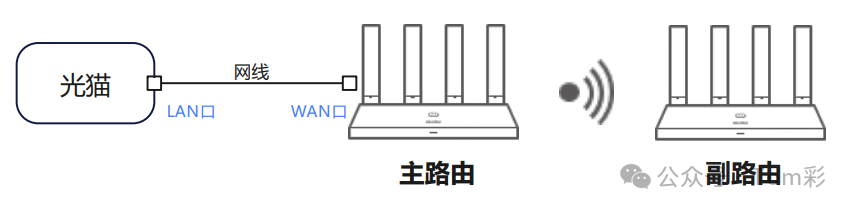

- The primary router must be in router mode (i.e., the primary router’s internet access method is: automatically obtain IP / broadband account access / manually input IP).
- To ensure Wi-Fi stability, if the wireless Smart Networking is successful, it is recommended to place the secondary router in a room that is only separated from the primary router by one wall; it is not recommended to use it separated by two walls.
- It is recommended to use a higher configuration, better-performing Huawei router as the primary router. The Huawei Router Q series powerline version and Huawei Router X3 Pro can only serve as the primary router when adapting with other Huawei routers in this knowledge base; the sub-routers in the package do not support being the primary router.
- The Honor Router (WS831) / Huawei Router WS832 cannot network with some routers.
Smart Networking via the Smart Life App
Please select the recommended Smart Networking method based on the characteristics of your primary router, and ensure thatthe primary router is configured, and in a normal internet access state (indicated by a solid green/white/blue light). This article introducesSmart Networking via the Smart Life App
- Connect your phone/tablet to the primary router’s Wi-Fi.
- Place the secondary router (new or reset to factory settings) near the primary router (recommended within 1 meter) and power it on.
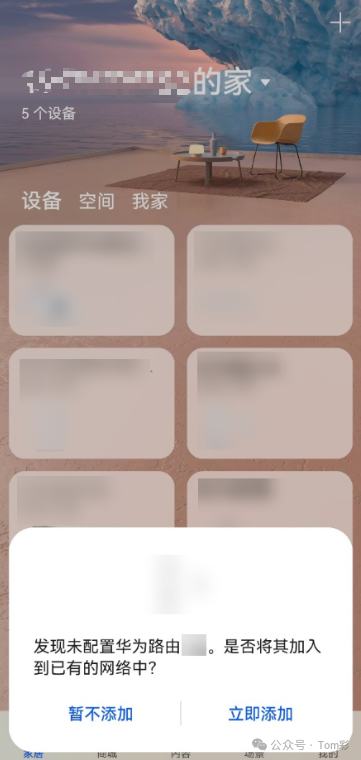
- Open the Smart Life App, and on the homepageHome wait for a while, and a pop-up at the bottom will prompt that the secondary router has been detected, clickAdd Now > Complete Installation. If the indicator light of the secondary router turns solid green/white/blue or stops breathing, it indicates that Smart Networking is successful.
 4. Unplug the secondary router’s power, move the secondary router to the location where Wi-Fi needs improvement, reconnect the power, and after a while, the indicator light of the secondary router will turn solid green/white/blue in sunlight mode, indicating that the networking is complete.
Check the Home Network Status After Smart Networking
In the Smart Life App’sSmart Networking/Package Management page, you can view the current networking status of the entire Smart Network at home (such as primary router, secondary router, and connected router devices).
- Open the Smart Life App and log in with the Huawei account bound to the router.
- On the homepage, click the router card you need to set up to enter the router management interface.
-
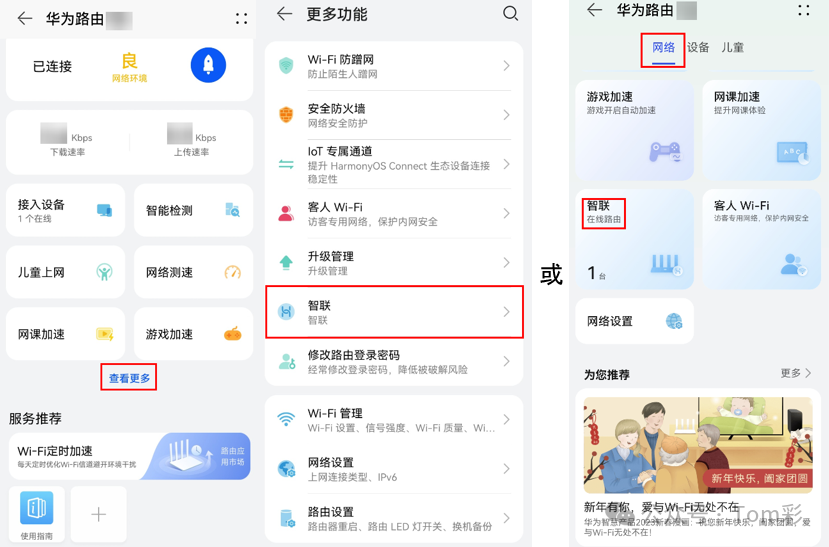
ClickView More> Smart Networking/Package Management (orNetwork > Smart Networking/Package Management), enter the Smart Networking page to view the current status diagram of the entire Smart Network at home.
Access the Web Management Page of the Secondary Router After Smart Networking
- Connect your phone/tablet/computer to the router’s Wi-Fi, or connect the computer’s network port to the router’s LAN port with a network cable.
- In the browser’s address bar, enter 192.168.3.1 to log in to the primary router’s Web management interface. If using a phone/tablet connected to the router’s Wi-Fi, please click the top right corner of the page
 to switch to the desktop version before proceeding with the following operations.
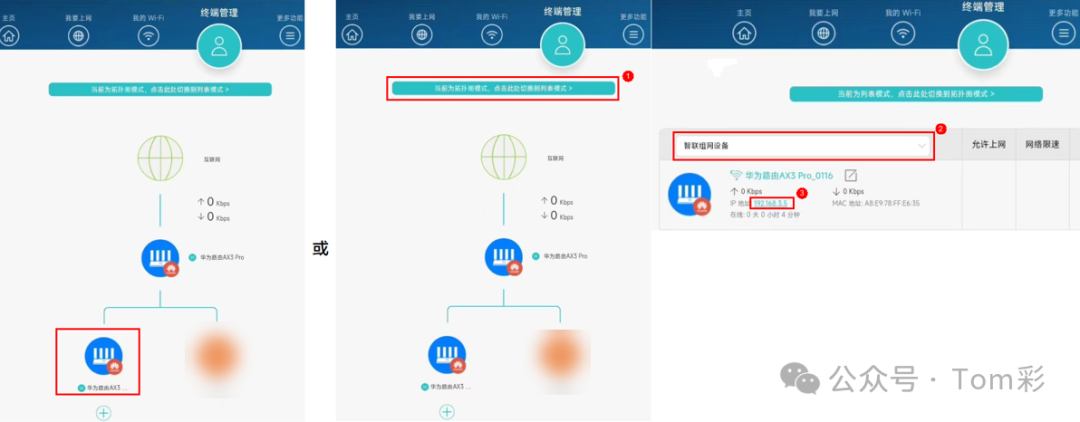
 - ClickTerminal Management, select the corresponding secondary router (or switch to list mode on the terminal management page, select the Smart Networking device, and click the IP of the secondary router), the interface will jump to the management page of the secondary router.