01
—
WiFi Penetration: The “Heavenly Question”
Since WiFi has become the third essential need after water and electricity, I often get asked a classic question:
My router has so many antennas and claims to be a powerful wall-penetrating king, looking impressive, but why does it lose signal after just a few steps?

WiFi Penetration: The “Heavenly Question”
Even more astonishingly, this lady in the above image asked a jaw-dropping question: A router that claims a range of 450 meters loses signal after less than 10 meters, penetrating two walls?
Upon enlarging the image of the box she sent, it clearly states 450M!!! To imagine “M” as “meters”, how desperate must one be for good WiFi signal coverage?
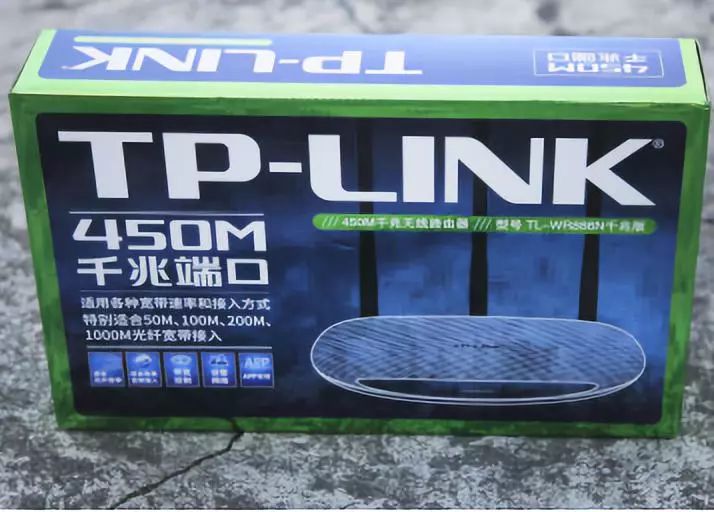
450M Wireless Router
Actually, the “M” here does not mean meters, but refers to Mbps, also known as megabits per second, indicating that the maximum download speed of this router can reach 450Mbps, which has nothing to do with coverage distance and wall penetration ability.
Now let’s talk about WiFi versions and speeds, how to penetrate walls, and how to design your home wireless network. I hope that after reading this, you will have a clear understanding of the WiFi penetration issue and have some knowledge about home WiFi networking solutions.
02
—
WiFi Protocols and Spectrums
First, let’s discuss the issues of WiFi protocols and spectrums.
Since the WiFi standard was proposed by IEEE (Institute of Electrical and Electronics Engineers), it has undergone more than 20 years of vigorous development, step by step, with one protocol version after another, starting from 802.11n, which marked a qualitative leap in download speeds.
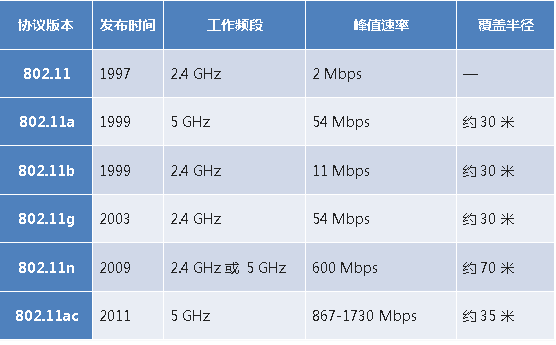
WiFi Protocol Versions
WiFi operates in two frequency bands and channels:
From the table above, we can see that WiFi has two operating frequency bands: 2.4G and 5G. Both of these bands are unlicensed, meaning they can be used without authorization as long as they comply with national regulations. In other words, installing a wireless router at home does not require anyone’s approval.
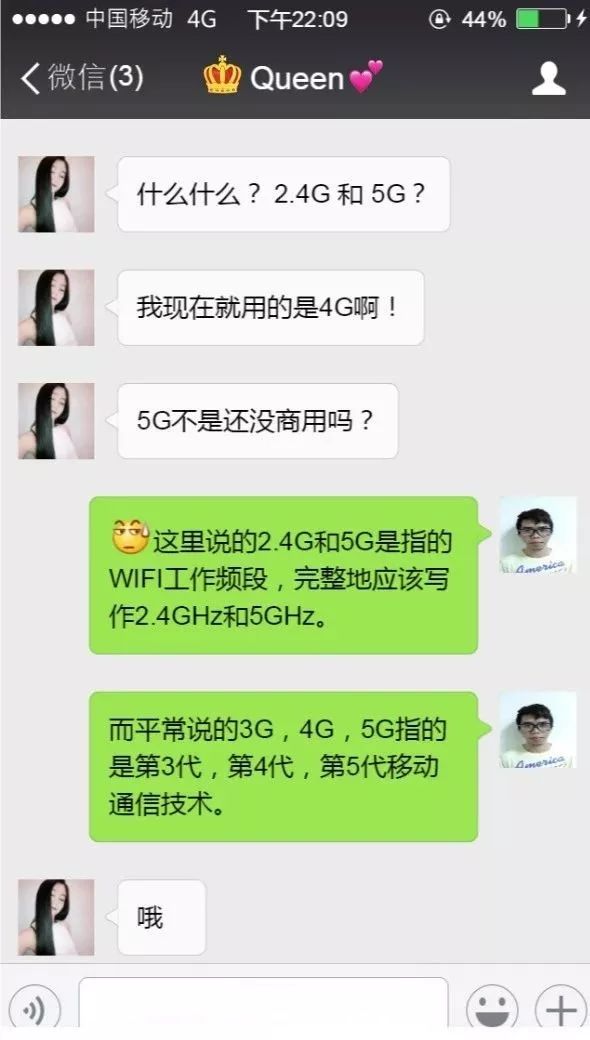
The Spectrum Question
2.4G Band:
The 2.4G spectrum ranges from 2.4GHz to 2.4835GHz, with a total bandwidth of 83.5M, divided into 13 channels, each 20M wide.
However, 20M multiplied by 13 equals 260M, and these 13 channels require 260M bandwidth, while the 2.4G spectrum only has 83.5M. How can that fit?
The answer is like getting on a bus: “Squeeze in, move back, and hurry to get on the next one!” With many people and few vehicles, personal space is out of the question, and stepping on toes is inevitable.
From the following diagram, it can be seen that the 13 channels of the 2.4G spectrum are tightly overlapping, making interference unavoidable. Note that the 14 channel shown in the diagram is not allowed for use in China.

2.4G Spectrum and Channels
To what extent do the channels overlap? The following diagram shows that only the groups of 1, 6, 11 or 2, 7, 12 or 3, 8, 13 have no overlap, indicating the congestion level of the 2.4GHz band. It’s like a very narrow road with many vehicles on it, frequently causing traffic jams, which inevitably leads to a decrease in traffic speed.
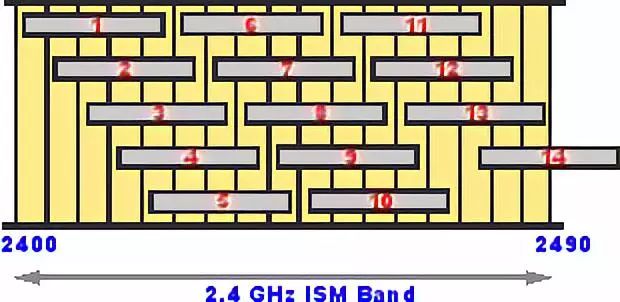
2.4G Non-Overlapping Channel Distribution
With the 802.11n standard, users can use 40M channels, but the 2.4GHz band still only has 83.5M total bandwidth, so it can only accommodate two channels. Therefore, only during quiet nights when the network is idle can a single user possibly use the 40M channel. Coupled with interference from the neighbor’s strong signal, achieving the high speeds promised by 802.11n is often difficult.
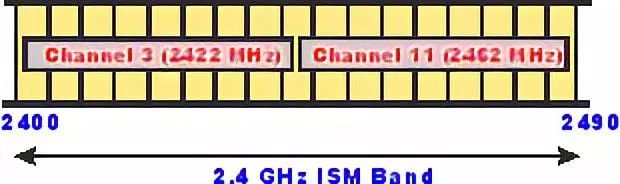
2.4G 40M Bandwidth Channel
5G Band:
Since the 2.4G band is so congested, the experts who set the WiFi standards at IEEE have long sought another unlicensed band: 5G.
Although 802.11n can operate on 5GHz, this protocol version is outdated, and many devices that do not support 5G still need to be served, so practical products still use 2.4GHz, while the advantages of 5G are reflected in the newer 802.11ac.
The 5G spectrum ranges from 4.910GHz to 5.875GHz, with over 900M of bandwidth, which is more than 10 times that of 2.4G! This wide spectrum is divided into several sub-bands, some of which are not allocated and some are used for other purposes, even 4G LTE is encroaching on it.
The usage of this spectrum varies greatly between countries; the part available for use in China is shown in the following diagram.
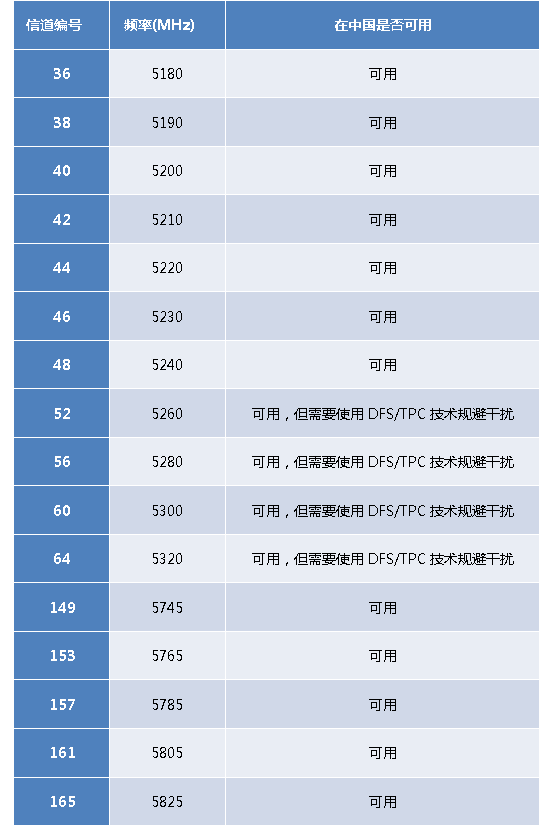
Available 5G Spectrum in China
The following diagram shows the distribution of available 5GHz channels in China. Routers and phones that support 802.11ac can freely combine these available channels to use 20M, 40M, 80M, or even 160M bandwidth channels, resulting in many channels, large bandwidth, and less interference, leading to peak download speeds that can soar.
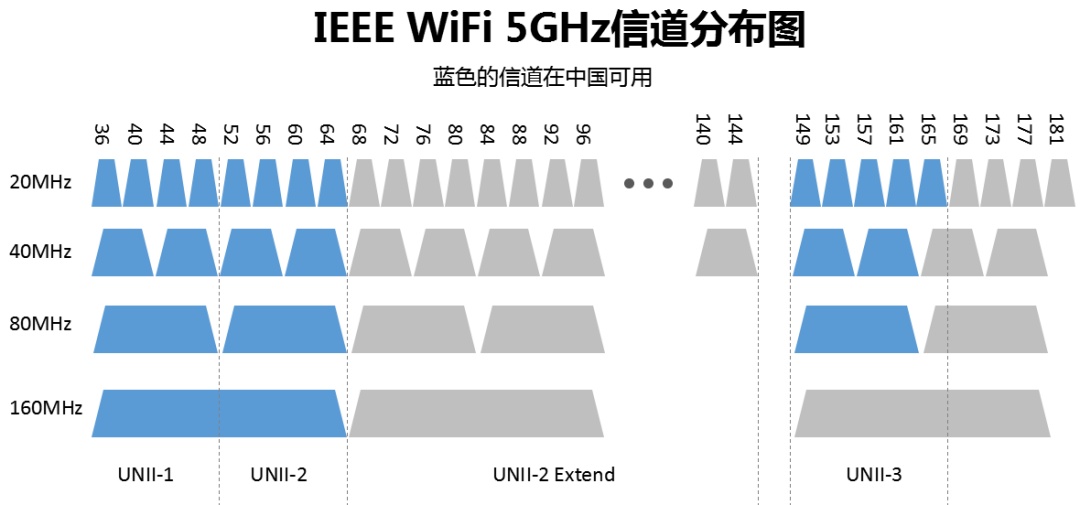
5G Channel Distribution in China
03
—
Estimating WiFi Speeds
What peak download speeds can WiFi achieve on 2.4G and 5G?
For the 2.4G band, we use 802.11n to estimate, which is the latest protocol version supporting 2.4G; for the 5G band, we use the latest 802.11ac to estimate, which only supports 5G.
802.11n introduces several features:
-
Supports MIMO, which allows for up to 4 antennas to transmit and receive data, significantly increasing download speeds. Therefore, it is no surprise to see routers on the market with multiple antennas, as they undoubtedly support 802.11n.
-
In addition to supporting standard 20M bandwidth channels, it has also introduced double bandwidth, which is 40M. The theoretical peak download speed per user has thus increased significantly!
Therefore, estimating the maximum download speed of 802.11n is simple: count the number of antennas! One antenna with a 40M channel can achieve a maximum speed of 150Mbps, two antennas can achieve 300Mbps, and so on, with 4 antennas reaching 600Mbps!
Meanwhile, 802.11ac has enhanced the following points:
-
MIMO enhancement: Up to 8 antennas can be used to transmit and receive data, doubling the speed!
-
Channel widening: Supports 80MHz bandwidth channels, with a maximum of 160M bandwidth channels, greatly increasing the speed!
-
High-order modulation: Supports 256QAM, increasing speed by another 30%!
With these three enhancements, a single antenna of 802.11ac can reach 433Mbps, two antennas can reach 867Mbps, three antennas can reach 1.3Gbps, and 4 antennas can reach 1.7Gbps! Following this pattern, 8 antennas can achieve 3.4Gbps!
This is just a theoretical estimate; in reality, routers supporting 802.11ac typically have fewer than 4 antennas.
04
—
The Birth of Dual-Band Routers
Why has the “dual-band router” emerged?
Since 5G and 802.11ac are so good, does this mean that future routers and phones will not need to support 2.4GHz? Can we rely solely on 5GHz and 802.11ac to create a whole new world?
One evident reason is compatibility. A few years ago, many phones, computers, and televisions only supported 2.4GHz, so to ensure these older devices can still access the internet, support for 2.4GHz is necessary.
Another reason is coverage. The lower frequency of 2.4G has a longer wavelength, resulting in less signal loss and stronger penetration ability, giving it a certain advantage in coverage compared to 5G. We will discuss this issue further later.
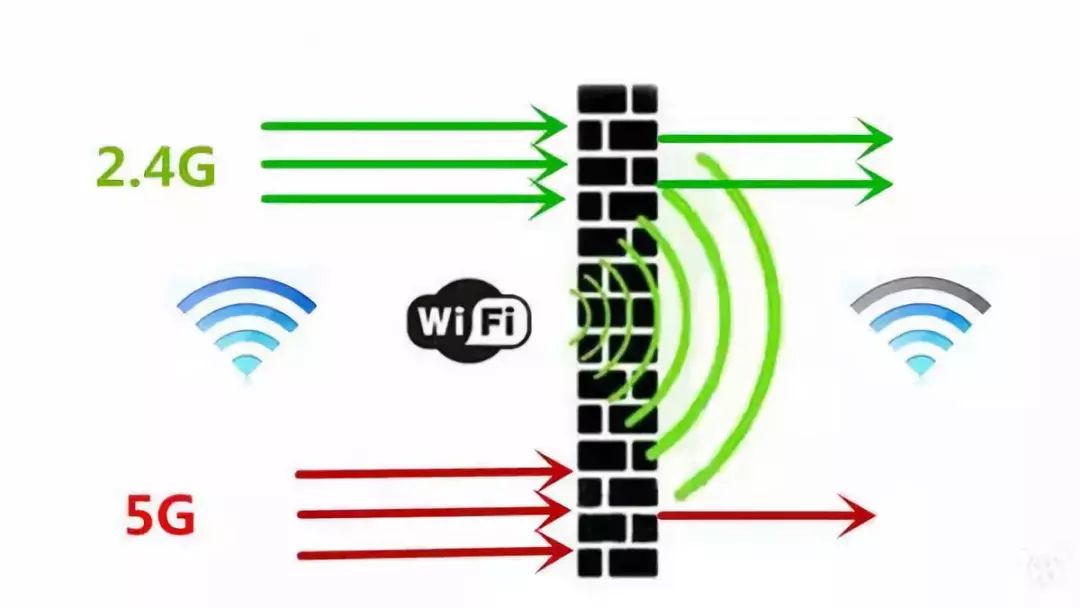
2.4G has stronger penetration ability than 5G
Every frequency has its strengths and weaknesses. Since this is the case, why not combine 2.4G and 5G? With a bang, dual-band routers emerged.
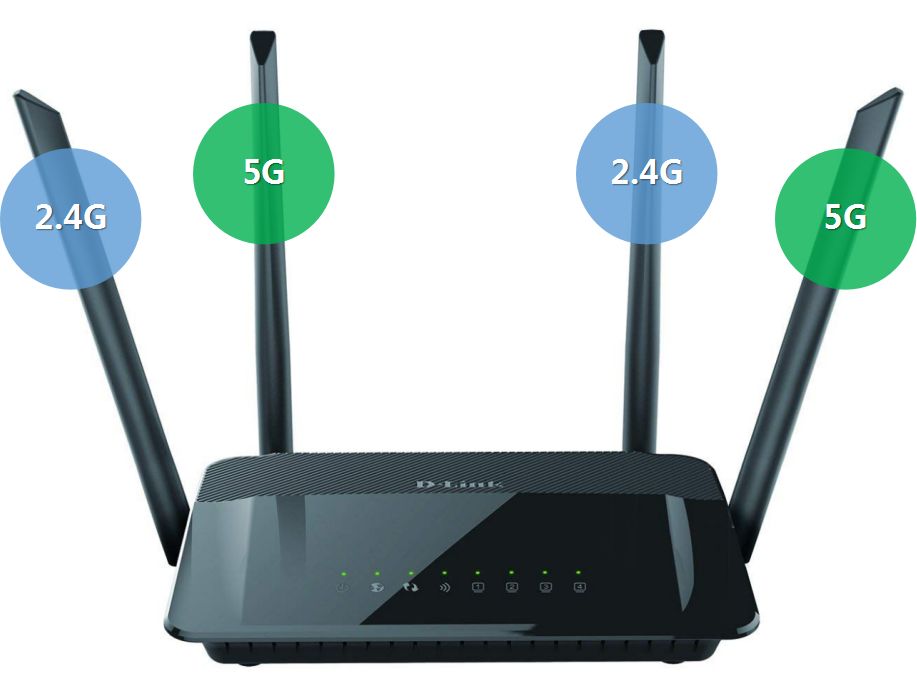
Dual-Band Router
Due to the significant differences in signal indicators between 2.4G and 5G, the antennas for 2.4G and 5G are generally independent, as shown in the image above, spaced as far apart as possible to ensure optimal performance.
To estimate the maximum download speed supported by a dual-band router, the method remains the same: count the antennas, but the difference is that the speeds for 2.4G and 5G should be calculated separately and then added together. In fact, high-speed rates are a key selling point that router manufacturers will prominently display on their packaging and promote widely; they have already calculated this for us.
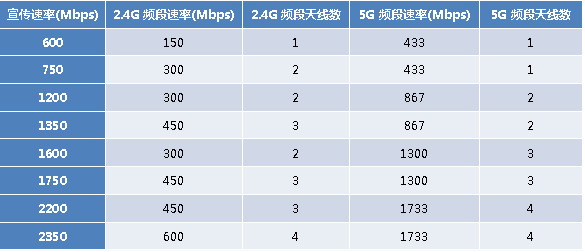
Dual-Band Router Speeds
With the groundwork laid for frequency bands and speeds, we finally come to the part related to wall penetration: the strength and loss of WiFi signals.
05
—
Why Is My WiFi Signal Always So Weak?
First, let’s look at how WiFi signals react when they encounter obstacles during propagation:
Refraction:WiFi signals bend when passing through glass or water, but since both we and the router are in the air, the effect of refraction can be ignored.
Reflection:WiFi signals reflect off smooth surfaces, similar to light reflection.
Diffraction:WiFi signals spread sideways when they encounter concrete walls, unable to penetrate, and continue in a straight line once they meet an area they can pass through.
Scattering:WiFi signals scatter when they hit concrete walls, as the straight path is blocked, spreading out along the wall.
Penetration:Some energy of the WiFi signal is absorbed by obstacles, while the remaining energy continues to propagate through the obstacle.
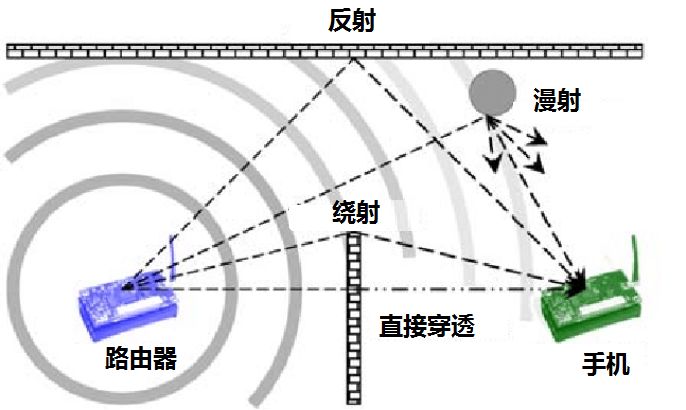
Indoor WiFi Signal Propagation Model
Generally, in indoor environments, the WiFi signals received by our phones are primarily a combination of reflection, diffraction, scattering, and penetration effects. The last three effects are closely related to the signal frequency; the higher the frequency, the poorer the diffraction and penetration ability.
Whether it’s 2.4G or 5G, both belong to relatively high frequency bands in wireless communication. Although 2.4G has better diffraction and penetration capabilities than 5G, it’s still a matter of picking the tallest among the short ones—it’s not that high.
Let’s look at the empirical values of signal loss when 2.4G signals penetrate walls:
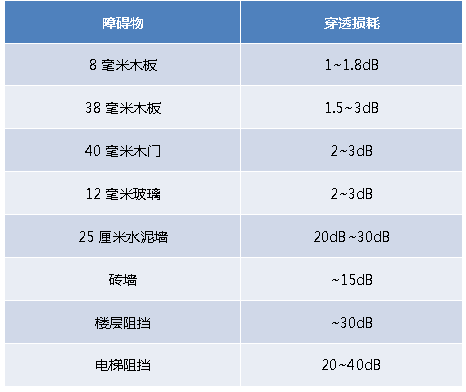
2.4G Band Penetration Loss
In the RF world, signal changes are generally expressed in dB. We only need to understand the following relationships to have an intuitive grasp of these data:
A decrease of 3dB means the signal strength is reduced to 1/2 (half).
A decrease of 10dB means the signal strength is reduced to 1/10 (one-tenth).
A decrease of 30dB means the signal strength is reduced to 1/1000 (one-thousandth).
Combining the above table, we can draw the following conclusions:
Wood, glass, and similar obstacles have a weak blocking effect on WiFi signals, only causing about half of the signal to attenuate;
Brick walls and concrete walls are the true killers of WiFi signals, often reducing penetration signals to one-thousandth of the original strength;
Metal obstacles like elevators are a nightmare for WiFi signals, easily reducing them to one ten-thousandth of the original strength!
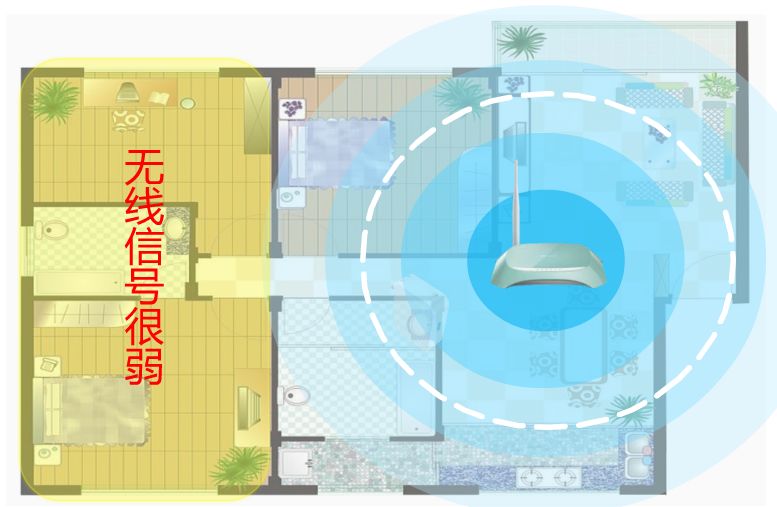
Weak WiFi Signal
It’s really despairing; what can we do?
Is there such a thing as a “high-power router?”
Smart as you are, you probably quickly thought of increasing transmission power to improve signal and wall penetration! There’s nothing that increased power can’t solve; if there is, just double it!
However, increasing transmission power for WiFi signals really doesn’t work.
This is because the transmission power of wireless routers is regulated by the state: a maximum of 100mW, or 0.1W. Products that do not meet this requirement cannot be marketed, and the Ministry of Industry and Information Technology has this in mind for our health. Therefore, trying to enhance WiFi signals by increasing transmission power is not a viable path.
Is a “high-gain antenna” feasible?
Since transmission power is limited, wouldn’t using high-gain antennas on routers allow for more concentrated energy transmission, covering a larger area?
Theoretically, yes. But the cost of increased gain and concentrated energy is a narrower beam, resulting in uneven coverage of WiFi signals, with some directions having strong signals and others weak. If multiple people are using it simultaneously in different locations, the coverage evaluation will vary.
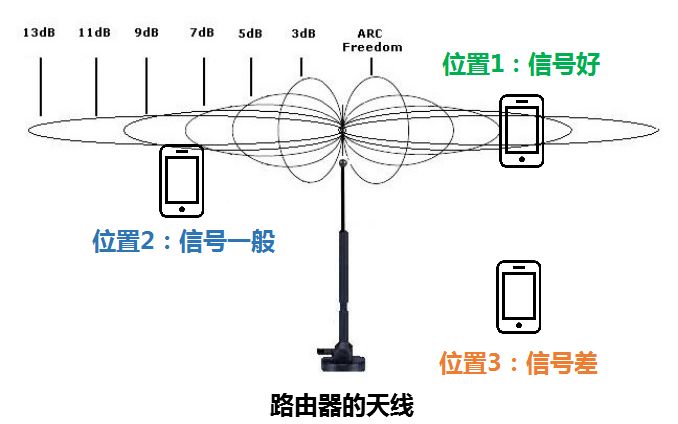
Antenna Gain and Radiation Direction Diagram
Moreover, the gain of typical router antennas is only about 9dB, which is merely a drop in the bucket when faced with penetration losses often exceeding dozens of dB.
06
—
How Can I Improve My WiFi Signal?
Since these methods aren’t feasible, what can I do to improve my WiFi signal?
Scenario 1
“I have just one router, and I want to improve the WiFi signal without spending a dime; what should I do?”
Method 1: Optimize Router Placement
Since the so-called “wall-penetrating king” or any such device does not exist, a single router inevitably cannot cover every corner completely.
If you want to solve the problem at the lowest cost, remember the following rules:
The shorter the propagation distance, the better the signal, so try to place the router in the center of the house!
Wooden doors, glass doors, and similar materials have low signal attenuation, so try to let the router pass through doors as much as possible and avoid walls!
The weak current box is generally located at the entrance, and the surrounding panels will shield the wireless signal, so try not to place the wireless router inside the weak current box!
Place the router higher up, in an open area, avoiding refrigerators, washing machines, and various furniture as obstacles!
Here’s an exercise: look at this image, which position is better, position one or position two?
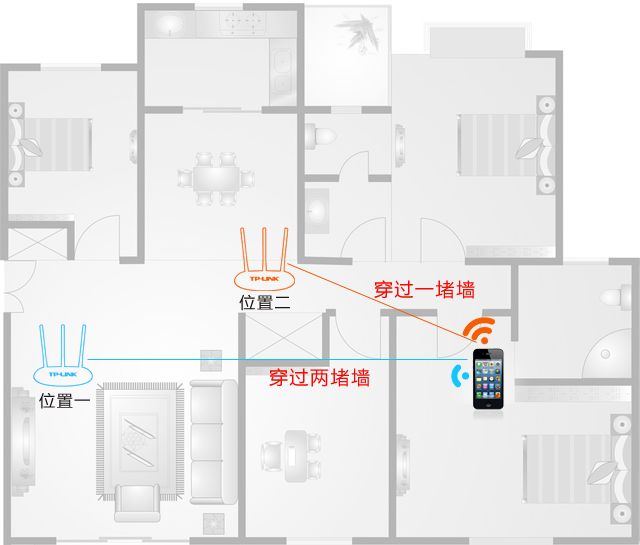
Impact of Router Placement on Signal
Now look at this image, which position is better, position one or position two?
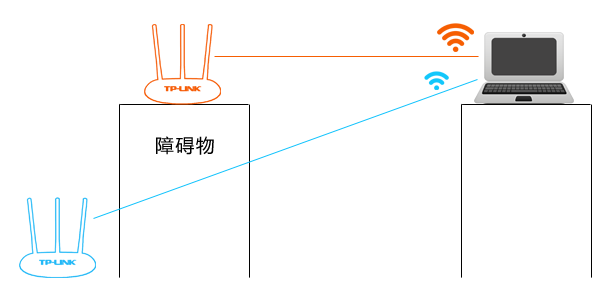
Impact of Router Height on Signal
I believe the answers to these two questions are self-evident.
Method 2: Adjust Antenna Angles Appropriately
Most home routers use omnidirectional antennas, which distribute wireless signals similarly to a horizontally flattened tire, so the coverage effect is best in the direction perpendicular to the antenna. As shown in the following diagram:

Omnidirectional Antenna Radiation Direction Diagram
Therefore, adjust the router’s antennas to be vertical to the ground, pointing straight up towards the ceiling, and avoid bending them at various awkward angles; pointing straight at your direction is precisely where the signal is weakest!
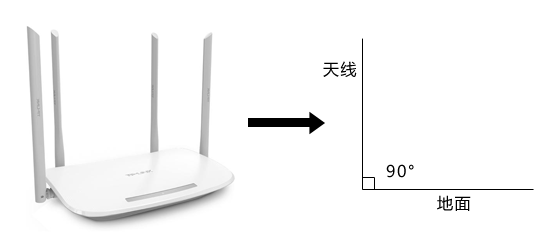
Router Antenna Angle Adjustment Recommendations
Method 3: Avoid Environmental Interference
1. Try to use dual-band routers and use 5G bands whenever possible! As mentioned earlier, the 2.4G band is very congested and naturally suffers from more interference. In contrast, the 5G band is relatively cleaner. Although sometimes the 5G signal appears to be one or two bars lower than 2.4G, it may very well be faster!
2. Keep the router as far away as possible from microwaves, Bluetooth devices, wireless mice, and keyboards! These devices all operate on 2.4G, increasing interference levels!
3. Change the router’s channel settings! As mentioned earlier, there are only 3 independent non-overlapping channels on the 2.4G band, generally 1, 6, and 11. Try changing them to see which channel works best.
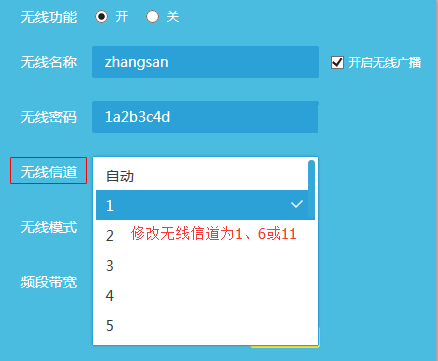
Modify 2.4G Channel Settings
Scenario 2
“To enjoy a smooth internet experience, I am willing to spend some money; what should I do?”
This requires elevating to a home networking solution!
Solution 1: Use a Wireless Extender to Amplify Wireless Signals
This is currently the mainstream solution for extending WiFi signals in small to medium-sized homes. Wherever the signal is weak, plug an extender into a nearby power socket without needing to connect via a network cable. This function is called signal relaying, which means the signal amplifier receives the main router’s signal, amplifies it, and then retransmits it, ensuring the home signal remains the same, allowing phones and Pads to connect to the better quality signal.
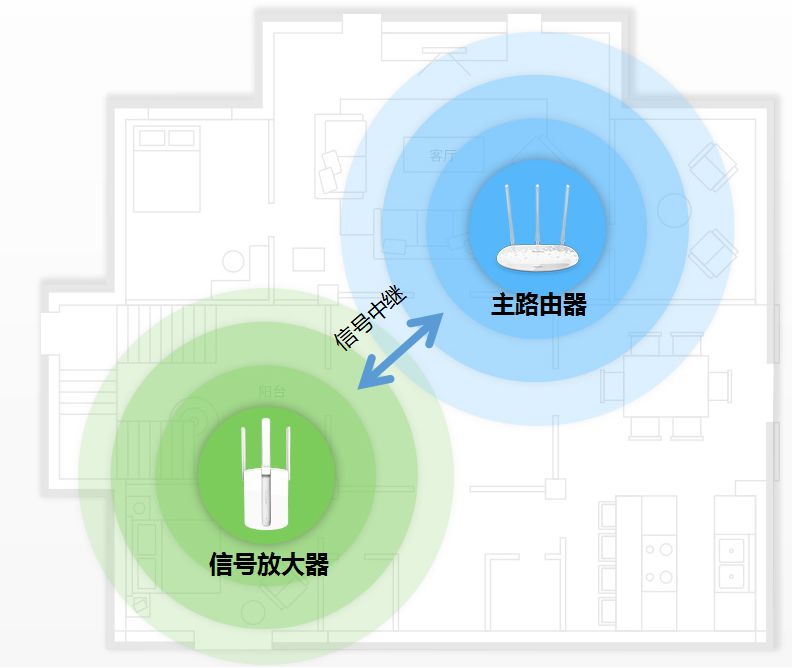
Wireless Extender
Applicable Environment: Suitable for any environment.
Solution 2: Use Router Bridging to Expand Signals
This solution uses the wireless bridging function of routers to connect multiple routers wirelessly without needing network cables between them.
After wireless bridging, WiFi signals achieve a relay effect, amplifying the signal. Additionally, the secondary router usually has four network ports, which can be used to connect wired computers, making this solution one of its advantages.
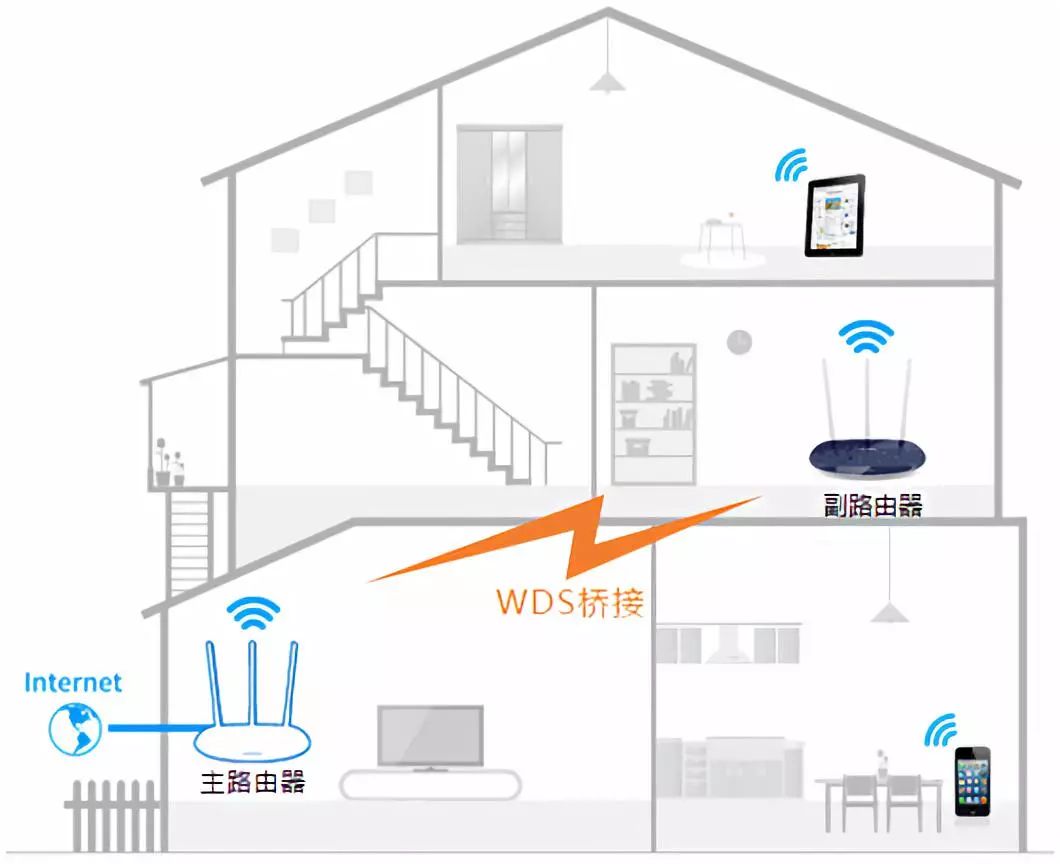
Two Routers Bridged
So what are the differences between solution two and solution one? The two bridged routers still operate independently, allowing for different WiFi names and passwords to be set.
Applicable Environment: Suitable for those who already have multiple wireless routers and want to connect wired devices to the secondary router.
Solution 3:Connect Two (or More) Routers with Network Cables
This solution involves connecting multiple routers with network cables, with the router connected to the broadband as the main router and others as secondary routers. The main and secondary routers are connected via their respective LAN ports, making the secondary router act as a wireless switch.
By configuring it, the entire network can have a single wireless signal, enabling automatic roaming.
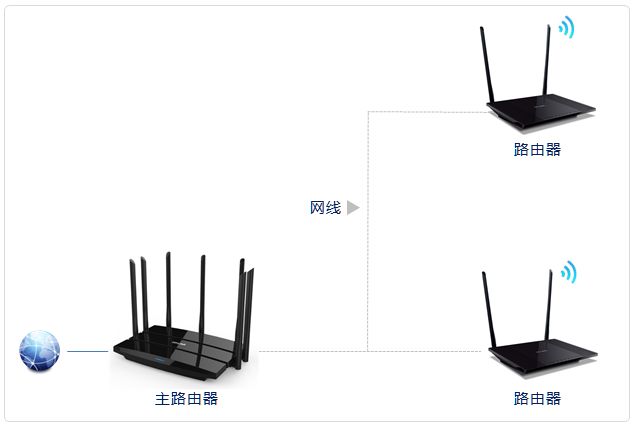
Wired Connection of Multiple Routers
This solution requires that all routers be connected by network cables, with the main advantage being good stability, as there is no wireless loss between routers, and all routers can achieve high speeds, but a clear limitation is that all routers must be connected by network cables.
Applicable Environment: Environments where network cables have already been laid.
Solution 4: Use HyFi Set (Mother and Child Router) to Build a Fully Covered Wireless Network
HyFi (full name: Hybrid Wi-Fi) is also known as powerline adapters, which refers to products that use both wired and wireless technologies simultaneously, using the ubiquitous “wires” in the room as the backbone, and “wireless” as the access point, combining the stability and reliability of wired connections with the mobility and convenience of wireless.
The TP-Link HyFi set consists of a HyFi router and a HyFi extender, which transmit data through the household’s electrical wiring. After configuring the router, the wireless settings will be automatically pushed to the extender, creating a single wireless network with one signal.
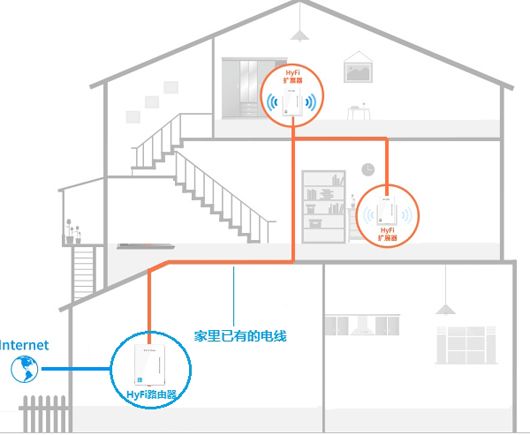
HyFi Set Transmits Signals via Electrical Wiring
The HyFi wireless solution is convenient and quick, allowing for signal transmission via electrical wiring without the need for cabling, with fast transmission speeds and good stability. Furthermore, wireless configuration is simple; once the router is configured, the extender’s signal will automatically change accordingly. Therefore, this solution has excellent scalability, allowing multiple extenders to be configured as needed, with an aesthetically pleasing and simple appearance.
Huawei’s solution is also referred to as a mother-and-child router, which is more down-to-earth compared to the HyFi name; essentially, it is a combination of a router and a powerline adapter that can transmit signals through existing electrical wiring.
Compared to the previous methods, this solution has a relatively higher cost, as it requires replacing the existing router.
Applicable Environment: Suitable for any home environment.
Solution 5: Use AP/AC to Extend Wireless Signals
If you prefer a tidy environment and do not want to see cables on the sockets, nor want to see the router’s antennas sticking out, while ensuring good coverage in all rooms, then use the AC plus wireless AP networking method to achieve your wishes.
AP: Access Point, which is essentially a WiFi signal transceiver, equivalent to a wireless router without routing and management functions.
AC: Access Controller is used to centrally manage multiple wireless APs, responsible for issuing configurations, modifying relevant parameters, managing radio frequencies intelligently, and controlling access securely.
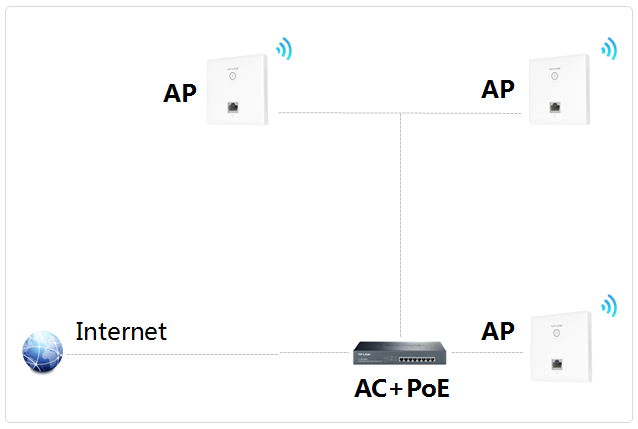
AC/AP Management Network
The solution requires all APs (Access Points) and ACs (Access Controllers) to be connected via wired connections, with AC centrally configuring all wireless APs, resulting in a unified signal across the entire wireless network, enabling wireless roaming.
The selected APs can be embedded into wall-mounted network panels, powered via network cables from AC, eliminating the need for external power sources, making them aesthetically pleasing and space-saving. The price for all this is higher.
Applicable Environment: Large homes, high coverage requirements, and a desire for a tidy, invisible network setup.
Now that we’ve introduced several common solutions, let’s compare them:
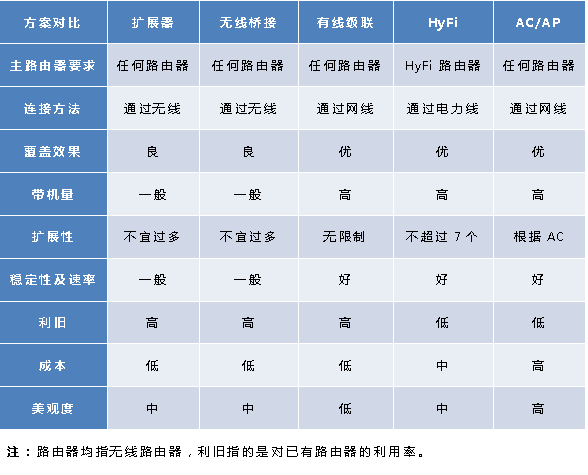
Comparison of Various Networking Solutions
Alright, after all this talk, we’ve covered the “principles” and “techniques” of WiFi wall penetration. I hope everyone can enjoy a strong signal in any corner.

The Struggles of a Tech Guy
Source: Wireless Deep Sea
Editor: Chongguang
Recent Popular Articles Top 10
↓ Click the title to view ↓
1. Japanese Math Genius’s Illusion Magic, Millions Have Watched
2. In this accident, Android phones were unscathed, while Apple devices nearly perished
3. Physics majors can kill any conversation anywhere
4. Did a fake test on Weibo stress the entire internet population?
5. The principle of subway advertisements you don’t know yet, surprisingly related to a two-hundred-year-old invention
6. “I’m not interested in ordinary humans; if you can find the exact formula for super arrangements, just come find me! That’s all.”
7. What time do you have to sleep to be considered staying up late?
8. Understand quantum mechanics with one picture (Part 2)
9. Math and physics too hard? These animations will help you understand abstract concepts in a second
10. Since cancer cells can proliferate indefinitely, can’t we use them as food? | No.129
Click here to view all past popular articles