Siemens All-in-One + TIA Portal + EPLAN Electrical Drawing Video Recordings for Sale at Low Prices!
Chuang Control Education Siemens All-in-One Course Introduction
After we have finished writing the PLC and touch screen programs, if we do not have the physical touch screen for demonstration, we can use the online simulation feature to achieve this. Today, I will share how to use the touch screen’s online simulation feature.
There are two simulation methods for touch screens:
1. Offline simulation, simulating the operation of the project file on a PC without connecting to any device.
2. Online simulation, simulating the operation of the project file on a PC while the PLC is directly connected to the PC.
In other words, offline simulation does not require communication with the PLC and can only simulate the touch screen’s own functions, such as button background display, text effects, page switching, etc. It can only check some basic settings of the touch screen program. If you want to debug and control the PLC program, you must choose online mode. So what do we need to prepare and what are the specific settings? Below, we will demonstrate using the Mitsubishi FX3G PLC and Weintek touch screen.
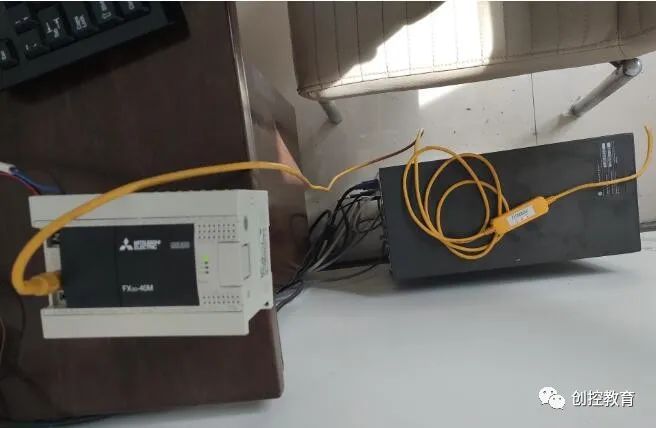
Connecting PLC to PC
First, we need a PLC that corresponds to the program, a programming cable (422 interface; USB won’t work), and programming software (EBpro). The programming cable connects the PLC to the computer. The touch screen settings mainly involve the system parameters. Originally, if the touch screen communicates with the PLC, we would select COM2 (for the MT6103ip model) as the communication port. Now, since we are communicating with the computer, we must select the communication port COM3 for the PLC driver, which is the port we usually choose when downloading PLC programs. If you are unsure about the port information, you can check in the device manager on your computer, as shown below:
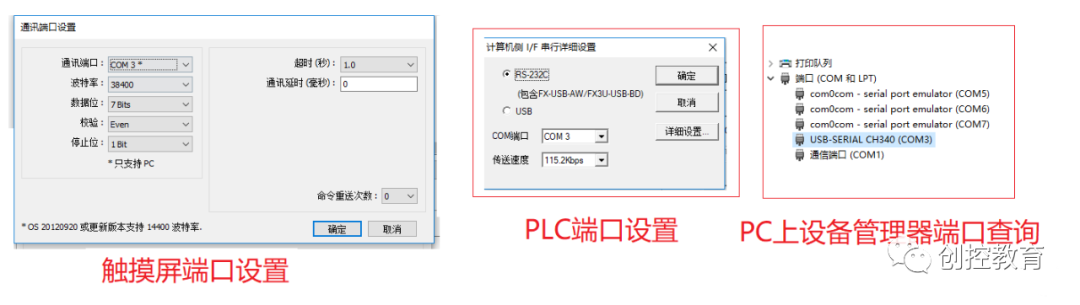
Port Settings
At this point, in the touch screen system parameter’s port settings, we see that COM3 with an asterisk indicates that it only supports PC communication. After setting it up, click OK, then select online simulation from the project file in the menu bar. If there are incorrect parameter settings, the following interface will prompt: Device not responding, unable to communicate. If the parameter settings are correct, you can simulate the actual operation of the touch screen.
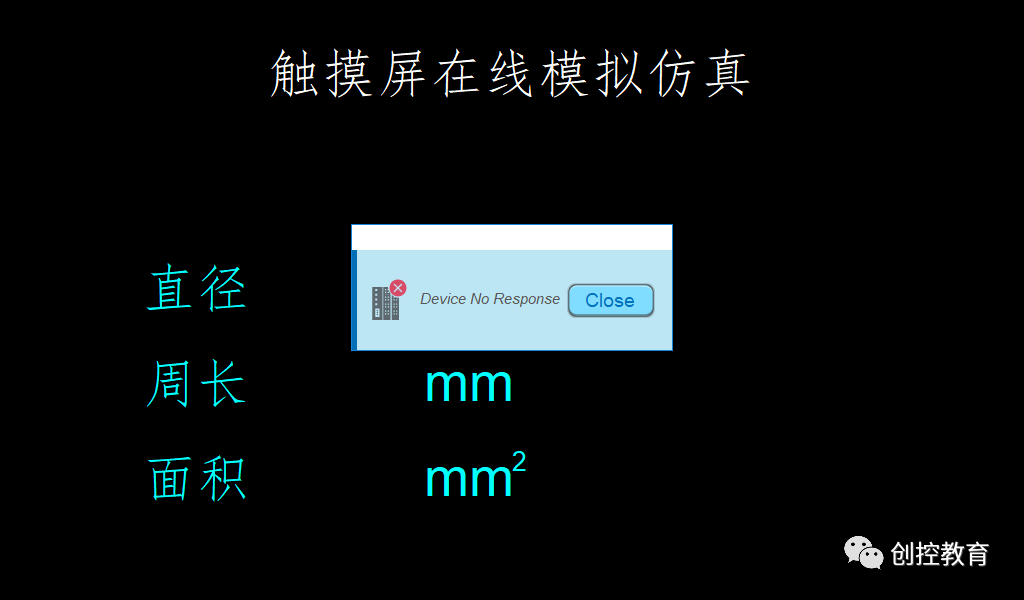
PLC No Response Prompt
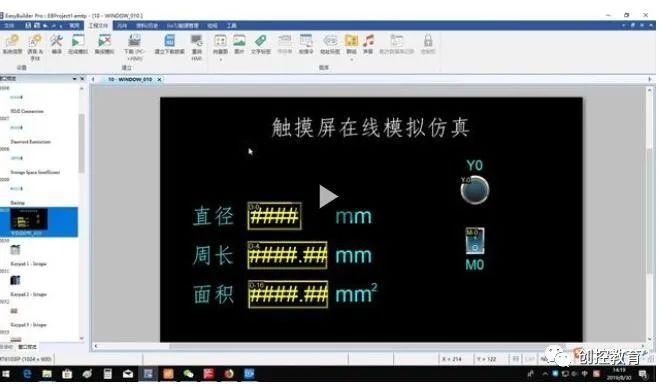
We will write a simple button switch and a PLC program to calculate the circumference and area for a video demonstration. You will see a window on the desktop that is the same size as the actual touch screen, and you can use the mouse to click and achieve the same functions as the touch screen.
(Content sourced from the internet; copyright belongs to the original author)
Disclaimer: If there are copyright issues, please contact for deletion! No person or organization bears related legal responsibilities.
Siemens All-in-One + TIA Portal + EPLAN Electrical Drawing Video Recordings for Sale at Low Prices!
Chuang Control Education Siemens All-in-One Course Introduction
Schneider PLC training videos available for free limited-time learning (not only can you learn for free, but there are also gifts, and those who pass the exam will receive a completion certificate).