Recently, I have been developing with Bluetooth modules and summarizing some experiences to share, making it easier for everyone to get started quickly.Development scenario description: wireless data communication, replacing wired serial ports, viewing on mobile phones, without complex applications like audio or pairing.Why use Bluetooth?Common wireless communication methods include Bluetooth, WIFI, and 4G/5G. Under Bluetooth data communication, it is short-range, and various mobile phones and laptops support it. It is convenient for mobile phones when the data communication volume is not large.Scene requirements: convenience for mobile phones; data requirements: tens of KB per second; range of several meters to dozens of meters; low cost, just a few dollars; low power consumption, as current Bluetooth modules are designed with low power consumption in mind.Several Bluetooth module application development solutions.1. Extremely simple communication module, lowest cost, easiest to use.Power on, configure to start IO, connect via serial port, and enter transparent communication, using the module as a transceiver. The upper computer is configured, and the communication service can be established.By using a specific header, read module information and control module operations.2. Control communication modules in AT command format.Implement complex functions such as networking, pairing, Beacon, and reconnection. 3. Bluetooth chip development.Bluetooth devices contain M0 and M4 cores, allowing device functions to be integrated within the Bluetooth device. Bluetooth communication acts as a peripheral to the MCU, and manufacturers will integrate drivers and protocol stacks on a single board.Bluetooth custom service development is possible.Advantages: beneficial for product design, one MCU can handle everything, lower cost, and higher integration.However, it requires familiarity with the manufacturer’s products, making development more difficult and time-consuming.Everyone completes the corresponding solutions based on their needs.I followed the first route in my scenario. Here are a few key development points.The most basic Bluetooth communication is done through standard services and custom services of the module.Initially, I thought that enabling the serial port after Bluetooth pairing would allow communication.However, this is not the case. It is recommended to establish a data connection without pairing, using the upper computer to connect and enable the corresponding communication service.The Bluetooth serial port service is a specific service and is not consistent with the simple module service.During the Bluetooth development process, the upper computer used on mobile phones is quite troublesome. Domestic and foreign Android drivers have advertisements that cannot be closed, and you often have to close them multiple times before it works. The mini-programs I found are also discontinued and hard to use.While I understand free ads, there should be a basic limit.I initially planned to create an upper computer, which accelerated the process. Here, I share a simple Bluetooth upper computer created by the author, with the most basic scanning, connecting, and sending/receiving communication functionalities.A simple Bluetooth communication testing mini-programApplicable scenario: simple and quick display on mobile phones.Debugging test information can be sent via Bluetooth to the mini-program for convenient on-site testing applications.Functional features:
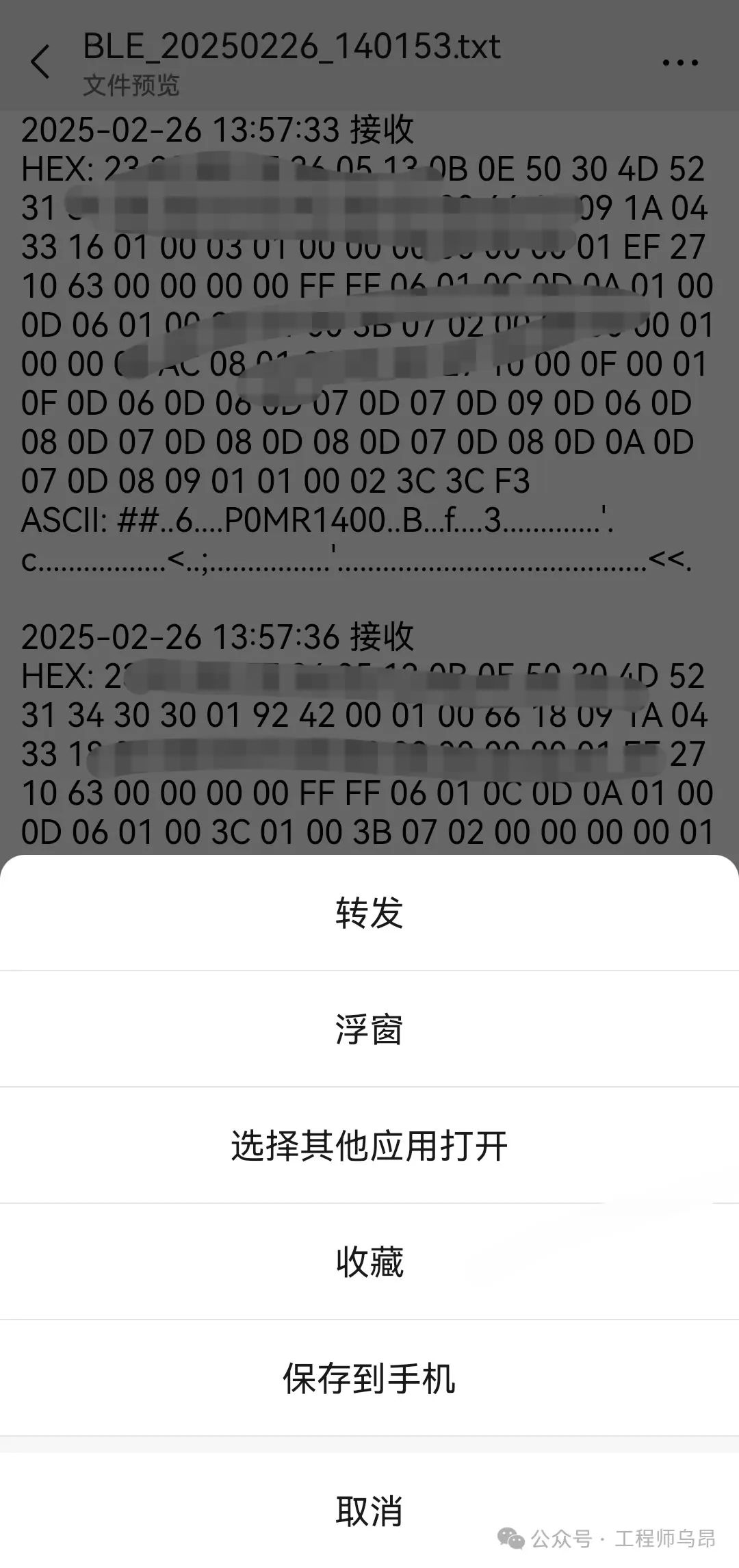
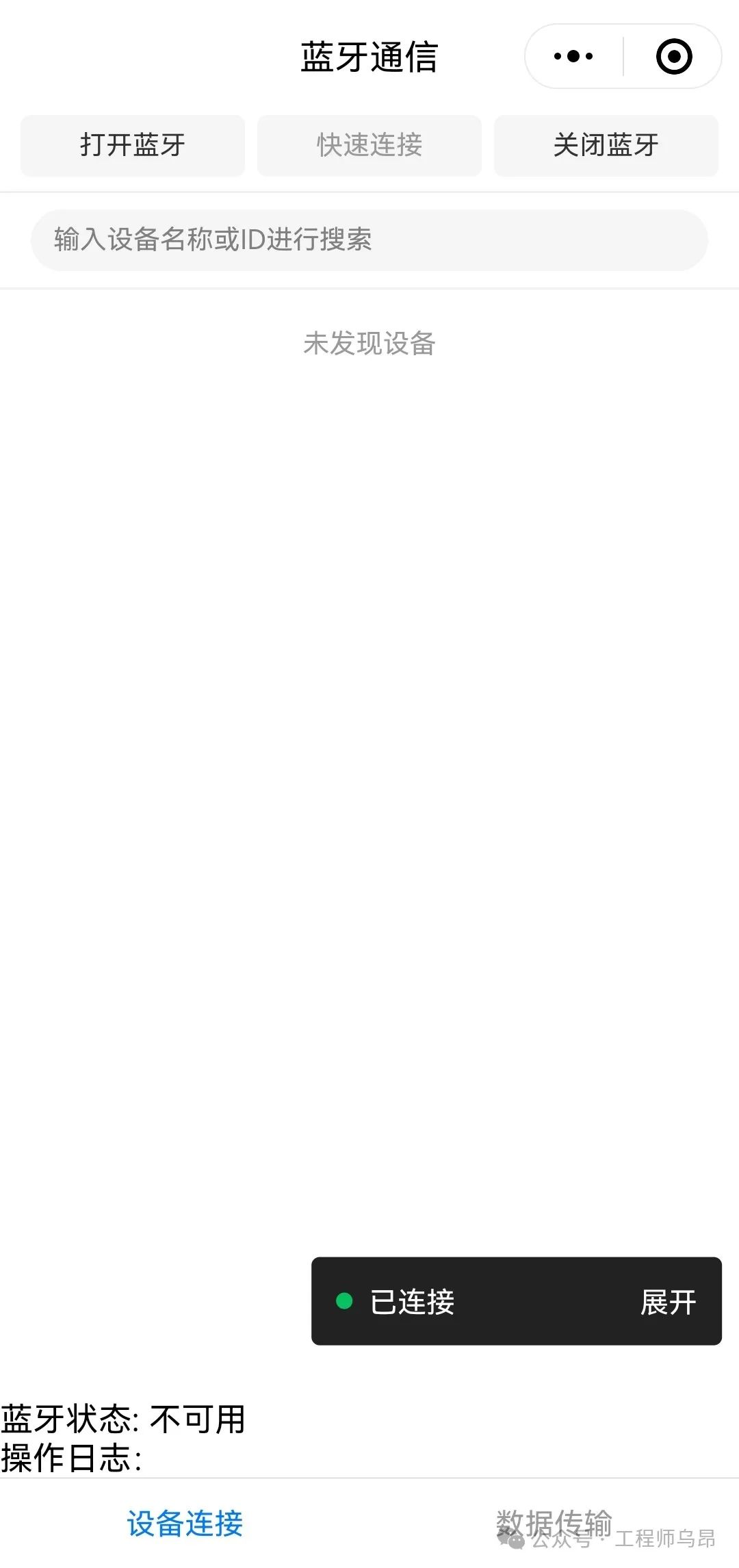
- Open and scan Bluetooth modules, filtering by device name.
- Quick connection, saving the last successful connection communication configuration, including modules and services.
- Data transmission, displaying received/sent data in hex/ascii format.
- Saving received/sent data as txt, with one-click sharing on WeChat.
Usage instructions, as shown in the figure below, are divided into three pages: device transmission, data transmission, and instructions.
 |
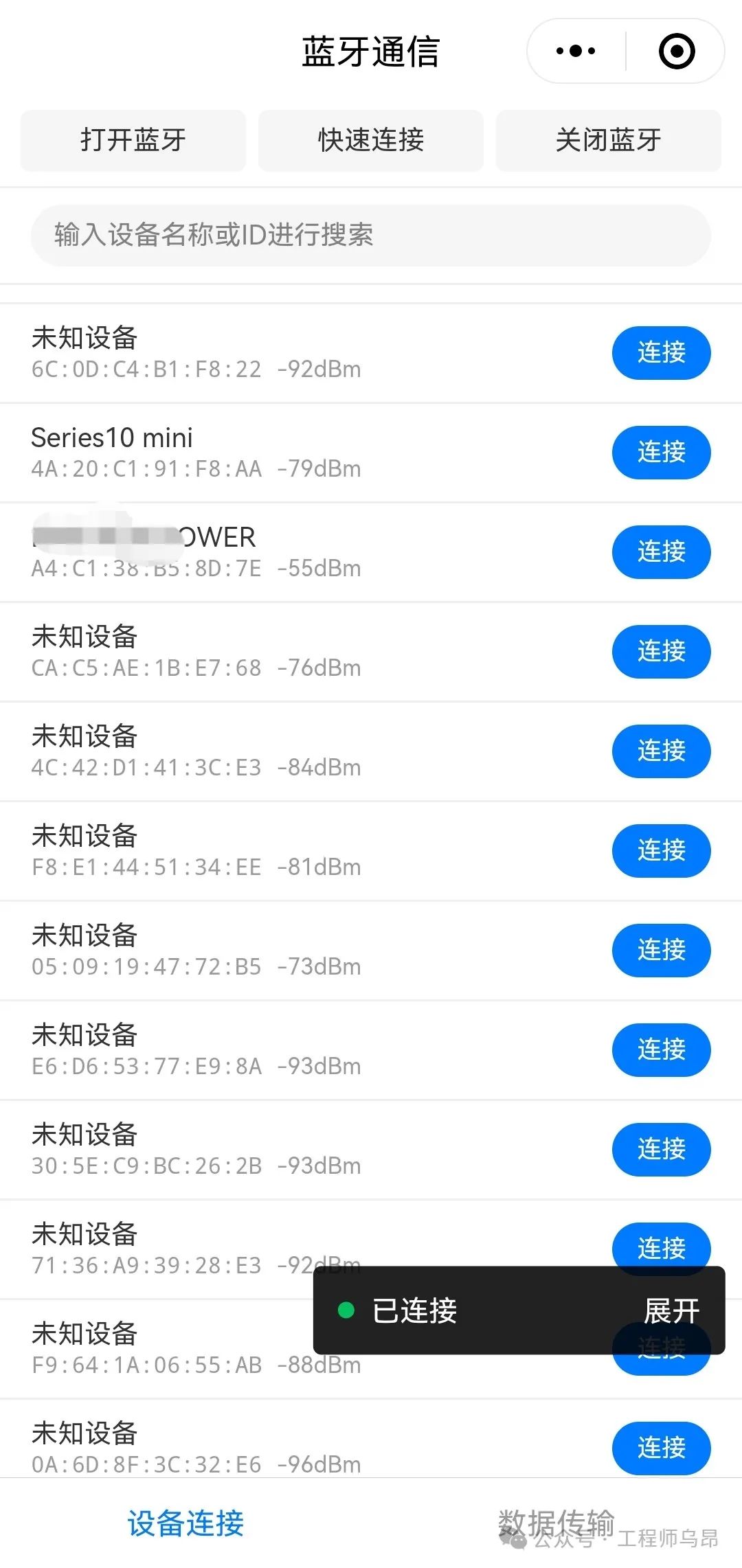 |
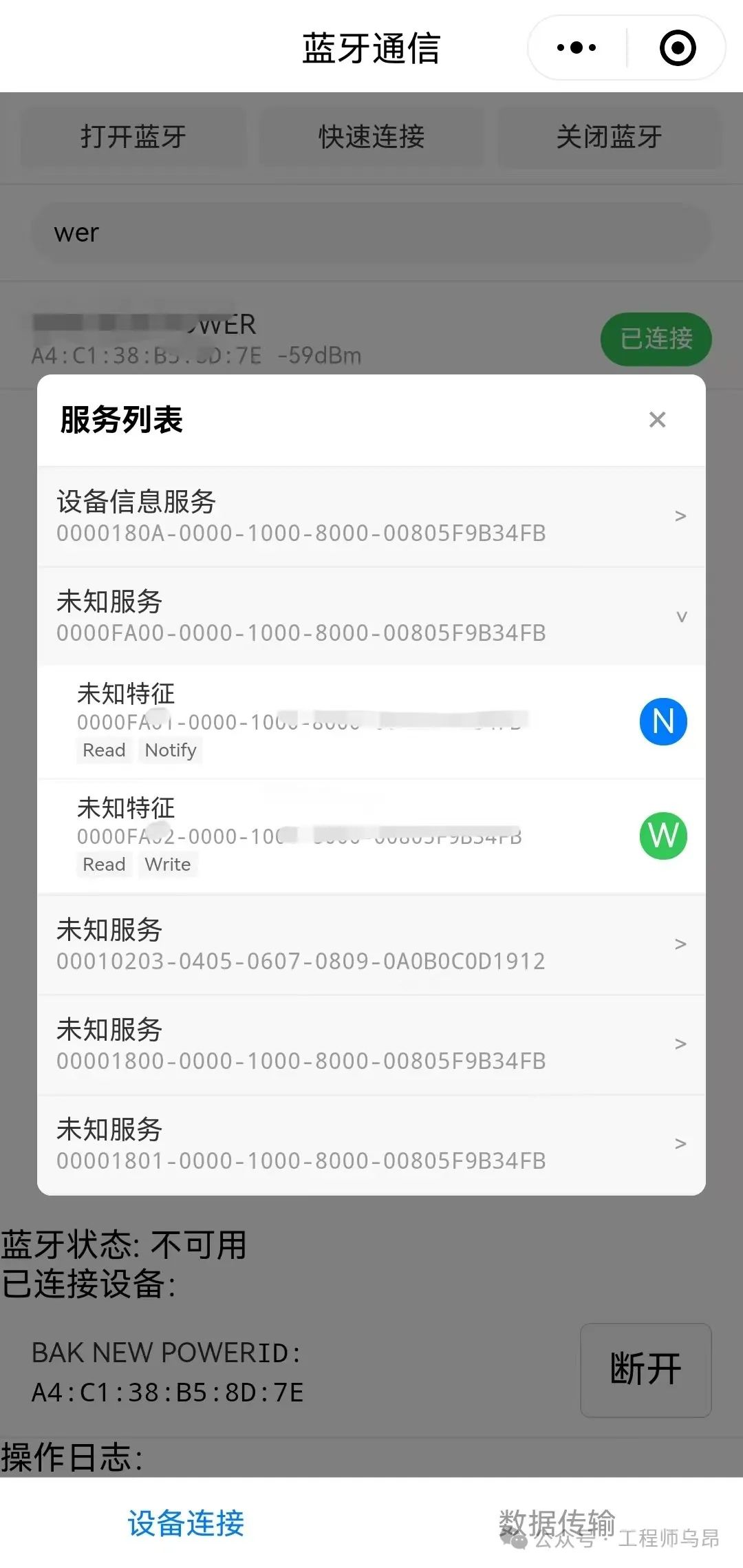
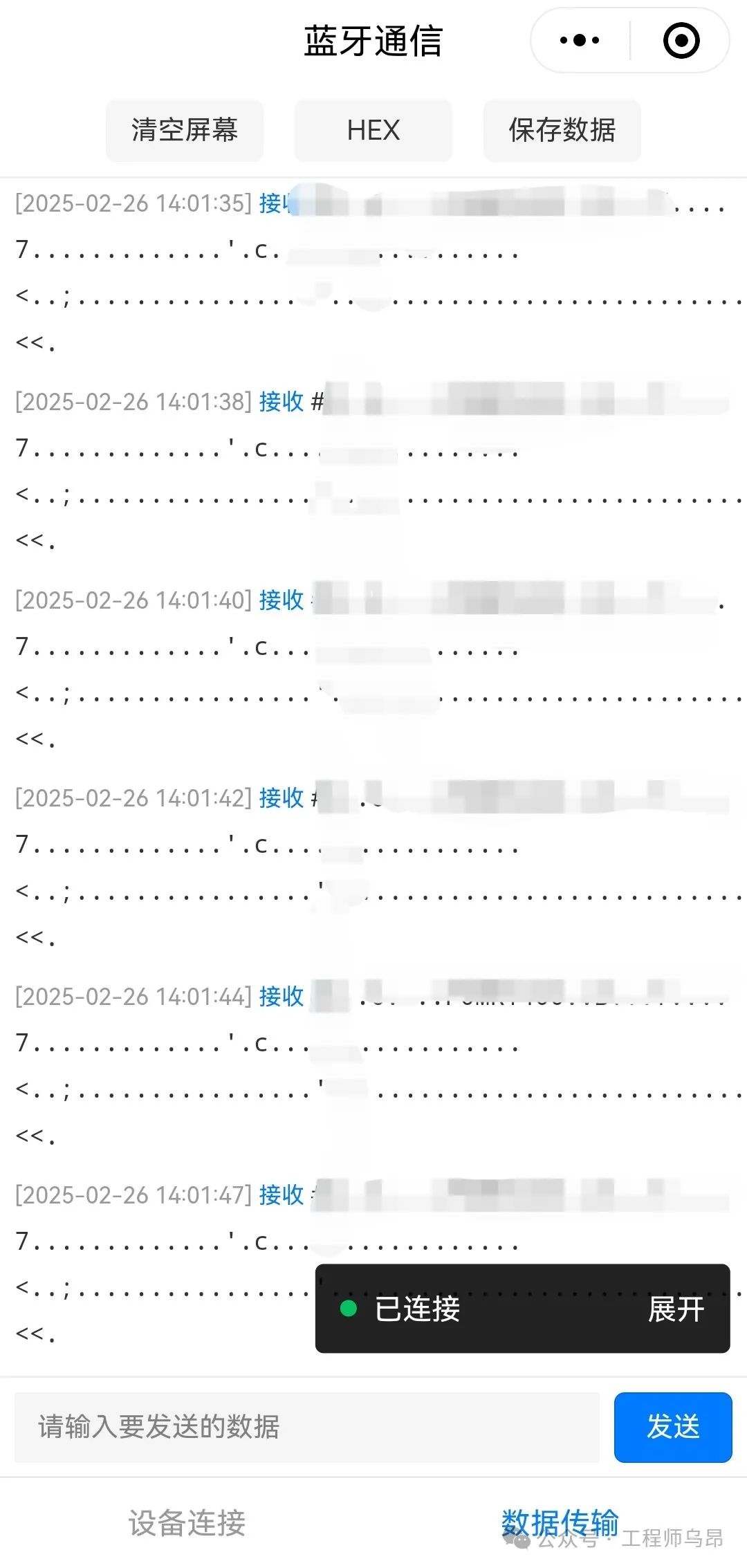
Filter to select and connect modules, configure communication services.The filter box input ‘wer’ will filter to the device name WER, matching at the beginning or in the middle.Configure communication services,Read Notify is generally for receiving data services.Read Write is generally for writing services.Click the N W icon to enable the service.Switch to the data transmission page; if there is data received, HEX display will be shown at the top, and data can be saved.When connected, the send button is blue; when not connected, it is gray.
 |
 |
Data saving and sharing.Data can be saved to the phone or shared with WeChat contacts or shared folders.