Click the image to learn more
01
Introduction to RTT Viewer
SEGGER’s Real-Time Transfer (RTT) is a new technology for user I/O interaction in embedded applications. The J-Link RTT Viewer is a Windows GUI application that utilizes the RTT functionality on the debugging host, combining the advantages of SWO and semihosting, offering high performance. Using RTT, information can be output from the target microcontroller and input can be sent to the application at very high speeds without affecting the real-time nature of the target.
When there is no excess serial printf output required, and only a small amount of debug status information needs to be output, SEGGER-RTT can be used for development and debugging.
1.1
Features
-
Bidirectional communication with the target application
-
Very high transmission speed without affecting real-time behavior
-
Communication via the debug channel
-
No additional hardware or pins required on the target
-
Supports any J-Link
-
Supports Arm Cortex-M0/M0+/M1/M3/M4/M7/M23/M33
-
Provides functional and free complete implementation code
1.2
Main Functions of RTT Viewer
-
Terminal output on channel 0
-
Send text input to channel 0
-
Up to 16 virtual terminals with only one target channel
-
Control text output: colored text, clear console
-
Log data on channel 1
…
RTT supports multiple channels in both directions, up to the host and down to the target board, which can be used for different targets and provides users with as much freedom of choice as possible. The default implementation uses one channel for each direction, meaning multiple printable terminal inputs and outputs. With the J-Link RTT Viewer, this channel can be used for multiple ‘virtual’ terminals, allowing printing to multiple windows with just one target buffer (for example, one for standard output, one for error output, and one for debug output). For example, another up (to host) channel can be used to send analysis or event tracking data.
02
Data Preparation
2.1
Download and Install
Download link:
https://www.segger.com/downloads/jlink/#JLinkSoftwareAndDocumentationPack
The complete package includes the installation of J-Flash related software, and further details on downloading and installation will not be elaborated here.
2.2
Get the RTT Viewer Source Code
After installing the J-Link complete package, the source code for RTT_Viewer is stored in the folder C:\Program Files (x86)\SEGGER\JLink\Samples\RTT on your computer. Unzip the SEGGER_RTT_Vxxxx.zip file from this folder into your project folder.
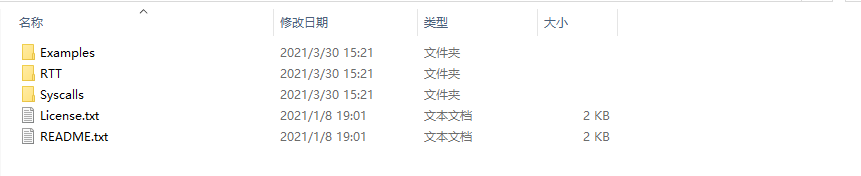
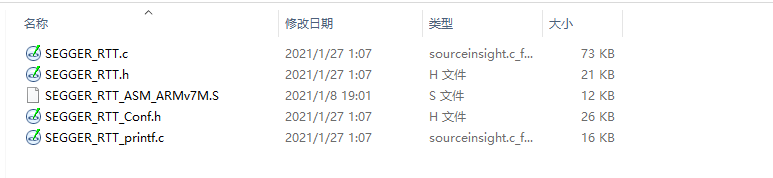
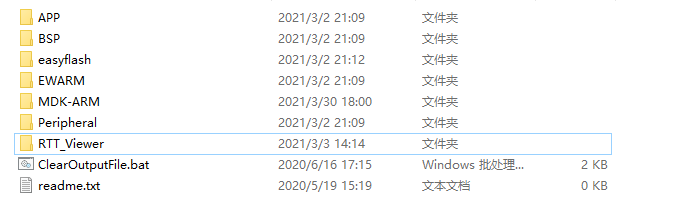
Now you can see the unzipping is complete. Open the RTT folder to find three folders; the source code for RTT Viewer is stored in the RTT folder, which you should copy to your project path.
03
Project Configuration
3.1
Adding RTT Viewer to the Keil Project
Add the files SEGGER_RTT.c and SEGGER_RTT_printf.c from the folder to your project files, and include the header files SEGGER_RTT.h and SEGGER_RTT_printf.h with the relevant paths.
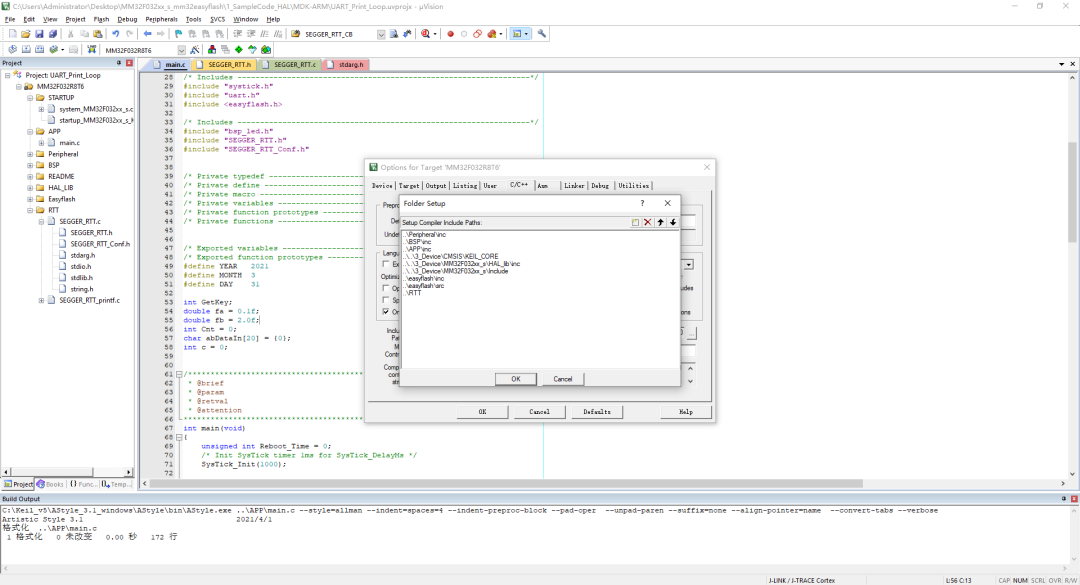
Include the relevant RTT Viewer header files in the main.c file.
#include "SEGGER_RTT.h"
#include "SEGGER_RTT_Conf.h"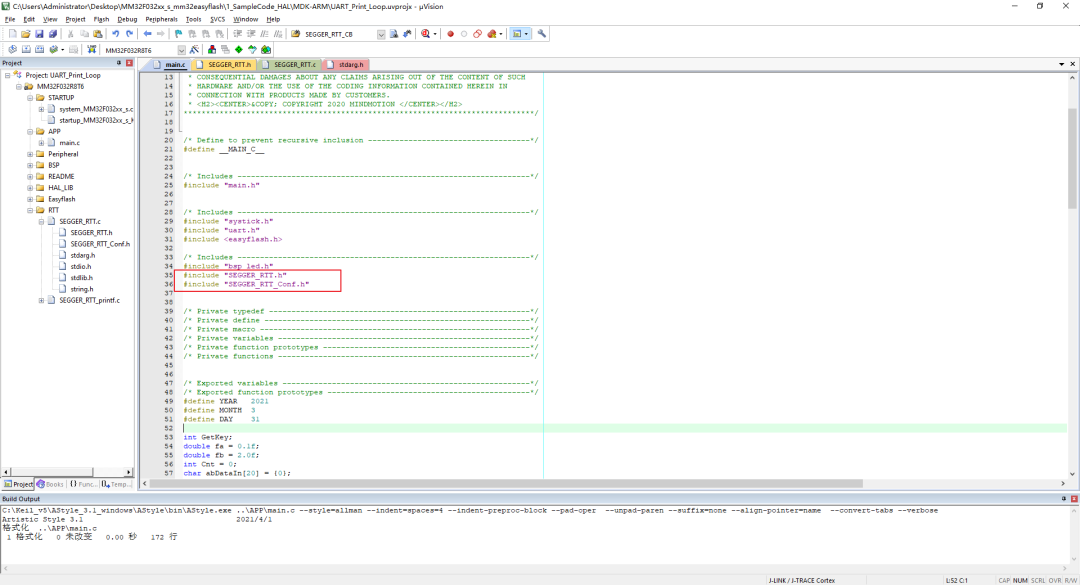
Then, in the main function, add the SEGGER_RTT_ConfigUpBuffer function to initialize the RTT Viewer.
SEGGER_RTT_ConfigUpBuffer(0, NULL, NULL, 0, SEGGER_RTT_MODE_NO_BLOCK_SKIP);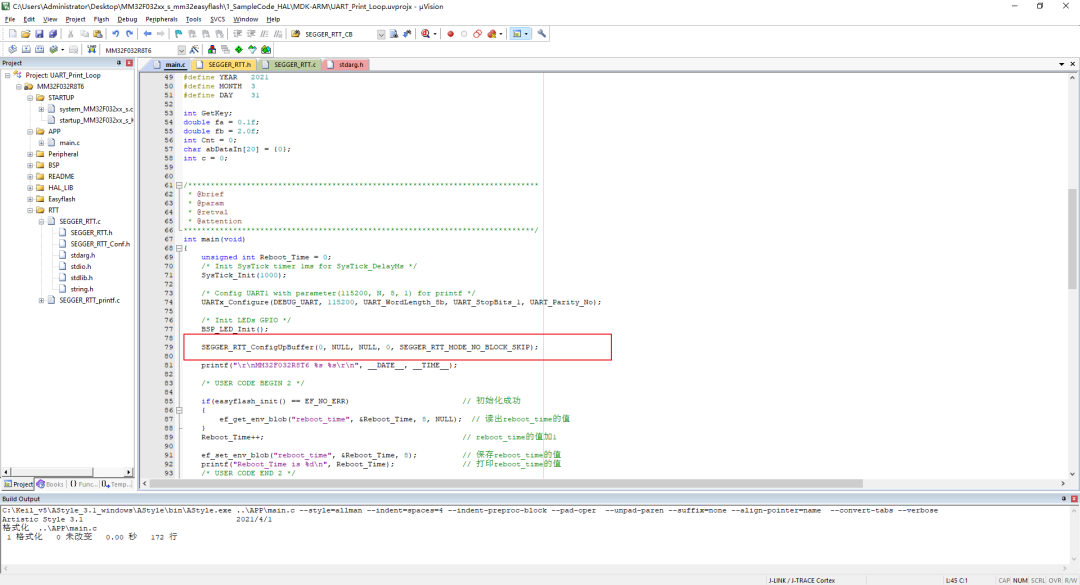
At this point, the RTT Viewer has been added to the project and the relevant initialization is complete.
3.2
RTT Viewer Log Printing
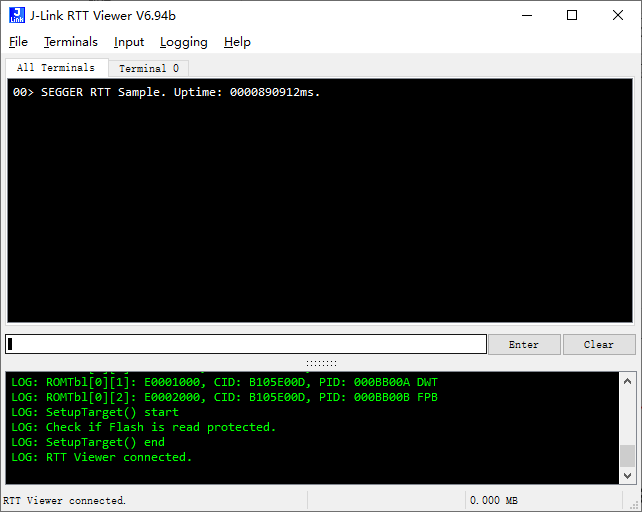
Call the LOG printing function SEGGER_RTT_printf to print the power-up LOG:
SEGGER_RTT_printf(0, "SEGGER RTT Sample. Uptime: %.10dms.", /*OS_Time*/ 890912);
// Formatted output on channel 0: SEGGER RTT Sample. Uptime: 890912ms.
Connect to the host computer and check if the log printing is successful on the host side.
3.3
Sending Commands to the MCU from the Console
RTT_Viewer can also be used as a console to send commands to the MCU. The specific function to call is SEGGER_RTT_WaitKey(); below is a test where the RTT_Viewer host sends data to the MCU. The test code is as follows; just add the code below after the initialization in the main function.
 do
{
    c = SEGGER_RTT_WaitKey();// Get the data sent from the RTT_Viewer host
}
while (c != 'c');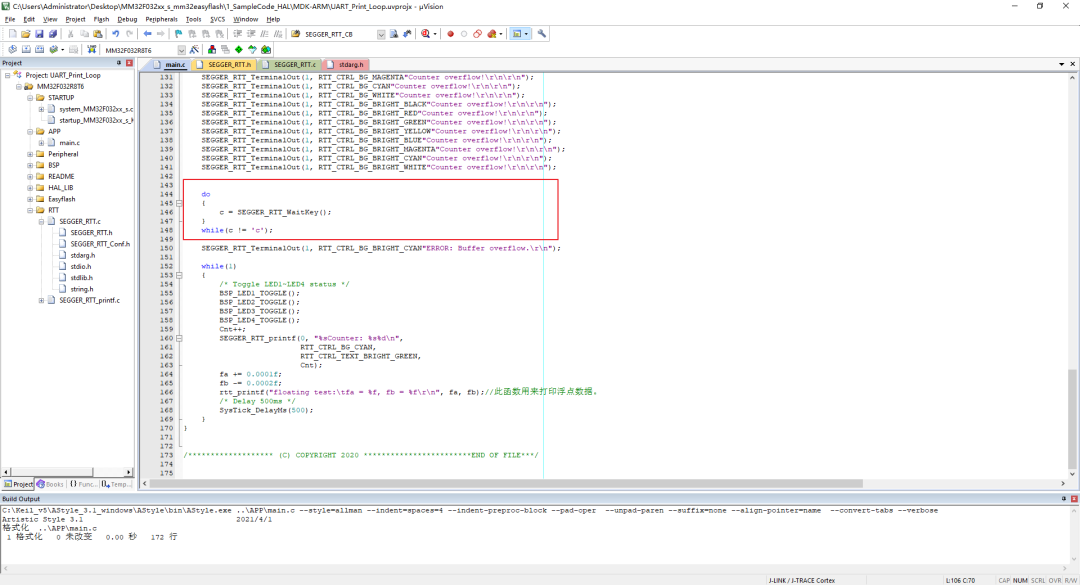
3.4
MCU Controls Host to Print Colored Logs
The MCU can control RTT_Viewer to print colored logs using the SEGGER_RTT_TerminalOut function; below is the specific implementation method.
SEGGER_RTT_WriteString(0, "Hello World from your target.\r\n");
SEGGER_RTT_TerminalOut(1, RTT_CTRL_BG_BLACK"Counter overflow!\r\n\r\n");
SEGGER_RTT_TerminalOut(1, RTT_CTRL_TEXT_RED"Counter overflow!\r\n\r\n");
SEGGER_RTT_TerminalOut(1, RTT_CTRL_TEXT_GREEN"Counter overflow!\r\n\r\n");
SEGGER_RTT_TerminalOut(1, RTT_CTRL_TEXT_YELLOW"Counter overflow!\r\n\r\n");
SEGGER_RTT_TerminalOut(1, RTT_CTRL_TEXT_BLUE"Counter overflow!\r\n\r\n");
SEGGER_RTT_TerminalOut(1, RTT_CTRL_TEXT_MAGENTA"Counter overflow!\r\n\r\n");
SEGGER_RTT_TerminalOut(1, RTT_CTRL_TEXT_CYAN"Counter overflow!\r\n\r\n");
SEGGER_RTT_TerminalOut(1, RTT_CTRL_TEXT_WHITE"Counter overflow!\r\n\r\n");
SEGGER_RTT_TerminalOut(1, RTT_CTRL_TEXT_BRIGHT_RED"Counter overflow!\r\n\r\n");
SEGGER_RTT_TerminalOut(1, RTT_CTRL_TEXT_BRIGHT_GREEN"Counter overflow!\r\n\r\n");
SEGGER_RTT_TerminalOut(1, RTT_CTRL_TEXT_BRIGHT_YELLOW"Counter overflow!\r\n\r\n");
SEGGER_RTT_TerminalOut(1, RTT_CTRL_TEXT_BRIGHT_BLUE"Counter overflow!\r\n\r\n");
SEGGER_RTT_TerminalOut(1, RTT_CTRL_TEXT_BRIGHT_MAGENTA"Counter overflow!\r\n\r\n");
SEGGER_RTT_TerminalOut(1, RTT_CTRL_TEXT_BRIGHT_CYAN"Counter overflow!\r\n\r\n");
SEGGER_RTT_TerminalOut(1, RTT_CTRL_TEXT_BRIGHT_WHITE"Counter overflow!\r\n\r\n");
SEGGER_RTT_TerminalOut(1, RTT_CTRL_TEXT_BLUE"Counter overflow!\r\n\r\n");
SEGGER_RTT_TerminalOut(1, RTT_CTRL_BG_BLACK"Counter overflow!\r\n\r\n");
SEGGER_RTT_TerminalOut(1, RTT_CTRL_BG_RED"Counter overflow!\r\n\r\n");
SEGGER_RTT_TerminalOut(1, RTT_CTRL_BG_GREEN"Counter overflow!\r\n\r\n");
SEGGER_RTT_TerminalOut(1, RTT_CTRL_BG_YELLOW"Counter overflow!\r\n\r\n");
SEGGER_RTT_TerminalOut(1, RTT_CTRL_BG_BLUE"Counter overflow!\r\n\r\n");
SEGGER_RTT_TerminalOut(1, RTT_CTRL_BG_MAGENTA"Counter overflow!\r\n\r\n");
SEGGER_RTT_TerminalOut(1, RTT_CTRL_BG_CYAN"Counter overflow!\r\n\r\n");
SEGGER_RTT_TerminalOut(1, RTT_CTRL_BG_WHITE"Counter overflow!\r\n\r\n");
SEGGER_RTT_TerminalOut(1, RTT_CTRL_BG_BRIGHT_BLACK"Counter overflow!\r\n\r\n");
SEGGER_RTT_TerminalOut(1, RTT_CTRL_BG_BRIGHT_RED"Counter overflow!\r\n\r\n");
SEGGER_RTT_TerminalOut(1, RTT_CTRL_BG_BRIGHT_GREEN"Counter overflow!\r\n\r\n");
SEGGER_RTT_TerminalOut(1, RTT_CTRL_BG_BRIGHT_YELLOW"Counter overflow!\r\n\r\n");
SEGGER_RTT_TerminalOut(1, RTT_CTRL_BG_BRIGHT_BLUE"Counter overflow!\r\n\r\n");
SEGGER_RTT_TerminalOut(1, RTT_CTRL_BG_BRIGHT_MAGENTA"Counter overflow!\r\n\r\n");
SEGGER_RTT_TerminalOut(1, RTT_CTRL_BG_BRIGHT_CYAN"Counter overflow!\r\n\r\n");
SEGGER_RTT_TerminalOut(1, RTT_CTRL_BG_BRIGHT_WHITE"Counter overflow!\r\n\r\n");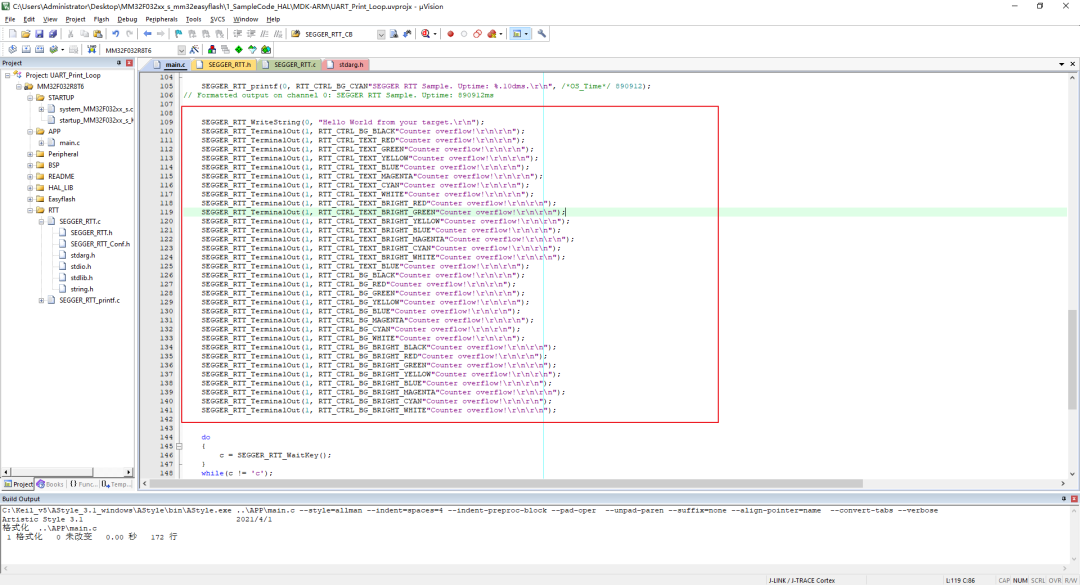
3.5
RTT Viewer Printing Floating Point Numbers
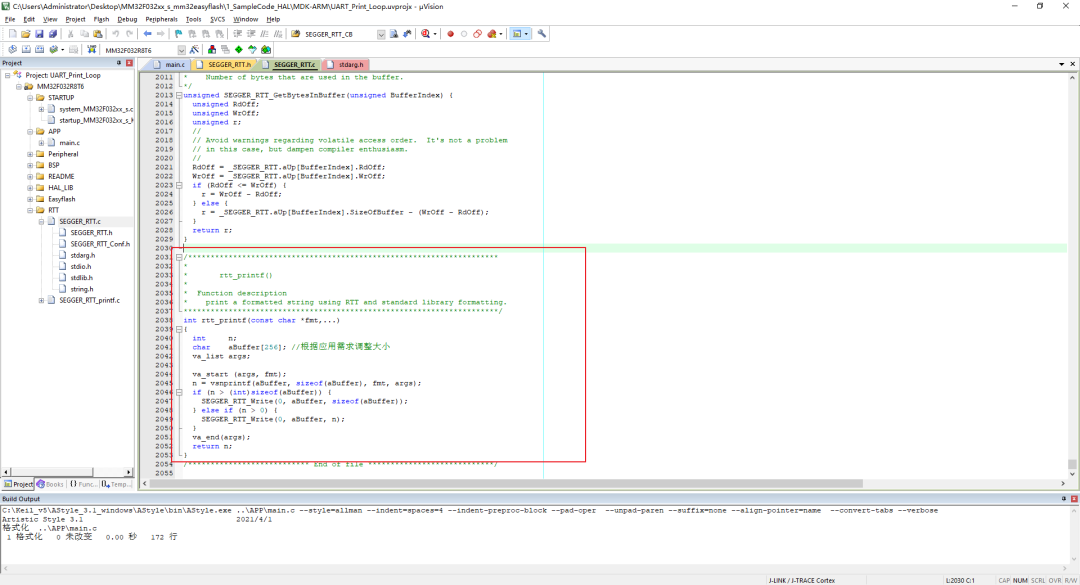
Add the following function in the SEGGER_RTT.c file:
/*********************************************************************
*
*       rtt_printf()
*
*  Function description
*    print a formatted string using RTT and standard library formatting.
**********************************************************************/
int rtt_printf(const char *fmt,...)
{
  int     n;
  char    aBuffer[256]; // Adjust size based on application needs
  va_list args;

  va_start (args, fmt);
  n = vsnprintf(aBuffer, sizeof(aBuffer), fmt, args);
  if (n > (int)sizeof(aBuffer)) {
    SEGGER_RTT_Write(0, aBuffer, sizeof(aBuffer));
  } else if (n > 0) {
    SEGGER_RTT_Write(0, aBuffer, n);
  }
  va_end(args);
  return n;
}
In the main function loop, add the following test code:
Cnt++;
        SEGGER_RTT_printf(0, "%sCounter: %s%d\n",
                          RTT_CTRL_BG_CYAN,
                          RTT_CTRL_TEXT_BRIGHT_GREEN,
                          Cnt);
            fa += 0.0001f;
            fb -= 0.0002f;
            rtt_printf("floating test:\tfa = %f, fb = %f\r\n", fa, fb);// This function is used to print floating point numbers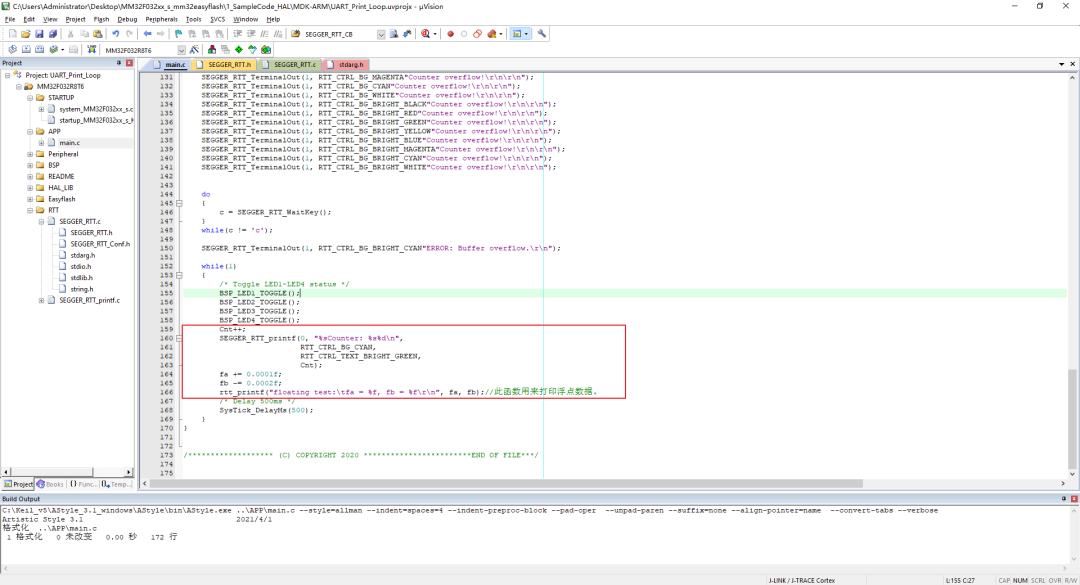
At this point, the relevant code is complete, then compile and download to check the relevant phenomena.
04
Function Verification
4.1
MCU Controls Host to Print Colored Logs
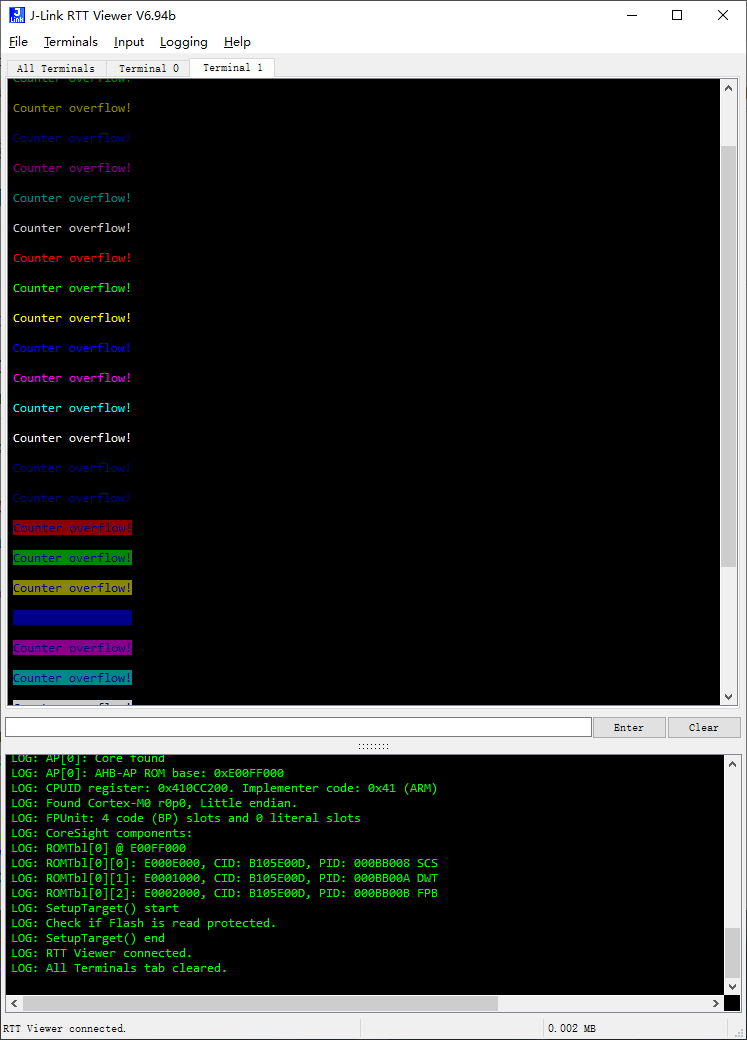
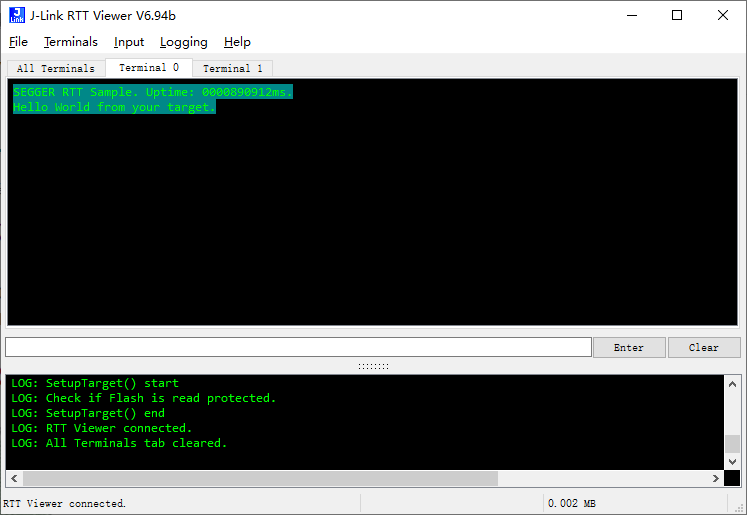
Connect with the RTT Viewer host computer and you can see the printed log data, showing different data printed on channel 0 and channel 1.
4.2
Sending Commands to the MCU from the Console
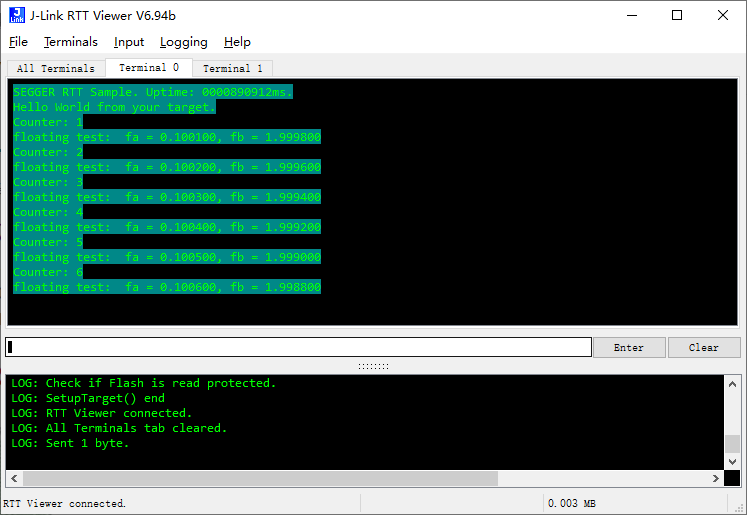
After entering the lowercase character ‘c’, you can see the console output LOG: Sent 1 byte, indicating that the data was sent successfully, and you can see that the counter data is incrementing, and the program is running correctly, with the floating-point data changing normally; thus, the verification code is correct.
Reference code link:
https://github.com/Samplecode-MM32/MM32MCU_Code
Previous Highlights
MM32F013x – Smart Use of Ozone to Debug MM32 MCUMM32F013x – Setting Up MM32 Development Environment Based on Embedded StudioMM32F013x – Development and Debugging of MM32 Based on Eclipse in Windows EnvironmentMM32F013x – Setting Up Eclipse Development Environment in WindowsMM32F013x – Porting EasyLogger ComponentMM32F013x – Porting EasyFlash ComponentMM32F013x – Hardware Watchdog and Option Byte OperationsMM32F013x – RTC Alarm Wake-UpMM32F013x – Perpetual CalendarMM32F013x – TIM1 Hardware Phase Shift FunctionMM32F013x – ADC Arbitrary Channel Operating ModeMM32F013x – I2C Slave Multi-Address ApplicationHighlights from Lingdong Micro Classroom
About Lingdong
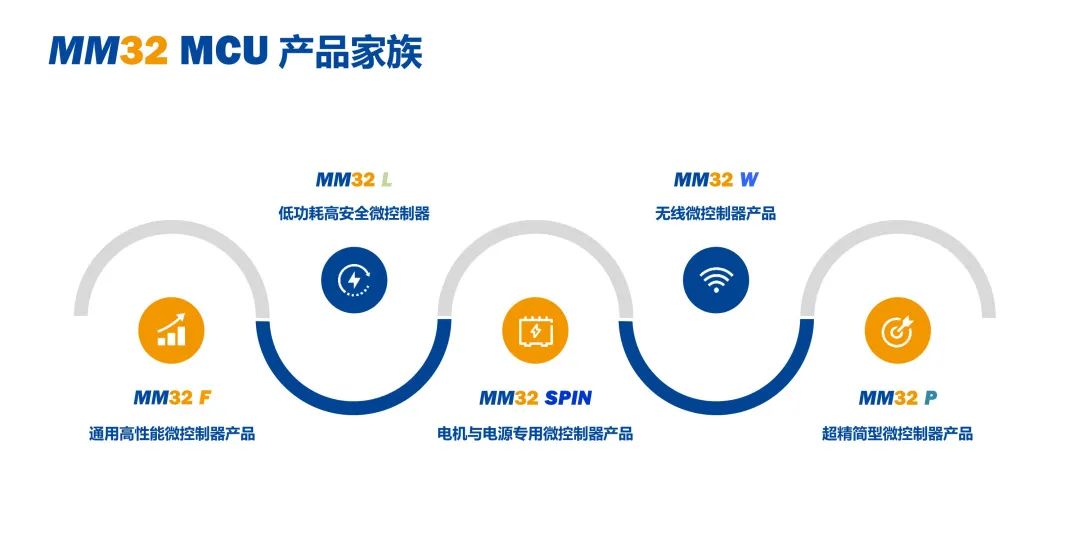
Lingdong was established in 2011 and is a leading domestic supplier of general-purpose 32-bit MCU products and solutions in China. The MM32 MCU products developed by the company based on the Arm Cortex-M series cores have five major series: F/L/SPIN/W/P, with over 200 models, and more than 200 million units delivered cumulatively, ranking among the top in domestic general-purpose 32-bit MCU companies. MM32 MCUs are widely used in smart industry, automotive electronics, communication infrastructure, medical health, smart home appliances, Internet of Things, personal devices, and mobile and computer fields, with tens of millions of excellent products equipped with Lingdong MM32 MCUs delivered to customers each year.
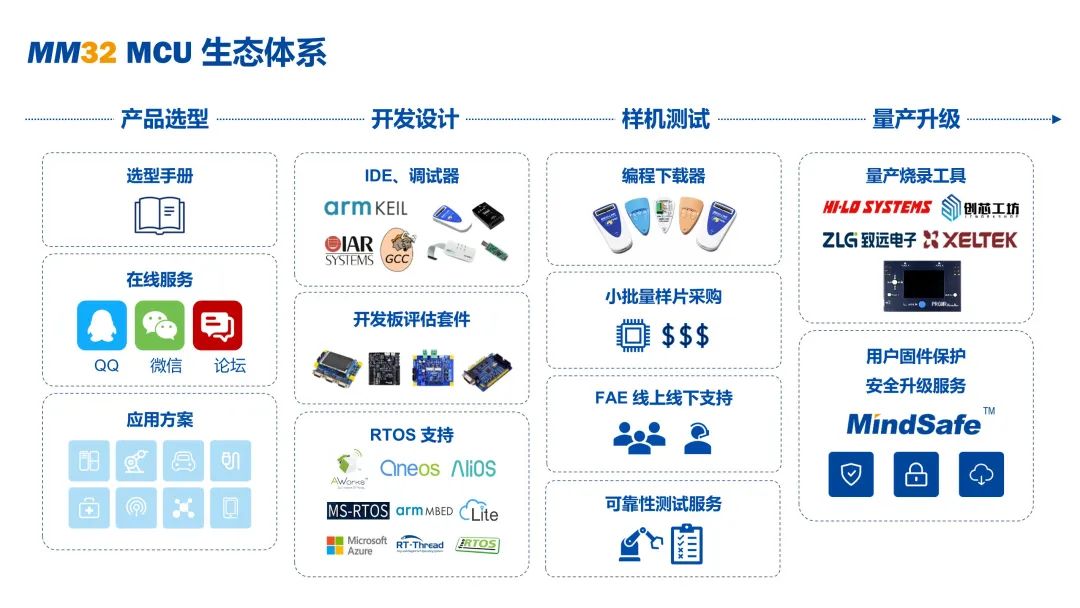
To date, Lingdong is the only domestic MCU company that has received official support from development tools such as Arm-Keil, IAR, and SEGGER, and is one of the few general MCU companies that have established an independent and complete ecosystem, dedicated to providing customers with comprehensive support from chip hardware to software algorithms, from reference solutions to system design, truly providing underlying technology drive and support for China’s electronic information industry.
Lingdong Microelectronics
WeChat ID: MindMotion-MMCU


Long press to identify the QR code to follow us

MORE
For more information, please visit: www.mm32mcu.com
WeChat public account search: Lingdong MM32MCU
QQ technical discussion group: 294016370
Taobao store: Shanghai Lingdong Microelectronics Co., Ltd.
Lingdong MM32MCU Technical Forum: bbs.21ic.com